
How to Automate Subtitle Generation with Python and Whisper AI
Manual captioning does not scale when your team is publishing webinars, clips, podcasts, courses, or social video every week. A repeatable Python pipeline can take a folder of media files, extract audio, transcribe speech with Whisper AI, and export subtitle files such as SRT or VTT without opening a video editor.
This guide shows a practical way to automate subtitle generation with open-source tools. It is written for content producers and developers who are comfortable running scripts, managing files, and improving a production workflow one bottleneck at a time.

Python scripts can orchestrate the entire subtitle generation process, from audio extraction to final file export.
The Problem with Manual Captioning and Transcription
Manual subtitle generation usually breaks down in three places:
- Time: Listening, pausing, typing, correcting, and timestamping is slow.
- Consistency: Different editors format captions differently unless strict rules are enforced.
- Throughput: When production volume increases, captions become a queue rather than a feature.
Captions are also not a single deliverable. One video may need an SRT file for YouTube, a VTT file for a website player, burned-in captions for social clips, and a transcript for a blog post. If every format is created manually, the same speech is processed repeatedly.
A better model is to treat transcription as a production pipeline: ingest media, create a machine transcript, review only the parts that need human judgment, and export the formats each channel requires.
Manual captioning also makes quality harder to audit. If a team has no shared subtitle workflow, one editor may split captions every few words while another uses long multi-line blocks. One file may use proper speaker labels while another omits them. Automation lets you standardize formatting, naming, and review expectations before the files reach publishing.
Why Use Python for Subtitle Automation?
Python works well for AI subtitle generation Python workflows because it can coordinate the entire job rather than only running a transcription model. A Python script can:
- Watch or scan an input folder for new media.
- Extract audio with FFmpeg.
- Run Whisper transcription.
- Save SRT, VTT, TXT, or JSON outputs.
- Move finished files into channel-specific folders.
- Log failures for review.
- Trigger the next stage in your video workflow.
The biggest advantage is repeatability. Once the process is scripted, your team can use the same captioning rules across long-form episodes, short clips, internal training videos, and repurposed social assets.
Python is also flexible enough to sit between creative tools. It can receive exported videos from a desktop editor, process audio locally, write subtitle files into a shared folder, and hand completed assets to another script for rendering or distribution. That makes it useful for teams that want automation without rebuilding their entire production stack.
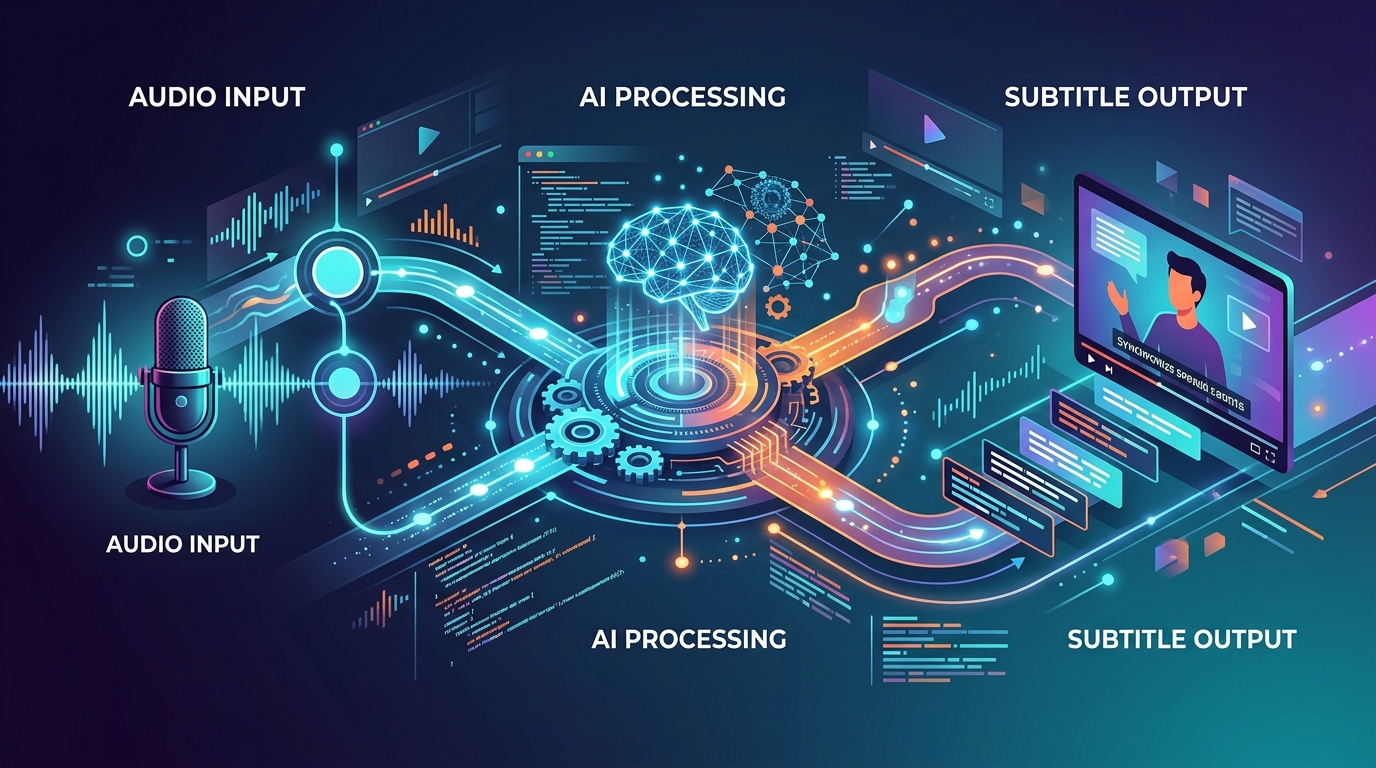
A well-designed speech-to-text automation pipeline streamlines the creation of subtitles for various media formats.
Setting Up Your Speech-to-Text Automation Pipeline
A basic speech to text automation pipeline has five stages:
- Input video or audio file.
- Audio extraction or normalization.
- Speech-to-text transcription.
- Subtitle formatting.
- Quality review and publishing.
For this tutorial, the core tools are Python, FFmpeg, and Whisper. The exact Whisper package you use may vary by environment, but the workflow pattern stays the same.
Before you automate a large library, test the workflow on a small set of files that represent your real production mix: clean studio audio, remote interviews, screen recordings, vertical clips, and any recurring formats your team publishes. That gives you a realistic baseline for review effort and output formatting.
Installing Open-Source Tools (Whisper AI, FFmpeg)
Install FFmpeg first. It handles media conversion and audio extraction. Verify installation from a terminal:
ffmpeg -version
Create a project folder:
mkdir subtitle-pipeline
cd subtitle-pipeline
python -m venv .venv
Activate your virtual environment, then install dependencies:
pip install openai-whisper
If your system requires additional machine learning dependencies, follow the installation instructions for the Whisper package and your operating system. Avoid hard-coding local paths into your scripts; use environment variables or project-relative folders so the pipeline can move between machines.
A simple folder structure works well:
subtitle-pipeline/
  input/
  audio/
  output/
  reviewed/
  transcribe.py
Keep source media in input/, temporary WAV files in audio/, generated subtitles in output/, and human-approved subtitle files in reviewed/. That separation prevents accidental publishing of unreviewed captions.
Writing the Python Script for Auto-Generating Captions
The script below scans an input folder, extracts audio, runs Whisper, and writes subtitle files.
from pathlib import Path
import subprocess
import whisper

BASE = Path(__file__).parent
INPUT_DIR = BASE / "input"
AUDIO_DIR = BASE / "audio"
OUTPUT_DIR = BASE / "output"

AUDIO_DIR.mkdir(exist_ok=True)
OUTPUT_DIR.mkdir(exist_ok=True)

model = whisper.load_model("base")

MEDIA_EXTENSIONS = {".mp4", ".mov", ".mkv", ".mp3", ".wav", ".m4a"}

def extract_audio(media_path: Path) -> Path:
    audio_path = AUDIO_DIR / f"{media_path.stem}.wav"
    command = [
        "ffmpeg",
        "-y",
        "-i", str(media_path),
        "-vn",
        "-acodec", "pcm_s16le",
        "-ar", "16000",
        "-ac", "1",
        str(audio_path),
    ]
    subprocess.run(command, check=True)
    return audio_path

def transcribe(audio_path: Path):
    return model.transcribe(str(audio_path), fp16=False)

def format_timestamp(seconds: float) -> str:
    milliseconds = int((seconds % 1) * 1000)
    seconds = int(seconds)
    hours = seconds // 3600
    minutes = (seconds % 3600) // 60
    secs = seconds % 60
    return f"{hours:02}:{minutes:02}:{secs:02},{milliseconds:03}"

def write_srt(result, output_path: Path):
    with output_path.open("w", encoding="utf-8") as f:
        for index, segment in enumerate(result["segments"], start=1):
            start = format_timestamp(segment["start"])
            end = format_timestamp(segment["end"])
            text = segment["text"].strip()
            f.write(f"{index}\n{start} --> {end}\n{text}\n\n")

def main():
    for media_path in INPUT_DIR.iterdir():
        if media_path.suffix.lower() not in MEDIA_EXTENSIONS:
            continue
        print(f"Processing {media_path.name}")
        audio_path = extract_audio(media_path)
        result = transcribe(audio_path)
        write_srt(result, OUTPUT_DIR / f"{media_path.stem}.srt")

if __name__ == "__main__":
    main()
This gives you a working automated closed captions Python baseline. From here, you can add VTT export, speaker labeling, review queues, naming conventions, or automatic uploads depending on your publishing stack.
For VTT output, the main difference is timestamp formatting. SRT uses commas before milliseconds; VTT uses periods and starts with a WEBVTT header. Keep these exporters separate so your pipeline can generate both formats from the same transcription result.
Best Open Source Auto Subtitle Generators Compared
When choosing an auto subtitle generator open source approach, compare tools by workflow fit rather than popularity alone.
| Option | Best fit | Tradeoff |
|---|---|---|
| Whisper-based Python pipeline | Custom batch processing and developer-controlled workflows | Requires setup and maintenance |
| FFmpeg subtitle tools | Burning captions into videos and converting subtitle formats | Does not provide transcription by itself |
| GUI wrappers around speech-to-text models | Editors who want local transcription without scripting | Less flexible for large pipelines |
| Cloud speech-to-text APIs | Teams needing hosted infrastructure | Pricing, privacy, and API limits vary by provider Cloud speech-to-text APIs |
For teams that publish frequently, the Python route is often attractive because it can connect transcription to file management, review, rendering, and distribution.
Evaluate tools against practical criteria:
- Can the output be reviewed and corrected easily?
- Can the tool export SRT and VTT?
- Can it process batches without manual clicks?
- Can your team run it locally if privacy is a concern?
- Can it integrate with naming conventions and render scripts?
The best tool is the one that creates clean intermediate files. If a subtitle generator produces captions but traps them inside a closed interface, it may slow down the rest of your production system.
Integrating Automated Closed Captions into Your Video Workflow
Once the SRT exists, captions should flow into the rest of production automatically. For example:
- Save editable captions for review.
- Export VTT for web embeds.
- Burn captions into short clips using FFmpeg.
- Generate text transcripts for search and accessibility review.
- Reuse the same transcript when transcribing podcast audio.
A simple FFmpeg command can burn subtitles into a video:
ffmpeg -i input/video.mp4 -vf subtitles=output/video.srt output/video-captioned.mp4
For production use, wrap this in Python and add safeguards: verify that subtitle files exist, write outputs to a separate render directory, and never overwrite source files unless the job is intentionally destructive.
You can also add a review checkpoint before captions are burned into final videos. Store generated captions in output/, corrected captions in reviewed/, and only allow rendering scripts to use files from reviewed/. That simple convention prevents draft transcripts from becoming final social clips.
Conclusion: Scaling Your Media Output
Subtitle automation is not just a convenience. It is a foundation for scaling media output across channels. Once every video can produce captions, transcripts, and downstream text assets automatically, your team spends less time repeating mechanical work and more time improving the message.
Start small: automate one folder, one language, and one subtitle format. Then add review, exports, burned captions, and integration with your broader scaling media output strategy.
The durable advantage is operational. A caption pipeline gives your media team a dependable text layer that supports editing, accessibility review, repurposing, search, and distribution across formats.
FAQ
How do I automate subtitle generation with Python?
Use Python to extract audio with FFmpeg, transcribe speech with Whisper AI, and write the returned segments into subtitle formats such as SRT or VTT.
Does Whisper AI work for automated closed captions?
Yes. Whisper can produce timestamped speech segments that can be formatted into closed captions, but human review is still recommended for names, jargon, and brand-sensitive language.
What is the best open source auto subtitle generator?
For technical teams, a Whisper-based Python pipeline is often the most flexible open-source option. The best choice depends on your need for batch processing, review workflows, and subtitle export formats.
Can I auto generate captions for video in batches?
Yes. Place videos in an input folder, loop over supported file types, extract audio, transcribe each file, and save one subtitle file per source video.
Should automated captions be reviewed before publishing?
Yes. Review is important for speaker names, technical terms, brand vocabulary, punctuation, and any content where accuracy affects trust.