
How to Automate Desktop Tasks with Python and PyAutoGUI
Python is one of the most practical ways to automate desktop tasks because it can handle files, APIs, data processing, command-line tools, and graphical interfaces from one language. When a desktop application has no API, PyAutoGUI gives IT teams a way to control the mouse, keyboard, screenshots, and on-screen elements with Python.
This PyAutoGUI tutorial shows how to automate GUI tasks with Python safely. The examples are intentionally direct, but the reliability practices are the important part: validation, timeouts, screenshots, and avoiding brittle assumptions.
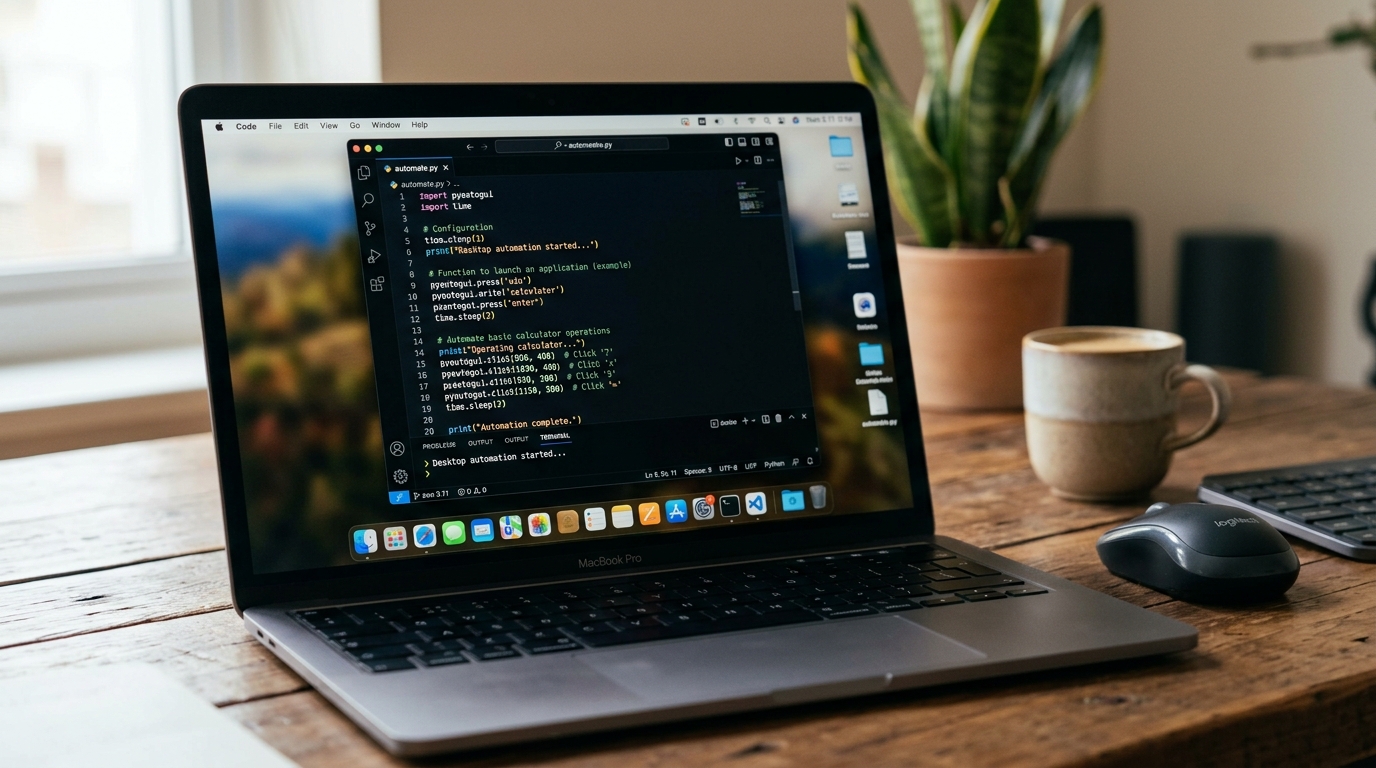
A Python script using PyAutoGUI to automate mouse and keyboard actions on a desktop.
Why Use Python for Desktop Automation?
Python is a strong fit for desktop automation because it is readable, widely used, and supported by a broad ecosystem of libraries. For IT teams, the biggest advantage is that Python can automate more than just clicks.
A Python automation script can:
- Rename, move, and archive files
- Parse CSV, JSON, text, and log files
- Call APIs where available
- Launch applications
- Control mouse and keyboard input
- Take screenshots
- Detect images on screen
- Combine GUI steps with file validation
That combination matters. GUI automation alone is fragile. But when Python can verify files, inspect outputs, and log each step, the workflow becomes much more reliable.
If you are building a broader library of desktop automation scripts, Python is often a good foundation because it works across many task types.
Introduction to PyAutoGUI
PyAutoGUI is a Python library for programmatically controlling the mouse and keyboard. It can move the cursor, click, type, press hotkeys, take screenshots, and locate images on the screen.
It is useful when:
- A desktop application has no API
- A browser workflow cannot be automated cleanly through HTTP or browser automation
- A legacy tool requires keyboard and mouse input
- A short internal workflow needs repeatable GUI control
It is not the first choice for every task. If an API, command-line tool, or file-based process exists, use that before GUI automation. GUI automation should be reserved for workflows where the interface is the only practical control point.
Installation, Dependencies, and Setup
Install PyAutoGUI in a Python environment dedicated to automation projects:
python -m pip install pyautogui
Depending on your operating system and workflow, screenshots and image recognition may require additional packages. PyAutoGUI documentation should be checked for current platform-specific requirements PyAutoGUI documentation.
A safe starter script should enable the fail-safe feature. PyAutoGUI’s fail-safe can stop execution when the mouse is moved to a screen corner.
import pyautogui

pyautogui.FAILSAFE = True
pyautogui.PAUSE = 0.2

print("Screen size:", pyautogui.size())
print("Mouse position:", pyautogui.position())
Use a test environment before running scripts against production applications. GUI automation can type, click, and submit forms exactly as a user would.
Basic Mouse and Keyboard Control
Basic PyAutoGUI actions include moving, clicking, typing, and pressing hotkeys.
import pyautogui
import time

pyautogui.FAILSAFE = True
pyautogui.PAUSE = 0.3

# Open the Windows Run dialog as an example
pyautogui.hotkey("win", "r")
time.sleep(1)
pyautogui.write("notepad")
pyautogui.press("enter")
time.sleep(2)

pyautogui.write("Automated text from Python.")
pyautogui.hotkey("ctrl", "s")
This demonstrates the mechanics, not a production pattern. Production scripts should validate that the correct application opened before typing.
How to Automate GUI Tasks with Python
To automate GUI tasks with Python reliably, think in states rather than clicks. Instead of “click coordinate 500, 300,” define what the script expects to see and what it should do if that state is missing.
A resilient GUI workflow should include:
- Application launch or window focus
- Verification that the expected screen is visible
- Interaction through shortcuts or located elements
- Wait loops with timeouts
- Screenshots on failure
- Output validation after the GUI step completes
Locating Visual Elements on Screen
PyAutoGUI can locate an image on screen by comparing a screenshot to a reference image. This is useful for buttons, icons, or labels that are visually stable.
import pyautogui
import time

button_image = "export_button.png"
timeout_seconds = 10
start = time.time()

location = None
while time.time() - start < timeout_seconds:
    location = pyautogui.locateCenterOnScreen(button_image, confidence=0.8)
    if location:
        break
    time.sleep(0.5)

if not location:
    pyautogui.screenshot("missing_export_button.png")
    raise RuntimeError("Export button was not found on screen")

pyautogui.click(location)
Image matching can be affected by scaling, themes, resolution, and visual changes. Keep reference images current and capture failure screenshots to troubleshoot.
Clicking, Dragging, and Typing Workflows
Once the expected UI element is found, interactions should be explicit and limited. Avoid long chains of blind clicks.
import pyautogui
import time
from pathlib import Path

output_file = Path(r"C:\Reports\export.csv")

# Focus field using a known shortcut or located element
pyautogui.hotkey("ctrl", "l")
pyautogui.write("report query")
pyautogui.press("enter")

time.sleep(3)
pyautogui.hotkey("ctrl", "s")

# Validate expected output
if not output_file.exists():
    pyautogui.screenshot("export_failed.png")
    raise RuntimeError("Expected report export was not created")
The validation step is what turns a click script into an automation script. Without validation, a GUI script may fail silently or type into the wrong window.
A Complete PyAutoGUI Tutorial: Real-World Example
The following example launches Notepad, writes a timestamped note, saves it to a controlled folder, and verifies the file exists. This is a safe pattern for learning because it avoids sensitive applications while demonstrating core workflow structure.
import pyautogui
import time
from pathlib import Path
from datetime import datetime

pyautogui.FAILSAFE = True
pyautogui.PAUSE = 0.2

output_dir = Path(r"C:\Temp\AutomationDemo")
output_dir.mkdir(parents=True, exist_ok=True)

file_name = f"demo_{datetime.now().strftime('%Y%m%d_%H%M%S')}.txt"
output_path = output_dir / file_name

try:
    # Launch Notepad
    pyautogui.hotkey("win", "r")
    time.sleep(0.5)
    pyautogui.write("notepad")
    pyautogui.press("enter")
    time.sleep(2)

    # Write content
    pyautogui.write("PyAutoGUI desktop automation demo")
    pyautogui.press("enter")
    pyautogui.write(f"Created at: {datetime.now().isoformat()}")

    # Save file
    pyautogui.hotkey("ctrl", "s")
    time.sleep(1)
    pyautogui.write(str(output_path))
    pyautogui.press("enter")
    time.sleep(1)

    # Verify result
    if not output_path.exists():
        pyautogui.screenshot(str(output_dir / "save_failed.png"))
        raise RuntimeError("File was not saved as expected")

    print(f"Saved file: {output_path}")

except Exception as exc:
    pyautogui.screenshot(str(output_dir / "automation_error.png"))
    raise exc
What this example does well:
- Creates the output directory before starting
- Uses a timestamped file name to avoid overwriting
- Enables fail-safe behavior
- Captures a screenshot on error
- Verifies the final output file
For real workflows, add logging to a file, detect whether the application is already open, and avoid typing into unknown windows.
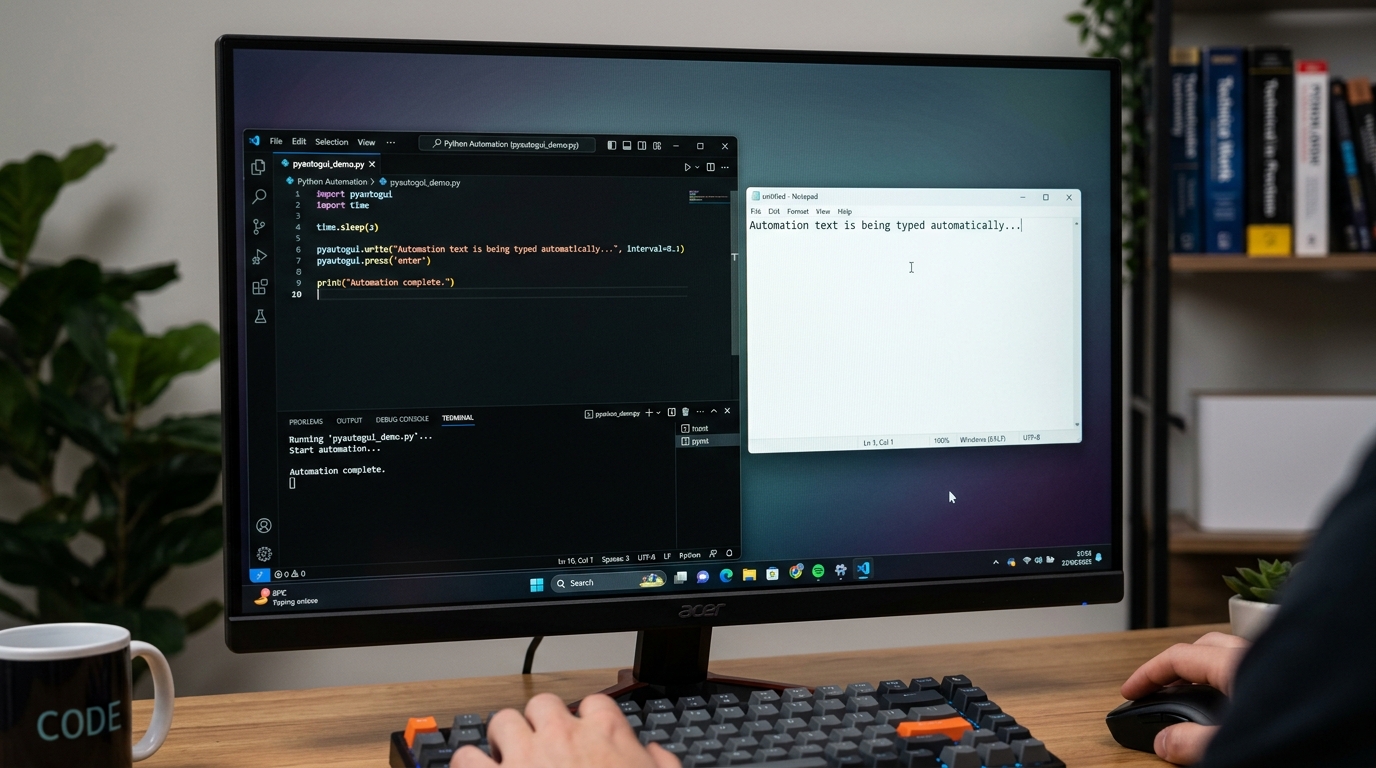
Executing a PyAutoGUI script to automate a task on a desktop, such as interacting with a text editor.
Common Pitfalls and Building Resilient Python Scripts
The most common PyAutoGUI failures come from environmental differences. A script that works on one workstation may fail on another because of screen scaling, display resolution, application theme, keyboard layout, or timing.
Avoid these pitfalls:
Hard-coded coordinates
Coordinates are fragile. Prefer keyboard shortcuts, image recognition, or application-specific automation where possible.
Blind sleep delays
A fixed time.sleep(5) may be too short on a slow machine and unnecessarily long on a fast one. Use wait loops that check for a condition.
No active-window validation
Before typing, confirm the expected application is active when possible. At minimum, structure workflows so the target window is launched and focused immediately before input.
No failure artifacts
Screenshots, logs, and output checks make debugging possible. Without them, GUI automation failures are hard to reproduce.
Running with excessive privileges
Do not run GUI scripts as admin unless required. Use least privilege and protect scripts that interact with sensitive systems.
Ignoring non-GUI alternatives
If a workflow can be done through a file operation, API, or command-line tool, that approach is usually more reliable than GUI automation.
Python can also automate file-heavy workflows without GUI control. If your main use case is reports, folders, or CSV processing, start with automate file processing tasks before adding screen automation.
For teams comparing scripting options, a deeper look at Python automation versus AutoHotkey can clarify when Python is the better long-term foundation.
FAQ
How do I automate desktop tasks with Python?
Use Python for file operations, process launches, APIs, and GUI control. For GUI tasks, PyAutoGUI can move the mouse, type, press hotkeys, take screenshots, and locate images on screen.
What is PyAutoGUI used for?
PyAutoGUI is used to automate mouse and keyboard actions in desktop workflows, especially when an application lacks an API or command-line interface.
Is PyAutoGUI reliable for production automation?
It can be reliable for controlled workflows if you add validation, retries, screenshots, logging, and avoid brittle coordinate-only automation. APIs and command-line tools are usually more robust when available.
How can I automate GUI tasks with Python safely?
Use fail-safe settings, validate the target screen, prefer shortcuts or image detection, add timeouts, capture screenshots on failure, and verify outputs before continuing.
Should I use Python or AutoHotkey for desktop automation?
Use Python for cross-platform workflows, file processing, integrations, and maintainable scripts. Use AutoHotkey for quick Windows hotkeys and lightweight GUI automation.