
Desktop Automation for Windows: Tools, Scripts, and Workflows
Desktop automation for Windows is a practical way for sysadmins to reduce repetitive administrative work across workstations, file systems, local applications, and internal tools. Windows environments offer several automation paths: PowerShell, Batch, Python, AutoHotkey, Task Scheduler, and third-party desktop automation software.
The best approach depends on the workflow. File operations and system administration usually fit PowerShell. Cross-platform file and data tasks often fit Python. Hotkeys and GUI macros may fit AutoHotkey. More important than the tool is building Windows automation scripts that are safe, testable, and maintainable.
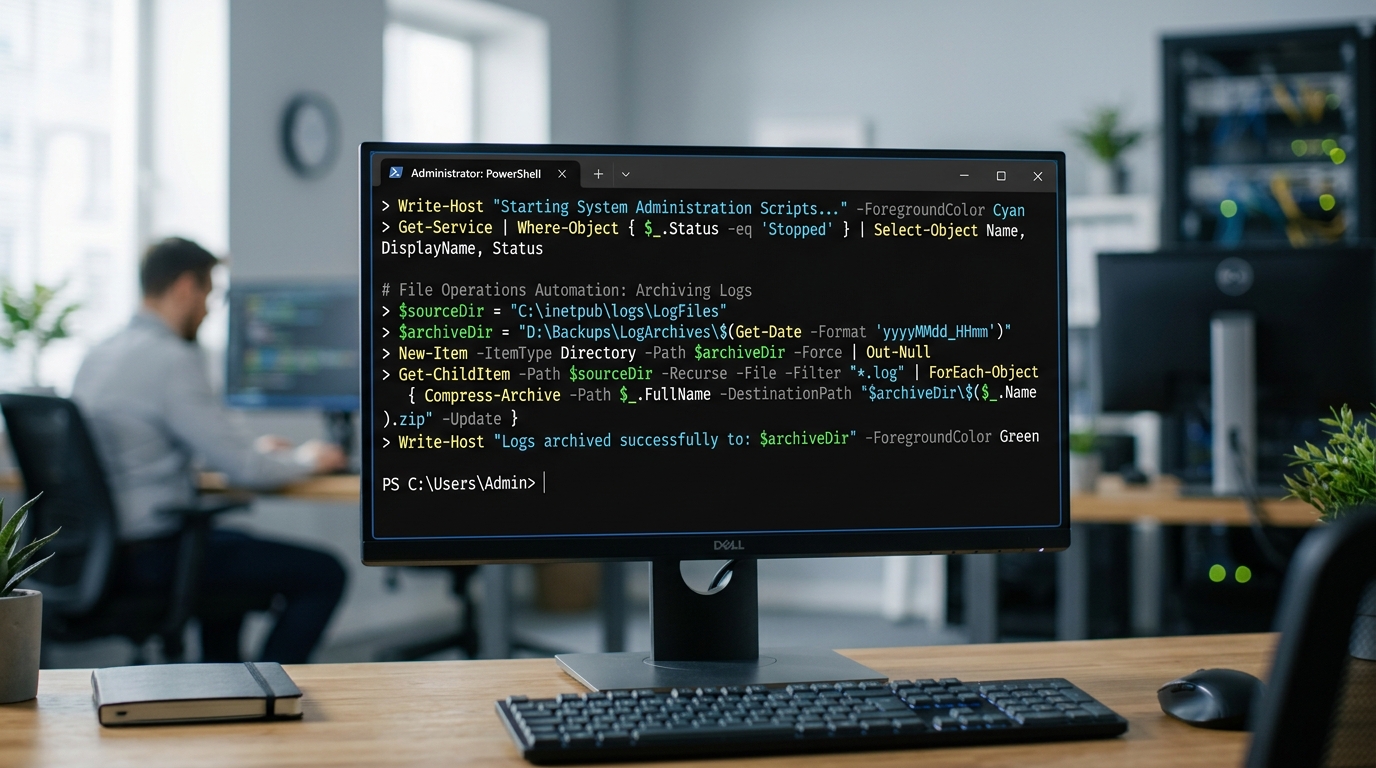
PowerShell is a powerful tool for automating administrative tasks and managing Windows environments.
The Challenges of Desktop Automation on Windows
Windows desktop automation has unique challenges because it often crosses several layers: operating system settings, user permissions, GUI applications, network shares, and security controls.
Common issues include:
- Different user permissions across machines
- UAC prompts interrupting automation
- Application windows changing after updates
- Paths that vary between users or departments
- Endpoint security tools flagging unusual script behavior
- GUI workflows that depend on screen resolution or focus
- Scheduled tasks running in a different context than interactive users
These challenges do not make automation impossible. They mean scripts need validation and clear operating assumptions. A reliable Windows automation workflow should check paths, confirm permissions, log actions, and fail safely when the environment is not as expected.
Built-in vs. Third-Party Automation Tools
Windows includes several built-in automation capabilities. For many IT teams, these are enough to start.
Built-in options include:
- PowerShell for administration, files, services, registry tasks, and Microsoft ecosystem automation
- Batch files for simple command sequences
- Task Scheduler for running scripts on a schedule or trigger
- Windows command-line tools for system queries and maintenance
Third-party options can help when teams need GUI automation, workflow orchestration, better logging, or repeatable local execution across more complex desktop workflows. If you are comparing options, evaluate desktop automation software based on execution model, security, script integration, and maintainability.
PowerShell vs Python vs Batch
PowerShell is usually the default for Windows administration. It is built for objects, system management, and integration with Windows components.
Python is strong for cross-platform workflows, CSV processing, file automation, APIs, and more complex logic. It is also useful when Windows automation needs to connect with non-Windows systems.
Batch is best for simple legacy command sequences. It is easy to run but becomes difficult to maintain as logic grows.
A practical rule:
- Use PowerShell for Windows-native admin work.
- Use Python for data, files, integrations, and cross-platform scripts.
- Use Batch only for simple wrappers or legacy compatibility.
Writing Your First Windows Automation Scripts
Start with a low-risk task such as organizing files or launching standard tools. Avoid destructive actions until you have logging and a dry-run pattern.
Example PowerShell script to archive log files older than a chosen date:
$Source = "C:\Logs"
$Archive = "C:\Logs\Archive"
$Cutoff = (Get-Date).AddDays(-30)

if (!(Test-Path $Archive)) {
    New-Item -ItemType Directory -Path $Archive | Out-Null
}

Get-ChildItem $Source -File -Filter "*.log" |
    Where-Object { $_.LastWriteTime -lt $Cutoff } |
    ForEach-Object {
        $Target = Join-Path $Archive $_.Name
        Move-Item $_.FullName $Target -WhatIf
        Write-Output "Would move $($_.FullName) to $Target"
    }
The -WhatIf flag previews the move. Remove it only after confirming the script selects the correct files.
A simple application launch script:
Start-Process "notepad.exe"
Start-Process "explorer.exe" "C:\Logs"
Start-Process "powershell.exe"
These examples are intentionally simple. Production Windows automation scripts should write logs, handle errors, and use configuration variables instead of hard-coded values when possible.
For more patterns, see how to automate repetitive desktop tasks using scripts across common IT workflows.
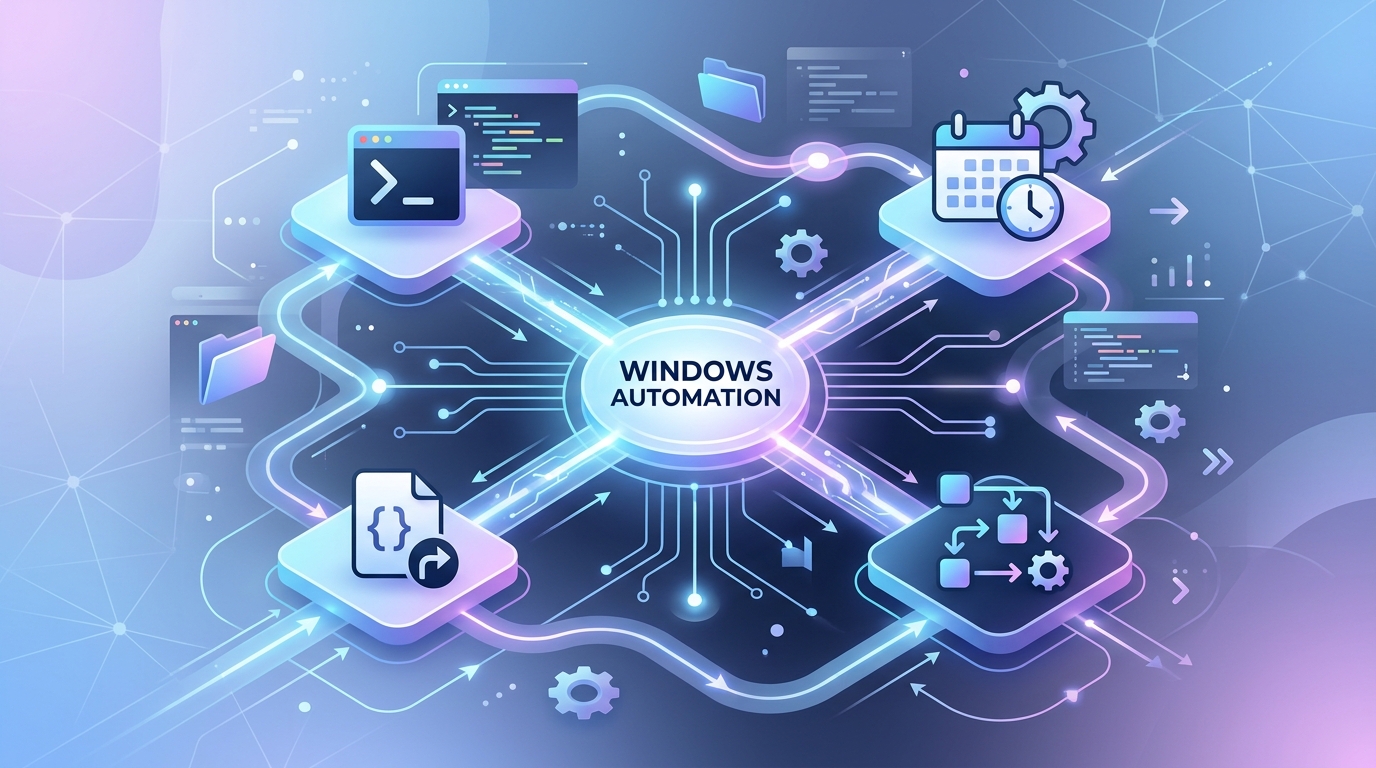
An overview of the diverse tools and approaches available for implementing desktop automation on Windows.
Handling Windows UI Automation and OS Updates
Windows UI automation is powerful but fragile. It can break when an application updates, a button moves, display scaling changes, or a window opens behind another window.
To improve reliability:
- Prefer PowerShell, APIs, or command-line tools before GUI automation.
- Use keyboard shortcuts instead of mouse coordinates when possible.
- Add wait loops rather than fixed delays.
- Confirm the target process or window exists before input.
- Capture screenshots or logs when GUI steps fail.
- Test scripts after OS and application updates.
- Document required display settings, permissions, and application versions.
For GUI-heavy tasks, AutoHotkey and Python GUI libraries can help. But they should be used with the same discipline as any operational script: validation first, clicking second.
Security Best Practices for Windows Sysadmins
Automation can look suspicious to security tools because it launches processes, moves files, sends keystrokes, or touches administrative areas. Build scripts so they are predictable and reviewable.
Security best practices include:
- Run with least privilege.
- Avoid storing credentials in scripts.
- Sign scripts if your environment requires it.
- Store scripts in approved locations with restricted write access.
- Log script actions and failures.
- Use dry-run modes for delete, move, and overwrite operations.
- Avoid downloading and executing remote scripts without review.
- Coordinate with endpoint security policies before deploying automation broadly.
If Windows scripts become part of a larger operating model, connect them to operations workflow automation standards so ownership, review, and maintenance are clear.
Windows automation works best when it is boring: predictable inputs, limited permissions, clear logs, and safe failure behavior. That is what turns a useful script into a trustworthy IT workflow.
FAQ
What is desktop automation for Windows?
It is the use of scripts, tools, and workflows to automate repetitive tasks on Windows desktops, including file operations, application launches, GUI actions, maintenance, and administrative checks.
What language is best for Windows automation scripts?
PowerShell is usually best for Windows administration. Python is strong for data, files, APIs, and cross-platform tasks. Batch is suitable for simple legacy command sequences.
Can Windows GUI tasks be automated?
Yes. Windows GUI tasks can be automated with tools such as AutoHotkey, Python GUI libraries, and desktop automation platforms. Use validation and avoid coordinate-only clicking where possible.
How do I stop Windows automation from triggering security alerts?
Use approved script locations, least privilege, logging, code signing where required, and predictable behavior. Coordinate with security policies before deploying scripts broadly.
Should sysadmins use third-party desktop automation tools?
They can be useful when scripts need scheduling, logs, GUI automation, workflow structure, or local execution controls beyond what built-in tools provide.