
How to Run Local LLMs with Ollama for Developers
The shift toward localized, private AI is accelerating in 2026. Developers are increasingly realizing that sending every single prompt to a third-party cloud provider is not only expensive but often a security risk for proprietary data. If you want to run local LLMs with Ollama, you are tapping into one of the most accessible and powerful tools for self-hosting AI.
This Ollama setup guide is designed for mid-level developers and technical leads who want to build a reliable local AI agent infrastructure. We will cover the setup process, how to integrate these models into your existing workflows, and highlight the best Ollama models for automation.
Ollama vs Cloud LLM: Why Run Local AI Agent Infrastructure?
Before diving into the terminal, it’s crucial to understand the Ollama vs cloud LLM debate. Why take on the overhead of managing local compute when you could just hit an OpenAI or Anthropic endpoint?
- Data Privacy and Security: The primary driver for local infrastructure is security. When processing sensitive internal documents, customer data, or proprietary code, sending data off-premise is often a non-starter for enterprise compliance.
- Cost Predictability: Cloud LLMs charge per token. If you are running high-volume, multi-step agent workflows, those token costs can spiral out of control. Local inference incurs a fixed hardware cost, allowing for infinite queries without a ballooning monthly bill.
- Zero Network Latency: For tasks requiring hundreds of rapid micro-inferences, network latency to a cloud provider becomes a massive bottleneck. Local models running directly on your hardware eliminate network round-trips.
If you are building internal tools with local LLMs, establishing a robust local baseline is your first critical step.
Ollama Setup Guide: Getting Started Fast
Ollama has revolutionized local inference by abstracting away the complex Python environments and CUDA driver nightmare that traditionally plagued local AI setup.

A successful Ollama installation, ready for local LLM deployment.
Step 1: Installation
For macOS and Windows, you can download the executable directly from the Ollama website. For Linux environments (ideal for server deployments), you can install it via a simple curl command:
curl -fsSL https://ollama.com/install.sh | sh
Step 2: Start the Server
Ollama runs as a background service. You can start it manually or ensure it runs as a systemd service on Linux. Once running, it exposes a REST API on http://localhost:11434.
Step 3: Pulling a Model
Just like pulling a Docker image, you can pull LLM weights directly to your machine. To download a model like Llama 3, simply run:
ollama pull llama3
Depending on your hardware, you should aim for quantized versions of models (which Ollama handles by default) to fit the model comfortably into your available VRAM.
How to Use Ollama for Developers
Knowing how to use Ollama for developers extends far beyond simple chat interfaces. The true power lies in programmatic access.
CLI Basics and Automation
You can interact with Ollama directly from the command line, which is fantastic for quick bash script automations:
ollama run llama3 "Write a python script to parse a CSV file."
You can easily pipe the output of other terminal commands directly into Ollama to summarize logs, refactor code, or generate commit messages automatically.
Wiring Ollama into Agent Workflows
To build actual applications, you’ll interface with Ollama’s REST API. Most major frameworks, including LangChain and LlamaIndex, have native support for Ollama out of the box.
If you are implementing local vector memory for AI agents, you can also use Ollama to generate embeddings. Simply pull an embedding model (like nomic-embed-text) and point your vector database ingestion pipeline to the local Ollama endpoint.
Here is a quick Python example using the requests library to hit the Ollama API directly:
import requests
import json

url = "http://localhost:11434/api/generate"
payload = {
    "model": "llama3",
    "prompt": "Extract the key entities from this text...",
    "stream": False
}
response = requests.post(url, json=payload)
print(response.json()['response'])
This simple integration allows you to swap out cloud endpoints for your local infrastructure instantly, a key component when exploring self-hosted AI agent architecture patterns.
The Best Ollama Models for Automation
Not all models are created equal. When selecting the best Ollama models for automation, you need to balance parameter size with reasoning capability.
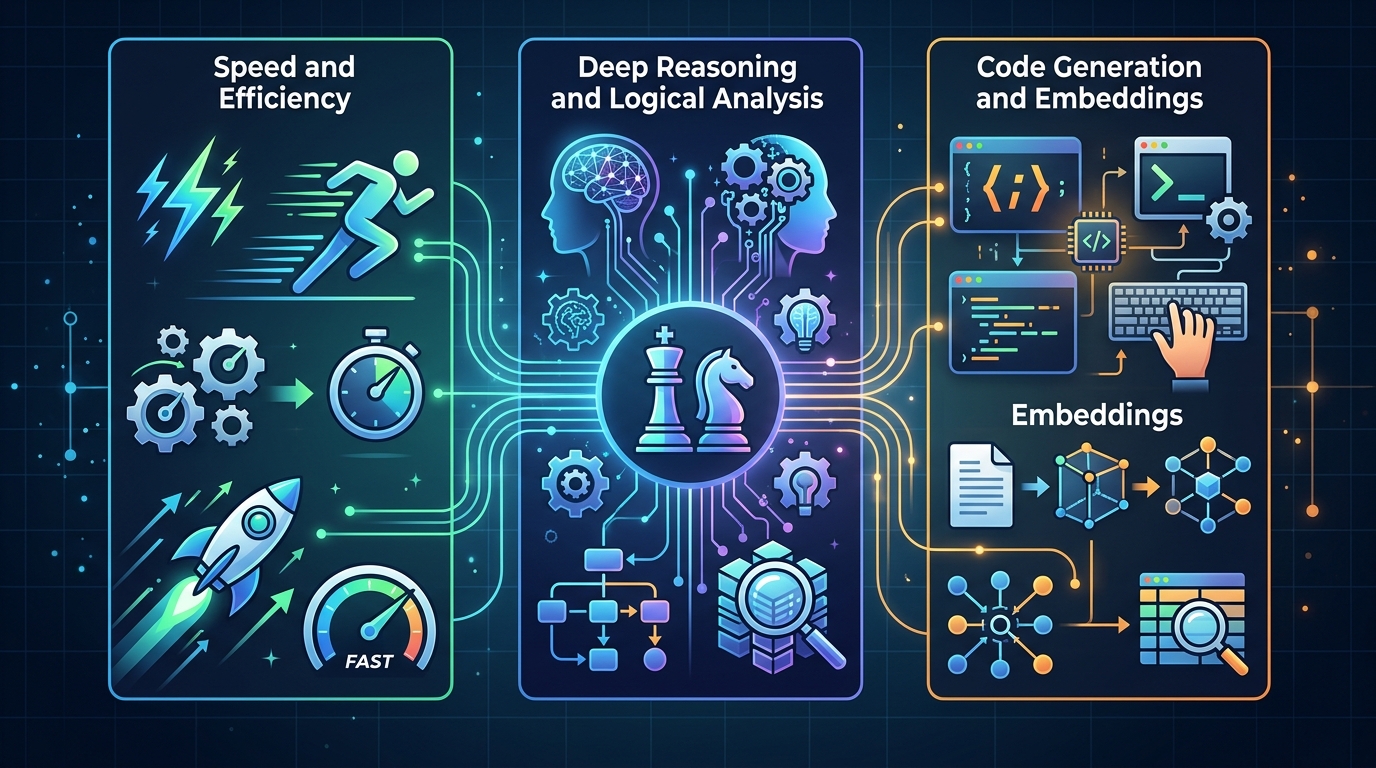
Comparing top Ollama models for various automation needs, from general-purpose to specialized tasks.
- Llama 3 (8B): The gold standard for general-purpose local automation. It is highly capable, extremely fast, and fits comfortably on consumer-grade GPUs (requiring roughly 6-8GB of VRAM).
- Mistral (7B): Excellent for code generation and structured data extraction. It often follows strict formatting instructions (like JSON output) slightly better in specific edge cases.
- Phi-3 (Mini): If you are extremely compute-constrained or running inference on a CPU, Microsoft’s Phi-3 punches well above its weight class for simple reasoning tasks.
- Nomic Embed Text: Not for text generation, but absolutely essential for generating the vector embeddings needed for Retrieval-Augmented Generation (RAG) and long-term memory.
By standardizing on a tool like Ollama, developers can rapidly prototype, test, and deploy AI infrastructure entirely in-house, securing their data and protecting their budgets.
Frequently Asked Questions
Why should I use Ollama instead of a cloud LLM?
Ollama allows you to run models locally, ensuring strict data privacy, eliminating per-token cloud costs, and reducing network latency. It is ideal for internal tools and handling sensitive enterprise data.
What are the system requirements for running Ollama?
While Ollama can run on a CPU, performance is significantly better with a dedicated GPU. A machine with at least 8GB of VRAM (like an Apple Silicon Mac or an NVIDIA RTX card) is recommended for smooth inference of 7B-8B parameter models.
Can I use Ollama programmatically in my applications?
Yes, Ollama provides a robust REST API running locally on port 11434. It natively integrates with popular AI development frameworks like LangChain, allowing developers to easily swap cloud endpoints for local models.