
How to Automate Repetitive Desktop Tasks Using Scripts
If your day includes moving files, launching the same tools, clicking through the same windows, or copying data between applications, it is time to automate repetitive desktop tasks. For IT operations staff, sysadmins, and DevOps engineers, scripts are often the fastest path from manual work to reliable automation.
The goal is not to automate every click immediately. The goal is to identify repetitive computer tasks that follow clear rules, script them safely, and build enough validation that the automation helps instead of creating another fragile system to babysit.
This guide explains how to script desktop automation, where scripts work best, and how to make desktop automation scripts survive real-world changes.

IT engineers often use scripts to automate repetitive desktop tasks, transforming manual work into efficient, reliable processes.
Why Scripting Beats Manual Clicking Every Time
Manual clicking feels harmless when a task takes two minutes. It becomes expensive when that task repeats every day, across users, systems, reports, or environments.
Scripts beat manual desktop work because they are:
- Repeatable: The same inputs produce the same actions.
- Documentable: The logic is visible in code or configuration.
- Faster to rerun: A task can be executed on demand or on a schedule.
- Less dependent on memory: The process no longer lives only in one person’s head.
- Easier to improve: You can add logging, checks, and error handling over time.
Manual work is also difficult to audit. If a file was copied to the wrong folder or a cleanup step was skipped, it may be hard to reconstruct what happened. A well-written script can log actions, detect missing inputs, and stop before it makes a bad change.
Scripts are especially valuable when they become part of broader operations workflow automation, where individual tasks connect into consistent onboarding, maintenance, reporting, or cleanup workflows.
How to Script Desktop Automation Safely
Desktop automation becomes risky when a script assumes too much. It assumes the right window is open, the right file exists, the user has the right permission, or the application loads instantly. Safe scripting means replacing assumptions with checks.
Before writing code, define:
- The exact trigger for the task
- Required inputs and where they come from
- Expected outputs
- What the script should never modify
- What should happen if a step fails
- How the run will be logged
A safe automation script should validate state before taking action. For example, confirm that a source folder exists before moving files, confirm that an application launched before sending keystrokes, and confirm that output files were created before deleting temporary inputs.
Identifying the Right Repetitive Computer Tasks
Good candidates for desktop automation have clear rules and low ambiguity. Start with tasks that are frequent, structured, and easy to verify.
Strong candidates include:
- Renaming batches of files using a naming convention
- Moving downloads into project folders
- Archiving old reports
- Launching a set of admin tools at the start of a shift
- Cleaning temporary folders
- Extracting data from CSV files
- Opening a browser page and exporting a report
- Sending a standard sequence of keystrokes to a known application
Poor candidates include tasks that require subjective judgment, unpredictable visual interpretation, or high-risk changes without review. If a human still needs to approve a step, design the script to pause, summarize, and request confirmation.
Choosing the Right Scripting Language
The best language depends on the operating system and the task.
PowerShell is a strong default for Windows administration, file system work, services, registry tasks, and Microsoft-centric environments.
Python is excellent for cross-platform automation, file processing, API calls, data manipulation, and GUI automation through libraries. If your workflow involves visual desktop control, see how to automate GUI tasks with Python.
Bash is useful for Linux and macOS environments, especially when automating command-line tools, file operations, and scheduled jobs.
AutoHotkey is practical for Windows hotkeys, keyboard macros, and quick GUI automation when you need lightweight control over desktop interactions.
A simple rule: use the language your team can maintain. A clever script in an unfamiliar language is a liability if nobody can debug it under pressure.
3 Common Desktop Automation Scripts for Sysadmins
The following script patterns cover many operational tasks. They are intentionally simple and should be adapted to your environment with logging, dry-run modes, and permission checks.
File Moving and Bulk Renaming
File automation is often the easiest win. A Python script can rename reports, move them into dated folders, and skip files that do not match expected patterns.
Example pattern:
from pathlib import Path
from datetime import date
import shutil

source = Path(r"C:\Reports\Incoming")
destination = Path(r"C:\Reports\Archive") / date.today().isoformat()
destination.mkdir(parents=True, exist_ok=True)

for file in source.glob("*.csv"):
    if file.stat().st_size == 0:
        print(f"Skipping empty file: {file.name}")
        continue

    new_name = f"processed_{date.today().isoformat()}_{file.name}"
    target = destination / new_name
    shutil.move(str(file), str(target))
    print(f"Moved {file.name} to {target}")
This is safer than dragging files manually because it creates the destination folder, skips empty files, and records each action to the console. In production, send logs to a file and add a dry-run option.
GUI Interaction Basics
GUI automation is useful when no API or command-line option exists. Python with PyAutoGUI can launch an application, wait, click, and type. Use it carefully: GUI scripts are more brittle than file or API scripts.
Basic pattern:
import pyautogui
import time

pyautogui.hotkey("win", "r")
pyautogui.write("notepad")
pyautogui.press("enter")
time.sleep(2)

pyautogui.write("Automation test completed.")
pyautogui.hotkey("ctrl", "s")
Avoid relying only on fixed coordinates. Prefer image recognition, window checks, keyboard shortcuts, and validation wherever possible.
Application Launching and Cleanup Workflows
Many IT tasks begin with the same set of tools and end with cleanup. A script can start required applications, open folders, and remove temporary files.
PowerShell example pattern:
Start-Process "notepad.exe"
Start-Process "explorer.exe" "C:\Reports"

$tempPath = "C:\Temp\OpsWork"
if (Test-Path $tempPath) {
    Get-ChildItem $tempPath -File | Remove-Item -WhatIf
}
The -WhatIf flag previews destructive actions. Remove it only after testing. This kind of safety switch is important when scripts delete, move, or overwrite files.
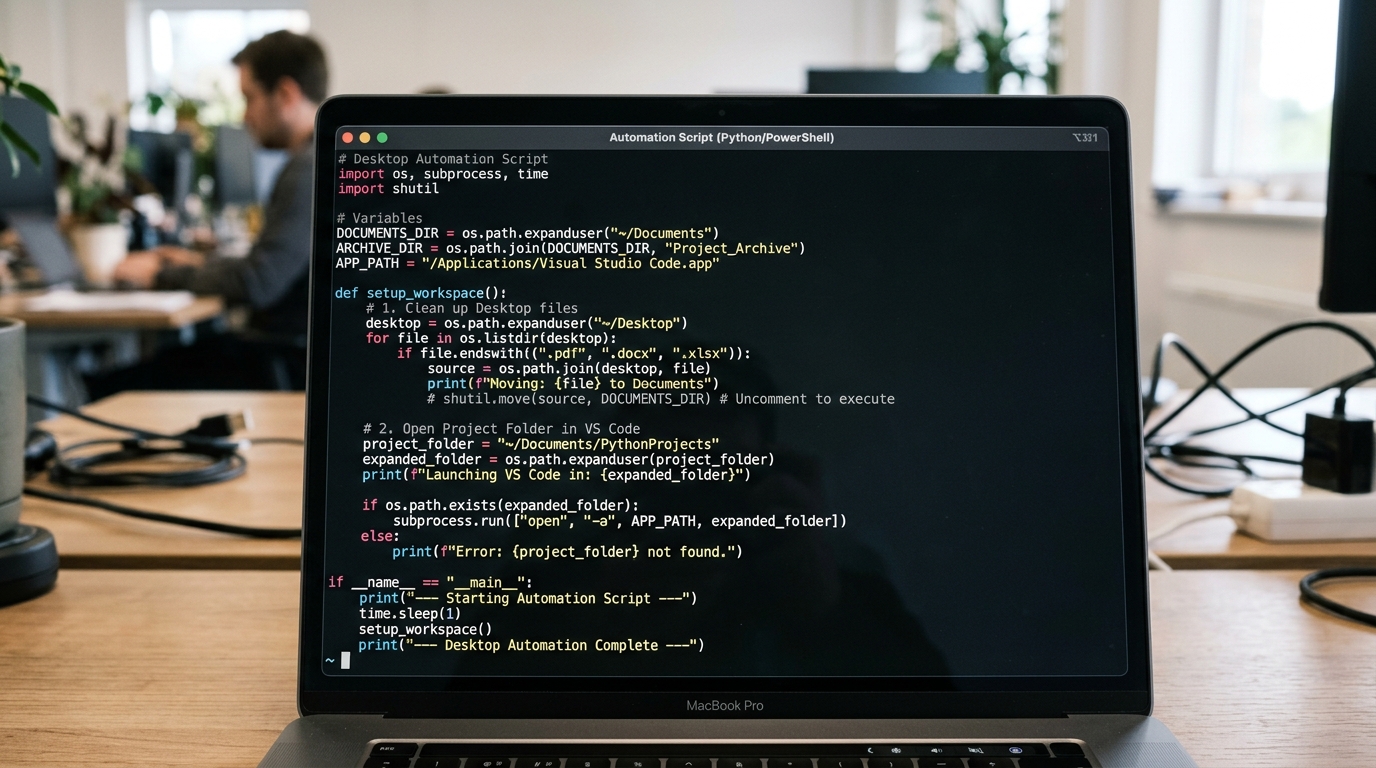
Terminal windows are a common interface for running and managing desktop automation scripts, especially for tasks like application launching and system cleanup.
Building Reliable Automation That Survives OS Updates
Desktop automation breaks when it depends on unstable assumptions. OS updates, application redesigns, permission changes, monitor resolution differences, and timing variations can all disrupt scripts.
To make automation more resilient:
- Prefer APIs and command-line interfaces before GUI automation.
- Use keyboard shortcuts instead of mouse coordinates when possible.
- Validate each step before continuing.
- Add timeouts and retries rather than fixed sleep delays only.
- Log every meaningful action so failures are diagnosable.
- Use configuration files for paths, usernames, and environment-specific values.
- Version control scripts so changes can be reviewed and rolled back.
- Test on representative machines before relying on a workflow.
- Document prerequisites such as screen resolution, installed software, and permissions.
If scripts are becoming numerous or business-critical, evaluate dedicated desktop automation software to add scheduling, logs, permissions, and workflow structure.
The best desktop automation scripts are boring. They check inputs, perform one clear job, log what happened, and fail safely. That reliability is what turns a quick script into a trusted operational tool.
FAQ
How do I automate repetitive desktop tasks?
Start by choosing a frequent, rule-based task. Document the inputs, outputs, and failure conditions, then write a script in a language suited to the task, such as PowerShell, Python, Bash, or AutoHotkey.
What are the best tasks to automate with desktop scripts?
Good candidates include file moving, batch renaming, report cleanup, application launching, folder organization, CSV processing, and repeated GUI actions in stable applications.
How do I script desktop automation safely?
Validate inputs, use least privilege, add logging, include dry-run modes for destructive actions, and make scripts stop safely when expected files, windows, or permissions are missing.
Is Python good for desktop automation scripts?
Yes. Python is useful for file processing, data manipulation, API calls, and GUI automation. It is especially strong when teams need readable, cross-platform scripts.
Why do desktop automation scripts break?
They often break because of UI changes, OS updates, timing assumptions, hard-coded paths, screen resolution differences, or missing validation checks.