
Why Are Ollama Answers Bad? Troubleshooting LM Studio and Ollama
Ollama and LM Studio have made running open-source language models remarkably simple. With a single terminal command or a few clicks in a desktop application, anyone can run models locally. However, many users quickly run into a frustrating issue: the answers generated by Ollama or LM Studio seem surprisingly bad.
You might experience hallucinated facts, repetitive loops, broken code syntax, or total failure to follow simple prompts. If you are asking yourself “Why are my Ollama answers so bad?” or struggling with LM Studio poor quality, do not assume local AI is useless.
In most cases, poor quality is caused by incorrect default settings, aggressive quantization, hidden prompt template mismatches, or hardware offloading misconfigurations. This troubleshooting guide walks through exact fixes to instantly upgrade your response quality in both tools.
Troubleshooting Poor Quality in Ollama and LM Studio
When troubleshooting local inference tools, it helps to understand how they work under the hood. Both Ollama and LM Studio function as user-friendly wrappers around llama.cpp—the low-level C/C++ engine that runs model weights on modern CPUs and GPUs.
Because both tools use the same core engine, poor response quality is rarely caused by the tool itself. Instead, it stems from how each tool configures system prompts, manages GPU layer offloading, and selects quantization levels by default.
By systematically verifying your setup in each tool, you can resolve quality bottlenecks and unlock the full power of your open-source models.
Why Are Ollama Answers Bad? Common Fixes
If you run models via Ollama CLI or integrate Ollama with front-end interfaces like Open WebUI, three main culprits account for bad responses.
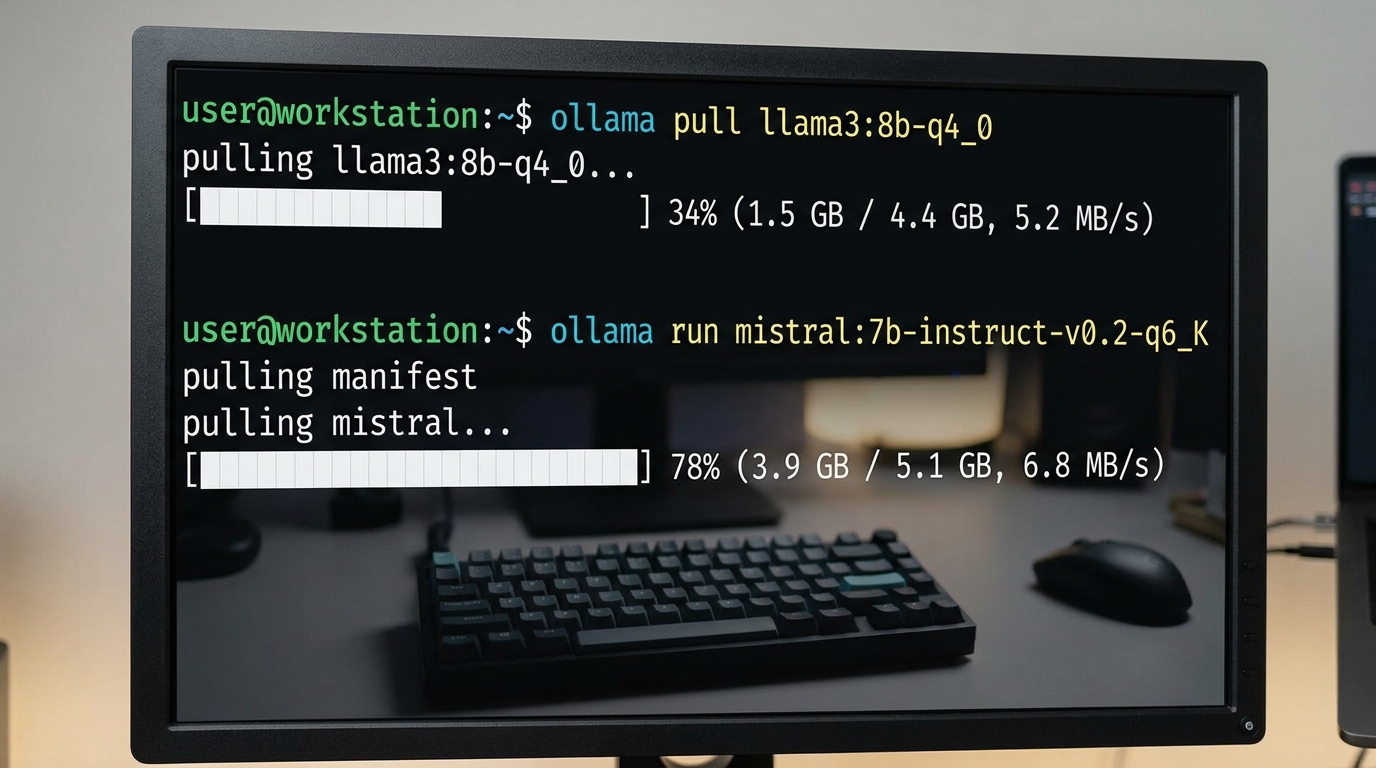
Ollama CLI interface exhibiting commands that specify higher quality model quantization downloads.
You Downloaded the Wrong Model Quantization
When you execute a command like ollama run llama3, Ollama automatically selects a default quantization tags—often Q4_K_M (4-bit medium quantization). While 4-bit is ideal for memory saving, sometimes users accidentally pull extreme low-bit variants or truncated community models.
- Check explicit model tags: Instead of pulling generic tags, specify exact tags that offer higher precision when your VRAM allows it:
bash

    # Pull higher quality 8-bit or full 16-bit variants if VRAM permits

ollama run llama3:8b-instruct-q8_0 - Avoid 2-bit or 3-bit quantizations: Low-bit models (Q2_K or Q3_K) sacrifice significant mathematical accuracy to shrink file size, leading to nonsensical answers.
Default System Prompts Overriding Your Input
Ollama uses a setup file known as a Modelfile to define chat templates, system instructions, and default parameters (like temperature).
If a custom model or community template has a poorly configured SYSTEM prompt or incorrect stop tokens (e.g., <|im_end|> missing), the model will generate endless repeating text or break conversational formatting.
To inspect and fix your model’s system prompt and parameters:
1. Run ollama show --modelfile <model-name> in your terminal.
2. Verify that the chat template matches the architecture (e.g., Llama-3 format vs. ChatML format).
3. Create a custom Modelfile to set a proper system prompt:
dockerfile

    FROM llama3:8b

    PARAMETER temperature 0.2

    SYSTEM "You are a precise, helpful assistant. Answer questions concisely and factually."
4. Build your refined model with ollama create my-optimized-model -f Modelfile.
Updating Your Ollama Version
Ollama receives frequent updates that fix memory leaks, update prompt templates for newly released models, and optimize GPU kernel speed. Running an outdated Ollama binary can cause new models to use fallback, unoptimized execution templates, resulting in poor quality.
Keep Ollama updated to the latest version by running the official installer script or downloading the latest desktop build.
Why Am I Getting Poor Quality from LM Studio?
LM Studio provides a visual graphical user interface (GUI) with fine-grained control over model parameters. However, misconfiguring these UI controls easily causes LM Studio poor quality responses.
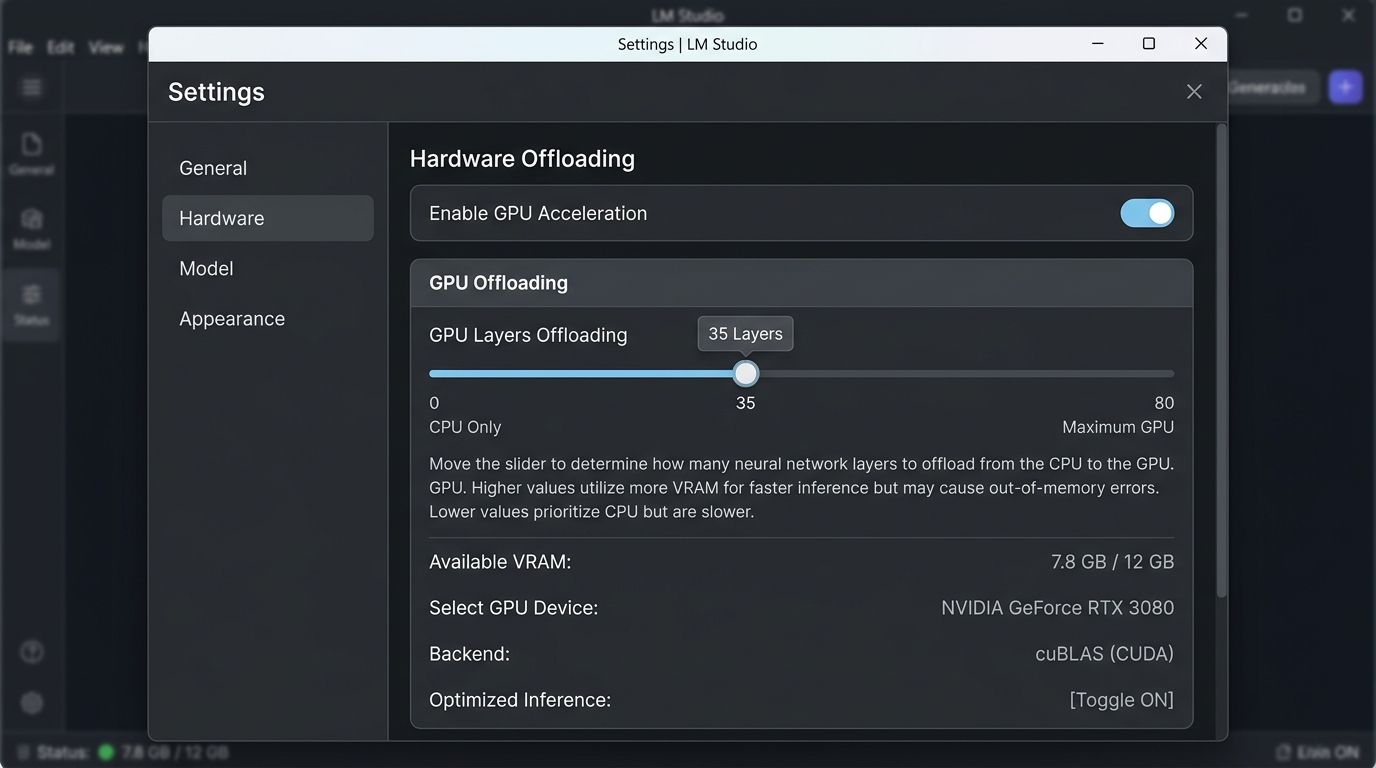
LM Studio interface highlighting GPU offloading settings to improve language model inference quality.
Hardware Offloading Issues (CPU vs GPU)
LM Studio allows you to specify how many model layers are offloaded to your dedicated GPU VRAM versus your system RAM.
- Partial Offloading Lag & Bottlenecks: If you attempt to run a model that exceeds your VRAM capacity, LM Studio splits model layers between GPU VRAM and system RAM. While the model will still execute, partial CPU offloading can cause prompt context processing to time out or truncate context heavily, producing incomplete or rushed answers.
- Fix: In the right-hand sidebar settings under GPU Acceleration, ensure GPU Offload (GPU Layers) is configured properly. If your model fits entirely in VRAM, drag the slider to maximum (all layers offloaded).
Tweaking Inference Parameters in the UI
LM Studio defaults to general preset parameters that may not fit your specific task:
- Context Overflow Settings: Under Preset Settings, check your Context Length (num_ctx). The default might be set low (e.g., 2048 tokens). If your conversation exceeds this limit, earlier instructions are silently dropped, making the AI appear “forgetful” or uncoordinated. Increase context length to 4096 or 8192 if VRAM allows.
- Temperature Sliders: If LM Studio gives incoherent or overly random code, check the Temperature setting in the sidebar. The default preset might be
0.8or1.0. For coding and factual queries, slide Temperature down to0.1or0.2.
Best Settings for Maximum Quality in Both Tools
To ensure peak answer quality across both Ollama and LM Studio, apply these recommended baseline settings depending on your workload:
| Setting / Feature | Recommended Setting (Factual / Code) | Recommended Setting (Creative / Chat) |
|---|---|---|
| Temperature | 0.1 – 0.3 |
0.7 – 0.8 |
| Top-P Sampling | 0.85 |
0.95 |
| Repeat Penalty | 1.1 |
1.05 |
| Quantization Level | Q4_K_M or Q5_K_M (or Q8_0) |
Q4_K_M or higher |
| Context Window (num_ctx) | 4096 – 8192 tokens |
4096 tokens |
By standardizing these baseline settings, you can eliminate erratic behaviors. If you want to explore beyond basic tool settings, review general methods to improve local LLM quality or learn how to adjust advanced inference parameters like RoPE frequency scaling and custom context window management.
FAQs for Tool-Specific Performance Issues
Why are my Ollama answers ending mid-sentence?
This happens when the model hits its maximum output token limit (num_predict) or encounters an unexpected stop token. In Ollama, you can increase num_predict in your Modelfile or parameter settings (e.g., PARAMETER num_predict 2048).
Does LM Studio run models faster than Ollama?
In general, performance is nearly identical because both frontends use llama.cpp as their backend engine. However, LM Studio makes it easier to visually tweak GPU offload layers, which can prevent accidental CPU bottlenecks if tuned properly.
Why does Ollama hallucinate commands that do not exist?
If a model hallucinates non-existent bash commands or Python libraries, it is usually because the temperature parameter is set too high or you are using a base model instead of an instruct-tuned model. Ensure you pull -instruct or -chat model variants.
How do I completely clear Ollama’s context memory during a chat?
When using the Ollama terminal CLI, typing /clear clears the active context buffer, allowing you to start a fresh conversation thread without previous history contaminating your inputs.