
Best Desktop Automation Software & Open Source Tools
The best desktop automation software for an IT team is not always the largest enterprise RPA platform. For sysadmins, DevOps engineers, and operations teams, the right tool is usually the one that can automate local desktop work reliably, run securely inside the environment, and remain maintainable after the first script author moves on.
If your team is comparing desktop automation tools, this guide focuses on practical fit rather than vendor hype. We will look at RPA alternatives for small teams, open source options, commercial tools, and the evaluation criteria that matter when automation touches internal systems, files, admin consoles, and legacy desktop applications.
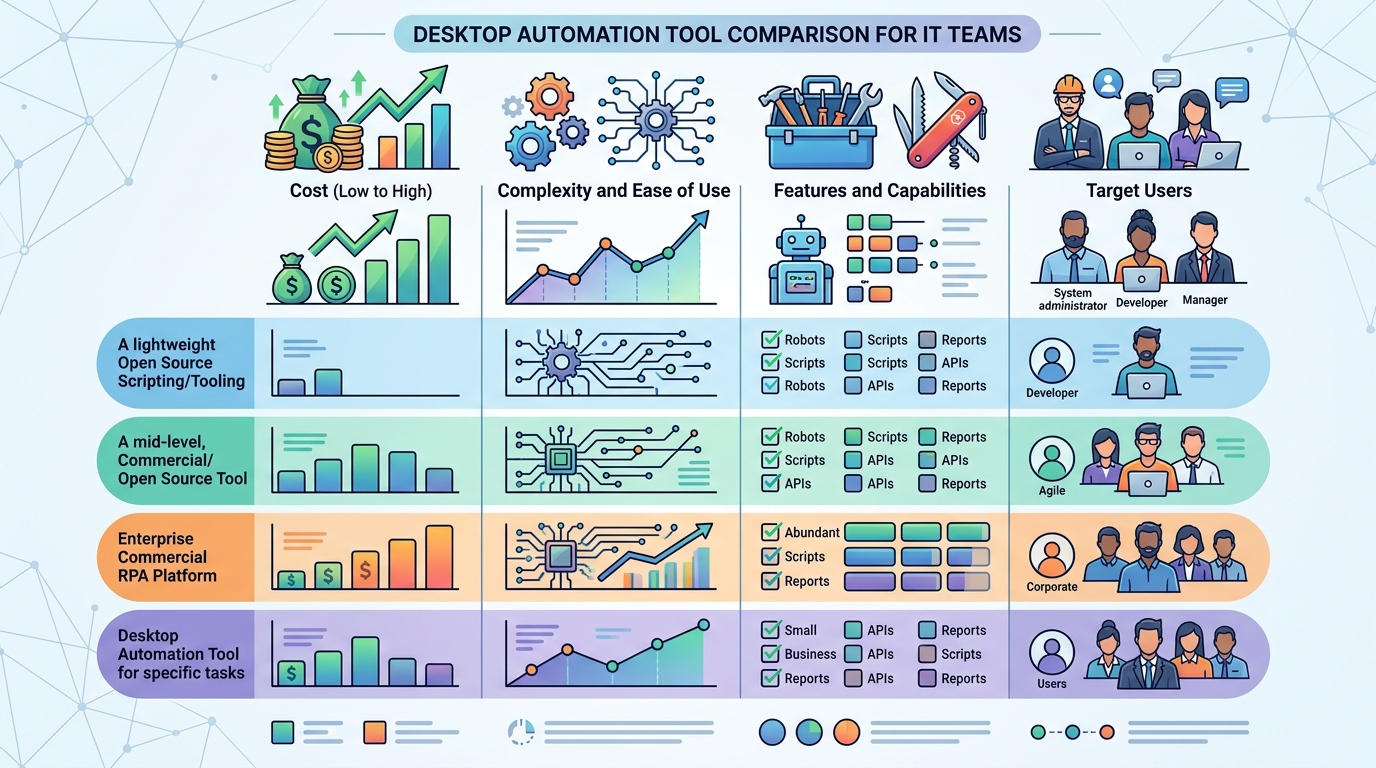
A visual comparison of the best desktop automation software and open source tools, detailing their features and suitability for IT teams.
Why IT Teams Need Dedicated Desktop Automation Tools
Most IT teams already automate something. They use shell scripts, scheduled tasks, PowerShell, Python, cron jobs, or configuration management. The gap appears when work crosses the boundary between APIs, files, and graphical applications.
Common examples include:
- Exporting reports from a desktop-only admin tool
- Moving files between network shares after validation
- Launching internal applications in a specific sequence
- Copying values from one system into another when no API exists
- Running cleanup tasks after user onboarding or deprovisioning
- Performing repetitive QA checks across Windows workstations
Manual clicking is slow, inconsistent, and difficult to audit. But enterprise RPA can be too expensive or heavy for a small technical team that only needs focused desktop automation. Dedicated desktop automation software fills the middle ground: more structured than scattered scripts, but lighter than a full enterprise RPA program.
The strongest tools give IT teams a way to:
- Standardize recurring workflows
- Reduce brittle one-off fixes
- Keep sensitive workflows local when needed
- Document automation logic in a repeatable format
- Add guardrails around scripts that interact with user interfaces
For teams with strict privacy requirements, pairing desktop tooling with local-first automation tools can be especially important because internal workflows often touch operational data that should not be routed through third-party cloud systems.
Top RPA Alternatives for Small Teams
Traditional RPA platforms are often designed for large organizations with formal automation centers of excellence, licensing budgets, and dedicated implementation teams. Small IT teams usually need something different: fast setup, scriptability, clear ownership, and the ability to automate local workflows without months of platform work.
The best RPA alternatives for small teams typically fall into four categories:
- Open source desktop automation frameworks for technical teams that want control.
- Scripting languages and libraries such as Python, PowerShell, and AutoHotkey.
- Local-first automation platforms that package workflows without forcing cloud execution.
- Lightweight commercial tools that provide scheduling, UI automation, and workflow management without enterprise complexity.
No single category is best for every use case. The right choice depends on your team’s scripting skill, security model, operating system mix, and tolerance for maintenance.
Leading Open Source Desktop Automation Options
Open source desktop automation can be a strong fit when your team wants transparency and flexibility. Common options include Python-based libraries, AutoHotkey for Windows-centric GUI automation, SikuliX-style image recognition tools, and general-purpose scripting around operating system utilities.
Open source tools are attractive because they often provide:
- Low direct software cost
- Full control over automation logic
- Version control compatibility
- Custom integration with internal scripts and tools
- No forced vendor workflow model
The trade-off is that your team owns the engineering quality. Open source automation can become fragile if scripts depend on exact screen coordinates, fixed timing delays, or undocumented workstation assumptions. A Python GUI script that works on one monitor resolution may fail on another unless it is built defensively.
Open source is strongest when your team already has technical capacity and treats automation like internal software: reviewed, documented, tested, and versioned.
Commercial Solutions Without the Enterprise Price
Commercial desktop automation software can make sense when you need more structure than raw scripts provide. A lightweight commercial solution may offer workflow scheduling, credential handling, logging, reusable steps, execution history, or a visual layer for less code-heavy tasks.
For small teams, the key is avoiding tools that require enterprise-scale adoption before they provide value. Look for platforms that can start with one workflow and expand gradually.
Useful commercial capabilities include:
- Local execution for sensitive internal workflows
- Role-based access or at least clear operator controls
- Logging that helps troubleshoot failed runs
- Script integration rather than script replacement
- Exportable or readable workflow definitions
- Support for common desktop, file, browser, and command-line tasks
A practical buying rule: if your first automation takes longer to implement in the platform than it would to perform manually for months, the tool is probably too heavy for your current need.

An IT administrator efficiently managing tasks using a desktop automation tool, showcasing RPA alternatives designed for small teams.
Key Features to Look For (Local-first, security, scripting)
When evaluating the best desktop automation software, focus on capabilities that determine whether the tool will survive real IT operations.
1. Local-first execution
Desktop workflows often touch internal applications, local files, admin tools, and private data. Local-first execution keeps the automation near the systems it controls and can reduce unnecessary cloud exposure. If this is a core requirement, review how the tool handles desktop automation workflows across machines and users.
2. Security controls
Automation can become a security risk if scripts store credentials in plain text, run with excessive privileges, or execute unreviewed actions. Look for secret handling, least-privilege support, approval workflows, and clear logs.
3. Script integration
Most technical teams already have useful scripts. Good desktop automation software should not force you to abandon them. It should let you run Python, PowerShell, shell commands, or other scripts as part of a broader workflow.
4. UI automation resilience
GUI automation is inherently more fragile than API automation. Look for support for window titles, element selectors, image recognition, retries, timeouts, and validation checks rather than coordinate-only clicking.
5. Observability and error handling
A failed automation should explain what happened. Logs, screenshots on failure, exit codes, and notification hooks can turn a mysterious broken workflow into a fixable issue.
6. Maintainability
Small teams cannot afford automation that only one person understands. Favor tools that support naming conventions, comments, reusable components, source control, and simple handoff.
7. Fit with operating systems
Some tools are Windows-first, some are cross-platform, and some depend heavily on browser automation. Match the tool to your actual endpoints, not an idealized environment.
How to Choose the Right Desktop Automation Software
Start with the workflow, not the tool. Before comparing vendors or frameworks, document three to five repetitive tasks your team wants to eliminate. For each task, identify:
- Which systems are involved
- Whether APIs exist
- Whether a GUI must be controlled
- What data is touched
- What permissions are required
- What happens when the task fails
- How often the task runs
Then classify each workflow by automation style.
Use scripts when the task is file-based, command-line friendly, or easy to validate programmatically. For example, if you need to automate repetitive desktop tasks such as renaming files, launching tools, or cleaning folders, scripts may be enough.
Use GUI automation when no API exists and the desktop application is the only interface available. Add extra validation because GUI changes can break workflows.
Use a local automation platform when the workflow is sensitive, recurring, and important enough to need scheduling, logs, operator controls, or reuse across the team.
Use enterprise RPA only when you need broad organizational governance, many business users building automations, and formal process automation at scale. Many small teams do not need that level of overhead.
A simple decision matrix:
- Mostly files and commands: Python, PowerShell, Bash, or lightweight workflow runner
- Windows hotkeys and desktop shortcuts: AutoHotkey or Windows-focused automation
- Cross-platform GUI and scripting: Python automation libraries
- Sensitive internal workflows: local-first desktop automation software
- Large multi-department automation program: enterprise RPA platform
The best desktop automation software is the one your team can operate safely six months after the initial build. Choose for maintainability, security, and workflow fit before choosing for feature count.
FAQ
What is the best desktop automation software for IT teams?
The best option depends on your workflows. Small technical teams often do well with Python, PowerShell, AutoHotkey, open source automation libraries, or local-first automation platforms instead of full enterprise RPA.
Are open source desktop automation tools reliable?
They can be reliable when scripts are written with validation, retries, logging, and version control. They become brittle when they rely only on fixed screen coordinates or hard-coded timing delays.
What are good RPA alternatives for small teams?
Common alternatives include Python automation, AutoHotkey, PowerShell, Bash, local workflow platforms, and lightweight desktop automation tools that do not require enterprise RPA deployment.
Should desktop automation run locally or in the cloud?
For workflows involving internal systems, sensitive files, or admin credentials, local execution is often preferable. Cloud tools can be useful, but teams should evaluate data exposure and control requirements carefully.
Can desktop automation software replace scripts?
Usually, it should complement scripts rather than replace them. The strongest setups combine scriptable logic with scheduling, logs, security controls, and workflow orchestration.