
Local-First Automation Tools for Secure Internal Workflows
Local-first automation tools help IT teams automate desktop and internal operations without routing every action through a third-party cloud platform. For sysadmins and operations teams, that distinction matters. Many repetitive workflows involve local files, private reports, admin consoles, internal applications, or credentials that should remain inside the environment.
Cloud automation is useful for many SaaS-to-SaaS workflows. But when the work happens on desktops, network shares, local applications, and internal systems, local workflow automation can provide a better balance of control, privacy, and reliability.
This guide explains what local-first automation means, where cloud tools create hidden risk, and how to evaluate a local automation platform for secure internal workflows.
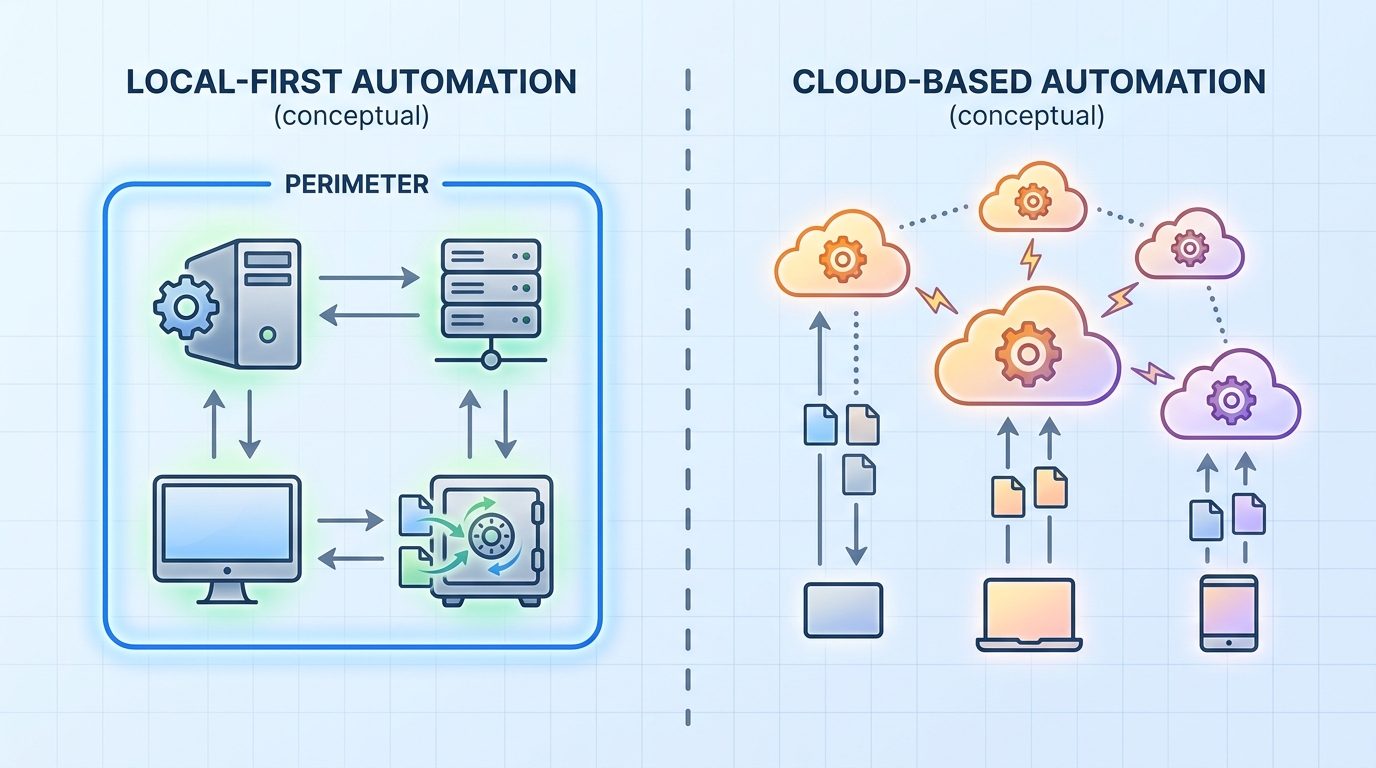
A visual comparison of local-first automation, where tasks run on internal infrastructure, versus cloud automation, which routes actions through external platforms.
What is Local Workflow Automation?
Local workflow automation is the practice of running automated tasks on local machines, internal servers, or controlled infrastructure rather than executing the workflow entirely through a hosted cloud service.
A local workflow might:
- Move files between internal folders or network shares
- Launch desktop applications in a defined sequence
- Interact with a legacy Windows application
- Generate and save reports locally
- Run Python, PowerShell, Bash, or AutoHotkey scripts
- Clean up workstation folders after a support task
- Process files that should not leave the organization
The defining point is not that the workflow never communicates externally. It is that execution, data handling, and operational control remain close to the environment where the work occurs.
For IT teams comparing the best desktop automation software, local-first capability is often a core requirement rather than a nice-to-have. It determines where data flows, who controls execution, and how much dependency the team has on external services.
The Hidden Risks of Cloud Automation for Internal Operations
Cloud automation platforms can be excellent for connecting SaaS applications. They are often less ideal for workflows that touch internal desktops, private file systems, or sensitive operational data.
The risks are not always obvious during a product demo. They appear later when a simple workflow requires opening firewall access, installing sync agents, copying files to cloud storage, or granting broad permissions to an external service.
Key risk areas include:
- Data exposure: Internal files, reports, or customer-related exports may be transferred outside the environment.
- Credential handling: Cloud workflows may require tokens, service accounts, or credentials with access to sensitive systems.
- Operational dependency: If the cloud platform, network, or integration endpoint is unavailable, internal tasks may stop.
- Compliance complexity: Even when cloud tools are secure, teams may need extra review before routing regulated or confidential data through them.
- Limited desktop reach: Many cloud tools are built for APIs, not local GUIs, desktop applications, or workstation-specific actions.
This does not mean cloud automation is bad. It means IT teams should match execution model to workflow sensitivity. A SaaS notification workflow and a local admin-console workflow have different risk profiles.
Core Benefits of a Local Automation Platform
A local automation platform gives teams a structured way to run internal automation while keeping execution under their control. Compared with scattered scripts, it can add consistency. Compared with cloud-first automation, it can reduce unnecessary data movement.
The most important benefits are privacy, operational control, and better fit for desktop-based work.
Absolute Data Privacy and Security
For many internal workflows, the safest data transfer is no data transfer. If a script can process a file locally, rename it, extract values, and archive it without uploading it anywhere, the attack surface is smaller than a workflow that depends on cloud storage or remote execution.
Local-first automation can support security goals such as:
- Keeping files on approved machines or network locations
- Avoiding unnecessary external data processors
- Running with local least-privilege accounts
- Maintaining internal logs for review
- Reducing reliance on broad cloud API permissions
Security still depends on implementation. A poorly written local script can create risk if it stores passwords in plain text or runs with excessive privileges. But a local-first architecture gives IT teams more direct control over how workflows execute and where data resides.
Desktop Task Automation Without Cloud Dependencies
Many internal tasks are desktop-native. They happen in tools that do not expose APIs, old line-of-business applications, local admin consoles, or file explorers. For these cases, desktop task automation without cloud is often simpler and more reliable.
A local automation platform can interact with:
- Desktop applications
- Local folders
- Network drives
- Command-line tools
- Internal scripts
- Browser sessions on controlled workstations
- Operating system utilities
This is especially useful for tasks like file processing, report generation, workstation cleanup, and legacy application workflows. If file handling is a major use case, your team may also need to automate file processing tasks as part of a broader local-first strategy.
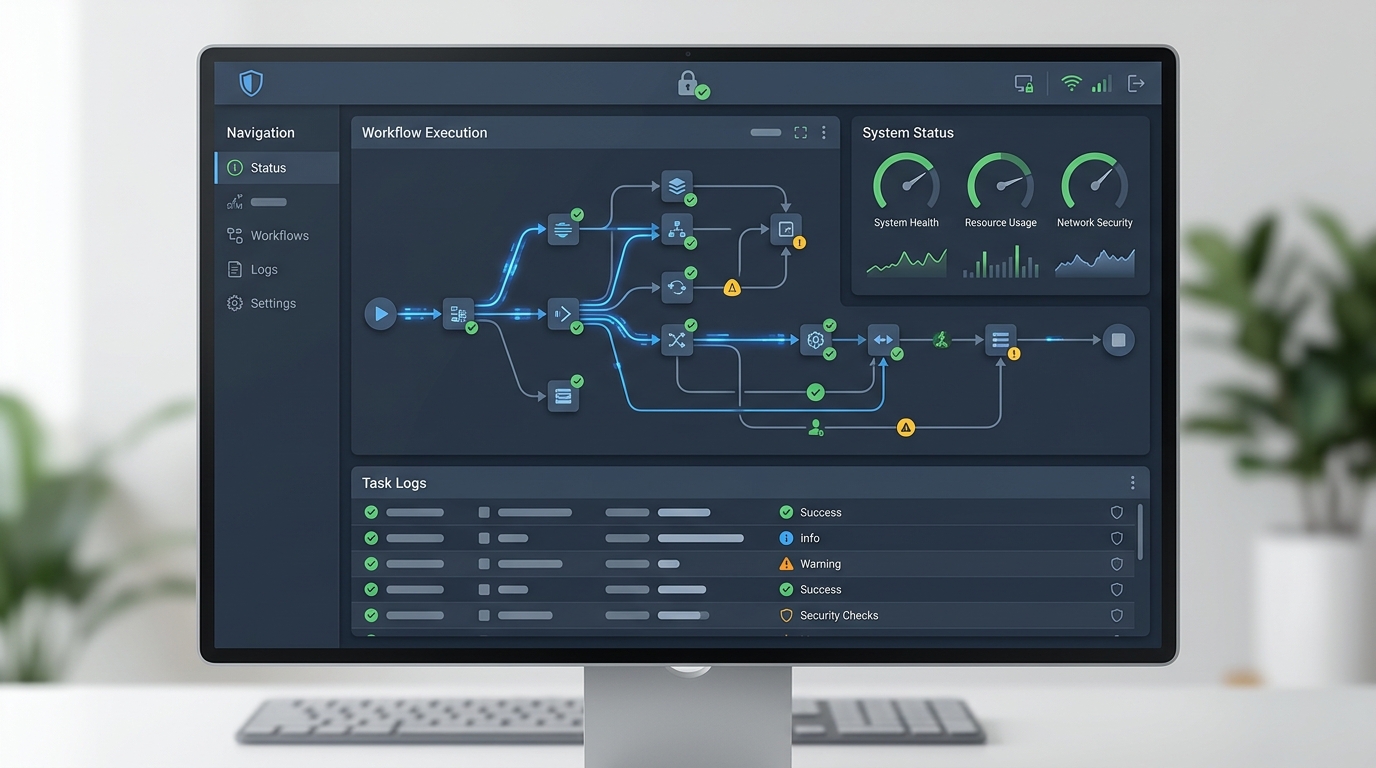
An example dashboard for a local automation platform, designed to manage and monitor internal workflows securely without cloud dependencies.
Evaluating Internal Automation Tools
When evaluating internal automation tools, avoid choosing based only on feature lists. The right question is: can this tool run sensitive, repetitive workflows safely in your actual environment?
Use the following criteria.
Execution model
Does the automation run locally, in the cloud, or through a hybrid agent? If an agent is required, what data does it transmit externally?
Script compatibility
Can you run existing Python, PowerShell, Bash, or AutoHotkey scripts? Teams with existing automation should not have to rebuild everything from scratch.
Credential management
How does the tool handle secrets? Avoid workflows that require passwords in plain text files or hard-coded script variables.
Logging and auditability
Can you see when a workflow ran, what it did, and why it failed? Logs are essential for operations workflow automation.
Failure handling
Can the tool retry steps, stop safely, notify an operator, or capture useful error context?
Access controls
Can you limit who can create, modify, and run workflows? Even small teams need clear ownership when automation affects production systems.
Maintainability
Can another sysadmin understand the workflow later? Look for readable configuration, comments, versioning options, and documentation patterns.
Workflow fit
Does it handle your real tasks: files, GUIs, scripts, scheduled runs, and internal applications? A tool optimized for SaaS APIs may not be the right local automation platform.
How to Implement Secure Local-First Workflows
Start small and build a repeatable pattern. The goal is not to automate everything immediately. It is to create a safe operating model that your team can reuse.
A practical implementation sequence:
- Inventory repetitive workflows. Identify tasks that are frequent, rule-based, and painful enough to justify automation.
- Classify data sensitivity. Mark workflows that touch credentials, customer data, financial exports, internal reports, or regulated information.
- Choose local execution where sensitivity is high. Keep private workflows close to the systems and files they use.
- Standardize script structure. Use consistent logging, configuration files, error handling, and folder paths.
- Apply least privilege. Run automation with the minimum permissions required.
- Add validation checks. Confirm files exist, windows are open, commands completed, and outputs match expectations.
- Document ownership. Every workflow should have a maintainer and a short runbook.
- Review periodically. Desktop apps, OS versions, and internal processes change. Automation should be maintained like any other operational asset.
As workflows become more important, connect them into a broader model for workflow automation for IT teams. That shift helps prevent a pile of unrelated scripts from becoming another maintenance burden.
Local-first automation is not anti-cloud. It is a disciplined way to keep internal automation aligned with security, privacy, and operational control. For IT teams handling sensitive desktop workflows, that discipline can be the difference between automation that scales and automation that creates new risk.
FAQ
What is local-first automation?
Local-first automation runs workflows on local machines, internal servers, or controlled infrastructure rather than relying entirely on cloud execution. It is useful for tasks involving private files, desktop applications, or internal systems.
Why use local automation tools instead of cloud RPA?
Local automation tools can reduce unnecessary data movement, improve control over execution, and better support desktop applications or internal workflows that do not expose cloud-friendly APIs.
Is local workflow automation more secure?
It can be more secure for sensitive internal workflows because data can stay inside the environment. Security still depends on proper credential handling, least privilege, logging, and review.
What workflows are best for desktop task automation without cloud?
Good candidates include local file processing, report generation, GUI-driven admin tasks, workstation cleanup, and legacy application workflows that run on controlled desktops.
Do local-first automation tools replace scripts?
Not necessarily. Many teams use local-first tools to organize, schedule, log, and govern scripts they already use.