
How to Automate a Workflow from a Google Calendar Event
Calendars are quietly one of the best automation triggers you have. Meetings, maintenance windows, on-call rotations, deadlines — your calendar already encodes when things should happen. The missing piece is connecting those events to action: prep documents generated before a meeting, alerts silenced during a maintenance window, reminders posted when a deadline approaches.
This tutorial covers two of the most useful trigger patterns in n8n: how to automate a workflow from a Google Calendar event, and how to perform a complete n8n webhook trigger setup so any external system can kick off your workflows in real time.
Introduction to Event-Driven Automation
There are two fundamental ways a workflow can start:
- Schedule-driven: the workflow runs at fixed times (cron-style). Simple, but blind — it runs whether or not anything happened.
- Event-driven: the workflow runs because something happened — a calendar event approaching, an HTTP request arriving, a file appearing.
Event-driven automation is what makes workflows feel intelligent. Instead of polling and checking, your systems react. In n8n, event-driven triggers come in two main flavors relevant to this guide:
- App triggers like the Google Calendar Trigger, which watch a specific service for changes.
- Webhook triggers, which expose an HTTP endpoint that any system capable of an HTTP request can call — the universal adapter of automation.
Everything below assumes a running n8n instance with a public HTTPS URL (needed for both Google OAuth and inbound webhooks). If you haven’t set that up, the n8n production deployment guide covers the full self-hosted install.
How to Trigger an Automation Workflow from a Google Calendar Event

The Google Calendar Trigger node in n8n allows you to initiate workflows based on events like creation, updates, or start times from your chosen calendar.
Step 1 — Connect Google Calendar credentials. In Google Cloud Console, create a project (or use an existing one), enable the Google Calendar API, and create OAuth credentials. Add your n8n instance’s OAuth redirect URL (shown in n8n’s credential dialog) to the authorized redirect URIs, then complete the OAuth connection in n8n’s credentials manager.
Step 2 — Add the Google Calendar Trigger node. Create a new workflow and add the Google Calendar Trigger. Configure:
- Calendar: the specific calendar to watch (a shared ops calendar is a common choice).
- Trigger On: event created, event updated, or event started/ending — depending on your use case.
- Poll interval: the trigger checks the calendar on a schedule; tighten the interval for time-sensitive automations.
Step 3 — Filter for the events you care about. Calendars are noisy. Add an IF node after the trigger to match only relevant events — for example, events whose title contains [maintenance] or events on a specific calendar with particular attendees. Using structured markers in event titles (a simple team convention) makes filtering trivial.
Step 4 — Act on the event data. The trigger outputs the full event object: title, description, start/end times, attendees, location. From here, typical patterns include:
- Pre-meeting prep: when a client meeting is 30 minutes away, post the agenda and related links to Slack.
- Maintenance windows: when a
[maintenance]event starts, silence monitoring alerts; when it ends, re-enable them. - On-call handoff: when the on-call rotation event begins, update the alert routing and notify the incoming engineer — a natural extension of your n8n IT ticketing automation.
- Deadline reminders: events tagged
[deadline]trigger reminder messages at configurable lead times.
Step 5 — Handle time zones deliberately. Calendar payloads include time zone data; set your instance’s GENERIC_TIMEZONE correctly and convert explicitly in a Set/Code node when comparing times. Time zone bugs are the most common failure in calendar automations.
How Do I Configure Webhook Triggers in n8n?
Where the Calendar trigger watches one service, the Webhook node lets anything trigger your workflows: monitoring tools, CI pipelines, internal apps, forms, or other n8n instances.
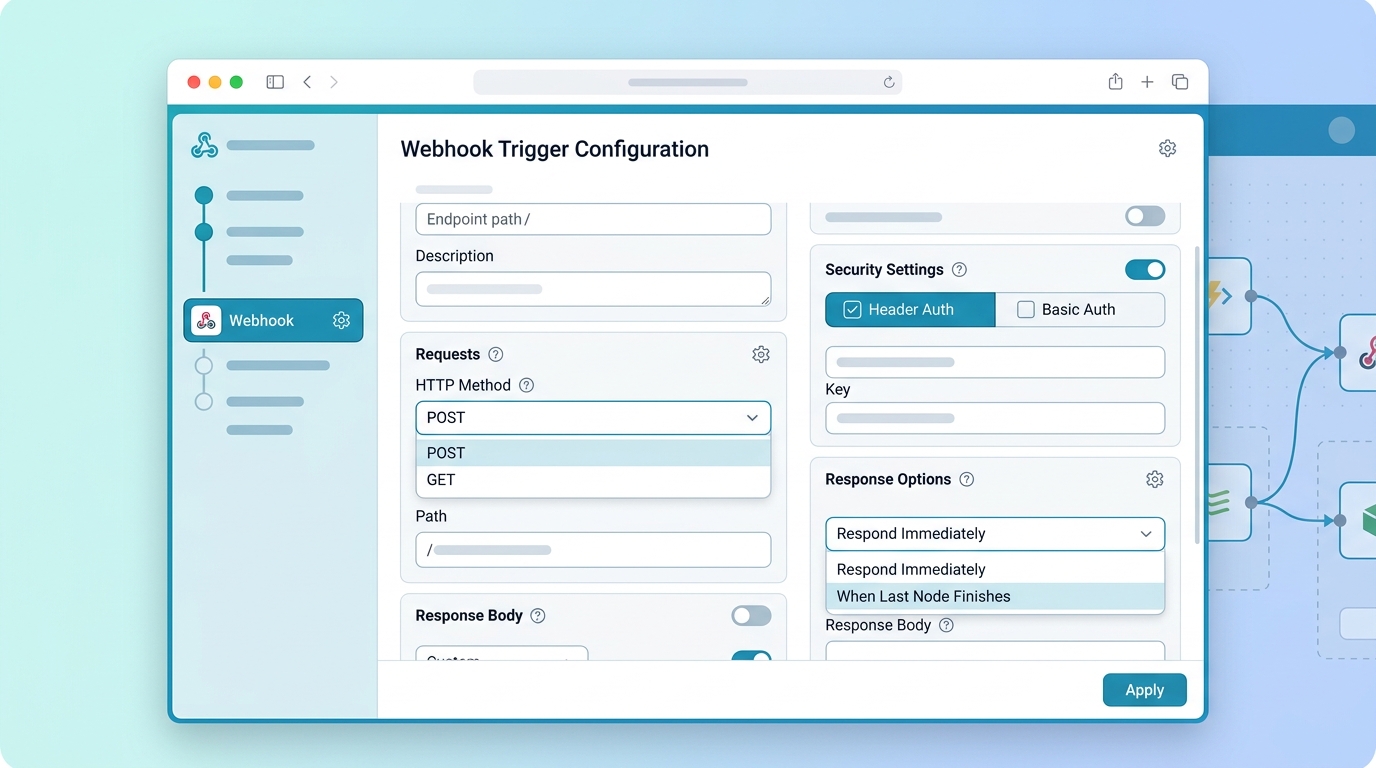
Configure your Webhook trigger in n8n by defining the HTTP method, path, and response behavior, along with essential security measures.
Step-by-Step n8n Webhook Trigger Setup
Step 1 — Add the Webhook node. Create a new workflow and add the Webhook trigger node. n8n generates two URLs: a Test URL (active while you’re listening in the editor) and a Production URL (active when the workflow is activated).
Step 2 — Configure the endpoint.
- HTTP Method: POST for payload-carrying events (the common case); GET for simple pings.
- Path: n8n generates a unique path; you can customize it, but keep it unguessable.
- Response: choose whether the caller gets an immediate acknowledgment (“Respond Immediately”) or waits for workflow output (“When Last Node Finishes”) — immediate is right for fire-and-forget events; last-node is right when the caller needs a computed result.
Step 3 — Secure it. A production webhook should never be an open door:
- Require a secret header (e.g.,
X-Webhook-Token) and validate it in the first node after the trigger, rejecting mismatches. - Use Header Auth or Basic Auth options on the Webhook node itself where the calling system supports it.
- Always serve webhooks over HTTPS via your reverse proxy.
Step 4 — Test with real payloads. Click “Listen for test event” in the editor, then send a request:
curl -X POST https://n8n.yourcompany.com/webhook-test/your-path \
  -H "Content-Type: application/json" \
  -H "X-Webhook-Token: your-secret" \
  -d '{"event":"deploy_finished","service":"api","status":"success"}'
The payload appears in the editor, letting you map fields into downstream nodes against real data.
Step 5 — Activate and switch to the production URL. Toggle the workflow active, update the calling system to use the Production URL, and send a live test. Your endpoint is now a permanent, self-hosted integration point.
Advanced Calendar and Webhook Integrations
Once both trigger types are in your toolkit, they combine well:
- Calendar-gated webhooks: a webhook-triggered alert workflow first checks the ops calendar for an active
[maintenance]event and suppresses notifications during the window — the two triggers cooperating in one system. - Bidirectional calendar automation: workflows can also write calendar events. A deployment webhook can create a calendar entry documenting the release window automatically.
- Fan-out patterns: one webhook trigger can feed a Switch node that routes to many sub-workflows — a single intake endpoint powering your whole event bus.
- Unmetered event volume: on a self-hosted instance, high-frequency webhook traffic costs nothing extra — a key advantage over per-task SaaS platforms, as covered in our n8n vs Zapier vs Make comparison.
Start with one calendar automation and one secured webhook. Within a week you’ll be finding event sources everywhere — because once triggers are easy, everything becomes automatable.
FAQ
How do I trigger an automation workflow from a Google Calendar event?
In n8n, connect Google Calendar OAuth credentials, add the Google Calendar Trigger node, choose the calendar and trigger condition (event created, updated, or started), filter for relevant events with an IF node, and build your actions using the event’s data. Full steps are above.
How do I configure webhook triggers in n8n?
Add a Webhook trigger node to a workflow, set the HTTP method and path, secure it with a validated secret header or built-in auth, test with the Test URL while listening in the editor, then activate the workflow and point your external system at the Production URL.
Do I need a public URL to use n8n webhooks and the Google Calendar trigger?
Yes, in practice. Inbound webhooks require an endpoint the calling system can reach, and Google’s OAuth flow requires a valid HTTPS redirect URL. A self-hosted instance behind a reverse proxy with a Let’s Encrypt certificate satisfies both.
What’s the difference between the Test URL and Production URL in n8n?
The Test URL only works while you click “Listen for test event” in the editor and shows payloads live for development. The Production URL works whenever the workflow is activated and is the endpoint external systems should call in production.
Can one webhook trigger multiple workflows?
The cleanest pattern is one webhook workflow acting as an intake router: a Switch node inspects the payload and calls different sub-workflows via the Execute Workflow node. This gives you a single secured endpoint with many downstream automations.