
The Complete Guide to Local Workflow Orchestration for Windows
Modern IT environments rely heavily on automation to handle repetitive operational tasks, process file transfers, execute system backups, and run internal data pipelines. For years, system administrators and developers operating on Windows have strung together custom PowerShell scripts, Python routines, and Windows Task Scheduler triggers to keep operations moving.
However, as business processes become more interconnected and complex, relying on disjointed scripts without centralized state monitoring or visual dependency tracking creates significant operational risk. Silent script failures, missing error logging, and unhandled exceptions can disrupt critical operations without warning.
To solve these challenges, organizations are embracing local workflow orchestration on Windows. This comprehensive 2026 guide explores how to build secure, resilient, self-hosted script management pipelines directly on your Windows desktop or server without exposing sensitive operational data to external cloud services.
The Growing Need for Offline, Local Workflow Orchestration
While cloud-based automation tools like Zapier, Workato, and enterprise cloud schedulers have gained popularity, they are far from ideal for internal Windows infrastructure management. Cloud automation introduces network latencies, recurring SaaS subscription costs, per-execution fees, and significant security concerns.
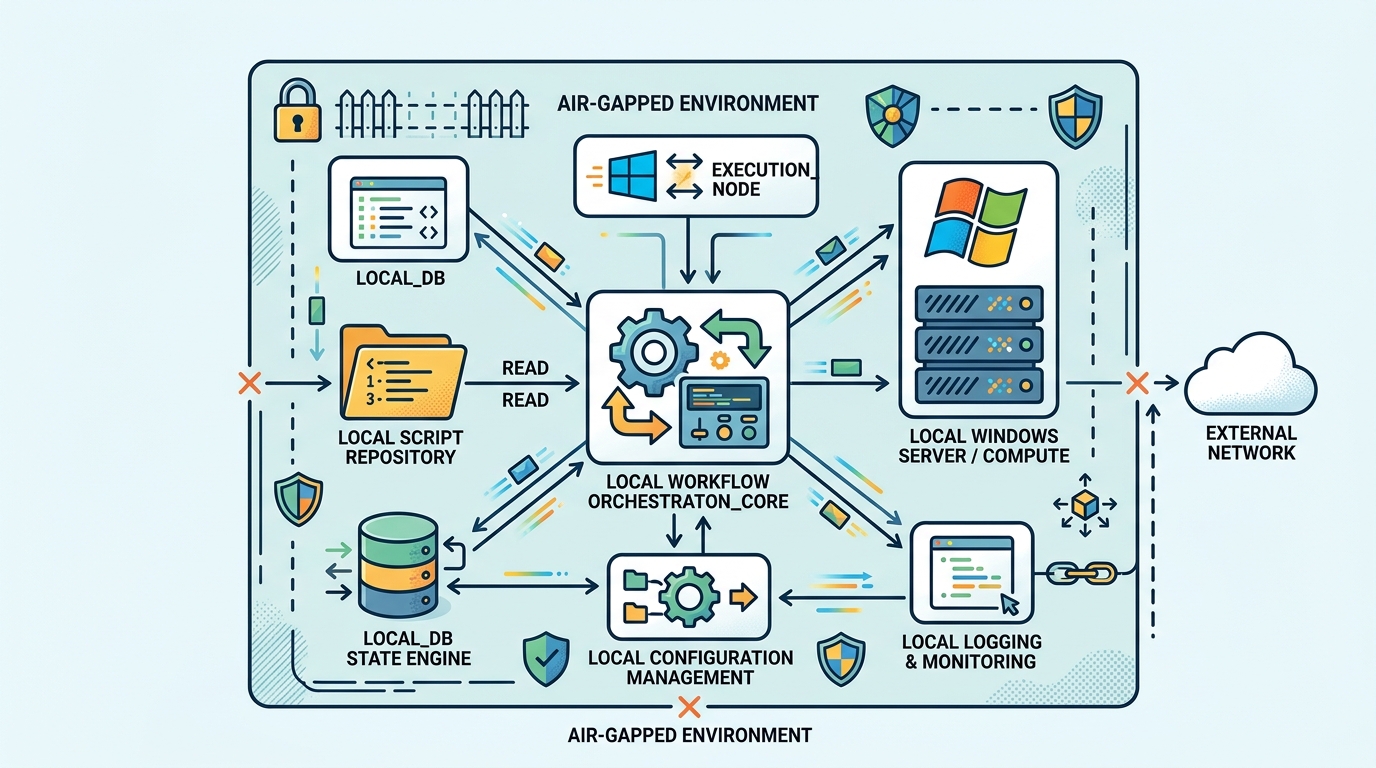
Illustrative diagram of a local workflow orchestration architecture on Windows, emphasizing offline and secure data processing.
Data Privacy, Security, and Compliance Benefits
For IT teams handling sensitive internal databases, financial records, healthcare files, or proprietary intellectual property, cloud automation creates unnecessary compliance risks:
- Zero Data Egress: Local workflow engines process all data directly on the target Windows host. Sensitive database credentials, system logs, and payload contents never cross the corporate firewall.
- Compliance Alignment: Maintaining self-hosted workflows simplifies compliance under HIPAA, SOC 2, GDPR, and defense security protocols by ensuring complete physical custody of data logs. (SOC 2)
- Air-Gapped Operation: Local orchestrators operate entirely offline. Even if an enterprise network loses internet connectivity or operates within an air-gapped facility, scheduled workflows run without interruption.
Moving Beyond Basic Windows Task Scheduler
For decades, Windows Task Scheduler (taskschd.msc) has served as the default utility for running background scripts on Windows machines. While acceptable for launching simple periodic batch files, Task Scheduler lacks basic modern orchestration capabilities.
| Feature / Capability | Windows Task Scheduler | Visual Local Script Orchestrator |
|---|---|---|
| Dependency Chains | Sequential execution only via monolithic scripts | Multi-branch DAGs & step dependencies |
| Visual Workflow Builder | None (Basic trigger dialogs) | Interactive drag-and-drop workflow visualizer |
| State Persistence & Retries | None (Fails silently or aborts) | Automated step retries, checkpoints, and state recovery |
| Language Agnostic | Requires custom CLI invocation | Native execution for Python, PowerShell, Node.js, CLI |
| Real-Time Execution Logs | Windows Event Log (hard to parse) | Live visual step logs and consolidated console outputs |
The Need for Visual Orchestration and State Management
When managing complex operational pipelines, knowing why a step failed is just as important as running it. If a network drive is momentarily unavailable, standard Task Scheduler simply fails the task.
A modern visual workflow orchestrator on Windows provides visual pipeline flows where administrators can map out conditional branches (e.g., If Step A succeeds, execute Step B; if Step A fails, send an alert and retry three times). Having clear visual feedback and persistent execution state eliminates guessing games during troubleshooting.
How to Choose a Script Orchestrator for Windows
Selecting the right script orchestrator for Windows depends on your technical workflow, security boundaries, and team structure.
GUI-Based Tools vs Command-Line Tools
Orchestration utilities broadly fall into two main categories:
- CLI and Code-Only Schedulers: Tools like Apache Airflow, Dagster, or Prefect allow engineers to define workflows as code. However, they require persistent server runtimes, web servers, and local database services.
- Visual Desktop Orchestrators: Native Windows applications—such as the NORA workflow tool—combine an intuitive desktop visual interface with low resource consumption. They allow sysadmins and scripters to chain scripts together visually without writing complex wrapper infrastructure code.
Key questions to ask when evaluating a self-hosted workflow for Windows:
* Does the tool run natively on Windows without requiring Docker or Linux subsystems (WSL2)?
* Can it handle long-running workflows without timing out or crashing silently?
* Does it support native script execution for both Python and PowerShell natively?
* Is licensing structured as a transparent perpetual license or a continuous per-task subscription?
Managing Self-Hosted Workflows Without the Cloud
Setting up an efficient self-hosted automation hub on Windows requires organizing your scripts, environment variables, and execution triggers cleanly.
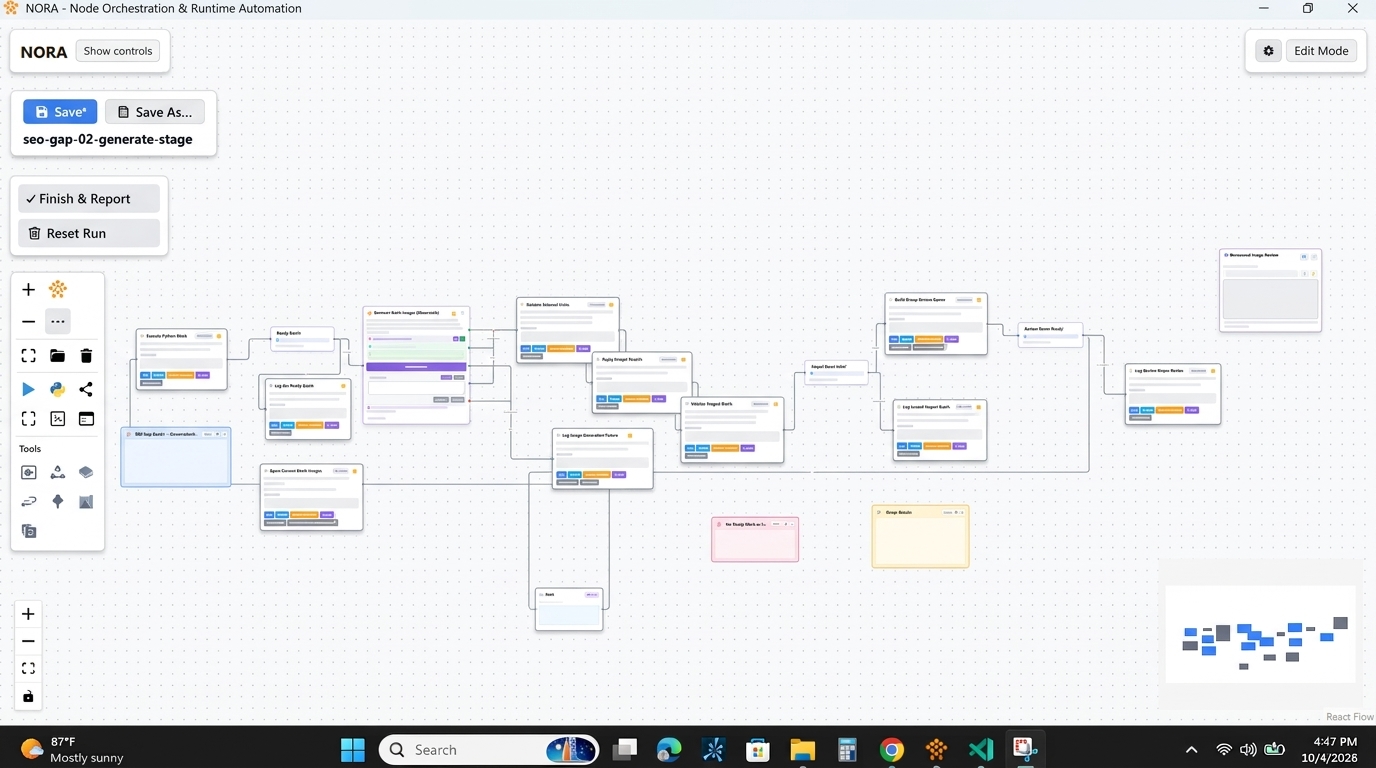
Illustrative: NORA’s visual script orchestrator interface for Windows, designed for managing self-hosted workflows. [cite: local-001]
Key Architecture Components
- Host Environment: A dedicated Windows workstation, VM, or Windows Server instance with required runtimes installed (e.g., Python 3.x, PowerShell 7.x). (PowerShell 7.x) (Python 3.x)
- Centralized Script Repository: A clean directory structure housing modular Python scripts, PowerShell modules, and configuration files.
- Local State Engine: An embedded orchestrator engine that handles event triggers, execution queues, and retry state logs locally.
By decoupling the orchestration logic from the actual script logic, your scripts remain modular and easy to test independently on the command line.
Step-by-Step: Setting Up a Visual Workflow Orchestrator
To demonstrate how local orchestration functions in practice, let us walk through setting up a automated daily server maintenance and report pipeline using a visual local orchestrator.
Step 1: Define Workflow Inputs and Runtimes
Identify the native tools needed for your operational task:
* Script 1 (check_disk_space.ps1): PowerShell script checking local server disk space and services.
* Script 2 (process_log_data.py): Python script processing system log files into a summary report.
* Script 3 (backup_database.ps1): PowerShell script executing a local SQL database backup.
Step 2: Establish Step Dependencies
In your visual orchestrator, configure the workflow nodes:
* Set Script 1 as the initial trigger node running daily at 02:00 AM.
* Set Script 2 and Script 3 to run in parallel upon successful completion of Script 1.
* Configure automatic retry rules: If backup_database.ps1 encounters a transient lock error, retry 3 times with a 60-second delay between attempts.
Step 3: Configure Output and State Logging
Ensure that stdout and stderr stream directly into your orchestrator interface. In the event of a failure, the orchestrator preserves state logs locally so you can inspect the exact line of failure without sifting through sprawling event logs.
For detailed language-specific configurations, see our guide on setting up a Python and PowerShell script orchestrator.
Best Practices for Windows Sysadmins in 2026
To ensure long-term stability across your automated Windows environment, follow these proven best practices:
- Use Explicit Environment Paths: Always specify explicit paths to executable runtimes (e.g.,
C:\Python311\python.exeorC:\Program Files\PowerShell\7\pwsh.exe) rather than relying on system PATH variables. - Implement Structural Error Codes: Design Python and PowerShell scripts to exit with standard non-zero exit codes upon failure (
exit 1), allowing your orchestrator to detect errors instantly. - Avoid Hardcoded Secrets: Store local API keys and database credentials in encrypted environment variables or local secure credential vaults rather than plain text scripts.
- Evaluate Heavy Frameworks Wisely: Avoid over-engineering small and medium-sized local tasks with heavy distributed tools. Explore dedicated Temporal alternatives that offer lightweight, desktop-first execution.
Conclusion
Local workflow orchestration on Windows gives IT professionals, sysadmins, and developers complete control over their automation infrastructure. By moving beyond basic Windows Task Scheduler and avoiding expensive, privacy-risky cloud SaaS platforms, you can build visual, self-hosted execution pipelines that run reliably and securely offline.
Ready to build reliable local workflows on your Windows machines? Discover how the visual, local-first design of NORA can streamline your operations without server overhead or cloud subscription fees.
Frequently Asked Questions
Why should I replace Windows Task Scheduler with a local orchestrator?
Windows Task Scheduler lacks visual dependency mapping, multi-step error handling, state preservation, and clear execution logs. A local orchestrator provides visual drag-and-drop workflows, automatic retry policies, conditional branching, and consolidated real-time execution logging.
Can local workflow orchestrators run when no user is logged into Windows?
Yes. Modern local orchestrators can run as native Windows background services or system tasks, enabling scheduled and event-driven workflows to execute seamlessly around the clock regardless of active user desktop sessions.
Is Docker required to run local workflow orchestration on Windows?
No. While containerized platforms require Docker or Linux containers, native Windows orchestrators like NORA execute scripts directly on the host OS using native system runtimes like PowerShell and Python, eliminating container setup completely.