
How to Build and Manage a Long-Running Workflow Locally
Running background scripts that finish in a few seconds is straightforward. However, when your operational tasks involve complex batch processing, large-scale file transformations, local database migrations, or web scraping routines that run for hours or days, managing execution becomes significantly harder.
When attempting desktop automation for long running tasks, sysadmins and developers frequently encounter silent script crashes, memory leaks, unhandled network timeouts, and lost execution state. Standard command-line windows or Task Scheduler instances provide zero visibility into where a process halted or how far it progressed before crashing.
In this guide, we will explore why basic desktop tools fail for multi-hour tasks, examine core strategies to manage long running scripts locally, and demonstrate how to build resilient offline pipelines on Windows.
The Challenge of Windows Automation for Long Processes
A long running workflow local to your desktop or Windows server operates under very different constraints than transient micro-tasks.
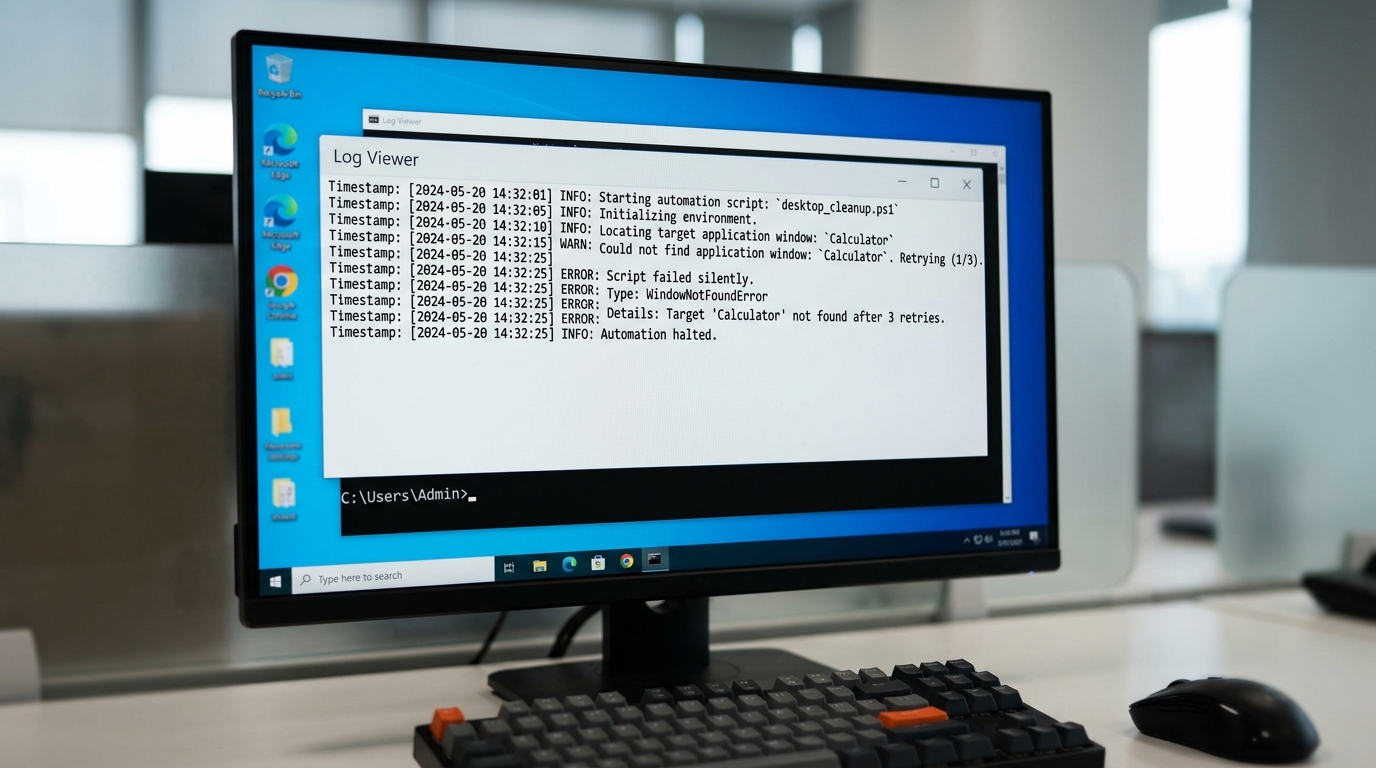
Example error log illustrating silent script crashes in basic desktop automation on Windows
Silent Script Crashes and State Loss
The most frustrating aspect of running unattended scripts on a local workstation is the phenomenon of silent failure:
- Unhandled Exceptions: A transient network glitch, locked local file handle, or unexpected API response terminates your Python or PowerShell process mid-execution.
- Loss of Intermediate Data: Without persistent state logging, all progress made during a four-hour processing run vanishes instantly upon a crash, requiring you to restart from step one.
- Lack of Visibility: Standard terminal windows offer no real-time status indication, leaving administrators guessing whether a script is actively processing or hung indefinitely in a deadlocked thread.
Why Basic Desktop Automation Fails for Long-Running Tasks
Most developers begin managing local automations using simple tools: looping shell scripts, basic cron jobs, or standard Windows Task Scheduler entries. While these utilities work for short jobs, they fail for Windows automation long process execution due to structural limitations:
- No Built-in Retry Logic: If a script step fails due to a temporary disk or network lock, basic tools terminate the process rather than attempting an intelligent exponential backoff retry.
- Missing State Persistence: Basic schedulers do not record checkpoint states. If step 8 out of 10 fails, you cannot resume execution at step 8—you must execute steps 1 through 7 all over again.
- Resource Degradation: Long-running Python or Node.js processes running inside standard console windows can consume memory continuously if garbage collection or file handles are not managed perfectly, eventually crashing the host process.
To overcome these issues, IT teams require dedicated state management built for local execution environments.
3 Strategies to Manage Long-Running Scripts Locally
Building reliable long-running automations on local Windows hardware requires adopting resilient execution patterns.
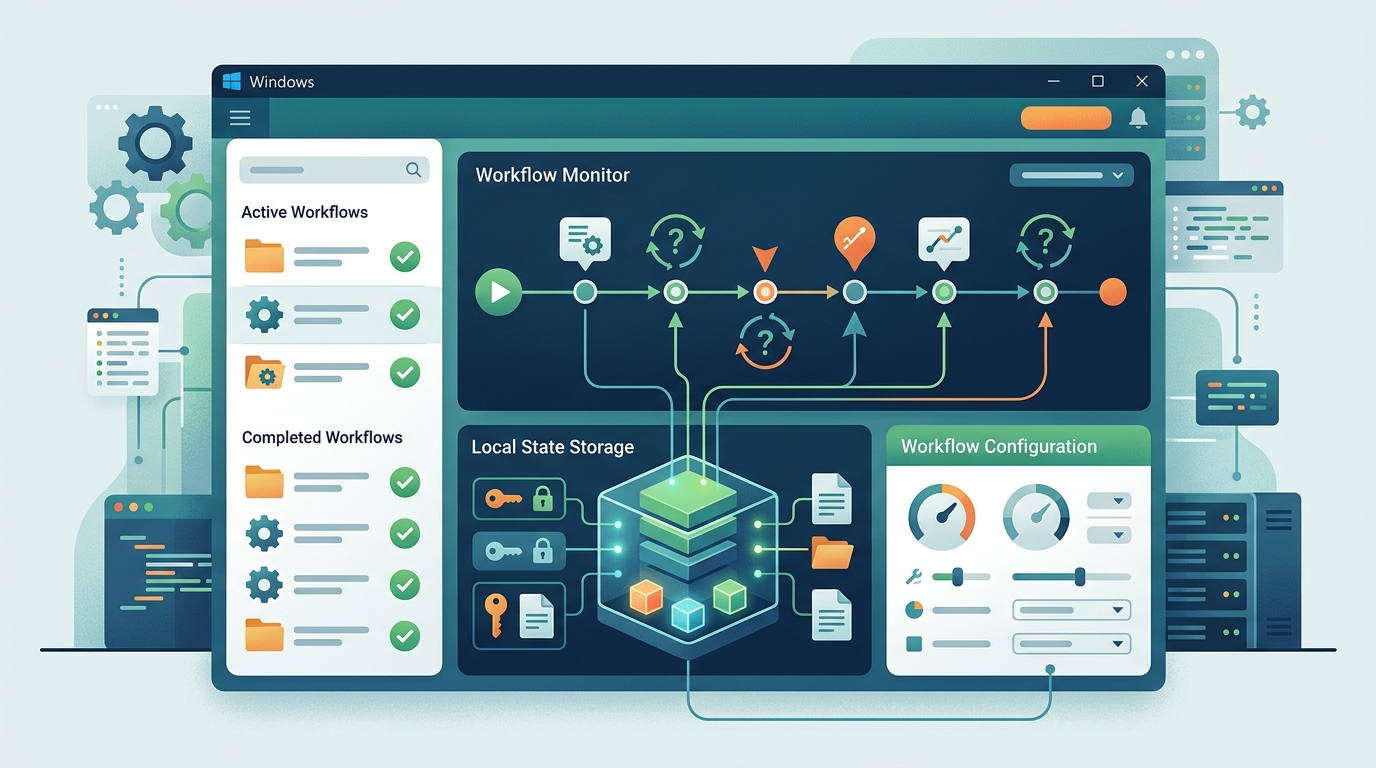
Visual representation of a state management system enabling reliable long-running script execution locally
1. Implementing Checkpoints and Retries
Instead of writing monolithic, single-block scripts, break long processes down into distinct, idempotent steps.
- Step-Level Checkpointing: Save processing markers (such as the last processed batch ID or file offset) to local disk storage after completing each unit of work.
- Automated Retries: Configure your orchestrator engine to automatically retry failed steps up to a set limit before marking the workflow as faulted.
- Idempotent Design: Ensure that re-executing a previously completed step does not duplicate data or corrupt destination databases.
2. Reliable Local State Management
To recover seamlessly from system reboots or transient crashes, state must be stored locally in an embedded format (such as an SQLite database or encrypted JSON state file).
When a manage long running scripts locally workflow resumes after an unexpected shutdown:
1. The local state engine reads the latest checkpoint from disk.
2. The orchestrator skips already verified steps.
3. Execution resumes directly at the last uncompleted step without data duplication.
3. Visualizing Background Processes
Running long tasks in invisible background processes or buried command-prompt windows makes debugging unnecessarily difficult. Visual workflow orchestrators provide an interactive dashboard showing live step duration, active process handles, CPU/memory usage, and streaming output logs.
By utilizing a dedicated visual pipeline tool, sysadmins can monitor the precise execution progress of long-running tasks at a glance.
Choosing Tools for Robust Desktop Automation
When selecting software to handle long-running local execution, evaluate tools based on their state handling and offline architecture.
While enterprise frameworks like Temporal offer state persistence, they require setting up Kubernetes, external databases, and complex infrastructure (explore simpler Temporal alternatives for local setups). Conversely, cloud automation platforms charge high monthly per-minute execution fees for long-running processes.
The ideal solution is a native local orchestrator designed for Windows:
* Native OS Execution: Executes native PowerShell and Python scripts directly on host hardware.
* Visual Task Monitoring: Offers clear real-time visual progress bars and consolidated logging.
* Zero Infrastructure Setup: Operates as a lightweight desktop application without requiring complex server runtimes or web stacks.
Learn how to configure native script runners in our technical guide to orchestrate Python scripts and PowerShell tasks locally.
Securing Workflows Without Cloud Dependencies
For organizations operating under strict data protection policies, keeping execution local is a non-negotiable security requirement.
Running long processes locally allows you to maintain workflows without cloud dependencies:
* Complete Data Sovereignty: Proprietary data, source code, and internal customer records remain strictly on local encrypted drives.
* Network Independence: Workflows continue processing even during internet outages or network maintenance windows.
* Zero Egress Expenses: Avoid paying cloud bandwidth or per-gigabyte processing fees when handling large local dataset transformations.
By implementing structured local state management and visual tracking, you can achieve enterprise-grade reliability directly on your local Windows hardware.
Conclusion
Managing long-running workflows locally does not require complex cloud setups or enterprise server clusters. By structuring your tasks into modular steps, implementing local checkpointing, and deploying a visual orchestrator built for desktop execution, you eliminate silent script crashes and reclaim total control over your automation environment.
Explore how local workflow orchestration for Windows can safeguard your critical long-running tasks today.
Frequently Asked Questions
What happens to a long-running local workflow if my computer restarts?
If you use an orchestrator with local state persistence and step checkpointing, the engine reads the last completed state from disk upon system boot and resumes execution automatically from the failed or interrupted step.
How can I stop Python or PowerShell scripts from crashing silently during long operations?
Wrap execution inside a visual local orchestrator that captures standard output (stdout) and error output (stderr) in real time. Orchestrators allow you to configure automated retry parameters and trigger failure alerts when an exception occurs.
Is cloud automation cheaper for long-running scripts?
No. Cloud automation vendors typically charge based on execution time, active worker minutes, or API call volume. Running multi-hour tasks on cloud platforms can result in high recurring costs, whereas local desktop execution uses existing hardware at zero added operational cost.