
How to Schedule Python Scripts on Linux (Cron Jobs & Systemd)
Automating Python Scripts on Linux
For system administrators and DevOps engineers, Linux is the definitive environment for running reliable background tasks. When you need to automate database backups, API polling, or server maintenance, writing a Python script is typically the first step. The second step is ensuring that script executes precisely when it is supposed to. In the Linux ecosystem, scheduling has historically been dominated by the cron daemon.
However, configuring a cron job python script linux setup is not always intuitive. Countless developers have experienced the frustration of a script that executes perfectly in the terminal, only to fail silently when handed over to cron. In this comprehensive guide for 2026, we will explore how to schedule a Python script on Linux, how to troubleshoot notorious environment errors, and why you might want to consider modern alternatives like systemd timers. If you are operating in a hybrid environment, you can also review how to schedule a Python script on Windows.
Setting Up a Basic Cron Job for a Python Script
Cron is a time-based job scheduler in Unix-like operating systems. It allows users to schedule jobs (commands or shell scripts) to run periodically at fixed times, dates, or intervals.
Crontab Syntax and Examples
To edit your user’s cron jobs, open your terminal and type:
crontab -e
Cron relies on a specific syntax consisting of five fields followed by the command to execute:
* * * * * command_to_execute
The five asterisks represent: Minute (0-59), Hour (0-23), Day of the month (1-31), Month (1-12), and Day of the week (0-7, where 0 and 7 represent Sunday).
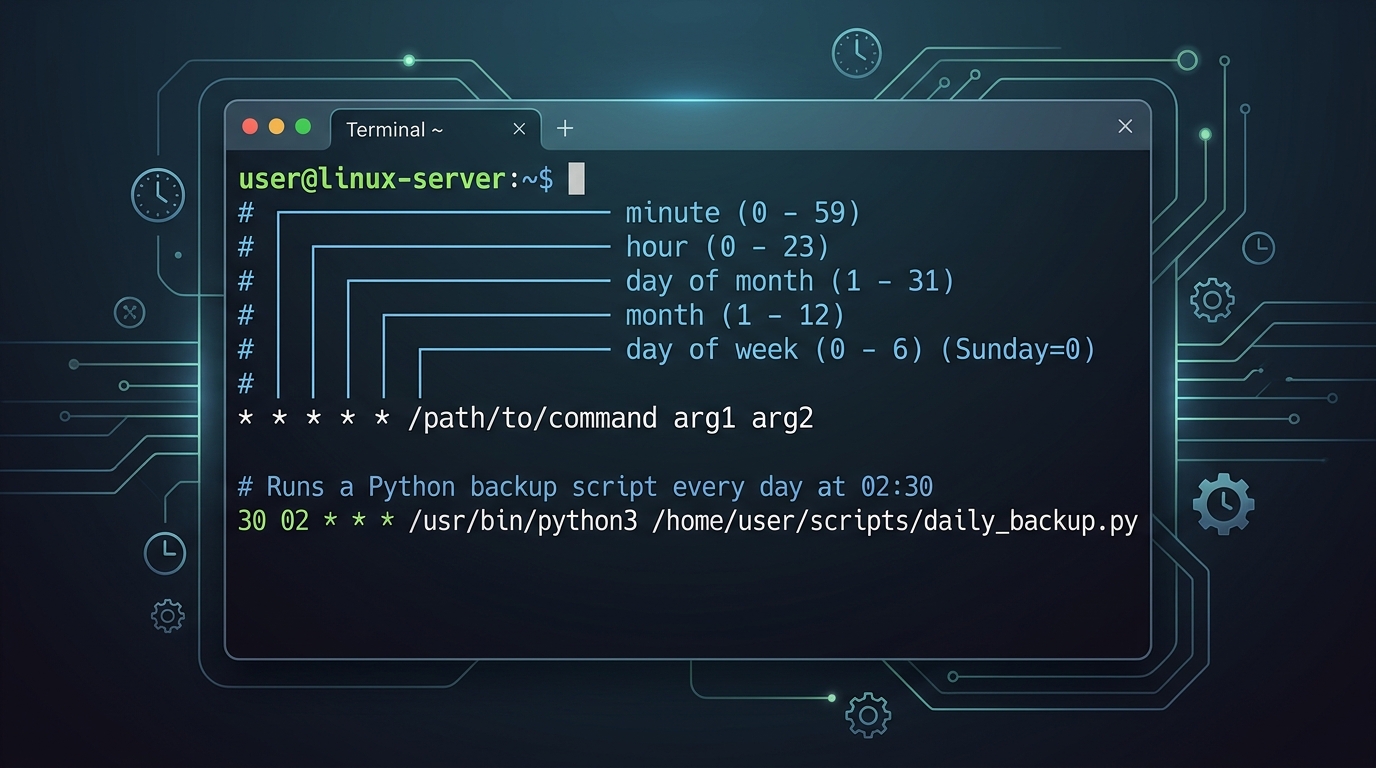
Understanding crontab syntax is crucial for scheduling Python scripts effectively on Linux.
To run a Python script every day at 2:30 AM, your cron entry would look like this:
30 2 * * * /usr/bin/python3 /home/user/scripts/backup.py
Notice the use of absolute paths. Providing the full path to both the Python interpreter and the script is a fundamental best practice in cron scheduling.
Troubleshooting: Python Script Runs Manually But Not in Cron
The most frequent issue encountered by pragmatic automators is discovering that a python script runs manually but not in cron. When this happens, it is almost exclusively an environment issue.

When a Python script runs manually but not in cron, environment issues are almost always the culprit.
Fixing Environment Variables and PATH in Cron
When you log into a Linux shell, the system loads a comprehensive set of environment variables (like PATH, USER, and custom exports found in .bashrc or .profile). Cron does not load these variables. It executes in a highly restricted shell (often /bin/sh with a minimal PATH like /usr/bin:/bin).
If your script relies on external commands or specific environment variables (like API keys), it will crash in cron. To fix this, you can define variables directly at the top of your crontab file:
PATH=/usr/local/sbin:/usr/local/bin:/sbin:/bin:/usr/sbin:/usr/bin
API_KEY=your_secret_key
30 2 * * * /usr/bin/python3 /home/user/scripts/backup.py
Alternatively, you can source your profile within the cron job itself before running the script:
30 2 * * * source $HOME/.bash_profile; /usr/bin/python3 /home/user/scripts/backup.py
Resolving Relative vs. Absolute Path Issues
Because cron executes from the home directory of the user running the crontab, any relative paths in your Python code (e.g., open('data.json')) will resolve incorrectly and throw a FileNotFoundError. You must either write your Python code using absolute paths via the os or pathlib modules, or change directories in the cron command itself:
30 2 * * * cd /home/user/scripts && /usr/bin/python3 backup.py
Capturing Logs and Error Output for Cron Jobs
By default, cron attempts to email the output of tasks to the local user. On modern servers without local mail transport configured, these errors vanish. To debug effectively, redirect both standard output and standard error to a log file:
30 2 * * * /usr/bin/python3 /home/user/scripts/backup.py >> /var/log/my_script.log 2>&1
This ensures that any tracebacks or print statements are preserved for troubleshooting.
Modern Alternative: Using Systemd Timers for Python Scripts
While cron is ubiquitous, modern Linux distributions rely heavily on systemd. Using a systemd timer python script setup provides significant advantages for complex automation.
Why Systemd is Better for Complex Python Automation
Unlike cron, systemd provides robust logging via journalctl, dependency management (ensuring the network is up before running), and precise resource control. Systemd timers are especially useful if you need to guarantee that a script doesn’t overlap with a previous, long-running execution of itself.
Creating a Basic Systemd Service and Timer
To schedule via systemd, you need two files. First, create a service unit file (/etc/systemd/system/myscript.service):
[Unit]
Description=Run My Python Script

[Service]
Type=oneshot
ExecStart=/usr/bin/python3 /home/user/scripts/backup.py
WorkingDirectory=/home/user/scripts
Next, create a timer unit file (/etc/systemd/system/myscript.timer):
[Unit]
Description=Timer for My Python Script

[Timer]
OnCalendar=*-*-* 02:30:00
Persistent=true

[Install]
WantedBy=timers.target
Enable and start the timer:
sudo systemctl enable --now myscript.timer
This approach is highly recommended for production-grade environments. For more insights on non-OS schedulers, check out code-level scheduling alternatives to cron.
Frequently Asked Questions
Why is my python script not running in cron?
The most common reasons are missing environment variables, using relative paths in your script instead of absolute paths, or lacking execution permissions. Cron runs in a minimal environment that does not mirror your interactive terminal.
What are the alternatives to cron for python?
Alternatives include systemd timers for OS-level scheduling on modern Linux distributions, and code-level schedulers like APScheduler, Schedule, or Celery for managing background tasks directly within the application architecture.
How to use systemd timers for python scripts?
You must define a .service file that specifies how to execute the Python script, and a corresponding .timer file that dictates the schedule using OnCalendar syntax. Enable the timer using the systemctl command to start the automation.