
MoviePy Automation Tutorial & Python FFmpeg Guide
Python can automate many repetitive video editing tasks: trimming clips, adding audio, resizing files, extracting frames, creating previews, and batch processing media. This MoviePy automation tutorial introduces Python-native editing with MoviePy, then explains how FFmpeg Python automation fits into more advanced media workflows.
Use this guide if you want practical code patterns that can later become part of an automated video production pipeline.

A Python script using MoviePy to load a video, extract a subclip, and save it to a new file.
Automating Video Editing with Python
Automating video editing does not mean removing creative judgment. It means using code for predictable tasks that would otherwise take repeated manual effort.
Good candidates include:
- Cutting clips from known timestamps
- Resizing videos for different channels
- Adding standard intro or outro clips
- Extracting audio for transcription
- Creating thumbnails from frames
- Batch converting files
- Applying consistent naming conventions
Python is useful because it can coordinate the workflow. It can read a folder, load metadata, loop through files, call media tools, save outputs, and write logs. MoviePy and FFmpeg are two common options for the actual media processing.
A simple automation mindset is:
- Define the source files.
- Define the editing rule.
- Apply the rule consistently.
- Save outputs in a predictable location.
- Log what happened.
If your broader goal is to build AI video workflows, these same automation patterns can prepare generated clips for final delivery.
MoviePy Automation Tutorial
MoviePy is a Python library for video editing tasks. It is approachable because you can work with clips using Python objects and methods.
Before using MoviePy, install it in your Python environment through your approved package management process. You also need working media dependencies in your environment.
Basic Video Editing with MoviePy
Start by loading a video, cutting a subclip, and exporting it.
from moviepy import VideoFileClip

source = VideoFileClip("input/demo.mp4")
clip = source.subclipped(10, 25)
clip.write_videofile("output/demo_clip.mp4", codec="libx264", audio_codec="aac")

source.close()
clip.close()
This creates a clip from 10 seconds to 25 seconds. For repeatable workflows, you can store timestamps in a list.
from moviepy import VideoFileClip

clips_to_make = [
    {"start": 10, "end": 25, "name": "intro_clip.mp4"},
    {"start": 45, "end": 70, "name": "feature_clip.mp4"},
]

source = VideoFileClip("input/demo.mp4")

for item in clips_to_make:
    clip = source.subclipped(item["start"], item["end"])
    clip.write_videofile(f"output/{item['name']}", codec="libx264", audio_codec="aac")
    clip.close()

source.close()
You can also resize a video for a different output format.
from moviepy import VideoFileClip

source = VideoFileClip("input/demo.mp4")
resized = source.resized(height=720)
resized.write_videofile("output/demo_720p.mp4", codec="libx264", audio_codec="aac")

source.close()
resized.close()
These examples are intentionally simple. They show the core pattern: load the clip, transform it, write the output, and close resources.
Advanced Media Automation
More advanced workflows often use metadata files so editors do not need to modify Python code for every clip. A CSV can define timestamps and names.
Example CSV:
start,end,name
5,18,hook.mp4
30,52,explainer.mp4
75,95,cta.mp4
Python script:
import csv
from pathlib import Path
from moviepy import VideoFileClip

source_path = Path("input/demo.mp4")
metadata_path = Path("metadata/clips.csv")
output_folder = Path("output/clips")
output_folder.mkdir(parents=True, exist_ok=True)

source = VideoFileClip(str(source_path))

with metadata_path.open(newline="", encoding="utf-8") as file:
    reader = csv.DictReader(file)

    for row in reader:
        start = float(row["start"])
        end = float(row["end"])
        output_path = output_folder / row["name"]

        clip = source.subclipped(start, end)
        clip.write_videofile(str(output_path), codec="libx264", audio_codec="aac")
        clip.close()

source.close()
This pattern is useful for content teams. A producer can create a list of clips in a spreadsheet, export it as CSV, and let the script generate each cut.
Other MoviePy automation ideas include:
- Combining a standard intro with generated clips
- Creating short previews from long recordings
- Extracting audio tracks for transcription
- Adding simple text overlays
- Producing multiple versions from the same source
For production work, add validation and logging. Check that the source file exists, the CSV has required columns, and output folders are available before processing.
FFmpeg Python Automation
FFmpeg is a powerful media processing tool often used for transcoding, clipping, resizing, extracting audio, and working with formats. Python can automate FFmpeg by building commands and running them with subprocess.
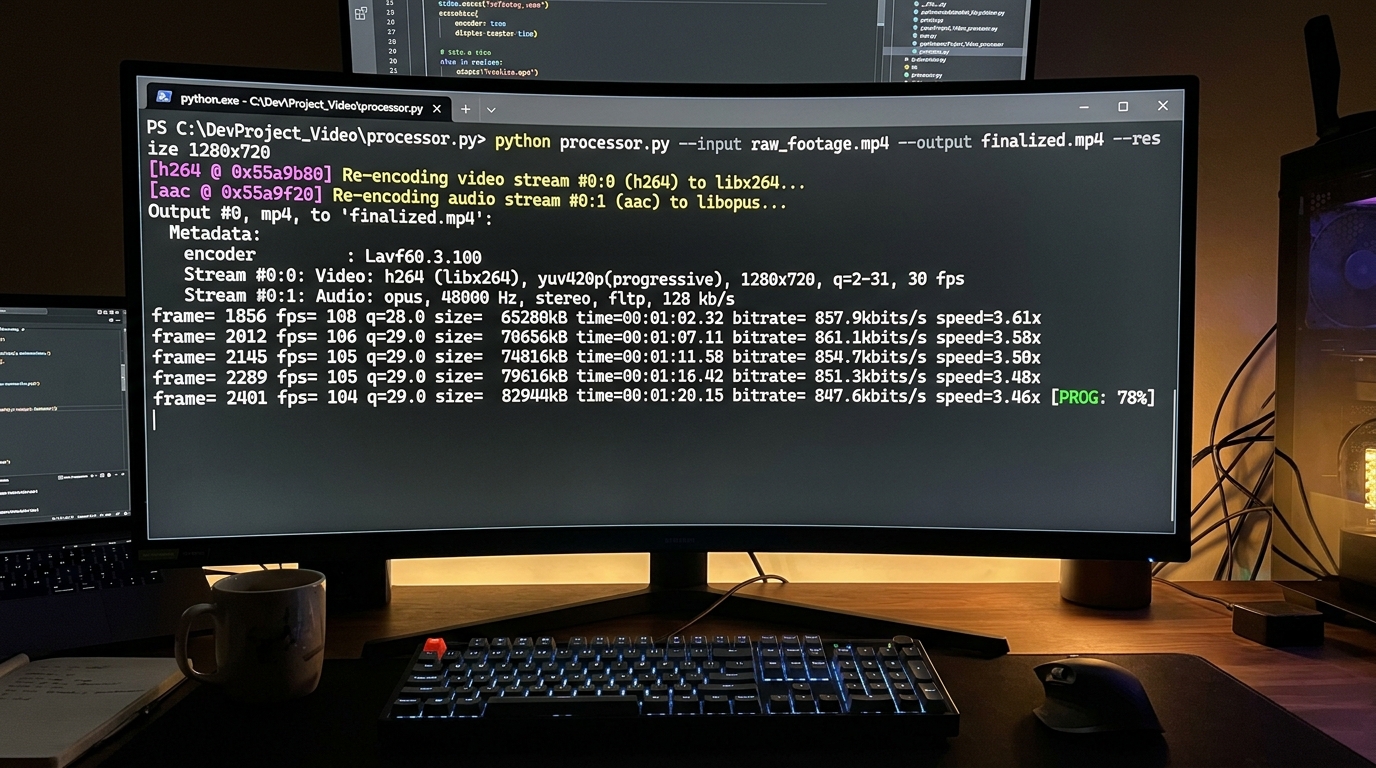
Executing an FFmpeg command via a Python script to automate video processing tasks.
Here is a basic FFmpeg automation example for resizing videos in a folder.
import subprocess
from pathlib import Path

input_folder = Path("input")
output_folder = Path("output/720p")
output_folder.mkdir(parents=True, exist_ok=True)

for video in input_folder.glob("*.mp4"):
    output_path = output_folder / f"{video.stem}_720p.mp4"

    command = [
        "ffmpeg",
        "-y",
        "-i", str(video),
        "-vf", "scale=-2:720",
        "-c:v", "libx264",
        "-c:a", "aac",
        str(output_path)
    ]

    subprocess.run(command, check=True)
You can also extract audio from videos.
import subprocess
from pathlib import Path

input_folder = Path("input")
output_folder = Path("output/audio")
output_folder.mkdir(parents=True, exist_ok=True)

for video in input_folder.glob("*.mp4"):
    output_path = output_folder / f"{video.stem}.wav"

    command = [
        "ffmpeg",
        "-y",
        "-i", str(video),
        "-vn",
        "-acodec", "pcm_s16le",
        str(output_path)
    ]

    subprocess.run(command, check=True)
FFmpeg is often preferred for batch processing because it is fast, flexible, and widely used in media workflows. MoviePy can be easier for Python-first editing logic, while FFmpeg is strong for lower-level media processing and format control.
A practical comparison:
- Use MoviePy when you want readable Python editing code.
- Use FFmpeg when you need efficient conversion, resizing, clipping, or format handling.
- Use Python orchestration when you need to process many files with consistent rules.
For teams building Python automation that saves hours, video automation follows the same principle: automate the repetitive parts, validate inputs, and keep outputs consistent.
FAQ
How do I automate video editing with MoviePy and Python?
Load a video with MoviePy, apply transformations such as clipping or resizing, write the output file, and repeat the process for multiple clips or files.
What is FFmpeg Python automation?
FFmpeg Python automation uses Python to build and run FFmpeg commands for media tasks such as resizing, transcoding, clipping, and audio extraction.
Should I use MoviePy or FFmpeg?
Use MoviePy for Python-native editing workflows and FFmpeg for powerful media processing and format control. Many workflows use both.
Can I batch process videos with Python?
Yes. Python can scan folders, loop through video files, apply MoviePy or FFmpeg processing, and save outputs with standardized names.
Is video automation suitable for content teams?
Yes. It is especially useful for repeatable tasks such as creating clips, resizing videos, extracting audio, and preparing assets for publishing.