
PowerShell vs Bash Automation: A Guide for Operations Engineers
PowerShell vs bash automation is not a question of which shell is universally better. It is a question of which shell fits the system, data model, team skill set, and operational task in front of you.
PowerShell grew up around Windows administration and object-oriented command pipelines. Bash grew up around Unix and Linux environments, where text streams and small composable utilities are the norm. Both are capable. Both can be misused. The best operations teams understand the difference and choose intentionally.
This guide compares the shells from an automation perspective: pipelines, strengths, use cases, and mixed-environment decisions.
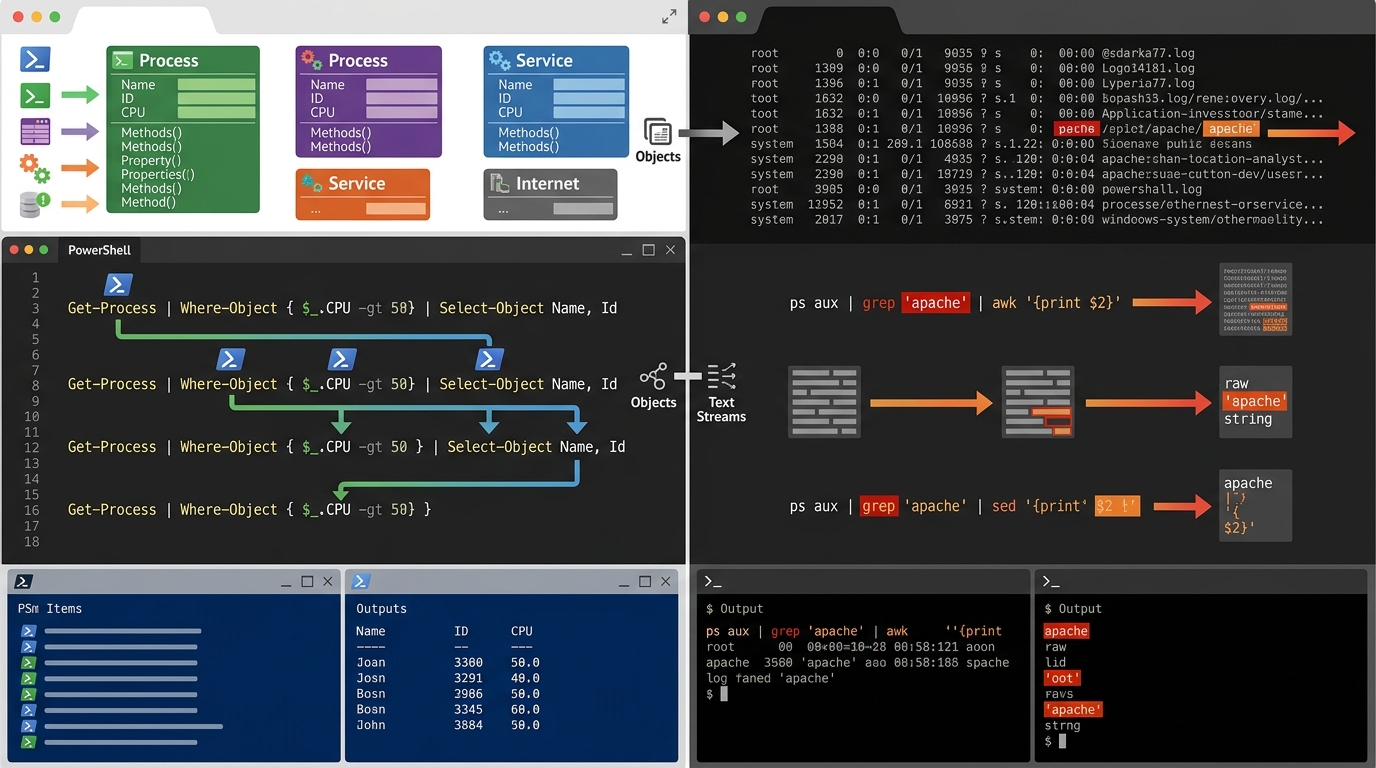
A visual comparison of PowerShell’s object-oriented pipelines and Bash’s text-based streams in automation.
Understanding the Core Differences
The biggest difference between PowerShell and Bash is how they represent and pass data.
PowerShell commands often return structured objects. Those objects have properties and methods that can be filtered, sorted, exported, or passed to other commands without parsing plain text.
Bash commands usually pass text streams between processes. That model is extremely flexible and works well with classic Unix tools such as grep, awk, sed, find, xargs, and cut.
Neither model is automatically superior. Object pipelines are excellent when the system exposes structured data. Text streams are excellent when working with files, command output, and Linux utilities designed to compose through standard input and output.
Object-Oriented Pipelines (PowerShell) vs Text-Based Streams (Bash)
In PowerShell, you might list services and filter by a property:
Get-Service | Where-Object { $_.Status -eq "Running" }
The pipeline passes service objects, not just formatted text. That makes it straightforward to select fields:
Get-Service | Select-Object Name, Status, StartType
In Bash, a similar workflow typically parses text output or uses a command that produces machine-readable output:
systemctl list-units --type=service --state=running
Then you might combine commands:
systemctl list-units --type=service --state=running | grep nginx
Bash’s text model is powerful because nearly every command-line tool can participate. The tradeoff is that parsing human-oriented output can be fragile if formats change. When possible, Bash scripts should prefer stable machine-readable output options from tools, such as JSON flags where available, and then parse carefully with appropriate utilities.
Strengths of PowerShell for Automation
PowerShell is strongest when automating Microsoft and Windows-oriented environments. It integrates naturally with Windows Server administration, services, event logs, registry paths, scheduled tasks, and Active Directory modules where available.
PowerShell strengths include:
- Structured objects: less text parsing for supported commands.
- Windows administration depth: strong fit for Windows Server and Microsoft operational tasks.
- Consistent verb-noun command style: discoverable command naming such as
Get-ServiceandSet-Item. - Remote administration patterns: useful for managing multiple Windows systems when configured properly.
- Data export: object output can be exported to CSV, JSON, or XML for reporting.
PowerShell is often the better choice for:
- Active Directory reports and provisioning workflows
- Windows service checks and remediation
- Event log analysis
- Scheduled task creation and inspection
- Windows file permission reports
- Microsoft-focused infrastructure automation
For practical examples, see dedicated PowerShell task automation examples.
Strengths of Bash for Linux Operations
Bash is strongest in Linux and Unix-like environments. It is usually available by default, works naturally with system utilities, and is widely understood by operations teams that manage Linux hosts.
Bash strengths include:
- Ubiquity on Linux: available on most Linux systems.
- Composable command-line tools: excellent for chaining small utilities.
- File and process management: natural fit for logs, directories, processes, and services.
- Simple scheduling: commonly paired with cron or systemd timers.
- Low overhead: ideal for short host-level automation tasks.
Bash is often the better choice for:
- Log pruning and file rotation
- Linux service checks
- Backup command wrappers
- Cron-managed maintenance tasks
- Deployment helper scripts
- Command-line orchestration on Linux hosts
For deeper Linux patterns, see advanced bash scripting operations team strategies.
Use Cases: When to Choose Which
Choose PowerShell when the automation target is primarily Windows or Microsoft systems. Choose Bash when the automation target is primarily Linux host operations. Choose neither by default when the workflow is really an application; a high-level language may be clearer.
A practical decision table:
| Task | Better Starting Point | Why |
|---|---|---|
| Active Directory user report | PowerShell | Structured Microsoft administration modules |
| Linux log cleanup | Bash | Native file and text tooling |
| Windows service remediation | PowerShell | Direct service management objects |
| Cron-based backup wrapper | Bash | Simple Linux scheduling and CLI orchestration |
| API-heavy data sync | Node.js or another high-level language | Better structure for JSON, retries, and application logic |
| Mixed fleet reporting | Depends | Use native tools per platform or centralize in a higher-level workflow |
The right answer also depends on who will maintain the script. A technically perfect script in a language no one on the team understands can become a liability.
Cross-Platform Considerations
Both PowerShell and Bash can be used across platforms in some contexts, but cross-platform availability does not erase platform fit. A shell can run on an operating system and still not be the most natural way to manage it.
For cross-platform automation:
- Keep platform-specific tasks in platform-native scripts when that reduces complexity.
- Standardize script behavior: logging, exit codes, parameters, and documentation.
- Avoid assuming identical paths, shells, permissions, or service managers across systems.
- Use higher-level orchestration when a workflow must coordinate multiple platforms.
If your team needs a broader framework, review broader cross-platform automation scripting strategies.
Managing Mixed Environments
Mixed environments are common: Windows servers for directory services or legacy applications, Linux systems for web workloads, and internal tools that connect everything. In those environments, the best approach is often layered automation.
For example:
- Use PowerShell to collect Windows Server and Active Directory data.
- Use Bash to collect Linux host data.
- Store outputs in a shared format such as CSV or JSON.
- Use a higher-level job or internal tool to combine reports and present results.

Flowchart to help operations engineers decide between PowerShell and Bash for scripting in mixed environments.
This avoids forcing one shell to do everything. It also lets each team member work in the tool that best fits the task while maintaining shared operational standards.
FAQ
Is PowerShell better than Bash for automation?
PowerShell is better for many Windows and Microsoft administration tasks because it works with structured objects and native management tools. Bash is better for many Linux operations tasks because it works naturally with Unix-style command-line utilities.
Should Linux teams learn PowerShell?
Linux-focused teams do not need PowerShell for routine Bash-native operations, but learning the basics can help in mixed environments where Windows systems, Microsoft services, or cross-platform scripts are part of the workload.
Should Windows sysadmins learn Bash?
Windows sysadmins who manage Linux systems, containers, or DevOps tooling benefit from learning Bash basics. It helps with Linux host operations, shell pipelines, and troubleshooting scripts written by other teams.
What is the best shell for mixed environments?
There is no single best shell for every mixed environment. Use PowerShell for Windows-specific automation, Bash for Linux-specific automation, and consider comprehensive sysadmin automation scripts that define shared standards across tools.