
Diagnosing a Local LLM Hardware Bottleneck: CPU Fallback and GPU Issues
Local execution of AI models demands high performance across your GPU, CPU, RAM, and storage system. When one of these hardware components fails to keep pace with operational demands, a severe local LLM hardware bottleneck occurs.
Understanding why your graphics hardware remains idle or why your system reverts to slow processing modes is the first step toward reclaiming high-speed local AI performance.
What Causes a Local LLM Hardware Bottleneck?
A hardware bottleneck occurs when the throughput of a high-performance system component is constrained by a slower peripheral component. In local LLM inference, performance relies primarily on memory bandwidth and GPU matrix compute cores.
Common system bottlenecks include:
– System Memory Bandwidth Limits: Attempting to process models inside system RAM (DDR4/DDR5) rather than high-bandwidth GPU memory (GDDR6/HBM).
– PCIe Bus Transfer Overhead: Continually streaming parameter weights back and forth across a PCIe slot because model weights cannot fit entirely into dedicated VRAM.
– Compute Architecture Bottlenecks: Using older GPU architectures lacking specialized tensor acceleration cores or proper half-precision (FP16/INT8) compute routines.
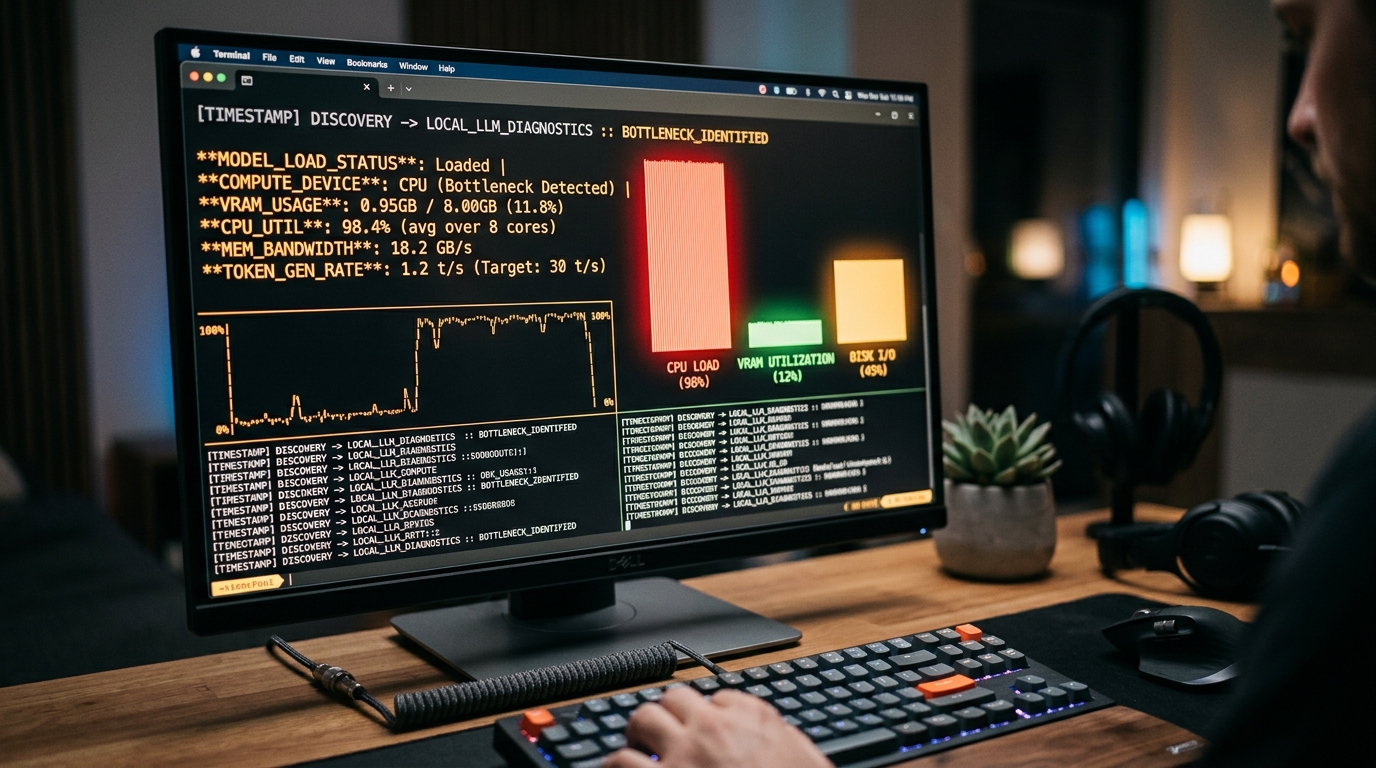
A command line interface can reveal critical information about hardware bottlenecks affecting local LLM performance.
Why Is the GPU Not Used by My Local LLM?
One of the most frustrating technical hurdles for developers is opening task manager and discovering that a GPU not used by local LLM software is sitting at 0% activity while the CPU runs at 100% capacity.
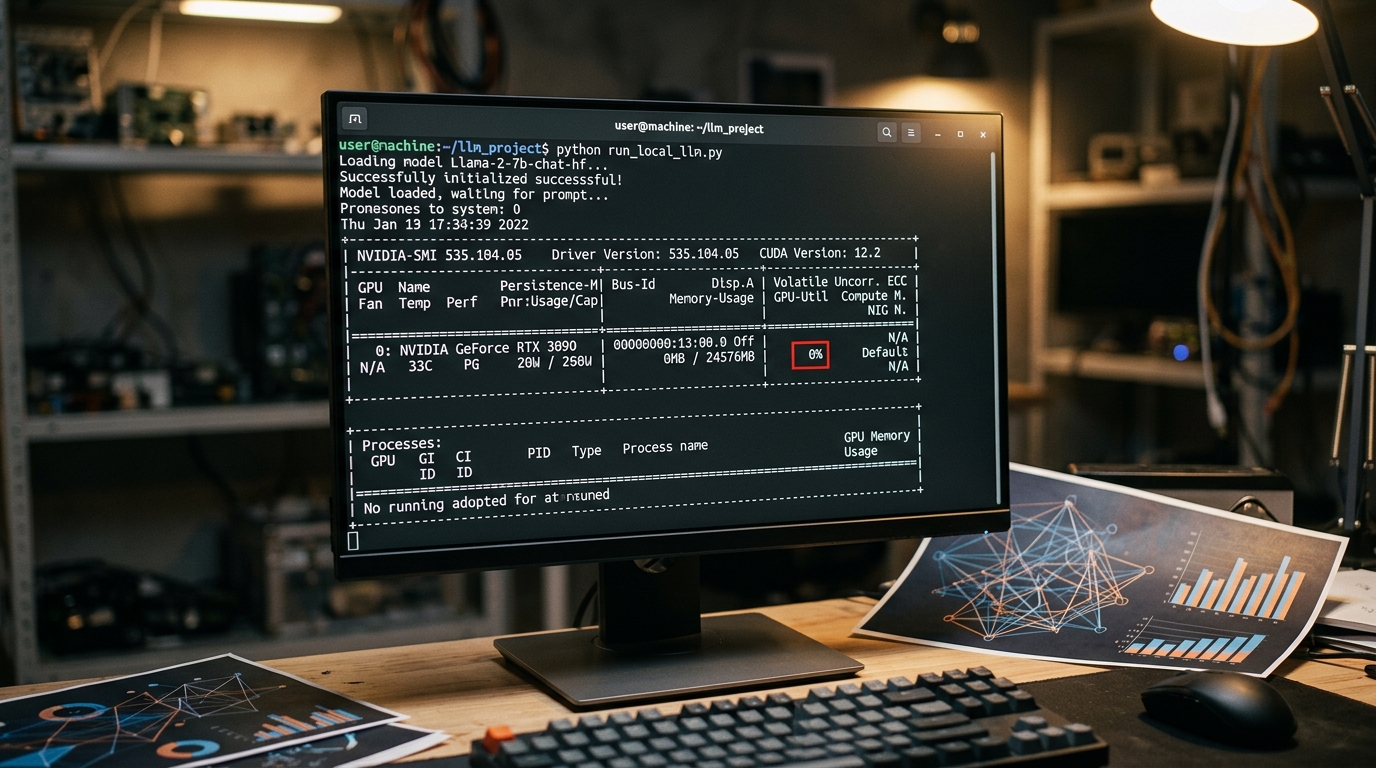
The nvidia-smi tool can quickly diagnose if your GPU is being underutilized or completely idle during local LLM operations.
Missing CUDA Drivers or ROCm Setup
Inference engines require hardware acceleration drivers to communicate directly with GPU silicon:
– NVIDIA Hardware: Requires functional CUDA Toolkit runtime libraries (nvcc) and compatible display drivers.
– AMD Hardware: Requires ROCm driver builds or Vulkan fallback layers configured correctly.
If binary runtimes fail to load these runtime dependencies upon startup, the software silently drops acceleration and runs in basic CPU mode.
Improper Framework Configuration
Many open-source CLI runners and API backends require explicit configuration flags to activate GPU execution:
– Llama.cpp: If built without CUDA flags (LLAMA_CUDA=ON), executable binaries will execute strictly on CPU threads regardless of installed graphics hardware.
– Ollama / LM Studio: Environment variables or driver paths may prevent proper GPU detection, especially inside virtualized environments like WSL2 on Windows. For detailed environment fixes, learn how to troubleshoot WSL2 Ollama setup.
The Curse of Local LLM CPU Fallback
When inference frameworks fail to fit model parameters into dedicated VRAM, they activate local LLM CPU fallback. While CPU fallback allows a model to run rather than crashing with an Out-of-Memory (OOM) error, the performance loss is dramatic.
What Happens When VRAM Runs Out
When loading a model that exceeds available GPU memory:
1. The engine offloads as many layers as possible to GPU VRAM.
2. Remaining layers are allocated in system RAM.
3. During every step of token generation, execution must stall while data synchronizes across the PCIe bus between system RAM and GPU memory.
Because GDDR6 VRAM operates at 300–1000+ GB/s while dual-channel DDR5 system RAM tops out around 60–80 GB/s, partial offloading causes token output to plunge from 40+ tok/s down to 2–5 tok/s.
How to Monitor Local LLM GPU Usage Effectively
Accurately identifying bottlenecks requires real-time diagnostic monitoring during active prompt evaluation and generation phases.
Using nvidia-smi and Other Terminal Tools
For NVIDIA hardware owners, nvidia-smi is the ultimate terminal tool to monitor local LLM GPU usage:
# Watch GPU utilization and memory metrics updated every second
nvidia-smi -l 1
Pay specific attention to two key metrics:
– Memory-Usage: Confirms whether your model parameters fully reside in VRAM.
– GPU-Util: Should spike to 80%–100% during active prompt evaluation and generation.
Apple Silicon Diagnostics
On macOS devices with M1/M2/M3/M4 chips, Unified Memory is shared between CPU and GPU cores. Use terminal tools such as asitop or native Activity Monitor to check Metal GPU utilization and memory bandwidth utilization in real time.
Upgrading Your Rig: When Is It Time to Buy More VRAM?
If software adjustments, lower context allocations, and 4-bit quantization schemes still result in memory exhaustion, physical hardware upgrades become necessary.
Guidelines for hardware upgrades:
– Target VRAM Capacity First: Priority should always focus on maximizing total GPU VRAM over raw compute speed. A 16 GB or 24 GB GPU allows full offloading of larger 8B to 14B models.
– Prioritize Memory Bandwidth: Graphics cards with wider memory buses (e.g., 256-bit or 384-bit GDDR6X) generate tokens significantly faster than cards with 128-bit memory buses.
To explore techniques that maximize performance on your current hardware before investing in upgrades, check out our guide to increase your local LLM speed and discover how choices in understand model configuration impacts alter memory requirements.
Frequently Asked Questions (FAQ)
Can I run a local LLM using multiple GPUs?
Yes, runtimes like Llama.cpp, vLLM, and Ollama support multi-GPU tensor parallelism and layer splitting. Parameters are split across available VRAM buffers to accommodate larger model sizes.
Why does my GPU memory usage stay high even when I’m not chatting?
Inference backends keep model parameters loaded in GPU memory (cached) so that subsequent prompts respond instantly without needing to reload weights from disk.
Is CPU-only local LLM execution viable for daily use?
For small 1B to 3B models, modern CPUs can achieve reasonable speeds. However, for 7B+ parameter models, CPU-only execution is generally too slow for interactive conversational use.