
How to Use GGUF Models in Ollama & LM Studio
Desktop artificial intelligence has evolved from complex command-line scripts into polished, user-friendly applications. Leading this transformation are two dominant tools: Ollama and LM Studio. Both applications enable users to run powerful open-source large language models locally on macOS, Windows, and Linux devices.
At the core of both applications is Ollama GGUF and LM Studio GGUF integration. The GGUF file format allows these tools to compress multi-gigabyte neural networks, stream weights directly into memory, and execute models efficiently across CPUs and GPUs.
This practical step-by-step guide explains why GGUF is the universal standard for desktop tools, how to import and configure custom GGUF files in Ollama and LM Studio, and how to optimize hardware configurations for maximum performance.
Why GGUF is the Standard for Local Tools
Before diving into setup steps, it helps to understand why desktop applications rely almost exclusively on GGUF rather than older formats or raw PyTorch checkpoints.
GGUF (GPT-Generated Unified Format) was engineered specifically to solve three critical challenges in desktop AI execution:
- Self-Contained Header Metadata: A single
.gguffile contains all weights, context length limits, template configurations, and vocabulary tokens in its embedded header. Desktop apps do not need external configuration files. - Unified Acceleration Engine: GGUF is powered under the hood by
llama.cpp, which supports CPU vector instructions (AVX2, AVX-512), Apple Silicon Metal API, NVIDIA CUDA, AMD ROCm, and Vulkan backends natively. (llama.cpp) - Dynamic Memory Allocation: GGUF enables seamless layer offloading between system RAM and GPU VRAM, allowing users with modest hardware to run large models by sharing memory bandwidth.
Before choosing model downloads for your setup, ensure you select the best local LLM format for your rig.
Setting Up Ollama GGUF Models
Ollama provides a streamlined command-line interface and background server process for managing local AI models. While Ollama includes a built-in library of models (run via ollama run llama3), you can easily import any custom GGUF model file downloaded directly from Hugging Face.

A terminal window demonstrating the command-line execution of an Ollama GGUF model.
Step-by-Step: Importing Custom GGUF Files into Ollama
Step 1: Download Your GGUF File
Download your desired .gguf file (e.g., mistral-7b-instruct-v0.2.Q4_K_M.gguf) from Hugging Face and save it in a known directory (e.g., C:/ai-models/ or ~/ai-models/). (mistral-7b-instruct-v0.2.Q4_K_M.gguf)
Step 2: Create a Modelfile
In the same directory where your .gguf file is saved, create a text file named Modelfile (without any file extension). Open it in a text editor and add the following lines:
# Specify the path to your downloaded GGUF file
FROM ./mistral-7b-instruct-v0.2.Q4_K_M.gguf

# Set temperature parameter (0.0 = deterministic, 1.0 = creative)
PARAMETER temperature 0.7

# Set context window size (e.g., 8192 tokens)
PARAMETER num_ctx 8192

# Define system prompt
SYSTEM """You are a helpful, concise AI assistant executing tasks locally."""
Step 3: Build the Model in Ollama
Open your terminal or command prompt, navigate to your folder directory, and run the ollama create command:
ollama create my-custom-model -f ./Modelfile
Ollama will parse the GGUF file header, register the quantization parameters, and build the local model container.
Step 4: Run Your Custom GGUF Model
Execute your newly created model immediately using:
ollama run my-custom-model
You now have a custom GGUF model running locally with full API access at http://localhost:11434.
Setting Up LM Studio GGUF Models
LM Studio provides an intuitive graphical user interface (GUI) featuring a visual model search engine, real-time CPU/GPU memory usage monitors, and a customizable chat interface.
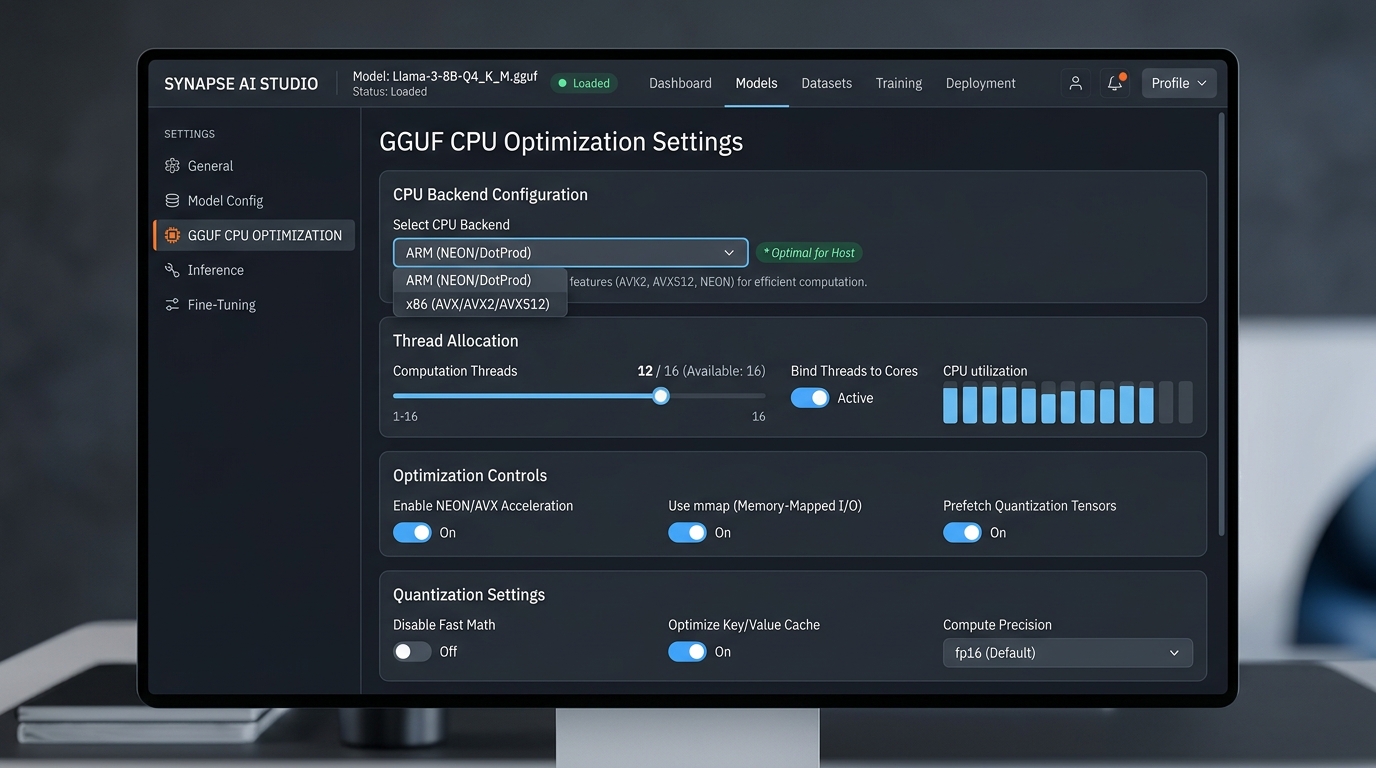
The LM Studio graphical user interface showing settings for GGUF CPU optimization.
Step-by-Step: Running GGUF in LM Studio
Step 1: Search and Download Inside LM Studio
- Launch LM Studio.
- Click the Search tab (magnifying glass icon) on the left sidebar.
- Enter your desired model name (e.g., “Llama 3 8B Instruct” or “Qwen 2.5”).
- LM Studio automatically lists available GGUF repositories from Hugging Face alongside quantization levels (
Q4_K_M,Q5_K_M,Q8_0). - Click Download next to your preferred file.
Step 2: Load Model in Chat Interface
- Go to the Chat tab.
- Click the top model dropdown menu (“Select a model to load”).
- Choose your downloaded GGUF model. LM Studio will instantly map the file header into virtual memory.
Step 3: Configure GPU Offloading Parameters
- Open the Right Sidebar (Model Settings).
- Under Hardware Configuration, locate GPU Offload.
- Toggle GPU Offload to Max (or adjust the slider to specify the exact number of layers offloaded to VRAM).
- Increase Context Length (e.g., to 8192 or 16384) according to your available memory.
Hardware-Specific Configurations
Achieving maximum generation speed (tokens per second) requires matching your software settings to your hardware setup.
Optimizing GGUF and GGML for CPU
If you are running GGUF for CPU setups without a dedicated GPU:
- Thread Count Allocation: Set hardware thread usage equal to your CPU’s physical core count (not logical hyperthreads). For example, on an 8-core / 16-thread CPU, set
threads = 8in LM Studio or Ollama. - Flash Attention: Enable Flash Attention in LM Studio settings to reduce CPU memory bandwidth demands during prompt processing.
- Batch Size: Lower evaluation batch sizes (
n_batch = 256or512) to keep RAM throughput smooth on older processors. - Legacy Formats: If you stumble upon older documentation discussing GGML for CPU, note that GGML has been completely replaced by GGUF. To learn why this transition occurred, read about the GGUF vs GGML difference.
Using Safetensors for GPU Workloads
While GGUF dominates general desktop tools, understanding what are safetensors is essential if you expand into enterprise GPU workflows:
- Dedicated GPU Runtimes: For setups with dedicated high-end GPUs (e.g., RTX 4090 or A100), running safetensors for GPU workloads via vLLM or ExLlamaV2 offers faster tensor processing than CPU-based execution.
- VRAM Pre-allocation: Ensure your VRAM capacity can hold the uncompressed or AWQ-quantized tensor matrices along with the Key-Value (KV) cache required for long context generation.
Frequently Asked Questions
Why is my GGUF model running slowly in Ollama?
Slow generation in Ollama usually occurs when the model exceeds your available VRAM, forcing Ollama to spill layers into slower system RAM. Check your GPU memory usage and consider downloading a smaller quantization level (e.g., switching from Q8_0 to Q4_K_M).
Can I run GGUF models on Apple Silicon Macs?
Yes! Apple Silicon Macs (M1/M2/M3/M4) excel at running GGUF models because their Unified Memory Architecture allows the GPU to access system RAM at ultra-high bandwidths via Apple’s Metal API.
How do I delete GGUF models in LM Studio?
In LM Studio, click the Folder tab (My Models) on the left menu, locate the downloaded GGUF file, click the three-dots menu, and select Delete File to free up disk space.
Conclusion & Next Steps
Setting up GGUF models in Ollama and LM Studio provides a powerful, private foundation for local AI operations.
* Once your local inference server is up and running in Ollama or LM Studio, you can connect it directly to local automation applications.
* Connect local GGUF models to visual desktop workflows to automatically summarize local files, extract structured JSON data, and orchestrate complex tasks without sending data to external cloud APIs.