
Building Reliable Node.js Automation for Internal Tools
Node.js automation internal tools are a practical option when shell scripts start turning into small applications. If an automation workflow needs API calls, JSON transformation, database access, retries, structured logs, or a lightweight web interface, Node.js can be easier to maintain than a long Bash or PowerShell script.
For operations engineers, Node.js is not a replacement for every shell task. It is a useful layer for workflows that sit between infrastructure and internal business systems: syncing records, processing files, triggering webhooks, generating reports, and coordinating scheduled tasks.
This guide explains when to choose Node.js, shows Node.js automation workflow examples, and covers how to schedule Node.js scripts in production environments without relying on fragile ad hoc processes.
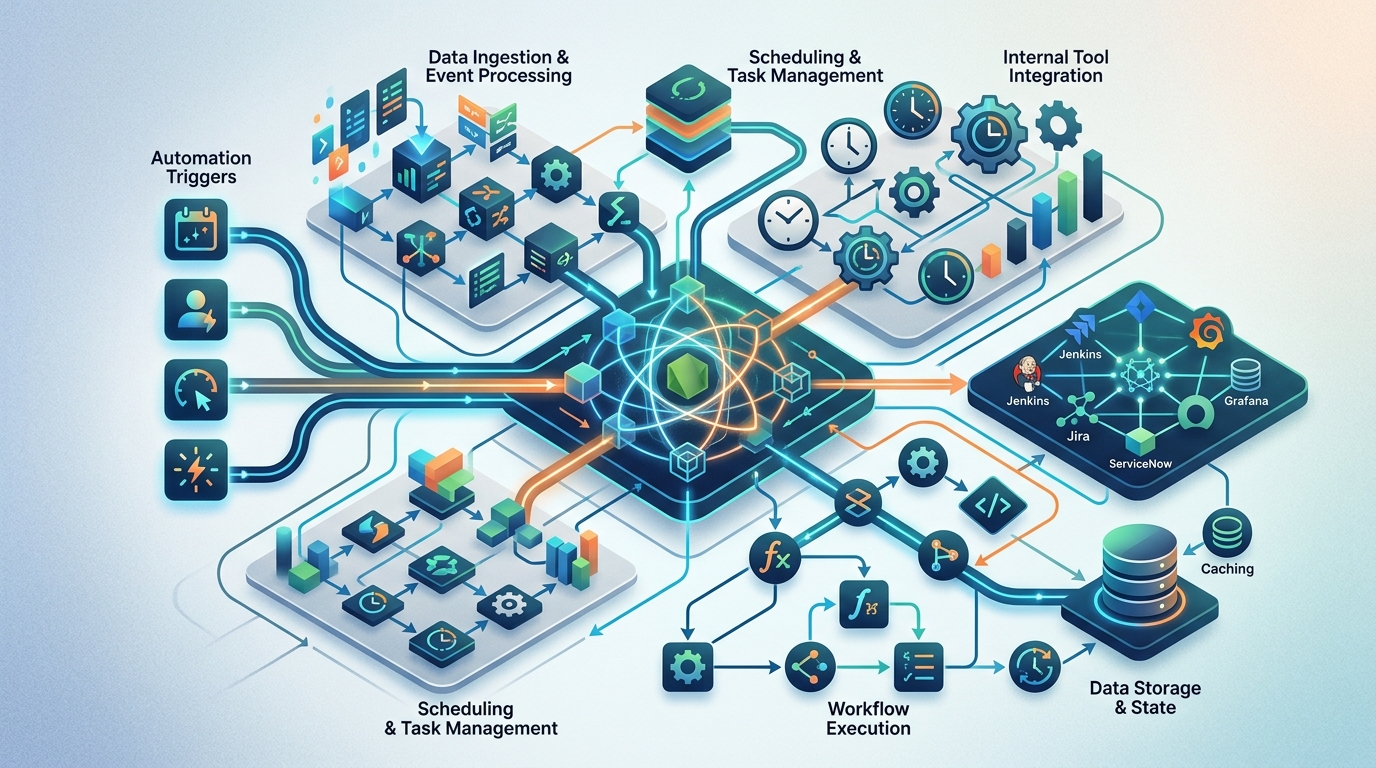
An architectural overview of a Node.js automation system designed for internal tools, illustrating how different components interact to process data and execute tasks.
Why Choose Node.js for Internal Tool Automation?
Node.js fits internal automation when the task looks more like application logic than shell orchestration. Bash is excellent for Linux command pipelines. PowerShell is excellent for Windows and Microsoft administration. Node.js becomes attractive when you need a maintainable program that talks to APIs, transforms structured data, and shares code with other JavaScript or TypeScript systems.
Good Node.js automation candidates include:
- Syncing data between internal APIs
- Processing CSV, JSON, or event payloads
- Running scheduled reports
- Calling third-party services from a controlled worker
- Building small internal dashboards or admin actions
- Coordinating multi-step workflows with retries and logging
Node.js is also familiar to teams that already maintain JavaScript applications. That familiarity can reduce maintenance risk because more engineers understand the language and package ecosystem.
However, avoid using Node.js just because it is available. If the task is a one-line file cleanup on a Linux host, Bash may be simpler. If the task is managing Windows Server roles or Active Directory, compare with PowerShell automation for IT teams before adding another runtime.
Node.js Automation Workflow Examples
Node.js automation workflow examples usually involve inputs, transformations, side effects, and reporting. The safest workflows are explicit about each step and log enough context to debug failures.
A basic automation structure might look like this:
async function main() {
  console.log(JSON.stringify({ level: "info", message: "job_started" }));

  try {
    // 1. Load configuration
    // 2. Fetch or read input data
    // 3. Validate records
    // 4. Perform work
    // 5. Write results or summary
    console.log(JSON.stringify({ level: "info", message: "job_completed" }));
  } catch (error) {
    console.error(JSON.stringify({
      level: "error",
      message: "job_failed",
      error: error.message
    }));
    process.exit(1);
  }
}

main();
This pattern gives every job a clear entry point, success path, and failure path. It also returns a non-zero exit code when scheduled execution fails.
Data Processing Pipelines
A common internal automation task is reading records from one system, transforming them, and writing a clean output for another system. Node.js handles this well because JSON is native and stream-based processing is available when files become large.
Example CSV-to-JSON style workflow without assuming a specific package:
import fs from "node:fs/promises";

async function processRecords() {
  const raw = await fs.readFile("./input.json", "utf8");
  const records = JSON.parse(raw);

  const validRecords = records.filter((record) => {
    return record.id && record.email;
  });

  const output = validRecords.map((record) => ({
    id: record.id,
    email: record.email.toLowerCase(),
    active: Boolean(record.active)
  }));

  await fs.writeFile("./output.json", JSON.stringify(output, null, 2));
  console.log(`Processed ${output.length} records`);
}

processRecords().catch((error) => {
  console.error(error);
  process.exit(1);
});
In production, add input validation, logging, and error handling that matches your team’s standards. Do not assume that every upstream file is well-formed.
API Integrations and Syncing
API sync jobs are a strong use case for scheduled automation Node.js workflows. They often need pagination, retries, authentication, rate-limit handling, and structured logs.
A simplified API job:
async function fetchJson(url) {
  const response = await fetch(url, {
    headers: {
      "Accept": "application/json"
    }
  });

  if (!response.ok) {
    throw new Error(`Request failed: ${response.status}`);
  }

  return response.json();
}

async function sync() {
  const users = await fetchJson("https://internal.example/api/users");

  for (const user of users) {
    if (!user.id) continue;
    console.log(JSON.stringify({ message: "sync_user", userId: user.id }));
    // Write to destination system here.
  }
}

sync().catch((error) => {
  console.error(JSON.stringify({ message: "sync_failed", error: error.message }));
  process.exit(1);
});
For production API automation, avoid hard-coding secrets. Use your organization’s approved secret management approach and make configuration explicit through environment variables or deployment configuration.
How to Schedule Node.js Scripts
The question “how to schedule Node.js scripts” has more than one answer. The right scheduling method depends on whether the job must run on one server, across a cluster, inside containers, or within an existing platform.
Common scheduling options include:
- cron on Linux hosts for simple recurring scripts
- systemd timers for host-managed jobs with better service integration
- Task Scheduler for Windows hosts
- container orchestrator schedules where supported by your platform
- application-level cron libraries when the scheduler must live inside the app process
- CI/CD scheduled pipelines for operational tasks tied to deployment tooling
If the job is critical, prefer a scheduler with logs, retry visibility, and ownership. A local cron entry can be fine for a simple script, but it should not become invisible infrastructure.

Visual representation of scheduling Node.js scripts, highlighting the integration of time-based triggers with code execution for automated workflows.
Node.js Cron Job Automation Basics
The simplest Node.js cron job automation pattern is to create a script that exits after completing its work, then schedule it externally.
Example package script:
{
  "scripts": {
    "sync-users": "node ./jobs/sync-users.js"
  }
}
Example cron entry:
0 * * * * cd /opt/internal-tools && /usr/bin/npm run sync-users >> /var/log/sync-users.log 2>&1
Important details:
- Use an absolute project path.
- Use the correct Node/npm path for the runtime account.
- Capture stdout and stderr.
- Ensure environment variables are available to the scheduled context.
- Return
process.exit(1)on failure.
For teams more comfortable with shell-native automation, alternative bash script automation may be simpler for host-level jobs.
Managing Node.js Scheduled Tasks in Production
Node.js scheduled tasks production environments need operational guardrails. A script that works locally may fail in production because of missing environment variables, different working directories, expired credentials, network restrictions, or dependency drift.
Use this checklist:
- Configuration: load required settings explicitly and fail fast if they are missing.
- Logging: emit structured logs with job name, start time, completion, and error details.
- Exit codes: non-zero exit on failure so the scheduler can detect problems.
- Idempotency: design jobs so reruns do not duplicate destructive actions.
- Locking: prevent overlapping runs if concurrent execution is unsafe.
- Timeouts: avoid jobs hanging forever on network calls.
- Monitoring: send failures to your existing monitoring or alerting workflow.
- Dependency control: pin dependencies and deploy jobs consistently.
A simple lock pattern can use a database, file lock, or external coordination mechanism depending on your environment. The important principle is to make concurrency intentional.
Best Practices for Scheduled Automation with Node.js
Scheduled automation with Node.js should be treated like production code, not a throwaway script. That does not mean over-engineering every job. It means applying the minimum discipline needed for reliability.
Recommended practices:
- Create one entry point per job: keep
jobs/sync-users.js,jobs/generate-report.js, and similar files clear. - Separate business logic from scheduling: the job should run the same way manually and on a schedule.
- Validate inputs: never assume API responses or files are shaped correctly.
- Use environment-specific configuration: do not hard-code paths, credentials, or endpoints.
- Log structured events: JSON logs are easier to parse than free-form text.
- Make failures visible: capture logs and alert through existing systems.
- Prefer external scheduling for simple jobs: cron, timers, or platform schedules are often easier to reason about than a long-running in-process scheduler.
- Document ownership: every job should have a responsible team, schedule, and expected behavior.
Node.js shines when automation becomes an internal tool: a repeatable workflow with enough logic that maintainability matters. For broader planning across PowerShell, Bash, and Node.js, see advanced sysadmin automation scripts.
FAQ
How do you schedule Node.js scripts?
You can schedule Node.js scripts with cron, systemd timers, Windows Task Scheduler, CI/CD scheduled pipelines, platform schedulers, or application-level cron libraries. For simple scripts, an external scheduler plus clear logs is often the most maintainable approach.
Is Node.js good for cron job automation?
Node.js is good for cron job automation when the task involves APIs, JSON data, internal systems, or application logic. For simple host-level Linux tasks, Bash may be more direct.
How should Node.js scheduled tasks be managed in production?
Use explicit configuration, structured logging, non-zero failure exits, monitoring, dependency control, and safeguards against overlapping runs. Treat scheduled jobs as production services with clear ownership.
Should internal tools use Node.js instead of PowerShell or Bash?
Use the tool that fits the environment. PowerShell is strong for Windows Server administration, Bash is strong for Linux operations, and Node.js is strong for API-heavy internal workflows and maintainable application logic.