
Building the Perfect VS Code Python Automation Workflow
Automation engineers live in the gap between “I did this manually once” and “this now runs itself.” Your editor should reinforce that mindset. A well-designed VS Code Python automation workflow removes repetitive setup, standardizes how you build scripts, and lets you focus on the logic that actually matters.
This roundup is for technical power users who want to stop reconfiguring their environment for every task. We’ll cover the best Python and productivity extensions for 2026 and show how to assemble them into a custom, repeatable automation workflow.
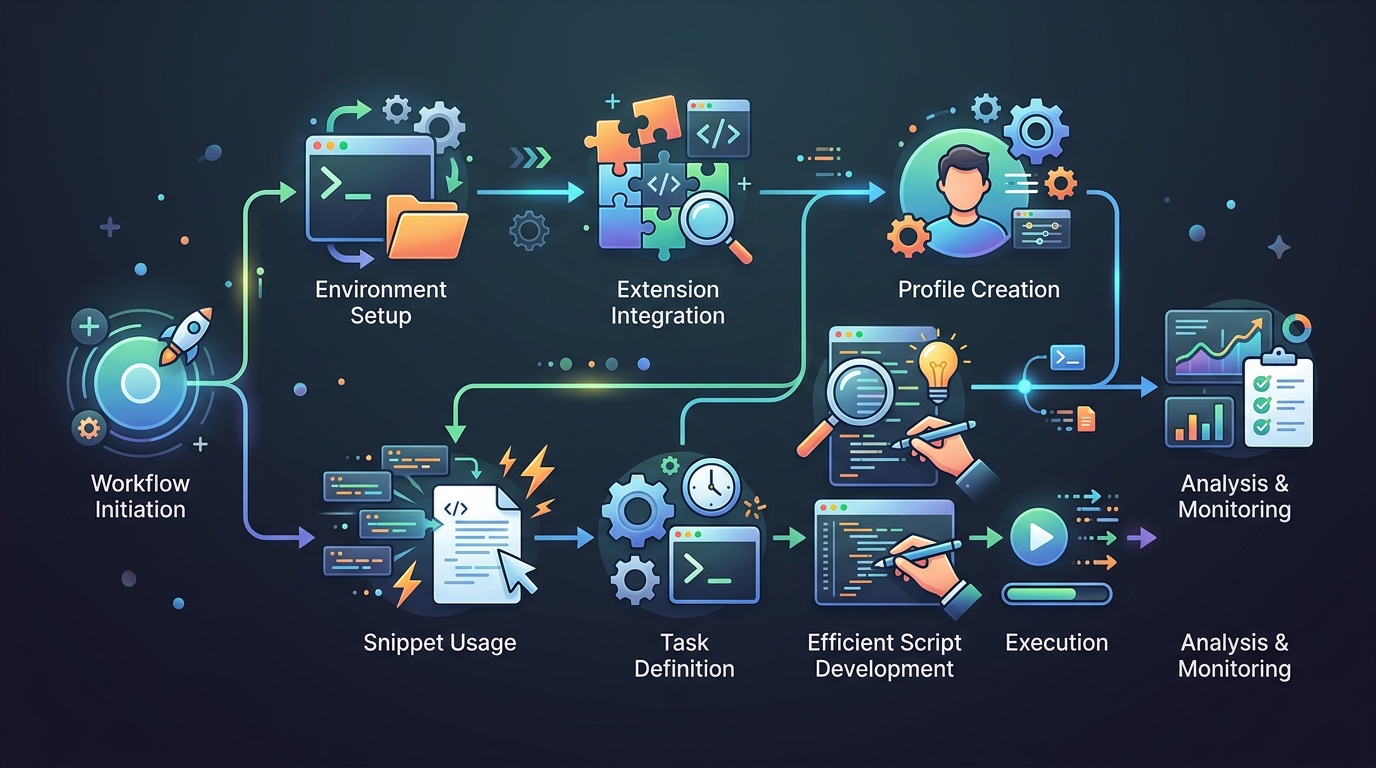
Visualize the streamlined process of a complete VS Code Python automation workflow, highlighting key integration points and productivity enhancements.
Enhancing Productivity with a Python Automation Workflow
Automation work has a peculiar irony: the setup around your automation is often the most manual part of your day. Reconfiguring interpreters, rewriting boilerplate, and re-running the same commands add up fast.
A deliberate workflow addresses this by making the environment itself automatic:
- Consistent scaffolding: Every new script starts from the same reliable structure.
- Fewer manual steps: Tasks, snippets, and shortcuts replace repetitive typing and command entry.
- Faster iteration: Integrated running and debugging tighten the feedback loop.
- Reproducibility: Your setup travels with the project, so teammates and CI behave identically.
The payoff is that you spend your energy on the automation logic, not the ceremony around it. This all sits on top of a solid professional Python setup, so make sure that foundation is in place first.
Best Python Extensions for VS Code in 2026
Start with the core extensions every Python developer benefits from:
- Python (Microsoft): The essential extension providing IntelliSense, interpreter management, and debugging.
- Pylance: Fast, feature-rich language support with strong type checking that catches mistakes early.
- Ruff: A fast linter and formatter that consolidates multiple tools into one, ideal for keeping automation scripts clean.
- Python Environment Manager: Simplifies switching between virtual environments across projects.
These form the backbone. Everything else layers productivity and automation capabilities on top.
Top VS Code Extensions for Automation Engineers
Automation engineers have specific needs — scheduling, scripting, testing external systems, and interacting with APIs. These extensions target that work directly:
- Task Runner / integrated Tasks: Define reusable build and run tasks in
tasks.jsonso common commands are a keystroke away. - REST Client: Test and document API calls directly in the editor — invaluable when your automation orchestrates web services.
- Docker: Manage containers for reproducible automation environments without leaving VS Code.
- YAML: Robust support for the configuration files that drive CI/CD pipelines and infrastructure automation.
- GitLens: Deep version-control context so changes to critical automation scripts are always traceable.

Discover the essential VS Code extensions that empower automation engineers to build robust and efficient workflows.
Must-Have VS Code Extensions for Productivity
Beyond automation-specific tooling, these extensions reduce friction across everything you do:
- Error Lens: Surfaces diagnostics inline so you catch issues the moment they appear.
- Path Intellisense: Autocompletes file paths, a small but constant time-saver in scripting.
- Todo Tree: Tracks TODO and FIXME comments across your codebase so nothing slips through.
- Code Spell Checker: Catches typos in strings, comments, and identifiers before they cause confusion.
Streamlining Repetitive Tasks
The real productivity gains come from eliminating repetition. A few high-leverage techniques:
- Custom snippets: Define reusable code templates for the boilerplate you write constantly — logging setup, argument parsing, error handling.
- VS Code Tasks: Bind your frequent commands (run, test, lint, deploy) to shortcuts instead of retyping them.
- Multi-cursor editing: Edit many lines at once for bulk transformations.
- Keyboard-driven navigation: Learn the Command Palette and Go to Symbol to move without touching the mouse.
Codify these into a VS Code Profile so a new automation project starts fully equipped.
Creating Your Custom Python Automation Workflow
Now assemble the pieces into a repeatable workflow:
- Start from a template. Use a project scaffold with your virtual environment, workspace settings, and linter already configured.
- Define your tasks. Add a
tasks.jsonwith entries for running, testing, and linting so common actions are one shortcut away. - Build a snippet library. Capture your recurring boilerplate as snippets so new scripts start with structure, not a blank file.
- Integrate testing early. Wire up your test runner in the editor so validation is part of the loop, not an afterthought.
- Save it as a profile. Bundle the extensions, settings, and keybindings so the entire workflow is reusable on any machine.
The goal is that starting a new automation task requires zero setup — you open the editor and immediately write logic. If your workflow also involves AI-assisted scripting, extend it with the setup for AI projects.
Summary
A strong VS Code Python automation workflow turns your editor into an automation multiplier. Layer the core Python extensions with automation-specific and productivity tools, streamline repetition through snippets and tasks, and package everything into a reusable profile.
Do this once and every future task starts from a position of leverage. If your team wants to scale these practices across projects and pipelines, automation engineering services can help you operationalize them.
Frequently Asked Questions
What are the best Python extensions for VS Code in 2026?
Start with the core set: the Microsoft Python extension, Pylance for language support and type checking, Ruff for fast linting and formatting, and an environment manager for switching between virtual environments.
What are the best productivity extensions for automation engineers?
Automation-focused developers benefit from integrated Tasks, REST Client for API testing, Docker for reproducible environments, YAML support for CI/CD configs, and GitLens for version-control context — alongside productivity tools like Error Lens and Todo Tree.
How do I build a repeatable Python automation workflow in VS Code?
Start from a project template, define reusable tasks in tasks.json, build a snippet library for boilerplate, integrate your test runner into the editor, and save everything as a VS Code Profile so it’s reusable across machines and projects.
How can I eliminate repetitive setup tasks in VS Code?
Use custom snippets for recurring code, bind frequent commands to VS Code Tasks and keyboard shortcuts, and bundle your extensions and settings into a Profile so new projects start fully configured.