
How to Automate Batch Video Editing with Python
If you publish video at volume, the slowest part of your workflow is often not the creative decision-making. It is the repetitive exporting, resizing, renaming, transcoding, watermarking, and quality-checking that happens after the idea is already finished.
That is where python batch video editing becomes useful. Instead of opening a GUI editor for every file, you can define a repeatable process once, point it at a folder, and let a script handle the boring parts. For technical creators, small production teams, course builders, and scrappy operators, this can turn a fragile manual process into a dependable media automation workflow.
This guide walks through the core tools, a starter script, and the practical decisions behind scaling from one batch video processing Python script into a reusable Python video processing pipeline.
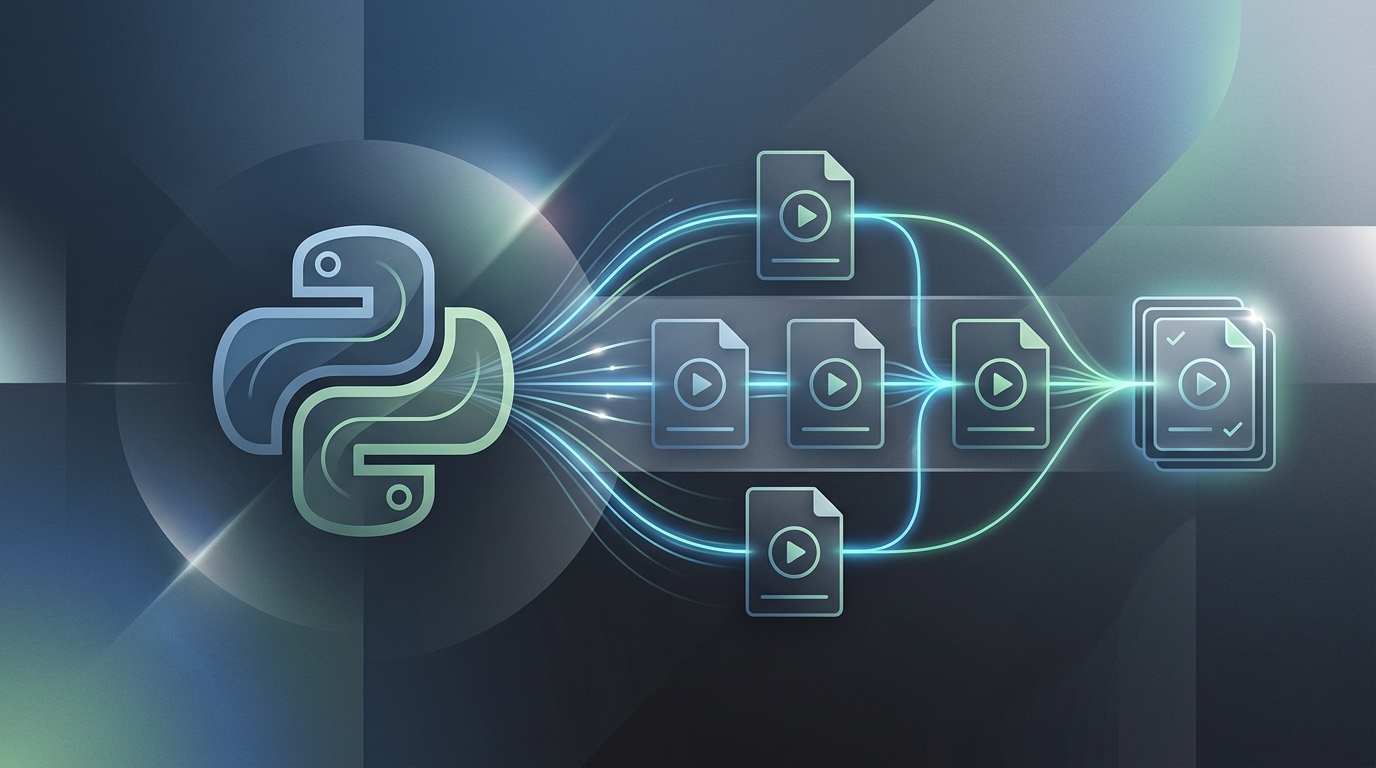
A Python script can automate repetitive video editing tasks, transforming manual workflows into efficient batch processes.
Why Use Python for Video Editing Automation?
Python is not a replacement for creative editing. It is a way to automate the repeatable decisions that do not need a human in the loop every time.
Common use cases include:
- Batch resizing videos for Shorts, Reels, or embedded course players
- Adding the same intro, outro, watermark, or lower-third to many files
- Converting uploads into standardized formats
- Trimming consistent lead-in or dead-air segments
- Generating preview clips from long-form content
- Running a repeatable python script batch transcode process
- Creating review proxies before final export
The real advantage is consistency. A GUI tool is flexible, but it depends on a person remembering each export setting. A python video automation script turns those settings into code, which means the same logic can be reused, reviewed, and improved.
If you are mapping this into a larger system, NORA’s guide to creating automated video editing pipelines with Python is a useful next layer after you understand the basics.
Overcoming the limitations of manual GUI tools
GUI editors are excellent for creative judgment: cutting story, adjusting pacing, choosing music, and reviewing final composition. They are less effective when you need to process 40, 400, or 4,000 files with the same rules.
Manual workflows usually break down in a few predictable places:
- Export drift: different team members choose slightly different codecs, bitrates, or naming conventions.
- Human bottlenecks: one person becomes responsible for every render queue.
- Repetitive mistakes: files are overwritten, skipped, mislabeled, or exported to the wrong folder.
- Poor scalability: every new platform format adds another manual export step.
Python lets you separate creative editing from operational processing. You can still edit the master video in your preferred tool, then use Python to generate all standard deliverables from that master.
Top Python Libraries for Video Processing
Most Python video editing automation workflows rely on two layers: a friendly Python editing library for simple composition, and FFmpeg for lower-level encoding, transcoding, and format control.
MoviePy for basic edits and resizing
MoviePy is often the easiest entry point for a bulk video editing script. It gives you Python objects for clips, text, audio, resizing, trimming, and composition. That makes it useful for tasks like:
- Resizing clips to a standard width or height
- Trimming intros or outros
- Adding text overlays
- Combining clips
- Creating simple social variants
Example MoviePy resize script:
from pathlib import Path
from moviepy import VideoFileClip

input_dir = Path("input_videos")
output_dir = Path("output_videos")
output_dir.mkdir(exist_ok=True)

for source in input_dir.glob("*.mp4"):
    clip = VideoFileClip(str(source))
    resized = clip.resized(width=1280)

    output_path = output_dir / f"{source.stem}_1280.mp4"
    resized.write_videofile(
        str(output_path),
        codec="libx264",
        audio_codec="aac"
    )

    clip.close()
    resized.close()
This is a simple batch resize video Python pattern: iterate through files, apply one transformation, export with a predictable name.
FFmpeg-Python for advanced transcoding
FFmpeg is the workhorse behind many production video workflows. Python wrappers such as ffmpeg-python let you define FFmpeg operations from Python while still taking advantage of FFmpeg’s speed and format support.
Use FFmpeg-oriented automation when you need:
- Format conversion
- Compression settings
- Audio stream mapping
- Subtitle burning or muxing
- Hardware-accelerated encoding where available
- More direct control over codec parameters
Example using ffmpeg-python:
from pathlib import Path
import ffmpeg

input_dir = Path("masters")
output_dir = Path("exports")
output_dir.mkdir(exist_ok=True)

for source in input_dir.glob("*.mov"):
    output_path = output_dir / f"{source.stem}.mp4"

    (
        ffmpeg
        .input(str(source))
        .output(
            str(output_path),
            vcodec="libx264",
            acodec="aac",
            preset="medium",
            movflags="+faststart"
        )
        .overwrite_output()
        .run()
    )
For a deeper comparison of where each tool fits, see the NORA guide on Python FFmpeg automation vs MoviePy.
Building Your First Batch Video Processing Python Script
A good first script should be boring. Do not start with a complex production pipeline. Start with one folder, one output folder, one transformation, and one clear naming convention.
Step 1: Setting up your environment
Create a project folder like this:
video-automation/
  input/
  output/
  scripts/
  requirements.txt
Install the tools you need:
moviepy
ffmpeg-python
You also need FFmpeg installed on your machine and available from the command line. The exact installation method depends on your operating system, so use the official FFmpeg installation guidance for your platform.
Before writing automation logic, test with two or three duplicate files. Never point a new script at your only copy of production footage.
Step 2: Writing the bulk video editing script
Here is a practical starter script that trims the first two seconds, resizes the video, and exports it with a standard suffix.
from pathlib import Path
from moviepy import VideoFileClip

INPUT_DIR = Path("input")
OUTPUT_DIR = Path("output")
OUTPUT_DIR.mkdir(exist_ok=True)

TARGET_WIDTH = 1280
TRIM_START_SECONDS = 2

for source in INPUT_DIR.glob("*.mp4"):
    print(f"Processing {source.name}")

    clip = VideoFileClip(str(source))
    edited = clip.subclipped(TRIM_START_SECONDS).resized(width=TARGET_WIDTH)

    destination = OUTPUT_DIR / f"{source.stem}_edited.mp4"
    edited.write_videofile(
        str(destination),
        codec="libx264",
        audio_codec="aac"
    )

    edited.close()
    clip.close()
This script is intentionally simple, but it already demonstrates the core structure of python video editing automation:
- Discover files.
- Apply deterministic rules.
- Export to a separate location.
- Preserve source files.
- Log progress.
Step 3: Automating video exports in a loop
The loop is where batch processing becomes valuable. Once your export settings are code, you can add more deliverables without manually touching every file.
For example, you might export a standard web version and a smaller review version:
EXPORTS = [
    {"suffix": "web", "width": 1280},
    {"suffix": "review", "width": 720},
]

for source in INPUT_DIR.glob("*.mp4"):
    clip = VideoFileClip(str(source))

    for export in EXPORTS:
        resized = clip.resized(width=export["width"])
        destination = OUTPUT_DIR / f"{source.stem}_{export['suffix']}.mp4"

        resized.write_videofile(
            str(destination),
            codec="libx264",
            audio_codec="aac"
        )

        resized.close()

    clip.close()
This pattern is the foundation for teams that need to automate video exports Python workflows across multiple channels.
Scaling to a Full Python Video Processing Pipeline
A script becomes a pipeline when it has defined inputs, outputs, validation, logging, and failure handling.
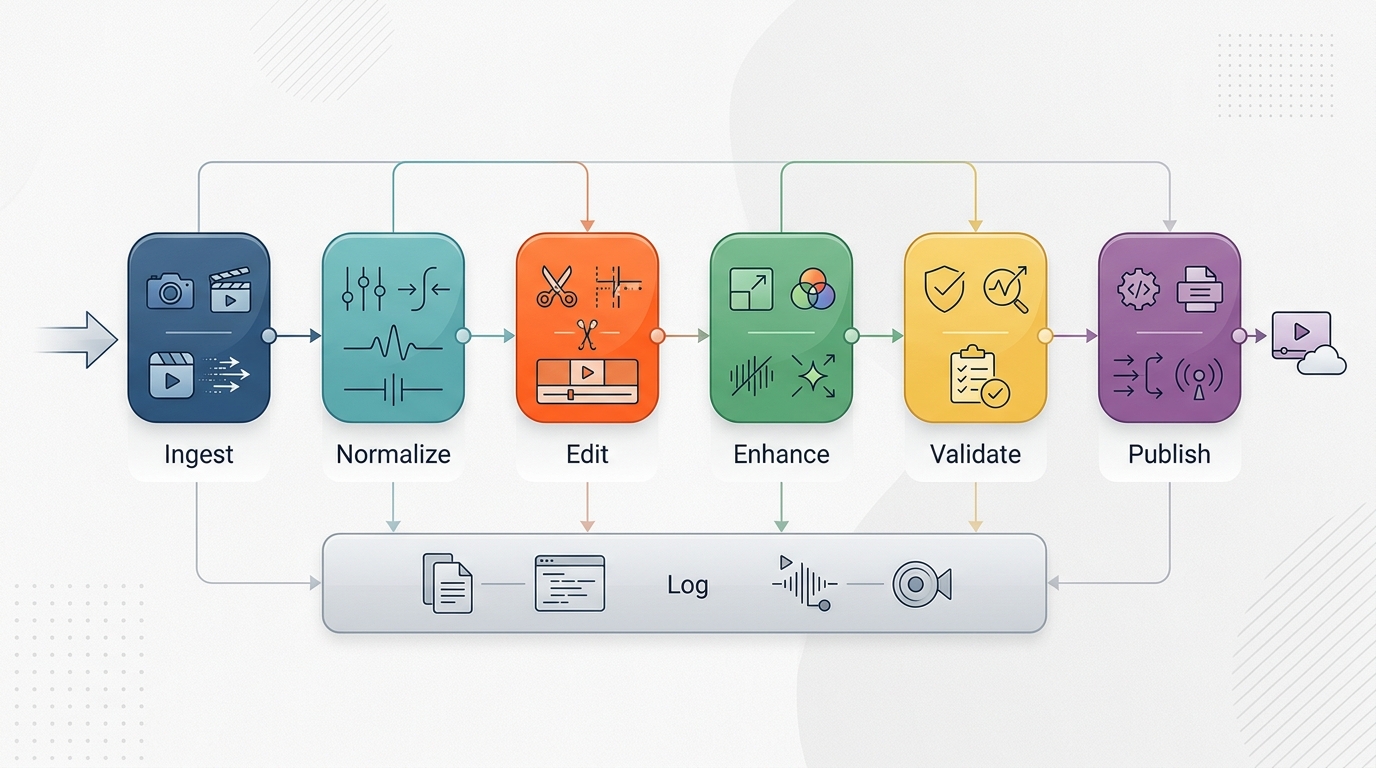
A well-structured Python video processing pipeline includes stages for ingest, normalization, editing, enhancement, validation, publishing, and logging.
A practical python video processing pipeline might include:
- Ingest: watch an upload folder or receive files from cloud storage.
- Normalize: convert source files to a standard editing or delivery format.
- Edit: trim, resize, watermark, or assemble assets.
- Enhance: add captions, thumbnails, metadata, or intro/outro elements.
- Validate: check that files exist, durations look reasonable, and exports completed.
- Publish: hand final assets to a CMS, storage bucket, or publishing API.
- Log: record which files succeeded, failed, or need review.
As your automation grows, reliability matters more than clever code. Add safeguards before adding features:
- Write outputs to a separate folder.
- Use dry-run modes for destructive operations.
- Keep a manifest of processed files.
- Record errors to a log file.
- Retry only the steps that failed.
- Use clear file naming rules.
NORA’s existing guide on using Python for batch video editing tasks pairs well with this approach if you want more examples of task-level automation.
Next Steps in Media Automation
Once you have your first batch script working, the next step is to decide which manual bottleneck costs you the most time. Do not automate the whole studio at once. Automate one repeatable pain point, prove it works, and then connect it to the next step.
Good next projects include:
- Auto-generating social clips from long-form exports
- Creating platform-specific sizes from one master file
- Adding subtitles or burned-in captions
- Generating thumbnails from selected frames
- Creating upload-ready file names and metadata
- Building a job queue for longer renders
The goal is not just to write a script. The goal is to build a repeatable system where every file moves through the same process with less manual intervention.
FAQ
What is python batch video editing?
Python batch video editing is the process of using Python scripts to apply the same video editing or processing rules across multiple files. Common tasks include resizing, trimming, transcoding, watermarking, and exporting platform-specific versions.
What is the best Python library for batch video editing?
MoviePy is a good starting point for basic edits and composition. FFmpeg or FFmpeg wrappers are better for advanced transcoding, compression, and format handling. Many workflows use both.
Can Python automate video exports?
Yes. Python can loop through source files, apply export settings, and generate output files automatically. The safest approach is to export into a separate folder and keep source footage untouched.
How do I batch resize video with Python?
You can use MoviePy to open each file, resize it to a target width or height, and export the result. For more advanced resizing and encoding control, use FFmpeg through Python.
Should I use Python instead of Premiere or DaVinci Resolve?
Use creative editing tools for creative decisions. Use Python for repetitive production steps that follow predictable rules. The strongest workflows often combine both.