
How to Automate Service Monitoring and Restart Failed Services with Bash
Few things ruin an on-call shift faster than a critical service silently dying at 3 a.m. If you manage Linux servers, you have almost certainly SSH’d into a box, run systemctl restart nginx, and wondered why you had to do that by hand. The good news: a simple bash script restart failed service workflow can handle that job for you, around the clock, without complaint.
In this guide, you will build a practical bash service watchdog for Linux, learn when to lean on systemd’s built-in restart features instead, and wire up alerting so you always know when something recovered — or failed to.
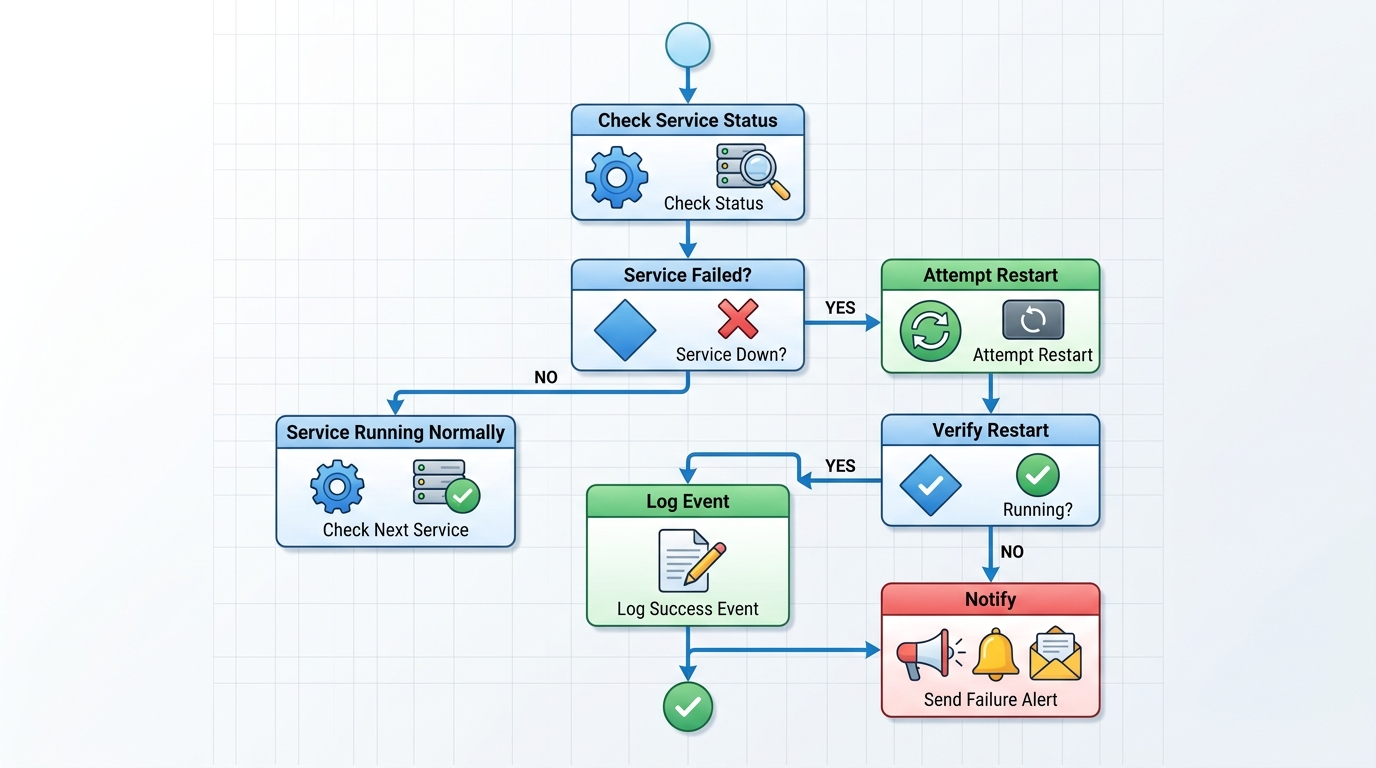
A visual representation of the bash script’s logic for monitoring and restarting failed services, detailing the decision points and actions taken.
Why Automate Service Monitoring in Linux?
Manual service recovery does not scale. Every minute a web server, database, or message queue sits in a failed state, users feel it — and so does your team’s credibility. When you automate service monitoring in Linux, you get three immediate wins:
- Faster recovery. A watchdog script can detect and restart a failed service in seconds, long before a human notices an alert.
- Consistency. The script performs the same checks and the same restart procedure every time. No skipped steps, no “I forgot to check the logs first.”
- Better sleep. Transient failures — a memory spike, a crashed worker, a dependency hiccup — resolve themselves. You only get paged for problems that actually need a human.
Automation does not replace observability. It complements it. The goal is a system that recovers from routine failures automatically and escalates the unusual ones.
Using a Bash Service Watchdog in Linux
A bash service watchdog in Linux is a small script, typically run on a schedule via cron or a systemd timer, that checks whether a service is active and restarts it if it is not.
Writing the Bash Script to Check Service Status
The core of the watchdog is a status check. With systemd, systemctl is-active gives you a clean, script-friendly answer:
#!/usr/bin/env bash
set -euo pipefail

SERVICE="nginx"
LOG_FILE="/var/log/service-watchdog.log"

log() {
    echo "$(date '+%Y-%m-%d %H:%M:%S') $1" >> "$LOG_FILE"
}

if systemctl is-active --quiet "$SERVICE"; then
    log "OK: $SERVICE is running."
    exit 0
else
    log "WARN: $SERVICE is not active. Attempting restart..."
fi
A few details worth noting:
set -euo pipefailmakes the script fail loudly on errors, unset variables, and broken pipes — essential for anything running unattended.--quietsuppresses output so you can use the exit code directly in theifstatement.- Logging with timestamps gives you an audit trail of every check and every restart attempt.
How to Automatically Restart a Failed Systemd Service
Once the check detects a failure, the restart logic takes over. A robust version verifies that the restart actually worked and limits retry attempts:
MAX_RETRIES=3

for attempt in $(seq 1 "$MAX_RETRIES"); do
    systemctl restart "$SERVICE"
    sleep 5
    if systemctl is-active --quiet "$SERVICE"; then
        log "RECOVERED: $SERVICE restarted successfully (attempt $attempt)."
        exit 0
    fi
    log "ERROR: Restart attempt $attempt failed for $SERVICE."
done

log "CRITICAL: $SERVICE could not be restarted after $MAX_RETRIES attempts."
exit 1
Schedule the watchdog with cron to run every minute:
* * * * * /usr/local/bin/service-watchdog.sh
Or, better, use a systemd timer, which handles logging through the journal and avoids overlapping runs.

Visualizing the automated restart configuration for a systemd service, a key component in maintaining service uptime.
Best Practices for Systemd Service Auto Restart
Before you deploy a custom watchdog everywhere, know that systemd has native restart capabilities that should be your first line of defense. A systemd service auto restart bash watchdog works best layered on top of these settings, not instead of them.
Add restart directives to the service unit file (or an override with systemctl edit):
[Service]
Restart=on-failure
RestartSec=5s
StartLimitIntervalSec=300
StartLimitBurst=5
Key practices to follow:
- Use
Restart=on-failurefor most services. It restarts on crashes and non-zero exits but not on clean shutdowns, so intentional stops stay stopped. - Set
RestartSecto give the service time to release ports and file handles before restarting. - Configure rate limiting with
StartLimitIntervalSecandStartLimitBurstso a crash-looping service does not hammer your system indefinitely. - Reserve the bash watchdog for what systemd cannot see — for example, a service that is technically “active” but no longer responding on its port. Your script can add an HTTP or TCP health check that systemd’s process-level supervision misses:
if ! curl -sf --max-time 5 http://localhost:80/health > /dev/null; then
    log "WARN: $SERVICE is active but failing health checks. Restarting..."
    systemctl restart "$SERVICE"
fi
- Keep your scripts clean and reviewable. Follow established conventions for structure, quoting, and error handling — our guide to writing clean scripts covers the standards every production script should meet.
Integrating Alerts with Your Watchdog Script
A watchdog that silently restarts services is helpful; a watchdog that silently fails to restart them is dangerous. Alerting closes that gap.
The simplest pattern: notify your team whenever the script performs a restart, and escalate loudly when all retries fail. Slack is a natural fit for this because a webhook call is a single curl command:
notify_slack() {
    curl -sf -X POST -H 'Content-type: application/json' \
        --data "{\"text\": \"$1\"}" \
        "$SLACK_WEBHOOK_URL" > /dev/null || log "ERROR: Slack notification failed."
}

notify_slack ":warning: Watchdog restarted $SERVICE on $(hostname)."
For the full setup — creating the webhook, formatting rich messages, and handling retry logic — see our guide on how to send notifications when a service fails.
Two alerting principles to keep in mind:
- Alert on action, page on failure. A successful auto-restart deserves a channel message. Three failed restart attempts deserve a page.
- Include context. Hostname, service name, timestamp, and the last few log lines turn a vague alert into an actionable one.
If your environment includes Windows hosts as well, the same watchdog philosophy applies — the tooling just changes. Our comparison of Bash and PowerShell for DevOps automation covers the cross-platform considerations.
FAQ
Should I use a bash watchdog or systemd’s Restart= directive?
Use both, in layers. Restart=on-failure in the unit file handles process crashes instantly with no extra tooling. A bash watchdog adds value for application-level failures — a hung process that still shows as “active,” a failing health endpoint, or restart logic that needs custom steps like clearing a cache first.
How often should the watchdog script run?
Every minute is a common default via cron or a systemd timer. For critical services, a systemd timer with OnUnitActiveSec=30s gives tighter detection. Just make sure the check interval is longer than your restart-plus-verify cycle to avoid overlapping runs.
Why does my script work manually but fail from cron?
Cron runs with a minimal environment. Use absolute paths for commands (/usr/bin/systemctl), define any needed variables inside the script, and make sure the script has execute permissions and runs as a user with rights to restart the service (typically root, or a user with specific sudo rules).
Can the script restart multiple services?
Yes. Store service names in an array and loop over them, keeping per-service retry counters and log entries. For more than a handful of services, though, consider a dedicated monitoring tool and keep the bash watchdog for the critical few.
Automating service recovery is one of the highest-leverage scripts a Linux admin can write. Start with systemd’s native restart options, layer a bash watchdog with health checks on top, and wire in alerting so recoveries are visible and failures are loud. Your future 3 a.m. self will thank you.