
How to Automate Weekly Excel Reports and Email Them With Python
If you spend every Friday afternoon formatting the same Excel spreadsheet, attaching it to the same email, and sending it to the same distribution list, this guide is for you. In the next 20 minutes, you will build a Python script that formats your weekly Excel report with openpyxl, attaches it to an email with smtplib, and sends it automatically — every single week, without you touching a thing.
This tutorial is written for the pragmatic automator: someone who knows enough Python to run a script, wants a copy-paste-ready solution, and cares more about getting Friday afternoons back than about elegant software architecture. Every code block below is complete and runnable.

A Python script using the openpyxl library to automate the formatting of a weekly Excel report.
Why Automate Your Weekly Excel Reports?
Manual reporting is one of the most common forms of hidden busywork in operations, finance, and analytics roles. The task itself rarely takes more than 30–60 minutes, which is exactly why it never gets prioritized for automation — it feels “too small” to fix. But a weekly hour adds up to more than a full work week every year, and that is before you count the cost of mistakes.
Automating your weekly report gives you three concrete wins:
- Consistency. The formatting, filename, and send time are identical every week. No more “sorry, forgot the header row” follow-up emails.
- Reliability. The report goes out even when you are on vacation, in back-to-back meetings, or simply forget.
- Reclaimed time. The 30–60 minutes you spend each week disappears entirely after a one-time setup.
This same pattern — format a file, attach it, send it — extends naturally into broader Excel automation for operations, so the script you build today becomes a template for a whole family of automations.
Prerequisites for Python Excel and Email Automation
Before you start, make sure you have the following in place:
- Python 3.9 or newer installed on the machine that will run the script.
- The openpyxl library for reading and writing Excel files. The
smtplibandemailmodules ship with Python, so no extra install is needed for emailing. - An email account that allows SMTP access. Most providers (Gmail, Outlook, and most business mail servers) support this, but you will usually need an app password rather than your normal login password.
- A source Excel file — either exported from another system or produced by an upstream process such as preparing data with Pandas.
Install openpyxl from your terminal:
pip install openpyxl
A quick but important note on email authentication, because this is where most beginners get stuck: providers like Gmail block plain username/password logins from scripts by default. You will need to create an app-specific password in your account’s security settings and use that in your script instead. If your script raises an authentication error, this is almost always the cause.
How to Format Excel Files Automatically Using Python openpyxl
Most weekly reports need the same touch-ups every time: bold headers, sensible column widths, maybe a highlight color on a totals row. openpyxl handles all of this programmatically.
Loading and Modifying the Workbook
Start by loading your workbook and selecting the worksheet you want to format:
from openpyxl import load_workbook

REPORT_PATH = "weekly_report.xlsx"

wb = load_workbook(REPORT_PATH)
ws = wb.active  # or wb["SheetName"] for a specific sheet
From here, you can read and write cells just like you would edit them by hand. For example, adding a generated-on timestamp to the top of the sheet:
from datetime import date

ws["A1"] = f"Weekly Report — Generated {date.today().isoformat()}"
Formatting Cells and Saving
Now apply the formatting you normally do by hand. This example bolds the header row, sets column widths, and freezes the top row so it stays visible while scrolling:
from openpyxl.styles import Font, PatternFill

header_font = Font(bold=True, color="FFFFFF")
header_fill = PatternFill(start_color="4472C4", end_color="4472C4", fill_type="solid")

# Assume headers are in row 2 (row 1 holds the title)
for cell in ws[2]:
    cell.font = header_font
    cell.fill = header_fill

# Set column widths
for column_letter in ("A", "B", "C", "D"):
    ws.column_dimensions[column_letter].width = 18

ws.freeze_panes = "A3"

wb.save(REPORT_PATH)
That is the entire formatting step. Run it once against a copy of your report to confirm it looks right, then never think about it again.
How to Send an Email with an Attachment Automatically Using Python smtplib
With the report formatted, the next step is sending it. Python’s built-in smtplib and email modules can send an email with an attachment automatically in about 25 lines:
import smtplib
from email.message import EmailMessage
from pathlib import Path

SMTP_HOST = "smtp.gmail.com"
SMTP_PORT = 587
SENDER = "you@example.com"
APP_PASSWORD = "your-app-password"  # use an app password, not your login
RECIPIENTS = ["boss@example.com", "team@example.com"]

def send_report(attachment_path: str) -> None:
    msg = EmailMessage()
    msg["Subject"] = "Weekly Report"
    msg["From"] = SENDER
    msg["To"] = ", ".join(RECIPIENTS)
    msg.set_content("Hi team,\n\nPlease find this week's report attached.\n")

    file_data = Path(attachment_path).read_bytes()
    msg.add_attachment(
        file_data,
        maintype="application",
        subtype="vnd.openxmlformats-officedocument.spreadsheetml.sheet",
        filename=Path(attachment_path).name,
    )

    with smtplib.SMTP(SMTP_HOST, SMTP_PORT) as server:
        server.starttls()
        server.login(SENDER, APP_PASSWORD)
        server.send_message(msg)
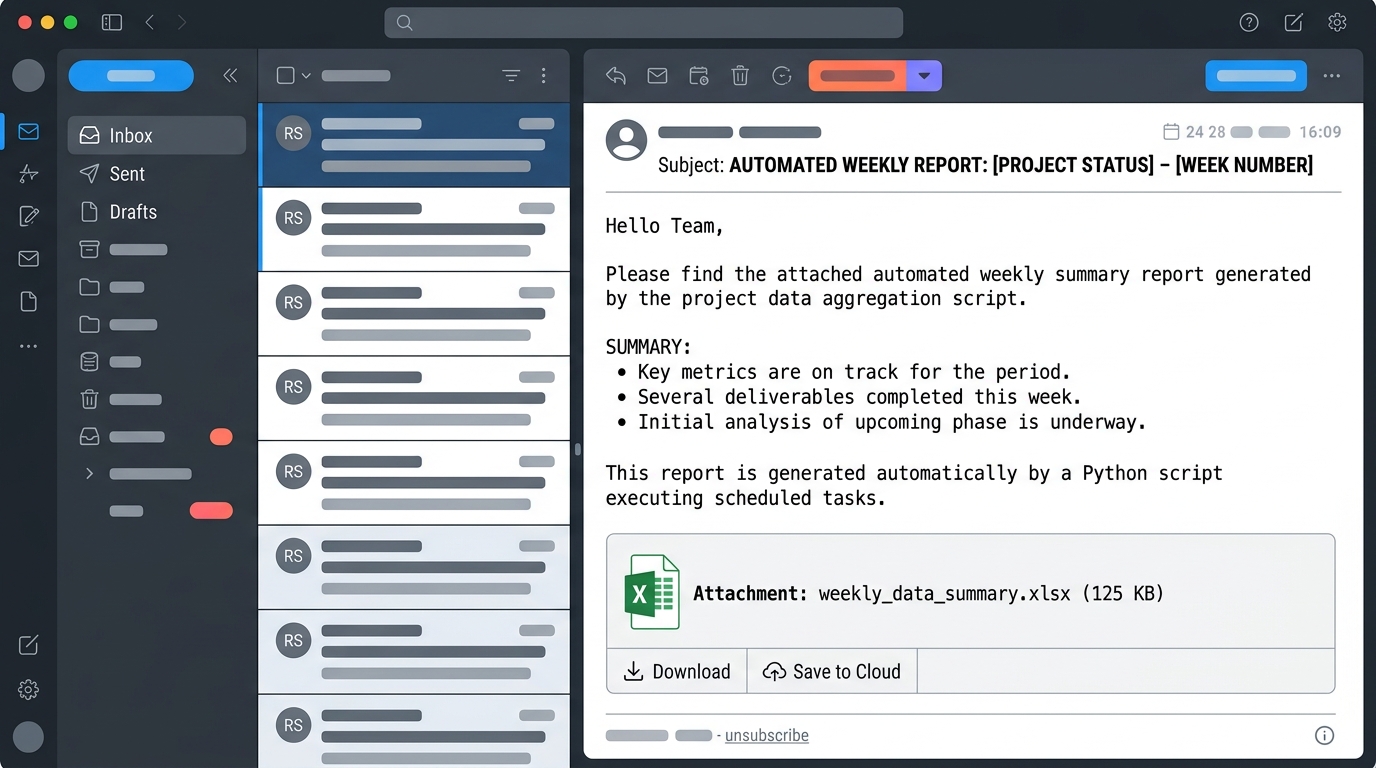
An email client interface showing a successfully sent automated Excel report, demonstrating Python’s smtplib in action.
Two common gotchas worth calling out:
- Authentication failures. As mentioned above, use an app password. If your organization uses Microsoft 365 or Google Workspace, your IT admin may need to enable SMTP authentication for your account.
- Hard-coded credentials. For anything beyond a personal experiment, load the password from an environment variable instead of writing it in the script:
os.environ["SMTP_PASSWORD"].
Putting It Together: A Complete Python Script
Here is the full script, combining formatting and emailing into one file you can run end to end:
"""weekly_report.py — format the weekly Excel report and email it."""
import os
import smtplib
from datetime import date
from email.message import EmailMessage
from pathlib import Path

from openpyxl import load_workbook
from openpyxl.styles import Font, PatternFill

REPORT_PATH = Path("weekly_report.xlsx")
SMTP_HOST = "smtp.gmail.com"
SMTP_PORT = 587
SENDER = "you@example.com"
RECIPIENTS = ["boss@example.com", "team@example.com"]


def format_report(path: Path) -> None:
    wb = load_workbook(path)
    ws = wb.active

    ws["A1"] = f"Weekly Report — Generated {date.today().isoformat()}"

    header_font = Font(bold=True, color="FFFFFF")
    header_fill = PatternFill(start_color="4472C4", end_color="4472C4",
                              fill_type="solid")
    for cell in ws[2]:
        cell.font = header_font
        cell.fill = header_fill

    for column_letter in ("A", "B", "C", "D"):
        ws.column_dimensions[column_letter].width = 18

    ws.freeze_panes = "A3"
    wb.save(path)


def send_report(path: Path) -> None:
    msg = EmailMessage()
    msg["Subject"] = f"Weekly Report — {date.today().isoformat()}"
    msg["From"] = SENDER
    msg["To"] = ", ".join(RECIPIENTS)
    msg.set_content("Hi team,\n\nPlease find this week's report attached.\n")

    msg.add_attachment(
        path.read_bytes(),
        maintype="application",
        subtype="vnd.openxmlformats-officedocument.spreadsheetml.sheet",
        filename=path.name,
    )

    with smtplib.SMTP(SMTP_HOST, SMTP_PORT) as server:
        server.starttls()
        server.login(SENDER, os.environ["SMTP_PASSWORD"])
        server.send_message(msg)


if __name__ == "__main__":
    format_report(REPORT_PATH)
    send_report(REPORT_PATH)
    print("Report formatted and sent.")
Set your app password as an environment variable before running:
# Linux / macOS
export SMTP_PASSWORD="your-app-password"

# Windows (PowerShell)
$env:SMTP_PASSWORD = "your-app-password"
Then test it with python weekly_report.py. If the email arrives correctly formatted, you are ready for the final step: making it run without you.
Scheduling Your Python Script for Weekly Execution
A script you have to remember to run is only half an automation. To make the report send itself every week, you need to schedule your Python script with your operating system’s built-in scheduler:
- On Linux or macOS, add a cron entry such as
0 8 * * 5 /usr/bin/python3 /home/you/weekly_report.pyto run every Friday at 8:00 AM. - On Windows, create a weekly task in Task Scheduler that points at your Python executable and the script path.
The main pitfalls are path-related — cron in particular runs with a minimal environment, so always use absolute paths for both the Python interpreter and the script. Our scheduling guide linked above walks through these issues in detail for both operating systems.
Once scheduled, this pattern becomes a building block. The same “process, then deliver” structure powers larger spreadsheet processing pipelines where multiple inputs are cleaned, merged, and distributed automatically.
FAQ
Can I automate Excel reports in Python without opening Excel?
Yes. openpyxl reads and writes .xlsx files directly, without needing Excel installed. This means your automation can run on a headless server, a Docker container, or any machine without Microsoft Office.
Why does smtplib give me an authentication error?
The most common cause is using your regular account password instead of an app-specific password. Gmail, Outlook, and most business email providers block basic password logins from scripts by default. Generate an app password in your account security settings and use it in the script.
How do I send the report to multiple recipients?
Pass a list of addresses and join them with commas in the To header, as shown in the script above. For larger distribution lists, consider emailing a group alias instead so the list can be managed outside of your code.
What if my report data comes from multiple CSV files?
Add a preprocessing step that merges your sources before formatting. Pandas is the standard tool for this — see our tutorial on preparing data with Pandas for a complete walkthrough of merging multiple CSV files into one dataset.
How often should the script run?
That depends on your reporting cadence, but the scheduling layer is flexible: the same cron entry or Task Scheduler task can run daily, weekly, or monthly by changing a single line. Weekly on a fixed morning is the most common setup for status reports.