
How to Build an AI Image Automation Python Script
AI image automation Python workflows help developers move beyond manual prompting and into repeatable image generation systems. With a script, you can submit prompts, manage parameters, process batches, store outputs, and handle errors in a controlled way.
This tutorial focuses on the structure of an automatic image generation script rather than a single vendor-specific implementation. APIs, SDKs, and model runtimes vary, so the examples use placeholder code that you can adapt to your chosen provider, local server, or internal image generation endpoint.

An abstract representation of a Python script designed for AI image automation, illustrating the flow of data and code.
Introduction to Python Image Generation Automation
Python image generation automation is the practice of using Python to control an image model or image generation API programmatically. Instead of entering prompts into a web interface, your script sends generation requests, tracks job status, downloads outputs, and logs results.
This is useful when you need to:
- Generate many images from a structured list of prompts.
- Create variations for ecommerce, marketing, or product workflows.
- Connect generation to a content pipeline or internal application.
- Standardize prompt templates and parameters.
- Retry failed jobs without manual intervention.
- Save outputs with consistent filenames and metadata.
A Python script can be a small utility or part of a larger core image generation pipeline. The key is to design it as a repeatable process, not a one-off experiment.
Prerequisites: Libraries and APIs
Before writing code, choose the runtime your script will call. Common options include:
- A hosted image generation API.
- A local Stable Diffusion server.
- A ComfyUI API workflow.
- A custom internal service.
Your prerequisites will depend on that choice, but most scripts need:
- Python 3.x installed in a managed environment.
- An HTTP client library, such as
requestsor an SDK provided by your API vendor. - A way to load configuration from environment variables.
- File system access for saving outputs.
- Optional CSV or JSON handling for batch jobs.
- Logging for errors and completed jobs.
A typical project structure might look like this:
image-automation/
  prompts.csv
  output/
  logs/
  generate.py
  config.example.env
Do not hardcode secrets into scripts. Store API keys or local service tokens in environment variables or a secret manager appropriate for your deployment environment.
If your script will run against a local model server, confirm your local hardware setup is stable before building automation on top of it.
Writing Your First Automatic Image Generation Script
The first script should do one thing clearly: send a prompt, receive a result, and save the image. Once that works, you can add batching, retries, metadata, and post-processing.
The following placeholder illustrates the shape of a basic script. Replace the endpoint, payload, authentication, and response parsing with the requirements of your chosen tool.
import os
import requests
from pathlib import Path

API_URL = os.getenv("IMAGE_API_URL")
API_KEY = os.getenv("IMAGE_API_KEY")
OUTPUT_DIR = Path("output")
OUTPUT_DIR.mkdir(exist_ok=True)

prompt = "A clean studio product photo on a neutral background"

payload = {
    "prompt": prompt,
    "width": 1024,
    "height": 1024,
    "steps": 30,
    "seed": 12345
}

headers = {
    "Authorization": f"Bearer {API_KEY}",
    "Content-Type": "application/json"
}

response = requests.post(API_URL, json=payload, headers=headers, timeout=120)
response.raise_for_status()

result = response.json()
image_url = result["image_url"]  # Adjust to match your API response.

image_response = requests.get(image_url, timeout=120)
image_response.raise_for_status()

output_path = OUTPUT_DIR / "generated-image.png"
output_path.write_bytes(image_response.content)

print(f"Saved image to {output_path}")
This is intentionally simple. Production scripts should add stronger validation, logging, retry rules, and safe handling of failed or partial responses.
Handling API Keys and Authentication
Authentication mistakes are common in early automation scripts. Keep credentials separate from code and avoid committing secrets to source control.
Good practices include:
- Store API keys in environment variables.
- Use
.envfiles only for local development and exclude them from version control. - Rotate keys if they are exposed.
- Use least-privilege credentials when available.
- Log request IDs, not secrets.
Example placeholder:
api_key = os.getenv("IMAGE_API_KEY")
if not api_key:
    raise RuntimeError("Missing IMAGE_API_KEY environment variable")
If you are calling an internal service, use the authentication standard required by your organization. Do not bypass auth just because a tool is running on a private network.
Defining Prompts and Parameters
Prompt design belongs in the automation layer. A script should not rely on scattered, manually edited prompt strings.
Instead, define prompt templates with variables:
def build_prompt(product_name, product_category, scene):
    return (
        f"A high-quality product image of {product_name}, "
        f"category: {product_category}, shown in {scene}, "
        "clean composition, brand-safe background, no text."
    )
Track the parameters that affect output:
- Model name and version.
- Width and height.
- Seed.
- Steps or quality settings.
- Negative prompt.
- Reference image ID, if used.
- Workflow version.
This metadata helps your team reproduce outputs and troubleshoot quality changes.
Batch Processing Images with Python
Batch processing is where Python automation becomes especially useful. A batch script can read prompts from a CSV or database, generate images, save files, and log success or failure for each row.
A simple CSV might include:
id,product_name,category,scene,width,height
001,Running Shoe,Footwear,a bright urban sidewalk,1024,1024
002,Ceramic Mug,Home Goods,a cozy kitchen counter,1024,1024
Placeholder batch structure:
import csv
import time
from pathlib import Path

OUTPUT_DIR = Path("output")
OUTPUT_DIR.mkdir(exist_ok=True)

def generate_image(prompt, width, height):
    # Replace this with your API or local server call.
    return b"PLACEHOLDER_IMAGE_BYTES"

with open("prompts.csv", newline="", encoding="utf-8") as csvfile:
    reader = csv.DictReader(csvfile)

    for row in reader:
        prompt = build_prompt(
            row["product_name"],
            row["category"],
            row["scene"]
        )

        image_bytes = generate_image(
            prompt=prompt,
            width=int(row["width"]),
            height=int(row["height"])
        )

        output_path = OUTPUT_DIR / f"{row['id']}-{row['product_name'].lower().replace(' ', '-')}.png"
        output_path.write_bytes(image_bytes)

        print(f"Generated {output_path}")
        time.sleep(1)  # Adjust for rate limits or queue pacing.
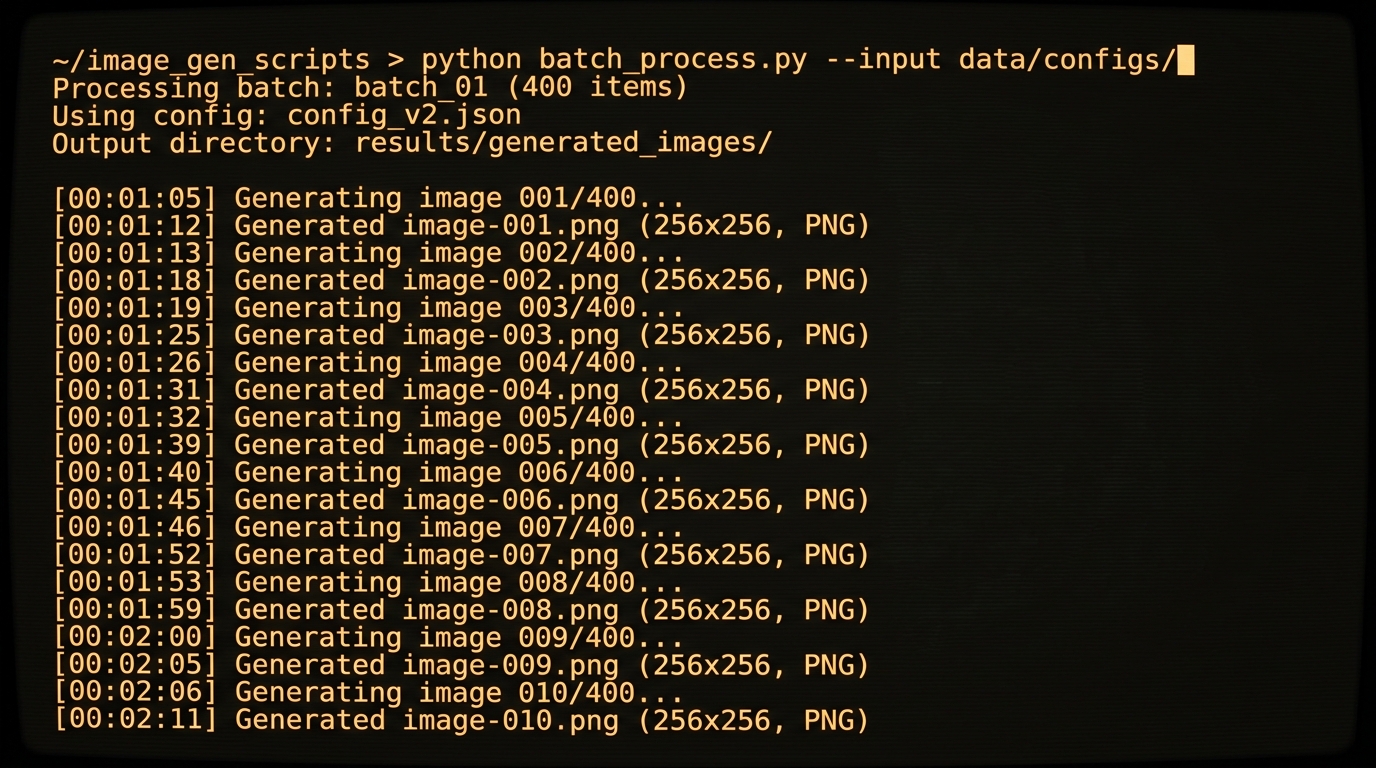
Terminal output illustrating a Python script successfully generating and saving images in a batch process.
For larger systems, avoid running huge batches blindly. Add queue management, job status, retries, and resumable processing so one failure does not ruin the full run.
Error Handling and Scaling Your Script
Production image generation fails in predictable ways: timeouts, rate limits, invalid payloads, model errors, unavailable GPUs, storage failures, or rejected outputs. Your script should expect failure and recover safely.
Important error-handling practices:
- Use request timeouts.
- Catch exceptions per job, not only for the whole batch.
- Log failed inputs and error messages.
- Retry temporary failures with backoff.
- Do not retry invalid prompts forever.
- Save partial progress.
- Validate output files before marking jobs complete.
- Track status: pending, generated, failed, approved, rejected.
Example placeholder:
for row in jobs:
    try:
        result = run_generation(row)
        save_result(result, row)
        mark_status(row["id"], "generated")
    except TimeoutError as exc:
        log_error(row["id"], "timeout", str(exc))
        mark_status(row["id"], "retry")
    except Exception as exc:
        log_error(row["id"], "failed", str(exc))
        mark_status(row["id"], "failed")
If the script becomes business-critical, it may need to evolve into a service with a database, queue, worker processes, and review UI. At that point, connect it to a broader stable diffusion workflow or production pipeline rather than extending a single script indefinitely.
How to write a Python script for automatic image generation?
To write a Python script for automatic image generation, define your image generation endpoint, store authentication securely, build prompts from structured inputs, send requests with parameters, save outputs, and log each job. Then add batching, retries, and metadata so the process can run reliably at scale.
A good first milestone is a script that can generate one image from one prompt. A good second milestone is a script that can process a CSV and recover from failures without losing progress.
FAQ
What is AI image automation Python used for?
It is used to automate image generation tasks such as prompt submission, batch processing, output saving, metadata logging, retries, and integration with larger creative or product workflows.
Can I use Python with a local Stable Diffusion setup?
Yes. Python can call a local generation server or workflow engine if that system exposes an API or command interface. The exact implementation depends on the local tool you choose.
Should I use an API or local server for Python image generation automation?
Use an API if you want simpler infrastructure and managed runtime. Use a local server if you need more control over data, models, and workflow customization. Some teams use both.
What should an automatic image generation script log?
Log prompt version, model or endpoint, parameters, job ID, output path, status, errors, and timestamps. This helps with debugging, review, and repeatability.