
How to Build an Automated File Processing Workflow in Python
Every operations team has a version of the same ritual: files arrive — exports, reports, uploads, camera dumps — and someone opens them, checks them, cleans them, renames them, and files them away. It is not hard work, but it is constant, and it silently consumes hours every week.
This guide shows you how to replace that ritual with an automated file processing workflow in Python. You will build a system with four stages — scan, validate, process, archive — plus the error handling that keeps it trustworthy. It is written as a beginner-friendly tutorial for 2026, but the architecture is the same one that underpins serious production pipelines. Start small, and the structure scales with you.
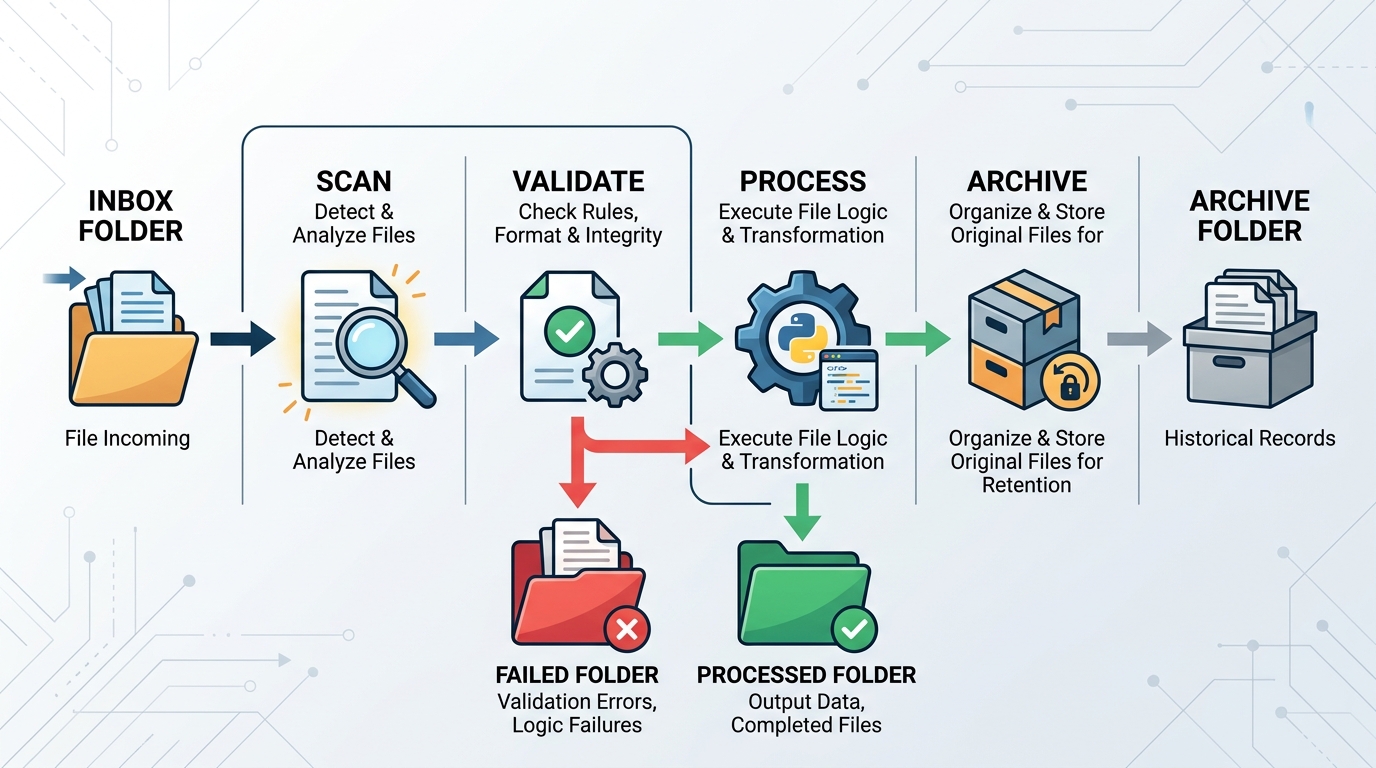
An automated file processing workflow typically involves scanning for new files, validating their content, processing the data, and then archiving the original files.
What is an Automated File Processing Workflow?
An automated file processing workflow is a script (or set of scripts) that watches a location for incoming files and shepherds each one through a fixed series of steps without human involvement. The canonical structure has four stages:
- Scan — detect new files in an inbox folder.
- Validate — check that each file is what it claims to be: right format, right columns, readable data.
- Process — do the actual work: clean, merge, transform, convert, or report.
- Archive — move finished files out of the inbox so nothing is processed twice, and keep originals recoverable.
Two design principles make this architecture reliable:
- Folders are the state machine. A file’s location tells you its status:
inbox/means pending,processed/means done,failed/means needs attention. No database required. - Every run must be safe to repeat. If the script crashes halfway and runs again, nothing should be double-processed or lost. The folder-based design gives you this almost for free.
Set up the folder skeleton first:
from pathlib import Path

BASE = Path("workflow")
INBOX = BASE / "inbox"
PROCESSED = BASE / "processed"
ARCHIVE = BASE / "archive"
FAILED = BASE / "failed"

for folder in (INBOX, PROCESSED, ARCHIVE, FAILED):
    folder.mkdir(parents=True, exist_ok=True)
Step 1: Scanning Folders for New Files
The simplest reliable scanner is a function that lists the inbox and filters by extension:
ALLOWED_EXTENSIONS = {".csv", ".xlsx"}

def scan_inbox() -> list[Path]:
    return sorted(
        f for f in INBOX.iterdir()
        if f.is_file() and f.suffix.lower() in ALLOWED_EXTENSIONS
    )
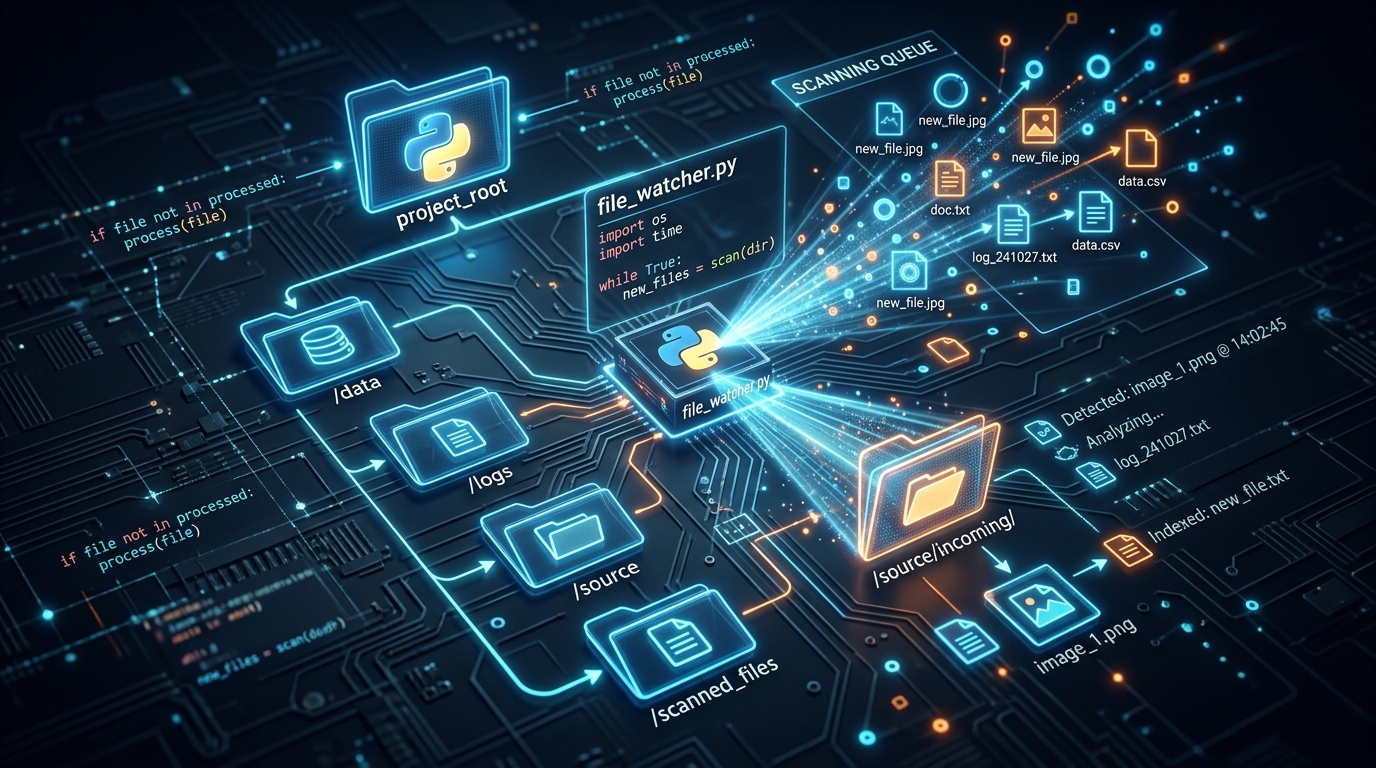
The first step in an automated workflow is often a Python script that efficiently scans designated folders for new or updated files.
One subtle but important problem: partially written files. If someone is still copying a large file into the inbox when your script runs, you will process half a file. The pragmatic fix is to check that a file’s size has stopped changing:
import time

def is_stable(file: Path, wait_seconds: float = 2.0) -> bool:
    """Return True if the file size is no longer changing."""
    size_before = file.stat().st_size
    time.sleep(wait_seconds)
    return file.stat().st_size == size_before
Skip any file that fails this check — it will be picked up on the next run. (For continuous, event-driven detection you can graduate to the watchdog library later; for scheduled runs, scanning is simpler and just as effective.)
Step 2: Validating and Cleaning Data (CSVs, Excel)
Never process a file you haven’t validated. Files arrive with wrong columns, broken encodings, empty bodies, and stray formats — and a workflow that blindly trusts input will eventually corrupt output. Validation is your firewall:
import pandas as pd

REQUIRED_COLUMNS = {"date", "region", "product", "revenue"}

def load_and_validate(file: Path) -> pd.DataFrame:
    """Read a CSV/Excel file and verify its structure. Raises on failure."""
    if file.suffix.lower() == ".csv":
        try:
            df = pd.read_csv(file)
        except UnicodeDecodeError:
            df = pd.read_csv(file, encoding="latin-1")
    else:
        df = pd.read_excel(file)

    if df.empty:
        raise ValueError("File contains no rows.")

    missing = REQUIRED_COLUMNS - set(df.columns)
    if missing:
        raise ValueError(f"Missing required columns: {missing}")

    return df
Once validated, apply your standard cleaning — the steps you currently do by hand:
def clean(df: pd.DataFrame) -> pd.DataFrame:
    df = df.drop_duplicates()
    df["date"] = pd.to_datetime(df["date"], errors="coerce")
    df = df.dropna(subset=["date", "revenue"])
    df["region"] = df["region"].str.strip().str.title()
    return df
This is also the stage where multi-file logic lives. If your inputs arrive as fragments — daily exports that need to become one dataset — this is where you merge multiple CSV files into a single frame before processing. And if the workflow’s end product is a formatted spreadsheet for stakeholders, the processing stage can hand off to a routine that automates weekly Excel reports and emails them out.
Step 3: Moving and Archiving Processed Files
After processing succeeds, two things must happen: the output is written to processed/, and the original is moved to archive/ so the inbox only ever contains pending work.
Timestamped filenames prevent collisions and make history auditable:
import shutil
from datetime import datetime

def archive_file(file: Path) -> None:
    stamp = datetime.now().strftime("%Y%m%d_%H%M%S")
    destination = ARCHIVE / f"{file.stem}_{stamp}{file.suffix}"
    shutil.move(str(file), destination)

def save_output(df: pd.DataFrame, source: Path) -> Path:
    stamp = datetime.now().strftime("%Y%m%d_%H%M%S")
    out = PROCESSED / f"{source.stem}_clean_{stamp}.csv"
    df.to_csv(out, index=False)
    return out
The golden rule of this stage: move originals, never delete them. Storage is cheap; a lost source file is not. Periodically pruning the archive folder is a far better problem to have than discovering the only copy of last quarter’s data went to the recycle bin.
Step 4: Error Handling and Notifications
An automation you can’t trust is worse than no automation, because you stop checking it just before it fails. Two mechanisms build trust: quarantine and notification.
Quarantine means a bad file never blocks the pipeline. If validation or processing fails, the file moves to failed/ with a note explaining why, and the workflow continues with the next file:
def quarantine(file: Path, reason: str) -> None:
    destination = FAILED / file.name
    shutil.move(str(file), destination)
    (FAILED / f"{file.stem}_error.txt").write_text(reason)
Notification means you hear about problems without checking manually. Logging is the baseline; an email or chat message on failure is the upgrade. Here is the complete orchestrator with both:
"""workflow.py — scan, validate, process, archive."""
import logging

logging.basicConfig(
    filename=BASE / "workflow.log",
    level=logging.INFO,
    format="%(asctime)s %(levelname)s %(message)s",
)

def run_workflow() -> None:
    files = scan_inbox()
    if not files:
        logging.info("Inbox empty — nothing to do.")
        return

    ok, bad = 0, 0
    for file in files:
        if not is_stable(file):
            logging.info("Skipping %s (still being written).", file.name)
            continue
        try:
            df = load_and_validate(file)
            df = clean(df)
            out = save_output(df, file)
            archive_file(file)
            logging.info("Processed %s -> %s (%d rows).",
                         file.name, out.name, len(df))
            ok += 1
        except Exception as exc:
            quarantine(file, str(exc))
            logging.error("Quarantined %s: %s", file.name, exc)
            bad += 1

    logging.info("Run complete: %d processed, %d failed.", ok, bad)
    if bad:
        notify(f"File workflow: {bad} file(s) quarantined — check failed/.")

def notify(message: str) -> None:
    # Simplest version: log loudly. Upgrade to email (smtplib) or chat
    # webhooks once the workflow proves itself.
    logging.warning("NOTIFY: %s", message)

if __name__ == "__main__":
    run_workflow()
Note the structure of the try/except: the original file is archived only after output is saved successfully. If anything fails mid-file, the source stays put (or is quarantined with its error message), and no work is lost.
Where to Go Next: Advanced Automation with Schedulers and Docker
You now have a complete, trustworthy workflow — but it still only runs when you launch it. Three upgrades take it from “script I run” to “system that runs itself”:
- Schedule it. Use cron (Linux) or Task Scheduler (Windows) to run the workflow every hour or every night. Because the design is safe to repeat, scheduling requires zero code changes.
- Containerize it. Packaging the workflow with advanced scheduling with Docker bundles Python, dependencies, and the schedule into one portable unit that runs identically on any machine — the natural next step once the workflow matters enough that “it broke after a Python update” is unacceptable.
- Extend it to new file types. The scan-validate-process-archive skeleton is format-agnostic. Swap the processing stage and the same architecture will batch process video files, resize images, or convert documents.
For a broader architectural treatment — multi-stage pipelines, retry strategies, and monitoring — continue with our deep dive into file processing architectures.
The pattern you have built here is the foundation of nearly all practical automation: a watched folder, a fixed pipeline, and folders as state. Master it once, and you will reuse it for years.
FAQ
What Python libraries do I need for a file processing workflow?
For the workflow above: pandas for CSV/Excel handling (plus openpyxl for .xlsx files), and the standard library’s pathlib, shutil, and logging for everything else. Optionally, watchdog adds real-time folder monitoring if scheduled scanning isn’t responsive enough.
Should I use a folder scanner or a real-time file watcher?
Start with a scheduled scanner — it is simpler, has no long-running process to crash, and a run every few minutes is effectively real-time for most business workflows. Move to a watchdog-based watcher only if you genuinely need sub-minute reaction times.
How do I prevent the same file from being processed twice?
Move files out of the inbox as soon as they are processed (to the archive) or fail (to quarantine). Because the scanner only reads the inbox, a file that has been moved can never be picked up again — the folder structure itself enforces exactly-once processing.
What happens if the script crashes in the middle of a run?
With the archive-after-success pattern shown above, an interrupted run leaves unprocessed files in the inbox, where the next run picks them up normally. The worst case is a duplicate output file with a different timestamp — annoying, but never data loss.
How do I run this workflow automatically every day?
Schedule the script with your operating system’s built-in scheduler — cron on Linux or Task Scheduler on Windows — or package it in a Docker container with cron inside for a portable, machine-independent setup. The workflow requires no changes to run on a schedule.