
How to Run a Python Script as a Cron Job Inside a Docker Container
You have a Python script that works. You have a schedule in mind. And you have heard that Docker is the “right” way to run it — but every tutorial you find assumes you already speak fluent DevOps. This guide is different: it walks you through packaging a Python script and a cron scheduler into a single Docker container, step by step, assuming no DevOps experience at all.
Nothing here touches production systems, requires cloud accounts, or risks breaking anything. Everything runs in an isolated container on your own machine, and if something goes wrong, you delete the container and start over — that safety is precisely the point of Docker.
Why Containerize Your Scheduled Python Automations?
If you have already scheduled scripts locally, you have probably run into the Linux cron scheduling limitations that make local jobs fragile: the job breaks when Python is upgraded, when a package changes, or when you move to a new machine.
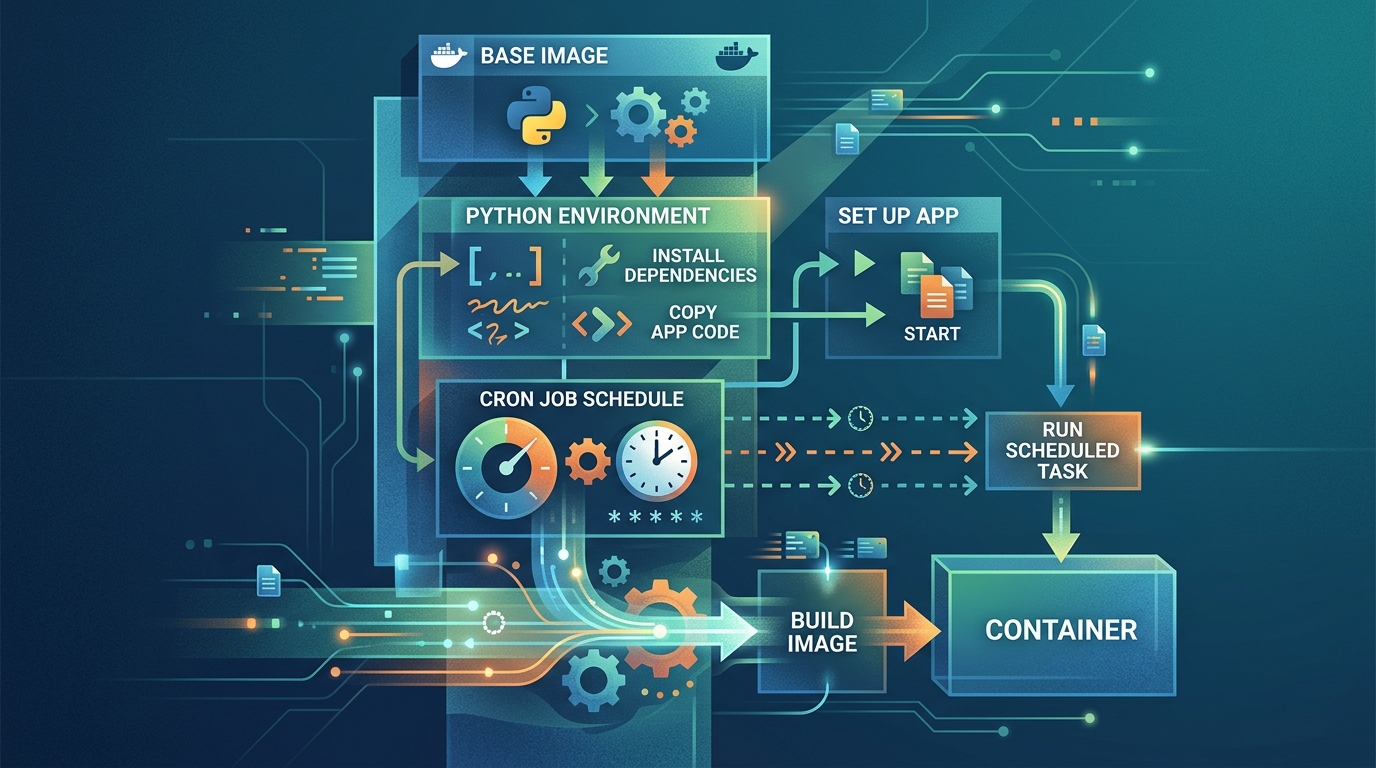
A Docker container solves this by packaging everything the job needs — the Python interpreter, your dependencies, your script, and the cron schedule itself — into one portable unit. That gives you:
- Isolation. The container has its own Python and its own packages. Nothing you install or upgrade on your machine can break the job, and the job can’t break anything on your machine.
- Portability. The same container runs identically on your laptop, an office server, or a $5 cloud VM. Moving the job is one command, not an afternoon of setup.
- Reproducibility. The Dockerfile is a written record of the job’s entire environment. Six months from now, you (or a colleague) can rebuild it exactly.
- Safe experimentation. Break something inside a container? Rebuild it in seconds. This is why containers are the ideal sandbox for people worried about breaking things.
How to Set Up Docker for Python Automation With No DevOps Experience
You need exactly one tool installed: Docker Desktop (Windows/macOS) or Docker Engine (Linux), available from docker.com. After installing, verify it works:
docker --version
docker run hello-world
If hello-world prints a greeting, you are ready. Now the three Docker concepts you actually need — ignore everything else for now:
- Image: a frozen snapshot of an environment (OS + Python + your code). Built from a recipe file called a Dockerfile.
- Container: a running instance of an image. You can start, stop, and delete containers freely without affecting the image.
- Build and run:
docker buildturns a Dockerfile into an image;docker runstarts a container from it.
That is the entire mental model required for this tutorial.
Creating a Dockerfile for a Python Script
Let’s start with a simple example script, job.py, that we want to run on a schedule. It just logs a timestamp — substitute your real automation later:
"""job.py — the task to run on a schedule."""
from datetime import datetime

with open("/var/log/job.log", "a") as f:
    f.write(f"Job ran at {datetime.now().isoformat()}\n")
print("Job complete.")
Create a project folder containing three files: job.py, requirements.txt (your dependencies — it can be empty for this example), and a Dockerfile:
FROM python:3.12-slim

# Install any Python dependencies
COPY requirements.txt /app/requirements.txt
RUN pip install --no-cache-dir -r /app/requirements.txt

# Copy the script into the image
COPY job.py /app/job.py

CMD ["python", "/app/job.py"]
Reading it line by line: FROM picks a base image with Python 3.12 preinstalled; COPY and RUN pip install bake in your dependencies; the final CMD says what runs when the container starts. Build and test it:
docker build -t my-python-job .
docker run --rm my-python-job
# Job complete.
At this point your script runs inside a container — but only when you launch it manually. Next, we add the scheduler.
Adding Cron to Your Docker Container
The python:3.12-slim base image is Debian Linux under the hood, so we can install cron inside it. We need three additions: install cron, add a schedule file, and make cron the container’s main process.
Create a file named crontab.txt with your schedule (this example runs every minute, which is perfect for testing):
* * * * * /usr/local/bin/python /app/job.py >> /var/log/job.log 2>&1
Two details worth noticing — both echoes of classic cron problems:
- We use the absolute path to Python (
/usr/local/bin/pythonis where the official Python images put it). - We redirect output (
>> ... 2>&1) to a log file so we can see what happened.
Now the updated Dockerfile:
FROM python:3.12-slim

# Install cron
RUN apt-get update && apt-get install -y cron && rm -rf /var/lib/apt/lists/*

# Install Python dependencies
COPY requirements.txt /app/requirements.txt
RUN pip install --no-cache-dir -r /app/requirements.txt

# Copy the script
COPY job.py /app/job.py

# Register the cron schedule
COPY crontab.txt /etc/cron.d/my-job
RUN chmod 0644 /etc/cron.d/my-job && crontab /etc/cron.d/my-job

# Create the log file so we can tail it
RUN touch /var/log/job.log

# Run cron in the foreground as the container's main process
CMD ["cron", "-f"]
A Dockerfile configured to install cron, set up Python dependencies, copy the script, register the cron schedule, and run cron in the foreground.
The key line is the last one: cron -f runs cron in the foreground. A Docker container stays alive only as long as its main process runs, so cron itself becomes that process — quietly waking up to run your Python script on schedule.
Build and run it:
docker build -t my-cron-job .
docker run -d --name my-cron-job my-cron-job
The -d flag runs the container in the background. Watch your job fire once per minute:
docker exec my-cron-job tail -f /var/log/job.log
# Job ran at 2026-07-25T09:01:00.014521
# Job ran at 2026-07-25T09:02:00.011983
That is a complete, self-contained scheduled automation. Delete it any time with docker rm -f my-cron-job — nothing on your host machine changes.
Example: Scheduling a Weekly Task with a Docker Cron Job
The every-minute schedule proves the plumbing works. For a real automation — say, a weekly data processing job — you only change the crontab line:
0 7 * * 1 /usr/local/bin/python /app/job.py >> /var/log/job.log 2>&1
This runs every Monday at 7:00 AM container time. One important note: containers default to UTC. To use your local timezone, add one line to the Dockerfile:
ENV TZ=America/New_York
Rebuild and rerun after any change to the Dockerfile or crontab:
docker build -t my-cron-job .
docker rm -f my-cron-job
docker run -d --name my-cron-job --restart unless-stopped my-cron-job
The --restart unless-stopped flag is the finishing touch: Docker will bring the container back automatically after a reboot, so your weekly task survives machine restarts without any extra setup. This pattern — container plus restart policy — is the first step toward building long-running Python systems that keep working unattended for months.
If your job needs to read or write files on your machine (input folders, output reports), mount a folder into the container:
docker run -d --name my-cron-job \
  -v "C:/Users/Sam/data:/app/data" \
  --restart unless-stopped my-cron-job
Now /app/data inside the container is your real data folder — ideal when the containerized job is one stage of scaling your file processing workflow.
Troubleshooting Cron Logs in Docker
When a containerized cron job misbehaves, work through this checklist:
- Is the container running?
docker psshould list it. If not,docker ps -ashows whether it exited, anddocker logs my-cron-jobshows why. - Is cron firing at all? Temporarily set the schedule to
* * * * *and tail the log. If nothing appears within two minutes, check that your crontab file ends with a newline — a missing final newline is a classic reason cron silently ignores the entry. - Is the script failing? The
2>&1redirect in the crontab captures Python errors into/var/log/job.log. Read them withdocker exec my-cron-job cat /var/log/job.log. - Is it a path problem? Run the exact command from your crontab manually inside the container:
docker exec -it my-cron-job /usr/local/bin/python /app/job.py. If it works interactively but not on schedule, an environment variable is missing — define it in the Dockerfile withENVrather than relying on the shell. - Is it a timezone surprise?
docker exec my-cron-job dateshows the container’s clock. If it is off from your expectation, setENV TZ=...as shown above.

Log outputs from a Docker container, demonstrating the successful execution of a Python script via cron at regular intervals.
Once you are comfortable with this setup, the same container pattern extends naturally to running entire pipelines on your own hardware — the foundation of local-first workflow automation, where your data and your schedules never leave machines you control.
FAQ
Can I run cron inside a Docker container?
Yes. Install cron in the image, register a crontab, and run cron -f as the container’s main (foreground) process. The container stays alive and cron executes your Python script on schedule, exactly as shown in the Dockerfile above.
Is it better to use the host’s cron to run docker run commands instead?
Both work. Putting cron inside the container makes the job fully self-contained and portable — the schedule travels with the image. Using host cron to trigger docker run keeps containers short-lived but ties the schedule to one machine again. For portability, keep cron in the container.
Why does my container exit immediately after starting?
The container’s main process finished. If your CMD runs the Python script directly, the container stops when the script ends. For a scheduled job, the CMD must be the long-running process — cron -f — with the script invoked by cron, not by CMD.
How do I see the output of my Python script inside the container?
Redirect output in the crontab entry (>> /var/log/job.log 2>&1) and read it with docker exec my-cron-job tail -f /var/log/job.log. Without the redirect, cron output is discarded and errors become invisible.
Do I need Kubernetes or cloud services for this?
No. A single container with cron and a restart policy covers the vast majority of personal and small-team automation needs. Add orchestration tools only when you genuinely have many machines and many jobs to coordinate.