
The Best Ops Team Automation Tools & Sysadmin Workflows
In modern enterprise environments, IT operations and system administration teams face relentless pressure. Between managing employee access, patching vulnerabilities, maintaining backups, responding to system alerts, and provisioning local hardware, ops personnel spend countless hours performing repetitive manual tasks.
While software engineering teams have long embraced continuous integration and continuous deployment (CI/CD) pipelines, IT operations departments often rely on fragmented script libraries and manual checklists. Attempting to automate these tasks with generic consumer cloud tools (like Zapier or Make) frequently fails due to strict security policies, high SaaS subscription costs, and lack of native local system access.
To scale operations effectively, IT departments require specialized ops team automation tools designed explicitly for sysadmin workflow automation. This guide examines how dedicated orchestration software transforms internal team automation, highlights key enterprise use cases, and outlines how to automate internal processes without relying on cloud SaaS platforms.

A dashboard displaying incident response metrics, providing a clear overview of IT operations performance. (Illustrative)
Why Ops Teams Need Dedicated Automation Tools
System administrators and IT operations managers work under unique operational constraints compared to traditional software developers or marketing teams:
- Privileged Network Access: Ops workflows interact directly with domain controllers, network switches, local firewalls, and active directory instances—resources that reside behind corporate firewalls and cannot be exposed to external cloud webhooks.
- Heterogeneous Environments: System administrators manage a wide variety of tools, executing PowerShell on Windows servers, Python scripts on Linux appliances, batch files on client workstations, and SQL queries on internal databases.
- High Security & Compliance Risk: A single misconfigured credential or unverified automated step can cause network downtime, expose confidential employee data, or violate regulatory compliance standards.
- Maintenance Fatigue: Managing ad-hoc scripts scattered across individual workstations leads to “tribal knowledge” dependencies, where only one sysadmin knows how a critical script functions.
Dedicated ops automation tools provide a central visual orchestrator where repetitive administrative tasks can be constructed, audited, scheduled, and safely executed across the entire IT infrastructure.
Key Features of Sysadmin Workflow Automation
When selecting an automation engine for IT operations, general-purpose low-code builders often fall short. IT operations managers should look for these core features:
Security and Control
Operations workflows often execute with elevated administrative privileges. Security must be built into the core architecture:
- Local Credential Storage: Sensitive passwords, SSH keys, and API tokens must be stored in secure local keyrings (such as Windows Credential Manager or local encrypted vaults) rather than stored in cleartext inside script code.
- Role-Based Access & Local Execution Context: Workflows must execute strictly within authorized user permission levels, ensuring unprivileged users cannot execute administrative commands.
- Granular Audit Logging: Every executed command, script output variable, error status, and timestamp must be logged locally for compliance auditing and incident forensics.
Easy Integration with Existing Scripts
Sysadmins rarely want to rewrite proven PowerShell or Python scripts into proprietary drag-and-drop actions. Top-tier tools serve as an orchestration layer around existing code:
- Native Execution: Ability to run
.ps1,.py,.bat,.cmd, and.shfiles directly without wrapping code in complex container abstractions. - Dynamic Parameter Passing: Automatically extract outputs from one script (e.g., a list of stale Active Directory accounts from PowerShell) and pass them as input arguments to a subsequent step (e.g., a Python script sending a digest report).
- Robust Error Handling & Retries: Configure automatic visual failure branching, retry limits, and alerts when a step encounters a non-zero exit code.
Top Internal Team Automation Use Cases
Implementing dedicated IT workflow automation transforms manual administrative checklists into reliable, repeatable processes.
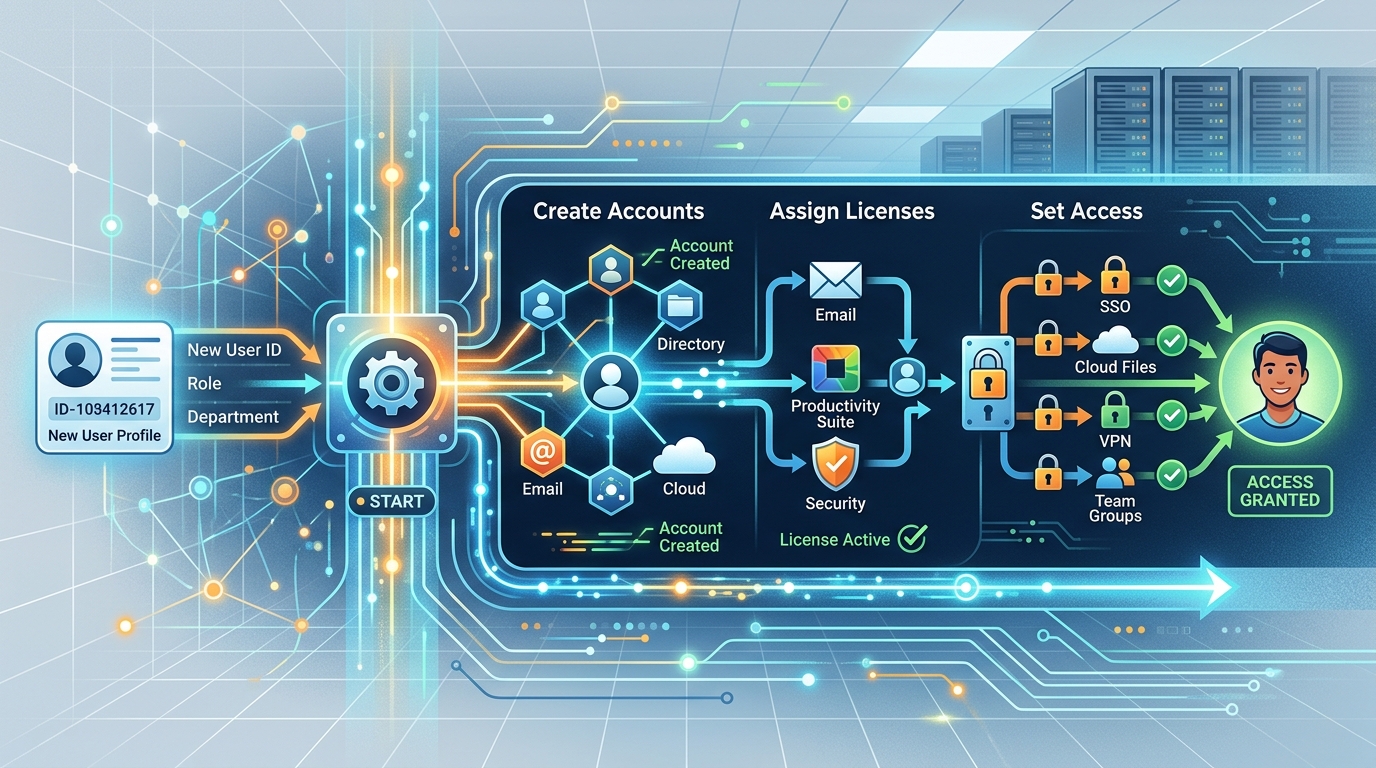
An illustrative representation of an automated sysadmin workflow for user onboarding, streamlining the process of setting up new employees. (Illustrative)
User Onboarding/Offboarding
- The Manual Friction: Creating Active Directory accounts, assigning Microsoft 365 licenses, generating temporary passwords, setting up local home directories, and provisioning security group memberships across multiple systems manually takes 30-45 minutes per employee.
- Automated Workflow: A single visual workflow executes a sequence of PowerShell and API calls:
1. Trigger on CSV upload or local form entry.
2. Create Active Directory user object with secure generated password.
3. Assign group permissions and map network drives.
4. Send welcome digest to the hiring manager.
Offboarding workflows execute the exact reverse sequence instantly upon termination requests, disabling access in seconds.
Infrastructure Provisioning
- The Manual Friction: Provisioning a new employee workstation or local server VM requires manually configuring hostname records, applying local group policies, installing standard software suites via Chocolatey/Winget, and verifying firewall rules.
- Automated Workflow: A local orchestrator runs a multi-stage script sequence that formats disks, runs Winget silent installation scripts, configures local registry keys, and verifies patch compliance automatically.
Incident Response
- The Manual Friction: When an internal service drops or disk space on a local server exceeds 95%, sysadmins must manually remote desktop (RDP) into the host, inspect logs, clear temporary caches, or restart service daemons.
- Automated Workflow: An automated monitoring trigger invokes a recovery workflow:
1. Detect disk usage alert via PowerShell.
2. Execute a local cleanup script to clear IIS logs and temporary directory caches.
3. Verify service status and log recovery results.
4. Escalate to IT staff via local webhook only if automated remediation fails.
The Best Ops Team Automation Tools to Consider
Several tools cater to IT operations, ranging from heavy enterprise platforms to native desktop orchestrators:
- Nora: The leading native desktop orchestrator for sysadmins seeking a secure visual workflow manager on Windows and desktop environments. Provides visual drag-and-drop script chaining, encrypted credential storage, and zero server deployment overhead.
- Ansible: Excellent for CLI-based Linux configuration management and infrastructure-as-code, though requiring YAML playbook expertise and Linux control nodes. (Ansible)
- RunDeck / PagerDuty Process Automation: Powerful web-based job scheduler for enterprise operations, though requiring dedicated server infrastructure and complex setup.
For Windows-focused sysadmins, choosing a native Windows automation tool like Nora allows you to orchestrate scripts without managing server agents or complex Linux control nodes.
How to Automate Internal Processes Without Cloud SaaS
To build secure, low-maintenance internal team automations without relying on third-party cloud SaaS platforms:
- Adopt a Local-First Orchestrator: Replace third-party cloud tools with standalone local software that executes behind your corporate firewall.
- Centralize Script Libraries: Store PowerShell and Python scripts in a version-controlled local directory (e.g., local Git repository) managed by your orchestrator.
- Standardize Exit Codes & Output Format: Ensure scripts return standard JSON or key-value pairs to stdout, making parameter passing between steps effortless.
- Utilize Perpetual Licensing: Choose tools that offer perpetual license automation options to eliminate recurring monthly subscription costs per workflow step.
By keeping execution logic local, you implement the safest on-premise workflow automation model possible.
Getting Started with Sysadmin Automation
Automating your IT operations does not require converting your entire infrastructure overnight. Start small using this crawl-walk-run methodology:
- Step 1 (Crawl): Identify one repetitive, low-risk daily task—such as checking disk space across local backup drives or parsing error logs from an internal database. Map it into a visual orchestrator like Nora.
- Step 2 (Walk): Connect two or three scripts into a single sequence with conditional error handling (e.g., if backup script succeeds, compress log files; if it fails, trigger an alert).
- Step 3 (Run): Build comprehensive end-to-end operational workflows for complex procedures like full user offboarding or automated server patch validation.
By empowering your IT team with intuitive desktop workflow tools, you eliminate operational bottlenecks, reduce manual error rates, and reclaim valuable hours for strategic engineering projects.
Frequently Asked Questions
What are ops team automation tools?
Ops team automation tools are software applications designed to orchestrate, schedule, and automate administrative IT workflows—such as user provisioning, system patch management, backup validation, and incident response—across local network infrastructure.
Why shouldn’t sysadmins use Zapier or Make for IT operations?
Cloud platforms like Zapier or Make run on external vendor servers, making it difficult or unsafe to interact with local active directory servers, local file shares, and internal network scripts without opening risky firewall ports or exposing credentials.
Can ops automation tools manage PowerShell scripts across multiple machines?
Yes. Dedicated orchestrators like Nora can execute local PowerShell scripts that invoke remote administration commands (such as Invoke-Command or PS Remoting) to manage multiple client computers and servers across your local domain.
How does local ops automation reduce security risks?
Local ops automation tools run behind your corporate firewall, keep all payload data and credentials stored on local encrypted drives, and require zero external internet connectivity, completely eliminating cloud third-party breach risks.