
The Ultimate Guide to Python Excel Automation
Spreadsheets remain the undisputed backbone of modern business operations in 2026. From finance and HR to logistics and marketing, Excel is used to track, analyze, and report on critical data. However, relying on manual data entry and manipulation is no longer sustainable for growing organizations. This is where Python Excel automation comes into play, enabling operations teams to transform tedious manual tasks into fast, reliable, and automated processes. In this comprehensive guide, we will explore everything you need to know to replace manual Excel work and scale your spreadsheet operations effectively.
1. Why Automate Spreadsheet Data Processing?
Manual data processing in Excel is inherently flawed when dealing with scale. Copying and pasting data between multiple workbooks, applying complex formulas cell by cell, and re-formatting reports every week drains valuable time and energy from operations teams.
Automating spreadsheet data processing eliminates these bottlenecks. By leveraging Python, a highly readable and incredibly powerful programming language, you can execute complex data manipulations in fractions of a second. Automation ensures absolute consistency; a Python script will apply the exact same rules every time it runs, meaning human error is effectively neutralized. This allows your team to shift their focus from mundane data entry to high-level strategic analysis.
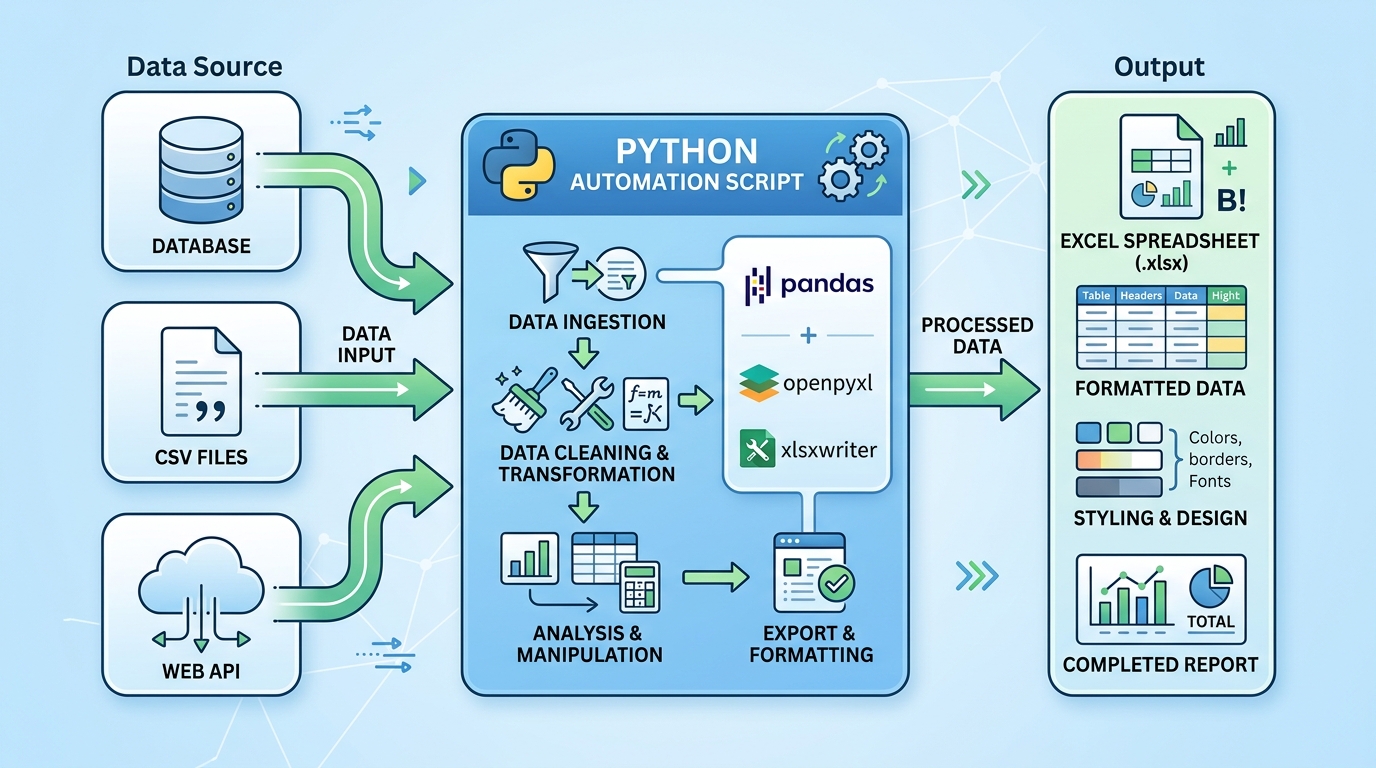
A visual representation of how Python can automate the entire Excel data processing workflow, from input to output.
2. Core Python Spreadsheet Automation Concepts
At its core, Python spreadsheet automation involves writing scripts that interact directly with the underlying data of an Excel file without ever needing to launch the Microsoft Excel application itself. This is achieved through specific software libraries designed to parse and manipulate .xlsx files programmatically.
When to Use Python vs. Manual Excel Work
You might wonder when it makes sense to write a script versus just doing the task manually. Manual Excel work is perfectly acceptable for ad-hoc analysis, quick calculations, or prototyping a new report. However, you should transition to Python when:
- The task is repetitive (e.g., generating weekly sales reports).
- The dataset exceeds a few hundred thousand rows, causing Excel to freeze or crash.
- You need to merge data from multiple diverse sources, such as SQL databases, CSV files, and web APIs.
- The process requires complex data cleaning that is difficult to manage with standard Excel formulas.
3. How to Automate Excel with Python
Getting started with Python automation is remarkably straightforward. The Python ecosystem offers a vast array of open-source tools tailored specifically for data manipulation and file generation.
Python Generate Excel File Basics
To generate an Excel file with Python, you typically start by organizing your data into a structured format, such as a dictionary or a two-dimensional array. Using libraries like pandas or openpyxl, you instruct Python to create a new workbook object, insert your structured data into specific worksheets, and save the resulting file to your local drive or a cloud server. This programmatic approach allows for dynamic file generation based on real-time data inputs.
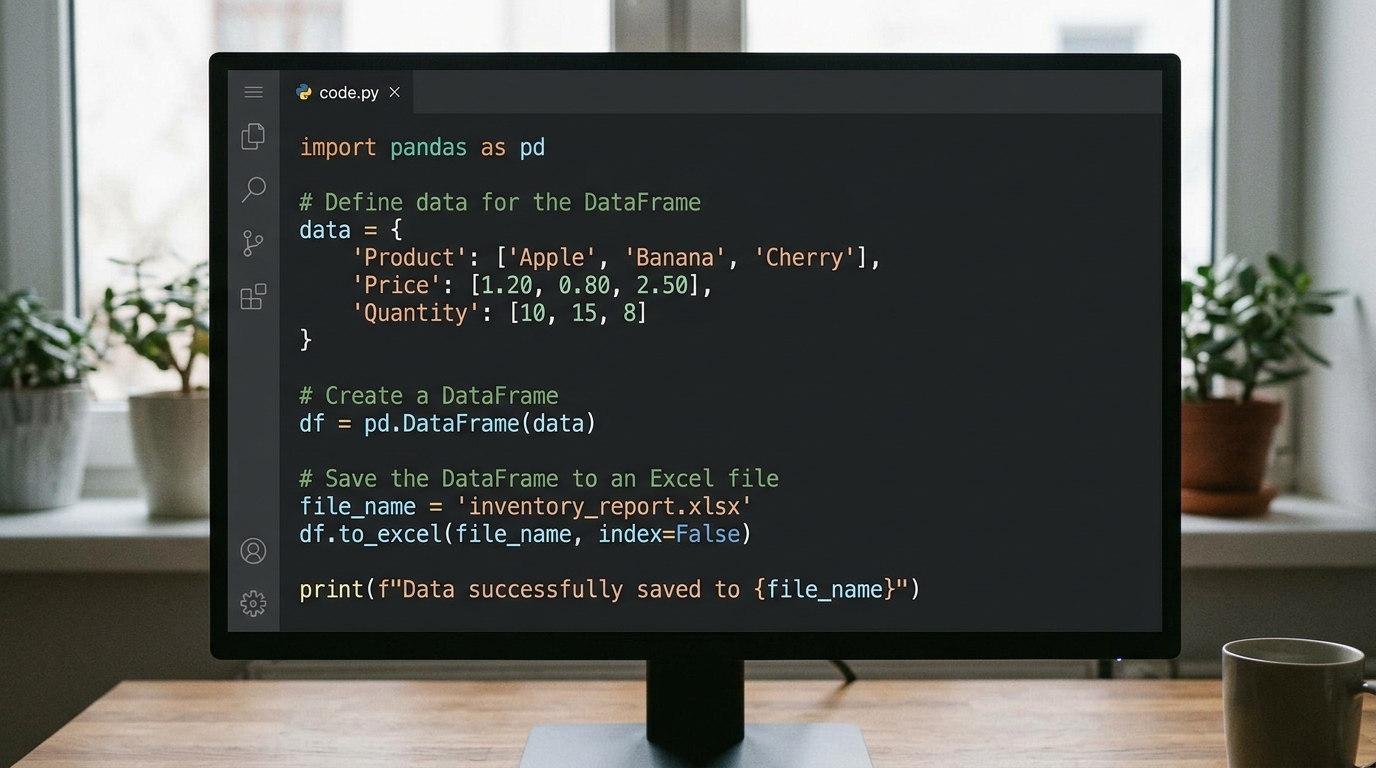
Example Python code illustrating the basic steps to programmatically create and save an Excel spreadsheet.
Building Your First Python Excel Workflow
Your first Python Excel workflow does not need to be overly complex. A standard entry-level workflow generally follows three simple steps:
1. Extract: Read raw data from an existing Excel file or external database.
2. Transform: Clean the data, remove duplicates, filter out irrelevant rows, and perform necessary calculations.
3. Load: Write the newly processed data into a fresh, properly formatted Excel file.
Once you have mastered this basic loop, you can easily scale up to automate Excel reports with Python and distribute them to stakeholders effortlessly.
4. What is the Best Python Library for Excel Automation?
The Python ecosystem is rich with options, and the “best” library entirely depends on the specific requirements of your workflow.
openpyxl vs. pandas vs. xlsxwriter
- pandas: This is the industry standard for data manipulation. It is incredibly fast and efficient at filtering, grouping, and merging large datasets. While it can read and write Excel files with ease, it lacks advanced formatting capabilities.
- openpyxl: If your primary goal is to interact with existing Excel files, read their contents, and apply rich formatting, this is the tool for you. To learn more about its capabilities, check out our comprehensive openpyxl tutorial.
- xlsxwriter: This library is optimized for writing new Excel files from scratch. It boasts high performance and offers unparalleled support for building advanced charts, inserting images, and applying complex cell formatting, though it cannot read or modify existing files.
FAQ
What exactly is Python Excel automation?
It is the process of using the Python programming language to programmatically read, manipulate, format, and generate Microsoft Excel files, bypassing the need for manual data entry.
Do I need a background in software engineering to automate my spreadsheets?
No, Python’s syntax is highly intuitive, making it accessible for operations managers, financial analysts, and marketing teams willing to learn the basics of scripting.
Can Python automation run on both Windows and Mac?
Yes, Python is a cross-platform language. Scripts written to process Excel files will work seamlessly across Windows, macOS, and Linux operating systems.