
How to Make a Python Script Run Automatically on Windows and Linux
Writing a useful Python script is only half the job. The other half — the half that actually saves you time — is making it run on its own, on a schedule, without you remembering to launch it. This guide shows you exactly how to run a Python script on a schedule in Linux (with cron) and Windows (with Task Scheduler), and how to avoid the path and environment problems that trip up almost every beginner.
This is a pragmatic guide for people self-serving their own IT needs: no orchestration platforms, no cloud services, just the schedulers already built into your operating system.
Why Local Scheduling Fails (And How to Fix It)
Before the how-to, it is worth understanding why “I set up a cron job and nothing happened” is one of the most common automation complaints. Local scheduling usually fails for one of these reasons:
- Relative paths. Your script works when you run it from its own folder, but the scheduler runs it from somewhere else — so
open("data.csv")suddenly can’t find the file. - Wrong Python interpreter. The scheduler doesn’t know about your virtual environment or your
pythonalias. It needs the full path to the exact interpreter you want. - Missing environment variables. Cron runs with a nearly empty environment. API keys and settings you exported in your shell simply are not there.
- The machine is off. A scheduler can only run jobs while the computer is awake and powered on. A laptop that sleeps at night will silently skip your 2 AM job.
Every fix in this guide follows from one rule: be explicit about everything — full paths, exact interpreters, and defined working directories. Keep that rule in mind and local scheduling becomes boringly reliable.
How to Run a Python Script on a Schedule in Linux
Linux (and macOS) ships with cron, a scheduler that has been running the world’s background jobs for decades. You define jobs in a file called a crontab.
Writing Your First Cron Job
Open your crontab for editing:
crontab -e
Each line defines one job in five time fields plus a command:
# ┌ minute (0–59)
# │ ┌ hour (0–23)
# │ │ ┌ day of month (1–31)
# │ │ │ ┌ month (1–12)
# │ │ │ │ ┌ day of week (0–6, Sunday=0)
# │ │ │ │ │
  0  8  *  *  1  /usr/bin/python3 /home/sam/scripts/report.py
This example runs report.py every Monday at 8:00 AM. Some other useful patterns:
0 * * * *— every hour, on the hour*/15 * * * *— every 15 minutes0 2 * * 0— every Sunday at 2:00 AM
Save and exit, then confirm your job is registered with crontab -l.
To capture output (essential for debugging), redirect it to a log file:
0 8 * * 1 /usr/bin/python3 /home/sam/scripts/report.py >> /home/sam/logs/report.log 2>&1
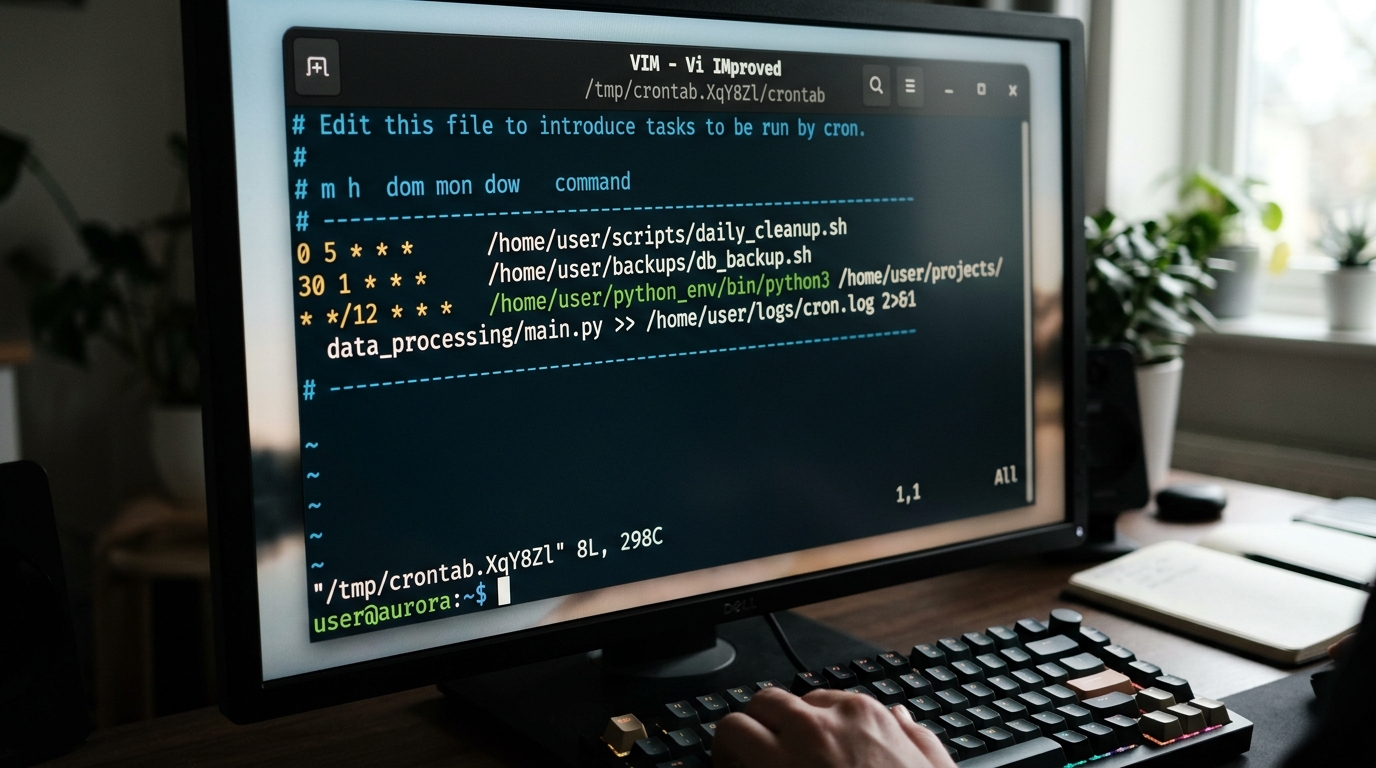
A typical crontab entry showing the scheduling of a Python script on a Linux system.
Dealing with Absolute vs. Relative Python Paths in Cron
This is the single biggest source of cron frustration, so let’s be thorough. Cron does not run your job the way your terminal does. It uses a minimal environment, a different working directory (usually your home directory), and no knowledge of aliases or virtual environments. Three rules keep you safe:
1. Use the absolute path to the Python interpreter. Find it with which python3. If you use a virtual environment, point directly at its interpreter — this automatically uses the venv’s installed packages with no activation step needed:
0 8 * * 1 /home/sam/projects/reports/venv/bin/python /home/sam/projects/reports/report.py
2. Use the absolute path to the script — never python report.py.
3. Make the script itself path-independent. Inside the script, resolve file paths relative to the script’s own location instead of the working directory:
from pathlib import Path

BASE_DIR = Path(__file__).resolve().parent
data_file = BASE_DIR / "data" / "input.csv"
With these three habits, the classic “works in my terminal, fails in cron” problem disappears entirely.
How to Schedule a Python Script as a Weekly Task on Windows
Windows has no cron, but Task Scheduler does the same job with a graphical interface.
Using Windows Task Scheduler for Python
Follow these steps to schedule a weekly Python task:
- Open Task Scheduler (search “Task Scheduler” in the Start menu) and click Create Basic Task in the right-hand panel.
- Name the task something descriptive, like “Weekly Report Script”.
- Choose the trigger. Select Weekly, then pick the day and time — for example, Monday at 8:00 AM.
- Choose the action: Start a program.
- Fill in the program fields carefully — this is the Windows equivalent of the absolute-path rule:
– Program/script: the full path to your Python executable, e.g.C:\Users\Sam\AppData\Local\Programs\Python\Python312\python.exe(find yours withwhere pythonin a terminal). For a virtual environment, useC:\path\to\venv\Scripts\python.exe.
– Add arguments: the full path to your script, e.g."C:\Users\Sam\scripts\report.py".
– Start in: the folder containing your script, e.g.C:\Users\Sam\scripts. This sets the working directory and prevents relative-path failures. - Finish and test. Right-click the task and choose Run to execute it immediately and confirm it works.
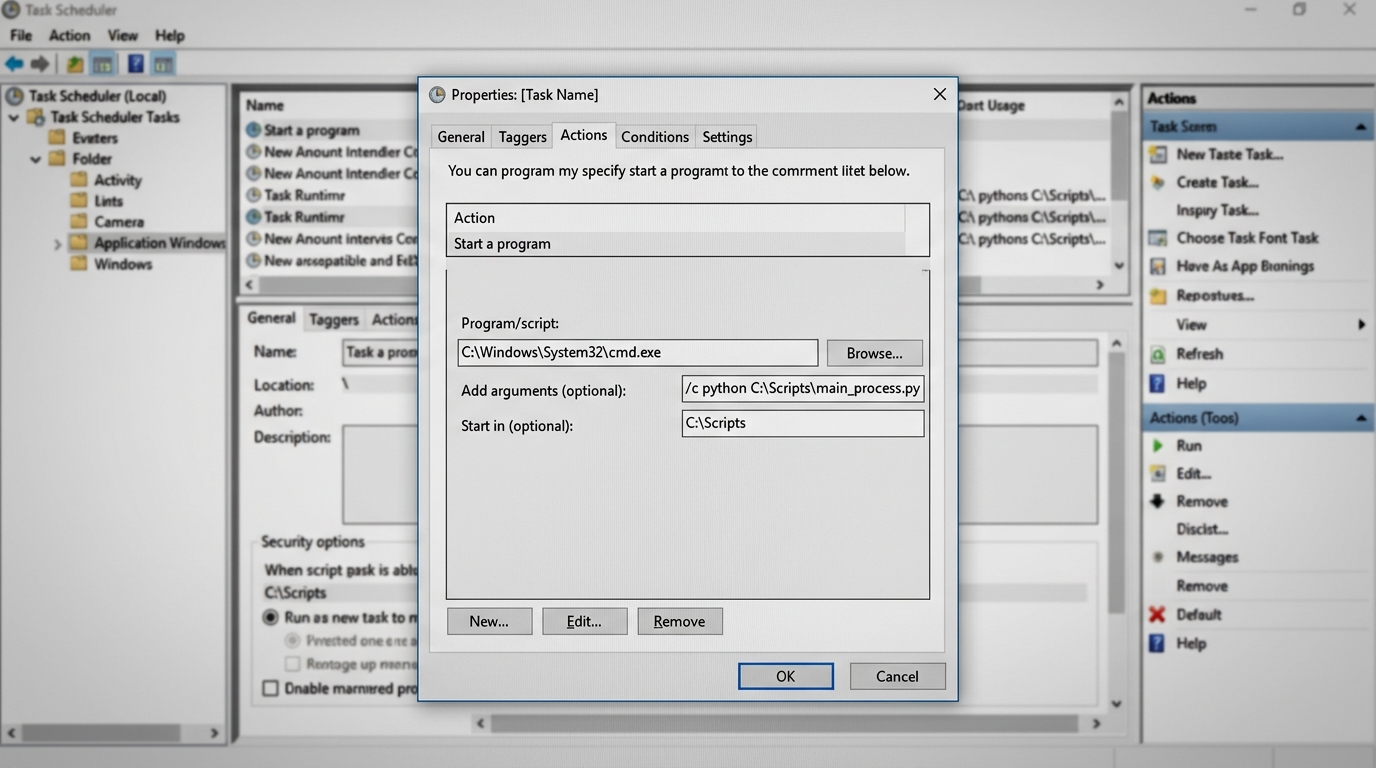
Configuring a Python script to run automatically using the Windows Task Scheduler.
Two settings worth checking in the task’s Properties:
- “Run whether user is logged on or not” — so the job runs even when you are not at the machine (you will be prompted for your Windows password).
- “Wake the computer to run this task” under the Conditions tab — useful for machines that sleep.
For a concrete end-to-end example of this pattern in action, see how to schedule weekly Excel reports that format themselves and land in your team’s inbox automatically. The same setup also powers heavier jobs, like scheduling your batch video job to compress files overnight.
When to Move From Local Schedulers to Docker Containers
Cron and Task Scheduler are the right starting point, but they have real limits:
- They are tied to one machine. If your laptop is off, asleep, or reinstalled, your jobs stop.
- Environment drift. A system Python upgrade or a changed dependency can quietly break a job that ran fine for months.
- No portability. Moving a job to another machine means recreating the interpreter, packages, paths, and schedule by hand.
If any of these are biting you — or if you want your automation to survive a laptop replacement without an afternoon of setup — the next step is packaging the script, its dependencies, and its schedule together by running a Docker cron job. The container carries everything with it, so the job runs identically on any machine with Docker installed.
For a broader look at how experienced administrators structure this progression, from single scripts to fleets of scheduled jobs, see these automation patterns for sysadmins.
FAQ
How do I run a Python script every day at a specific time on Linux?
Add a crontab line with the minute and hour set and wildcards for the date fields. For example, 30 6 * * * /usr/bin/python3 /home/you/script.py runs every day at 6:30 AM. Edit your crontab with crontab -e.
Why does my cron job work in the terminal but not in cron?
Almost always a path or environment issue: cron uses a minimal environment, a different working directory, and no shell aliases. Use absolute paths for the interpreter and the script, resolve file paths inside the script with Path(__file__).resolve().parent, and redirect output to a log file so you can see the actual error.
How do I schedule a Python script inside a virtual environment?
Point the scheduler directly at the virtual environment’s interpreter — venv/bin/python on Linux or venv\Scripts\python.exe on Windows. Calling the venv’s interpreter directly uses its packages automatically; no activation command is needed.
Does the computer need to be on for scheduled scripts to run?
Yes. Both cron and Task Scheduler only run while the machine is awake. Windows can be configured to wake the computer for a task; on a laptop that is frequently off, consider moving the job to an always-on machine or a Docker container on a small server.
Should I use cron, Task Scheduler, or a Python library like schedule?
For most cases, use the operating system’s scheduler — it survives reboots and doesn’t require your script to run continuously. Python scheduling libraries keep a process running permanently, which adds a failure point. Move to Docker-based scheduling when you need portability and dependency isolation.