
How to Build Workflow Automation Without Cloud Dependencies
Over the past decade, enterprise software vendors have heavily pushed cloud-first architectures as the default standard for workflow orchestration. However, as organizations expand their reliance on cloud automation services, IT managers, operations engineers, and system administrators are experiencing the compounding drawbacks: escalating subscription costs, unpredictable API usage tiers, unexpected vendor downtime, and severe data privacy risks.
Building workflow automation without cloud dependencies is no longer just a niche strategy for specialized defense or financial institutions—it has become a essential framework for modern IT teams seeking reliability, security, and total operational autonomy.
This comprehensive guide breaks down the hidden drawbacks of cloud automation, defines the principles of no server automation, and provides a practical step-by-step framework to execute your next automation without server project entirely on local infrastructure.
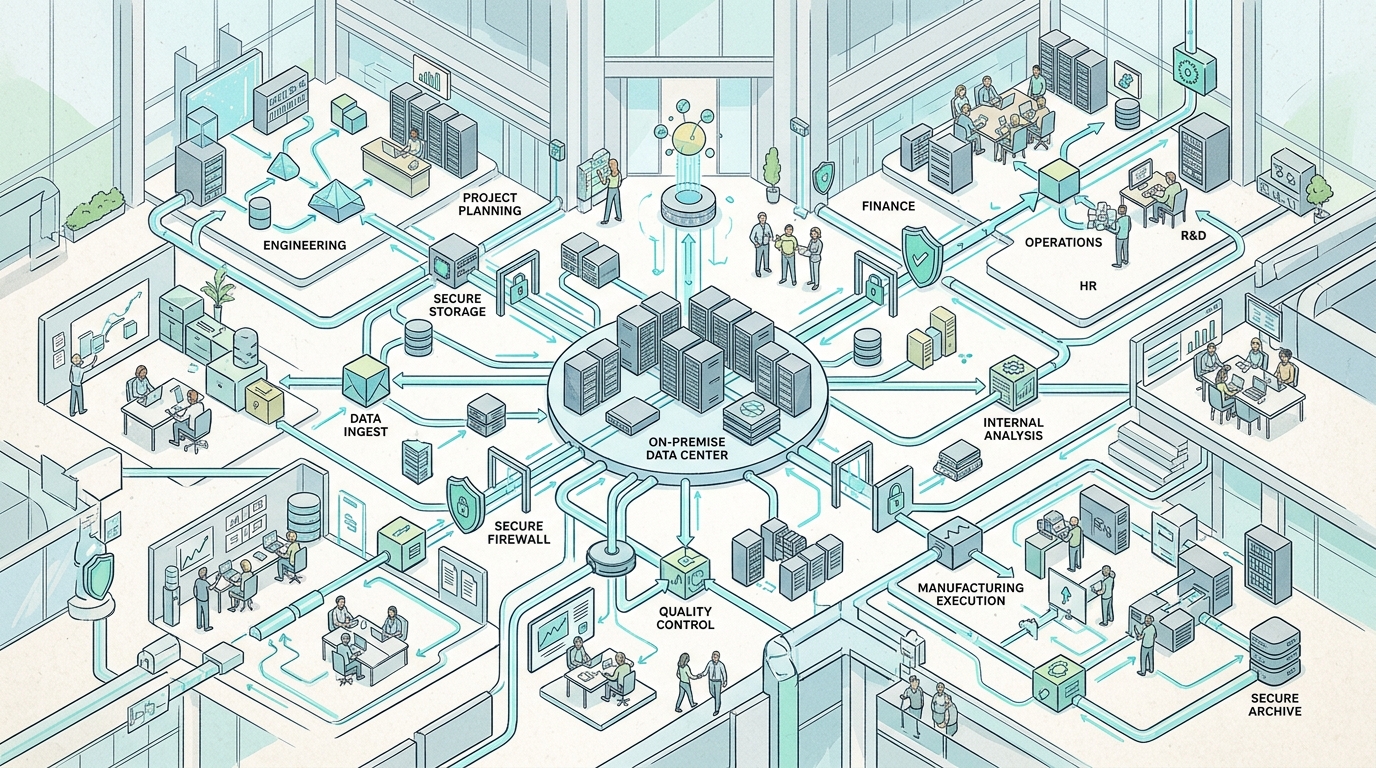
A visual representation of a workflow automation system designed to operate without cloud dependencies, highlighting local processing and secure connections.
The Hidden Costs of Cloud Automation Infrastructure
At first glance, cloud automation platforms like Zapier, Make, or cloud-hosted iPaaS platforms appear convenient. They allow teams to connect services quickly without managing hardware. However, scaling cloud automation reveals significant operational friction and financial liability:
- Subscription Tier Creep: Cloud platforms monetize via task executions and step operations. A routine maintenance workflow that checks 1,000 file directories daily can rapidly consume tens of thousands of task allocations, forcing costly plan upgrades.
- API Latency & Unreliability: Cloud orchestrators execute logic on remote data centers. A single API timeout, third-party outage, or rate limit throttle halts critical workflows, leaving sysadmins with minimal debugging visibility.
- Data Invalidation and Transmission Risk: To process an automation in the cloud, raw operational payload data—including user logs, financial records, IP addresses, and database schemas—must cross public internet channels and reside temporarily on multi-tenant cloud servers.
- Vendor Lock-In: Custom cloud workflows built on proprietary SaaS canvas nodes are notoriously difficult to migrate, creating long-term dependency on recurring subscription pricing.
For IT departments struggling with budget constraints and strict security policies, learning how to reduce cloud dependency automation is a primary operational objective in 2026.
What is No Server Automation?
The term no server automation (or automation without infrastructure) refers to executing complex multi-step workflows, scripts, and business logic directly on local endpoint workstations or existing native computing hardware, without deploying or provisioning external backend servers, cloud instances, or virtual containers.
Unlike cloud-native automation (which relies on external microservices) or self-hosted server platforms (which require dedicated Linux VMs or Docker orchestration), no-server automation operates locally on your machine.
Key elements of a no-server automation architecture include:
- Zero External Dependencies: Workflows do not require internet access, cloud gateway proxies, or external database clusters.
- Local Hardware Utilization: Computations utilize existing desktop CPU, storage, and memory capacity, eliminating infrastructure bills.
- Direct System Call Execution: Operations trigger native operating system binaries, local PowerShell processes, and local file operations directly with full execution fidelity.
Why IT Teams Want to Reduce Cloud Dependency
The motivation to transition away from cloud automation spans data control, compliance requirements, and long-term infrastructure stability.
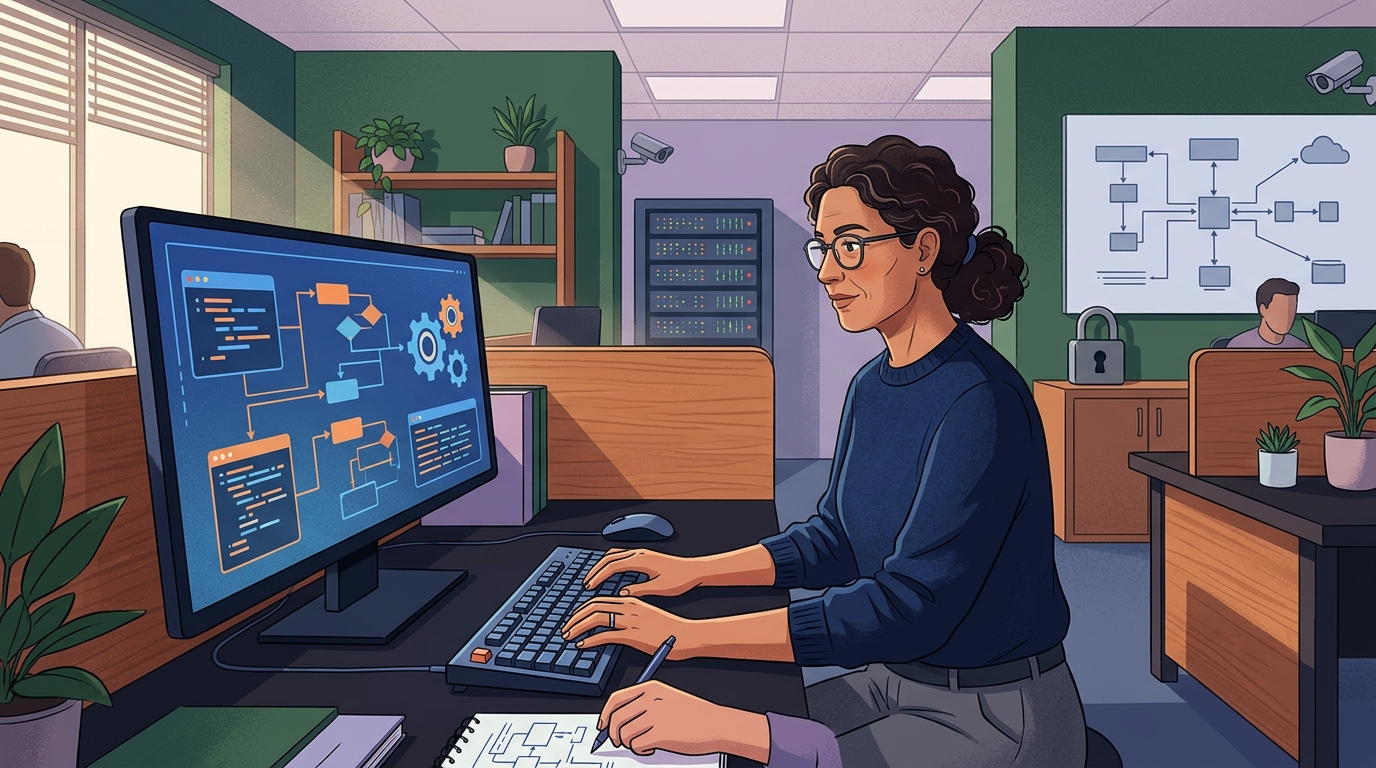
A sysadmin configures a local machine for no-server automation, illustrating the shift towards on-premise solutions for enhanced data privacy and control.
Ensuring Data Privacy in Automation
Data privacy is often the primary reason IT departments decide to keep automation on my machine. When processing internal audit logs, customer database migrations, or proprietary batch files, transferring raw data to external cloud servers exposes your organization to third-party data breaches, supply chain vulnerabilities, and unauthorized data scraping.
By maintaining execution locally, payload data remains bounded inside your local network perimeter and device storage. Credentials, API secret keys, and database connection strings are protected using local system cryptography rather than stored in cloud-hosted key vaults.
Compliance in Air-Gapped Environments
Organizations operating in highly regulated sectors—such as healthcare, government defense, education, and finance—must comply with stringent standards (e.g., HIPAA, SOC 2, CMMC, GDPR). Many operational environments are deliberately air-gapped or restricted to internal intranets with zero outbound internet access.
Cloud-based automation solutions are completely non-functional in air-gapped networks. Implementing local, cloud-free workflow orchestration allows sysadmins to maintain sophisticated visual workflows, error handling, and task scheduling inside completely isolated networks without breaking compliance guidelines.
How to Keep Automation on Your Local Machine
To choose the right operational model for your team, it is vital to understand how desktop automation differs from cloud and traditional self-hosted server deployments.
Local vs Self-Hosted vs Cloud
| Feature / Model | Cloud Automation (SaaS) | Self-Hosted Server (e.g. n8n/Windmill) | Local Desktop Automation (NORA) |
|---|---|---|---|
| Hosting Environment | Third-party cloud servers | Self-managed Linux VM / Docker | Local Windows workstation / PC |
| Data Privacy | Low (Data leaves network) | Medium (Requires secured server) | High (Data never leaves local PC) |
| Maintenance Burden | Zero | High (OS, Docker, network security) | Zero (Runs as desktop app) |
| Internet Required? | Yes (Always) | Recommended for web webhooks | No (100% offline & air-gapped) |
| Pricing Structure | Perpetual monthly subscription | Open-core / Enterprise licensing | Perpetual license / One-time purchase |
While self-hosted servers offer privacy improvements over SaaS, they still impose heavy maintenance overhead. A modern local desktop workflow tool offers the ultimate combination: strict data isolation with zero server maintenance.
Steps for Building an Automation Without Server Project
Transitioning an administrative workload from cloud or manual processes into a local cloud-free workflow follows a structured engineering methodology:
Step 1: Map the Workflow Boundaries and Inputs
Define the exact inputs, file paths, and local tools required for the process. Ensure all required dependencies (such as local utilities, CLI tools, or PowerShell modules) are accessible directly from your machine.
Step 2: Establish Secure Local Credential Handling
Never hardcode passwords or API keys in flat text files. Store credentials using a native desktop vault or Windows Credential Manager so your automation engine can retrieve secrets securely during runtime.
Step 3: Design the Visual Logic Node Flow
Using a visual desktop orchestrator, construct your execution path. Incorporate conditional IF/ELSE branching, array looping, and explicit error-handling paths to ensure your automation handles unexpected edge cases gracefully.
Step 4: Integrate Native Local Scripts
Incorporate existing operational scripts. Instead of rewriting functional code, connect your existing local Windows script automation tasks directly into visual workflow steps, passing dynamic variables between execution steps.
Step 5: Test and Deploy Offline
Run execution tests while disconnected from external networks to verify that zero external network calls are attempted. Once verified, configure local system triggers or scheduled timers to run the workflow automatically.
Recommended Desktop Solutions for Serverless Automation
When selecting software to build an automation without server project, evaluate candidates based on desktop integration, resource efficiency, and licensing models.
- Native Windows Scripting & Schedulers: Useful for basic linear tasks, though lacking visual logic, robust error handling, and unified debugging tools.
- Self-Hosted Container Solutions: Functional for server-side operations, but overly complex for endpoint workflows due to Docker container management.
- Desktop-First Workflow Orchestrators (NORA): The optimal solution for IT professionals who require visual orchestration, zero server maintenance, and private execution.
By moving your operational logic to a purpose-built desktop engine, you gain the visual power of modern iPaaS platforms with the security and speed of a local binary. To evaluate how desktop-first platforms compare against complex Docker setups, explore our detailed review of private automation alternatives.
Frequently Asked Questions (FAQ)
Is it possible to build complex automation workflows without any server infrastructure?
Yes. Modern desktop workflow orchestrators run directly on your workstation operating system. They leverage your PC’s CPU and memory to run visual logic, file transformations, API calls, and local script execution without requiring backend servers.
How does cloud-free automation protect sensitive business data?
Because cloud-free automation processes all logic and payloads locally on your machine, no data is ever transmitted over external networks or stored on third-party cloud servers. Your credentials and payload files remain entirely within your security boundary.
What happens to local workflows if the internet goes down?
Nothing! Local workflows continue running on schedule regardless of internet status because they rely exclusively on local system resources and network interfaces rather than remote cloud availability.
Can cloud-free automation tools integrate with local databases and internal APIs?
Absoluted. Local desktop automation software can connect directly to internal SQL databases, local REST endpoints, network shared drives, and system binaries accessible from your machine.