
Claude vs Code Integration: Adding AI Assistants to Your Editor
AI coding assistants have moved from novelty to daily necessity. If you’re deciding between Claude and GitHub Copilot — or want to run both — this guide covers the practical steps. We’ll walk through Claude VS Code integration, GitHub Copilot setup, and how to configure Python autocomplete so your editor genuinely accelerates your work.
The tone here is pragmatic and aimed at mid-to-senior developers: real setup instructions, honest comparison, and configuration that pays off in your day-to-day coding.

The Claude AI assistant seamlessly integrated into Visual Studio Code, ready to assist with coding tasks.
The Rise of AI Coding Assistants in 2026
AI assistants have reshaped how developers write, review, and refactor code. What began as simple autocomplete has grown into conversational tools that explain unfamiliar code, generate tests, and reason across entire files.
Two names dominate the conversation: Claude and GitHub Copilot. Both integrate directly into VS Code, but they take somewhat different approaches — Claude leaning into longer-context reasoning and Copilot into tightly integrated inline completions. Understanding how to set up and use each is now a core part of a modern developer’s toolkit, and it fits naturally into the broader VS Code setup for AI development.
Claude VS Code Integration: Step-by-Step Setup
Getting Claude working inside VS Code is straightforward:
- Install the Claude extension from the VS Code Marketplace (or the official Anthropic extension if you’re using Claude’s dedicated tooling).
- Authenticate. Sign in with your Claude account or provide an API key, depending on the extension you’re using. Follow the extension’s prompts to complete authorization.
- Open the assistant panel. Claude typically adds a chat panel to the sidebar where you can ask questions, request refactors, or explain selected code.
- Grant workspace context. Allow the extension to read the relevant files or folder so Claude can reason about your actual code rather than isolated snippets.
- Start prompting. Select code and ask Claude to refactor, document, or debug it, or use the chat to plan larger changes.
Claude’s strength is longer-context reasoning, so it excels when you need it to understand relationships across multiple files or explain a large, unfamiliar codebase.
GitHub Copilot VS Code Setup
Setting up Copilot follows a similar pattern and integrates deeply with the GitHub ecosystem:
- Install the GitHub Copilot extension from the Marketplace. Add the Copilot Chat extension too if you want the conversational interface.
- Sign in with GitHub and confirm you have an active Copilot subscription associated with your account.
- Enable inline suggestions. Copilot begins offering completions as you type. Accept a suggestion with Tab and cycle alternatives with the keyboard shortcuts shown in the completion popup.
- Use Copilot Chat for questions, explanations, and multi-step edits directly in the editor.
Copilot’s inline completions are fast and unobtrusive, making it a strong fit for developers who want continuous suggestions woven into their typing flow.
Configuring VS Code Python Autocomplete AI
For Python developers, AI autocomplete works best when it’s paired with solid language tooling. AI suggestions and traditional IntelliSense complement each other — the AI proposes larger, context-aware completions while Pylance provides accurate symbol and type information.
To get a clean setup:
- Ensure the Python extension and Pylance are installed so the AI assistant has strong language context to build on.
- Select your interpreter for the project’s virtual environment via the Command Palette so suggestions match your dependencies.
- Enable inline suggestions for your chosen assistant and confirm they appear in Python files.
- Tune acceptance behavior so AI completions and standard IntelliSense don’t fight for the same keystrokes.
Best Settings for Python Developers
- Keep type checking on. Pylance’s type information makes AI suggestions more accurate and easier to validate.
- Format on save. Let a formatter clean up AI-generated code automatically so style stays consistent.
- Review before accepting. Treat AI completions as drafts — read them, run them, and lean on your linter to catch issues.
- Match your environment. Confirm the correct interpreter is active so suggestions reference the right libraries and versions.
Building on a proper Python dev environment in VS Code makes autocomplete noticeably more useful, because the AI has clean language context to work from.
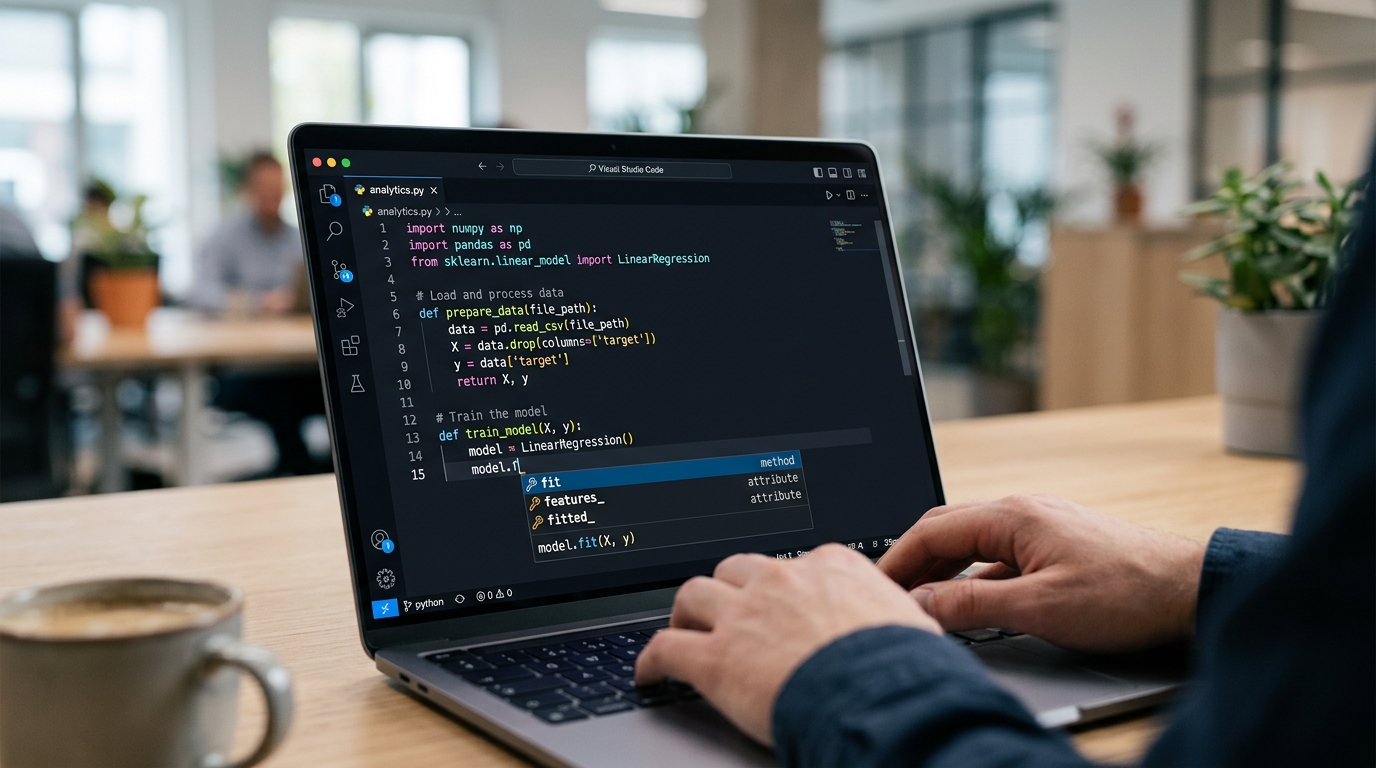
AI-powered autocomplete enhancing Python development within VS Code, offering intelligent code suggestions.
Claude vs. Copilot: Which Should You Choose?
Both are excellent, and the right pick depends on how you work:
- Choose Claude if you frequently need long-context reasoning, multi-file refactors, or clear explanations of unfamiliar code.
- Choose Copilot if you want fast, seamless inline completions and you’re already embedded in the GitHub ecosystem.
- Run both if your budget allows — many developers use Copilot for continuous inline suggestions and Claude for deeper, conversational tasks.
Rather than searching for a single winner, match the tool to the task. Both are evolving rapidly, so it’s worth revisiting your choice periodically. For a broader look at the landscape, explore our curated developer tools and resources.
Wrapping Up Your AI Setup
Adding an AI assistant to VS Code is one of the highest-leverage upgrades you can make in 2026. Whether you set up Claude VS Code integration, GitHub Copilot, or both, the fundamentals are the same: authenticate, grant workspace context, pair the assistant with solid Python tooling, and always review generated code before accepting it.
Configure it once, integrate it into your workflow, and let the assistant handle the repetitive parts so you can focus on the problems that actually require your judgment.
Frequently Asked Questions
How do I integrate Claude with VS Code?
Install the Claude extension from the Marketplace, authenticate with your account or API key, open the assistant panel, grant it workspace context so it can read your files, and start prompting it to refactor, explain, or debug your code.
How do I set up GitHub Copilot in VS Code?
Install the GitHub Copilot extension, sign in with a GitHub account that has an active Copilot subscription, and enable inline suggestions. Add the Copilot Chat extension for a conversational interface.
Should I use Claude or GitHub Copilot?
Choose Claude for long-context reasoning, multi-file refactors, and code explanations; choose Copilot for fast inline completions and tight GitHub integration. Many developers run both and switch based on the task.
How do I configure Python autocomplete AI in VS Code?
Install the Python extension and Pylance, select your project’s interpreter, enable your AI assistant’s inline suggestions, and tune acceptance behavior so AI completions and standard IntelliSense work together smoothly.
Are AI code suggestions reliable for Python?
They’re a strong starting point but should be treated as drafts. Keep type checking and format-on-save enabled, review suggestions before accepting, and rely on your linter and tests to validate AI-generated code.