
Reliable Local Script Automation for Windows Environments
PowerShell scripts, Batch files, and Python utilities are the backbone of Windows system administration. (Batch files) (PowerShell scripts) From automating Active Directory updates to managing local backup jobs and parsing audit logs, custom scripts allow IT managers and sysadmins to maintain control over complex computing environments. (Active Directory)
However, as operational demands expand, running standalone scripts manually or relying on outdated native task utilities introduces significant reliability, security, and visibility gaps.
Implementing structured script automation on Windows local environments allows sysadmins to transform disparate, unmonitored script files into resilient, scheduled, and visually managed IT workflows—without sending data to third-party cloud tools.
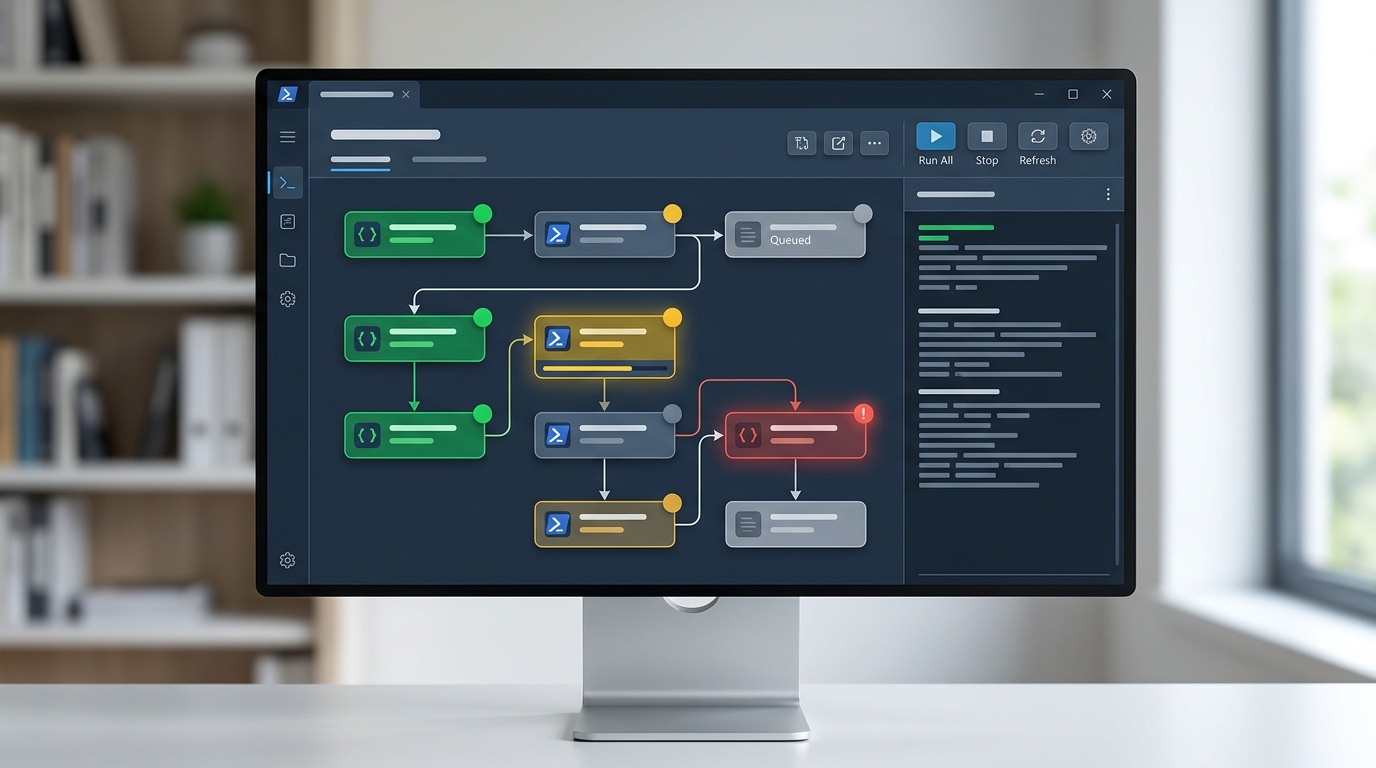
Illustrative interface of a local Windows script runner, showing PowerShell scripts being executed within a structured workflow environment.
The Challenges of Native Windows Scripting and Task Scheduler
For decades, Windows Task Scheduler (taskschd.msc) has served as the default tool for scheduling administrative scripts. (Windows Task Scheduler) While serviceable for basic background tasks, Task Scheduler presents critical shortcomings when managing complex IT operations:
- Brittle Error Handling: If a scheduled PowerShell script encounters an exception, Task Scheduler typically records a simple exit code (e.g.,
0x1) without providing detailed contextual logs, execution tracing, or automatic retry mechanisms. - Lack of Workflow Chaining: Passing variables, outputs, or error states dynamically from one script to another requires writing complex glue code and managing intermediate disk files.
- Zero Credential Vaulting: Administrators often resort to storing service credentials in plain text inside script files or relying on fragile service account configurations.
- No Visual Visibility: Monitoring dozens of scheduled tasks across endpoints requires inspecting hidden management consoles, making it difficult to audit active workflows.
Moving beyond native task scheduling requires replacing brittle scheduled tasks with a dedicated Windows script runner local orchestrator.
Enhancing Your Workflows with a Local Windows Script Runner
A modern local script runner acts as an execution wrapper and visual supervisor for administrative scripts. Rather than executing scripts in isolated, opaque background threads, a script runner provides structured logging, dynamic variable passing, and real-time execution monitoring.
Key features of an enhanced local script runner include:
- Unified Script Centralization: Manage PowerShell, Batch, Command Prompt, and Python scripts within a single organized interface.
- Structured Output Capture: Automatically capture
stdout,stderr, and exit codes, logging full execution histories for audit compliance. - Conditional Execution: Trigger subsequent scripts or actions based on exact string matches, numerical outputs, or execution success state.
Deploying a dedicated script runner empowers sysadmins to build sophisticated operational sequences while keeping execution strictly local.
How to Securely Automate PowerShell and Batch Scripts
PowerShell is the industry standard for Windows administration. However, executing scripts automatically with elevated privileges introduces security risks if not properly configured.

Illustrative image of a sysadmin deploying script automation for Windows local tasks, emphasizing secure and efficient workflow management.
To ensure secure execution when configuring script automation on Windows local setups, adopt the following best practices:
1. Enforce Execution Policies and Script Signing
Avoid using blanket -ExecutionPolicy Bypass commands across global endpoints. Instead, sign your operational PowerShell scripts using an internal PKI code-signing certificate, enforcing AllSigned or RemoteSigned policies.
2. Utilize Native Local Credential Encryption
Never hardcode domain passwords or API tokens inside .ps1 or .bat files. Use secure Windows credential storage or encrypted local vaults. Modern workflow engines allow you to pass dynamic credentials directly into script execution nodes at runtime without exposing plain text secrets.
3. Implement Strict User Context Scoping
Run administrative tasks under specifically scoped local or domain service accounts with least-privilege permissions, avoiding global Domain Admin credentials for routine endpoint maintenance.
Transitioning from Basic Scripts to a Visual Workflow Engine
While writing pure code offers unlimited flexibility, maintaining thousands of lines of custom script code creates technical debt. When a script author leaves an organization, unformatted scripts often become unmaintainable legacy bottlenecks.
Transitioning to a visual local workflow engine for Windows bridge the gap between low-code ease and custom code power:
- Visual Logic Nodes: Replace complex nested
if-elseblocks with intuitive visual flow diagrams. - Embedded Script Steps: Insert native PowerShell or Batch code blocks directly into specific workflow steps, preserving custom script capabilities while gaining visual structure.
- Automated Error Handling: Configure explicit retry policies, alternative execution paths, or local desktop alert notifications upon script failure.
By integrating custom code into a visual orchestrator, IT teams gain maintainable, self-documenting workflows that any team member can interpret and manage.
Examples of Windows Script Automation for IT Teams
Combining visual workflow steps with local scripts enables rapid resolution of common administrative tasks:
- Automated Log Parsing and Archival:
A visual workflow scans event logs daily, triggers a PowerShell script to extract Critical and Warning events, formats the output into a local CSV report, and compresses log files older than 30 days. - Automated System Health Checks:
Execute a script checking local disk space, memory usage, and service states. If disk usage exceeds 85%, automatically trigger a cleanup script to clear temporary system directories. - Batch Software Patch Verification:
Run silent installation scripts across local applications, verify installed version numbers against registry keys, and record audit records in a secure local database.
Run Your Scripts Locally, Securely, and Without Cloud
Managing IT infrastructure on Windows requires tools built natively for Windows endpoints. Depending on cloud-based iPaaS platforms to run local scripts introduces unnecessary security risks, network latency, and high monthly subscription costs.
By adopting a desktop-first workflow tool, sysadmins can build no server automation projects that execute at local hardware speeds.
To stop paying recurring SaaS fees for script scheduling, consider investing in an automation software one time purchase platform that provides lifetime operational independence.
Frequently Asked Questions (FAQ)
How does a local Windows script runner differ from Windows Task Scheduler?
While Task Scheduler only launches executable files on basic timers, a local Windows script runner provides a visual interface, structured error handling, real-time log capturing, parameter passing between steps, and conditional workflow branching.
Can I run PowerShell scripts without disabling Execution Policies?
Yes. A dedicated script runner executes scripts within your configured security context, allowing you to run signed PowerShell scripts in full compliance with your organization’s execution policies.
Does local script automation require an active cloud connection?
No. Local script automation runs entirely on your local workstation’s hardware and operating system. Workflows execute seamlessly offline or in air-gapped environments without any cloud communication.
Can I pass variables between PowerShell and Batch scripts in a workflow engine?
Yes. A visual workflow engine captures execution outputs (such as JSON, string values, or exit codes) from one script step and passes them dynamically as input parameters into subsequent steps, regardless of the scripting language used.