
Automating Ollama Tasks: A Guide for Local AI Developers
Ollama has emerged as one of the most popular platforms for running Large Language Models locally on Linux, macOS, and Windows. By packaging model weights, system prompts, quantization settings, and inference engines into containerized “Modelfiles,” Ollama simplifies local AI deployment.
While interactive terminal chats (ollama run llama3) work well for ad-hoc prompts, developers often need to automate Ollama tasks programmatically. Running Ollama as a background daemon exposes an accessible REST API, enabling seamless integration with custom Python scripts, shell pipelines, and system task schedulers.
In this developer guide, we will explore how to interact programmatically with Ollama’s REST API using Bash and Python, set up automated task schedules, and troubleshoot common background execution errors.
Why Automate Your Ollama Instance?
Running Ollama as an automated background engine delivers several clear operational benefits:
- Headless Background Execution: Ollama runs seamlessly as a system background daemon without requiring an active graphical desktop user interface.
- REST API Accessibility: Offers standardized HTTP endpoints (
/api/generate,/api/chat,/api/embeddings) for lightweight scripting. - Dynamic Model Switching: Automatically loads, runs inference on, and unloads different models from VRAM based on API requests.
- Resource Optimizations: Works in tandem with LLM resource optimization overnight strategies to handle heavy inference jobs during off-peak system hours.
Understanding the Ollama REST API
By default, the Ollama service daemon listens locally on TCP port 11434. You can interact with this service using standard HTTP requests.
Core Endpoints
POST /api/generate: Used for single-prompt text generation and structured outputs.POST /api/chat: Used for structured, multi-turn conversational message threads.POST /api/embeddings: Used for generating vector representations of input text for Retrieval-Augmented Generation (RAG) databases.GET /api/tags: Lists all locally installed models currently available in your Ollama storage library.
Example REST Payload
{
  "model": "llama3.2:latest",
  "prompt": "Extract action items from this meeting note...",
  "stream": false,
  "options": {
    "temperature": 0.2,
    "num_ctx": 4096
  }
}
Setting "stream": false tells Ollama to wait until token generation completes before returning the full JSON response, simplifying script integration.
Writing Scripts to Automate Ollama
You can automate Ollama tasks using shell scripts for simple command pipelines or Python for complex data workflows.
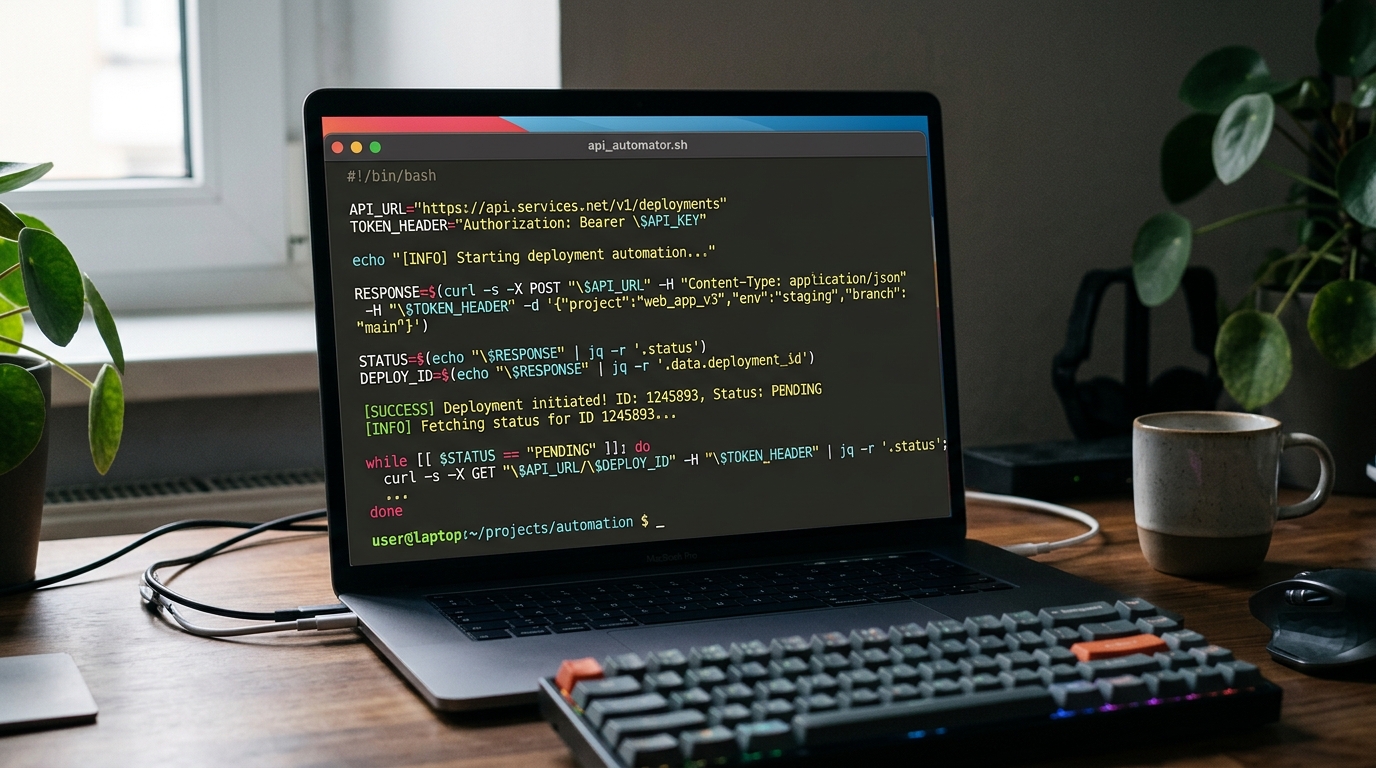
A terminal window shows a bash script using curl and jq to send requests to the Ollama REST API for automated text summarization.
Using cURL and Bash
For lightweight Unix tasks, you can invoke Ollama directly inside a shell script using curl and parse outputs with jq:
#!/usr/bin/env bash
# automate_ollama.sh - Automated daily text summary via Ollama REST API

OLLAMA_HOST="http://localhost:11434"
MODEL="llama3.2:latest"
INPUT_FILE="/home/user/notes/daily_log.txt"
OUTPUT_FILE="/home/user/notes/daily_summary.md"

if [ ! -f "$INPUT_FILE" ]; then
    echo "Error: Input file $INPUT_FILE not found."
    exit 1
fi

PROMPT_TEXT=$(cat "$INPUT_FILE")

# Escaping text for JSON body payload
PAYLOAD=$(jq -n \
            --arg md "$MODEL" \
            --arg pr "Summarize these notes into bullet points: $PROMPT_TEXT" \
            '{model: $md, prompt: $pr, stream: false}')

echo "Sending request to Ollama API..."
RESPONSE=$(curl -s -X POST "$OLLAMA_HOST/api/generate" \
     -H "Content-Type: application/json" \
     -d "$PAYLOAD")

# Extract response text using jq
SUMMARY=$(echo "$RESPONSE" | jq -r '.response')

echo -e "# Daily Summary\n\n$SUMMARY" > "$OUTPUT_FILE"
echo "Summary written successfully to $OUTPUT_FILE."
Using the Official Ollama Python Library
For advanced pipelines involving data transformation or database storage, use the official ollama Python package (pip install ollama). (ollama Python package)
#!/usr/bin/env python3
"""
ollama_python_automation.py
Demonstrating structured automated generation using the official Ollama Python library.
"""

import ollama
from pydantic import BaseModel

# Define strict JSON schema using Pydantic ([Pydantic](https://pydantic.dev/docs/))
class TaskExtraction(BaseModel):
    task_name: str
    priority: str
    assigned_to: str

def process_unstructured_text(text_input):
    try:
        # Calls local Ollama service directly
        response = ollama.chat(
            model='llama3.2:latest',
            messages=[{
                'role': 'user',
                'content': f'Extract task details from this text: {text_input}'
            }],
            format=TaskExtraction.model_json_schema(), # Enforces structured Pydantic output
        )

        # Extracted structured output
        structured_data = TaskExtraction.model_validate_json(response.message.content)
        return structured_data
    except Exception as err:
        print(f"Ollama Automation Error: {err}")
        return None

if __name__ == "__main__":
    sample_text = "Assign critical database migration fix to Sarah by end of day."
    result = process_unstructured_text(sample_text)
    if result:
        print(f"Task Name: {result.task_name}")
        print(f"Priority: {result.priority}")
        print(f"Assigned To: {result.assigned_to}")
For continuous execution pipelines using scheduling modules, consult our guide on Python schedule library implementation.
Integrating Ollama with Task Schedulers (Cron & Windows Task Scheduler)
Once your automation script is working, set up a scheduling tool to run it automatically at specified intervals.
Scheduling on Linux/macOS with Cron
Edit your crontab using crontab -e and add an entry pointing to your script:
# Run Ollama processing script every day at 3:00 AM
0 3 * * * /usr/bin/python3 /home/user/scripts/ollama_python_automation.py >> /var/log/ollama_cron.log 2>&1
Scheduling on Windows with Task Scheduler
On Windows machines, create a PowerShell script wrapper that executes your Python automation or cURL command, then register it as a Task:
- Open Task Scheduler (
taskschd.msc). - Select Create Basic Task and name it
Ollama Daily Automation. - Set Trigger to Daily at your preferred execution time.
- Set Action to Start a Program.
- Set Program/script to
powershell.exeand Add Arguments to-ExecutionPolicy Bypass -File "C:\Scripts\run_ollama.ps1".
If your workflow involves processing CSVs or generating automated files, check out our guide on how to batch process data and reports.
Troubleshooting Common Ollama Automation Errors
Running unattended Ollama scripts can occasionally present operational issues. Here is how to diagnose and resolve common errors:

An abstract representation of an error log, highlighting common issues like connection refusals or timeouts that can occur during unattended Ollama processing.
Model Loading Timeouts
Symptom: Your automated script throws a network socket timeout exception (requests.exceptions.ReadTimeout) when sending an API call.
Cause: If Ollama has not loaded the target model into GPU VRAM recently, cold-loading large model weights from disk storage into VRAM can take 15 to 45 seconds before token generation begins.
Solution:
* Increase the HTTP client connection timeout setting in your script (e.g., timeout=180).
* Issue a lightweight “warm-up” API call prior to starting your processing queue to load model weights into VRAM beforehand.
* Set the environment variable OLLAMA_KEEP_ALIVE=-1 when launching the Ollama service to keep model weights persistently loaded in VRAM.
Port Conflicts and Connection Refusals
Symptom: ConnectionRefusedError: [Errno 111] Connection refused when attempting to reach http://localhost:11434.
Cause: The background Ollama daemon service is not running, or another process is occupying TCP port 11434.
Solution:
* Verify service status on Linux using systemctl status ollama.service.
* Ensure environment variables are set correctly if binding Ollama to a custom address (OLLAMA_HOST=0.0.0.0:11434).
* Check active listening ports on your machine using netstat -tulpn | grep 11434 or lsof -i :11434.
Frequently Asked Questions (FAQ)
Can I run multiple Ollama tasks concurrently?
Ollama handles concurrent requests by queuing incoming prompts and processing them sequentially based on your GPU hardware capability. While you can send multiple parallel API HTTP requests to the Ollama server, set OLLAMA_NUM_PARALLEL environment variables carefully to avoid exceeding system VRAM boundaries.
How do I prevent Ollama from unloading my model from memory during batch runs?
By default, Ollama unloads a model from VRAM after 5 minutes of inactivity. To keep your model loaded continuously during extended automated workflows, include "keep_alive": -1 in your REST API request payload or set the global system environment variable OLLAMA_KEEP_ALIVE=-1.
Does automating Ollama require an active internet connection?
No. Once you have pulled model weights locally using ollama pull <model-name>, all inference, embedding generation, and API communication run completely offline within your local machine network loop (127.0.0.1).
How do I manage Ollama model updates in automated environments?
To ensure consistent outputs in production pipelines, bind your automation scripts to specific model tags (e.g., llama3.2:3b-instruct-q4_K_M) rather than generic latest tags. Test model updates manually in a staging environment before updating script references in production.