
The Ultimate Guide to Desktop Automation Software for Windows
Windows remains the backbone of corporate IT infrastructure. From active directory management and localized database maintenance to enterprise resource planning (ERP) data processing, thousands of daily operational tasks occur directly within local Windows desktop and server environments.
Yet, for years, the software market has pushed organizations toward cloud-centric automation tools. While cloud integration works well for simple web services, forcing local desktop systems to communicate through cloud middleware introduces latency, security risks, network complexity, and ongoing subscription costs.
To achieve maximum performance, security, and operational reliability, technical teams are turning to dedicated desktop automation tools. By executing workflows natively on local systems, modern windows automation software empowers sysadmins, operations engineers, and power users to build sophisticated internal automation tools without cloud dependencies.
Why Run Workflows Locally Instead of the Cloud? (No Cloud Automation)
Choosing a no cloud automation architecture offers distinct architectural advantages over cloud-hosted platforms. When you run workflows locally, your automation engine operates directly on local hardware, unlocking three key benefits:
+-------------------------------------------------------------------+
|               Cloud Automation vs Local Desktop Execution         |
+-------------------------------------------------------------------+
| Metric / Feature      | Cloud Automation   | Local Desktop Engine |
+-----------------------+--------------------+----------------------+
| Data Transit          | Public Internet    | Local RAM / Disk     |
| Sub-Second Latency    | Unlikely (WAN)     | Guaranteed (LAN)     |
| Native OS Access      | Restricted/None    | Full Win32 / WMI     |
| Per-Task Cost         | Incremental SaaS   | Zero (Local Compute) |
| Dependency on WAN     | High               | Zero (Works Offline) |
+-----------------------+--------------------+----------------------+
Sub-Second Execution and Ultra-Low Latency
Cloud automations must traverse external networks, process API requests on remote servers, and wait for third-party queue processing. A local desktop automation tool operates at local CPU speeds. Tasks involving file system indexing, local SQL queries, batch file renaming, or document parsing execute in milliseconds rather than seconds or minutes.
Direct Access to Native Windows APIs and Legacy Apps
Cloud engines cannot easily touch local desktop resources. On-premise accounting applications, legacy client-server software, local network shares (\\server\share), COM objects, and Windows Management Instrumentation (WMI) are completely inaccessible to external cloud webhooks without risky firewall holes. Local Windows automation tools interact directly with native Win32 APIs, local system registry, and internal enterprise software.
Air-Gapped Operation and Total Offline Reliability
Critical operational processes should never fail because an external cloud vendor suffers an outage or an internet connection fluctuates. Running workflows locally ensures your automated processes execute on schedule 24/7/365, even in completely air-gapped environments or restricted network zones with no internet connectivity.
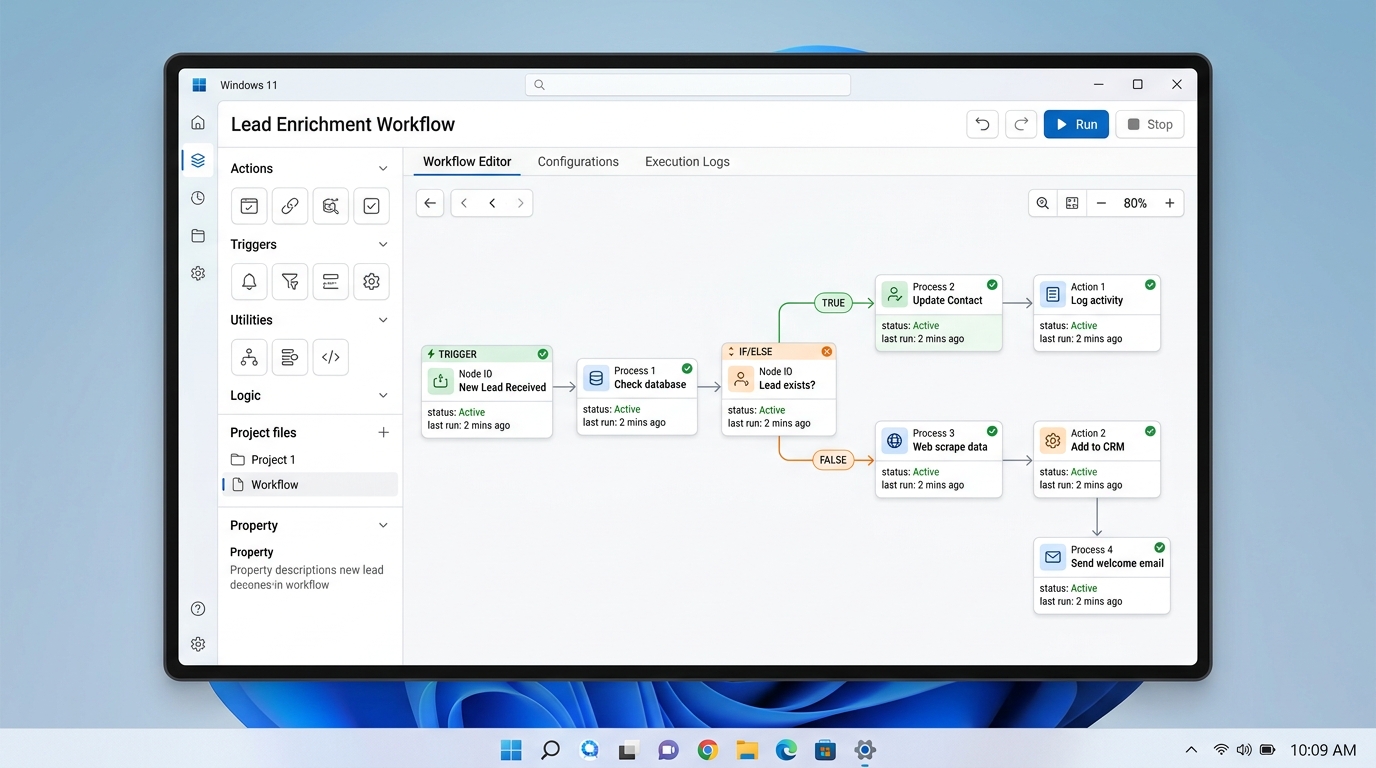
An illustrative user interface of a desktop automation tool running on a Windows environment, demonstrating a visual workflow. (Illustrative)
Key Features of a Robust Desktop Automation Tool
Not all desktop utilities offer enterprise-grade capabilities. When selecting windows automation software for your organization, ensure the platform provides these essential capabilities:
1. Dual-Engine Architecture (Visual Builder + Code Native)
Non-technical team members require a intuitive visual flowchart builder to assemble logic steps, conditional branches, and file handlers. Conversely, systems engineers require the ability to run native scripts (Python, PowerShell, Bash, batch files). A superior desktop tool seamlessly merges both: visual nodes trigger raw code blocks with bi-directional variable passing.
2. Multi-Driver Triggering System
A desktop orchestrator must trigger actions based on diverse system events, including:
* File System Watchers: Instantly execute workflows when files are created, modified, or deleted in specific local folders.
* Scheduled Cron / Task Scheduler Integrations: Execute routines at precise time intervals, maintenance windows, or calendar dates.
* Local Webhooks & IPC: Listen for local network HTTP requests or Inter-Process Communications from internal utilities.
* System State Events: Trigger actions based on system startup, user login, service state changes, or database record inserts.
3. Native Security and Credential Management
Automating business operations requires managing sensitive API tokens, database connection strings, and service account credentials. Robust desktop software includes local AES-256 encrypted credential vaults, ensuring passwords and secrets are decrypted only in memory during execution and never written in plain text to disk or sent to external servers.
4. Comprehensive Logging and Local Auditing
IT administrators must maintain detailed records of system activities. Enterprise desktop automation platforms log all execution events, step outputs, standard error outputs, and duration metrics directly to secure local files or internal log servers (Syslog, Event Viewer).
Best Practices for Windows Automation Software in 2026
To build scalable, maintainable, and secure desktop automations across your organization in 2026, follow these industry best practices:
Practice 1: Decouple Business Logic into Modular Components
Avoid creating monolithic, single-block workflows that perform dozens of unrelated tasks. Instead, structure automations into modular sub-flows. For example, create individual sub-routines for file ingestion, data cleaning, database insertion, and notification delivery. Modular design simplifies debugging and allows reusability across multiple workflows.
Practice 2: Leverage PowerShell and Python Co-Processing
Windows management excels with PowerShell, while data manipulation, regex parsing, and machine learning excel in Python. Use your desktop orchestrator as a unifying bridge. Execute PowerShell to gather local system diagnostics or Active Directory objects, pass JSON outputs into Python for data transformation, and route the results back to a visual workflow. For advanced orchestration techniques, explore how a local workflow orchestrator handles multi-language execution pipelines.
Practice 3: Implement Robust Error Handling and Retry Policies
Local execution environments can encounter temporary file locks, network share reconnects, or locked database tables. Build explicit exception handlers into your workflows:
* Define automated retry policies for network or file access steps (e.g., 3 retries with exponential backoff).
* Configure fallback alert nodes (such as sending a local email or writing to the Windows Event Log) when a critical step fails.
Practice 4: Adopt Cost-Effective Perpetual Licensing
Avoid cloud subscription lock-in by standardizing on desktop solutions that offer predictable pricing. Transitioning to perpetual license automation eliminates task-based billing fees, letting your organization run unlimited automated operations locally without financial penalties.

An illustrative representation of an internal automation tool setup, emphasizing local operation and independence from cloud services. (Illustrative)
Building Secure Internal Automation Tools on Your Local Network
Many enterprise operations require custom internal automation tool interfaces—such as custom employee onboarding screens, local file conversion utilities, or internal reporting consoles.
Building custom software applications from scratch demands substantial software development resources. Modern desktop automation tools simplify this process by allowing technical managers to convert visual workflows into secure internal utilities:
- Local Parameterization: Define input parameters (e.g., target directory path, date range, user ID) within the desktop automation UI.
- Local Permission Scoping: Bind execution rights to native Windows user roles or Active Directory group policies, ensuring only authorized personnel can execute specific automation tasks.
- Internal Data Sovereignty: By keeping all execution local to your internal network, internal tools remain fully compliant with corporate security guidelines. Learn how to deploy secure on-premise automation solutions to safeguard enterprise data privacy.
Frequently Asked Questions
How to run automation workflows locally without cloud?
To run workflows locally without cloud dependencies:
1. Install a native desktop automation tool (such as NORA) on your local Windows workstation or Windows Server instance.
2. Configure local triggers, such as folder file watchers, local system schedules, or Windows events.
3. Build your workflow logic using built-in visual nodes or local Python and PowerShell scripts.
4. Execute and test the process entirely on your local machine; all data processing occurs within local RAM and storage without sending data across external networks.
How to build visual workflows locally for internal tools?
You can build visual workflows locally by utilizing a desktop automation software platform that includes a visual drag-and-drop canvas. Simply select pre-configured nodes for file handling, data transformation, script execution, and local database queries, then connect them visually using conditional logic connectors. The resulting flow functions as a reliable, local internal tool that operates without cloud APIs or monthly subscription costs.
Start Automating Your Windows Environment Today
Running workflows locally gives technical teams the performance, data security, and flexibility required to manage modern Windows environments efficiently. By eliminating dependence on cloud automation platforms, you remove per-task execution fees, overcome network latency, and gain complete control over your internal automation infrastructure.
Whether you are seeking a reliable local Zapier alternative or looking to centralize complex administrative scripts into visual flows, NORA provides the ultimate desktop automation solution for Windows. Take control of your operations and experience fast, secure, fee-free desktop automation today.