
The Ultimate Guide to Local Automation Tools & Desktop Software
Over the last decade, enterprise IT teams eagerly migrated operations to cloud-based workflow platforms. Platforms like Zapier, Make, and Workato promised seamless connectivity and zero maintenance. However, in 2026, the realities of cloud automation have created significant friction for sysadmins, IT operations managers, and security officers. Recurring monthly subscription charges, unexpected usage-tier overages, vendor lock-in, latency issues, and strict data compliance regulations (such as HIPAA, GDPR, and SOC2) have caused many organizations to re-evaluate their reliance on third-party cloud infrastructure.
As a result, a growing movement of IT professionals is adopting local automation tools. By moving script orchestration, process automation, and data handling away from third-party cloud servers and back onto local workstations or secure internal networks, organizations regain total control over their data and workflows.
This ultimate guide breaks down everything you need to know about modern desktop automation software, exploring why local execution is essential for privacy, how local-first systems differ from complex self-hosted setups, and how to implement a secure no-cloud automation solution for your team.
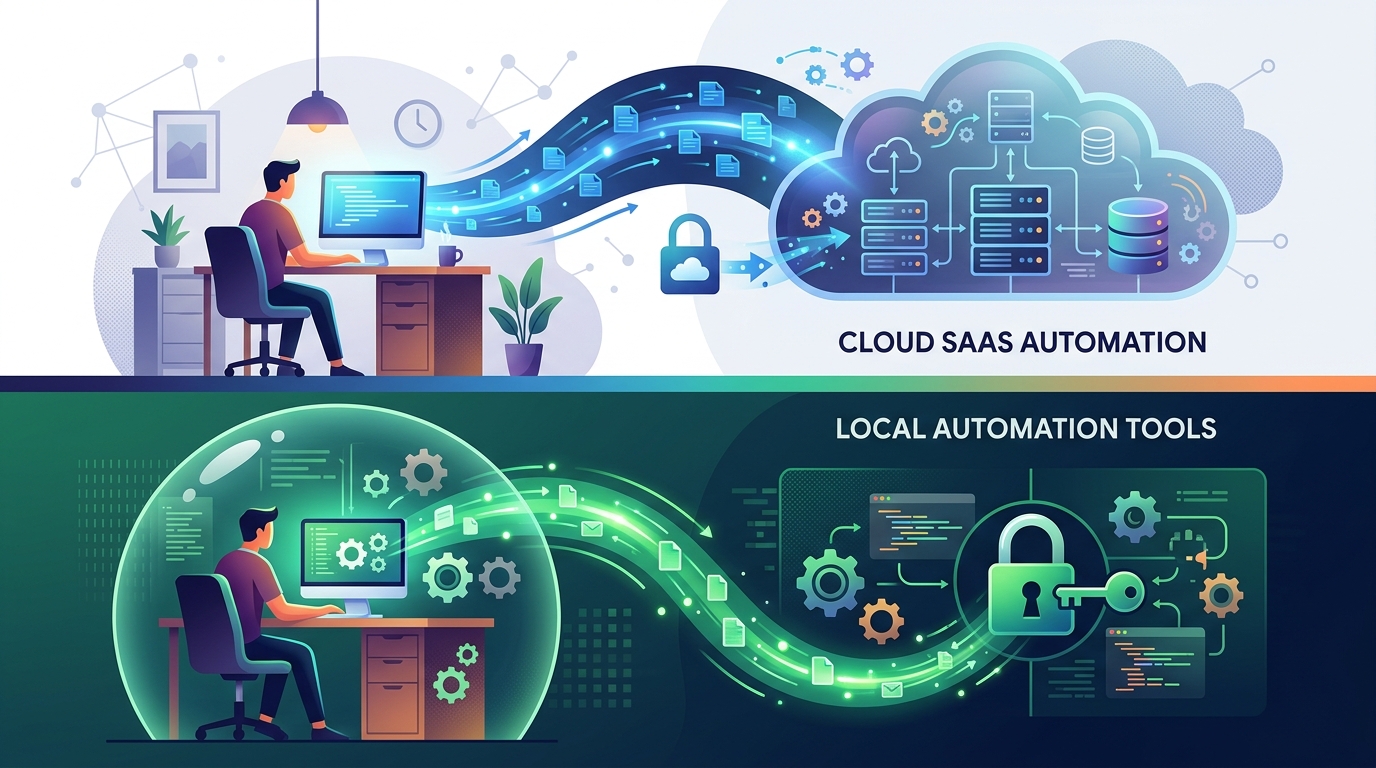
A conceptual diagram illustrating how local automation tools keep data private on your machine, unlike cloud SaaS platforms that transmit data to remote servers.
What Are Local Automation Tools?
At its core, a local automation tool is a software program designed to execute workflows, schedule scripts, manipulate files, and manage system processes directly on a user’s computer or internal network node—without transmitting payload data to external cloud servers.
Unlike traditional cloud SaaS automation platforms that run inside remote data centers, local desktop automation software operates entirely within the host machine’s security boundaries. These applications range from simple command-line schedulers to sophisticated local-first workflow orchestrator engines that provide graphical drag-and-drop workflow builders, credential vaults, error handling, and detailed execution logging.
Key Capabilities of Modern Desktop Automation Software:
- Script Orchestration: Seamlessly running PowerShell, Python, Bash, Node.js, or batch scripts in sequence with dynamic variable passing.
- File System Operations: Monitoring local directories, transforming CSV/JSON files, moving files across local drives or SMB network shares, and managing local backups.
- System Process Management: Interacting with local OS APIs, launching applications, monitoring hardware performance, and terminating hung processes.
- API & Local Webhook Handling: Listening for events on local ports or querying internal API endpoints without exposing external IP addresses to the public internet.
By utilizing local resources, these tools eliminate third-party API rate limits, external server outages, and bandwidth constraints, delivering instantaneous script execution speeds.
Why Choose Desktop Automation Over Cloud SaaS?
While cloud SaaS platforms remain convenient for connecting web services, they present severe drawbacks when managing internal IT operations, system administration, and proprietary data processing. Transitioning to local desktop software solves several critical operational vulnerabilities.
Data Privacy and Zero-Cloud Benefits
The primary driver for adopting local automation tools is data sovereignty. When processing sensitive internal records—such as employee PII, financial ledgers, system credentials, or proprietary intellectual property—sending that data to third-party cloud servers introduces unnecessary security risks.
- Zero Third-Party Exposure: With a no-cloud automation solution, your data never crosses your local firewall. Execution payloads, API keys, and database queries remain strictly stored on host disk drives.
- Regulatory Compliance: Meeting strict data localization mandates becomes straightforward. You no longer need to audit vendor sub-processors, draft complex Data Processing Agreements (DPAs), or worry about cross-border data transfers.
- Encrypted Local Storage: Top-tier local orchestrators store credentials in native OS security vaults, such as Windows Credential Manager or macOS Keychain, rather than in remote cloud databases.
Automation Without a Server
Historically, running automations without cloud SaaS required standing up dedicated on-premise servers or virtual machines running complex scheduling software. For smaller IT departments, branch offices, or individual power users, maintaining a dedicated server stack just to run routine administrative scripts adds unnecessary overhead.
Desktop automation software allows you to achieve true automation without server infrastructure. Workflows run natively on the user’s primary workstation or designated desktop PC, utilizing existing CPU and RAM resources. This eliminates server provisioning costs, OS patching cycles, hypervisor management, and complex network configurations.
Local-First Workflow Orchestrators vs Self-Hosted Systems
A common source of confusion when evaluating offline tools is the distinction between self-hosted workflow automation platforms and true local-first workflow orchestrators. While both keep data off public cloud SaaS servers, their architectural footprints are vastly different.
+-----------------------------------------------------------------------+
|                       CLOUD SAAS AUTOMATION                           |
| (Zapier, Make, Workato) -> Data sent to remote 3rd-party servers       |
+-----------------------------------------------------------------------+
                                   |
                                   v
+-----------------------------------------------------------------------+
|                      SELF-HOSTED SERVER SYSTEMS                        |
| (n8n, Windmill, Airflow) -> Requires Linux, Docker, Postgres, Web UI   |
+-----------------------------------------------------------------------+
                                   |
                                   v
+-----------------------------------------------------------------------+
|                     LOCAL-FIRST DESKTOP SOFTWARE                      |
| (Nora) -> Runs natively on host OS, zero server setup, local files     |
+-----------------------------------------------------------------------+
Self-Hosted Systems (e.g., n8n, Windmill, Apache Airflow)
- Architecture: Formatted as web applications packaged inside Docker containers or virtual machines.
- Prerequisites: Requires setting up Linux environments, PostgreSQL/Redis databases, reverse proxies, SSL certificates, and web ports.
- Maintenance: Demands ongoing server administration, container image patching, database vacuuming, and backup management.
- Access Model: Typically accessed through a web browser running over a local network or VPN.
Local-First Systems (e.g., Nora)
- Architecture: Native desktop applications designed specifically for client operating systems (Windows, macOS, Linux).
- Prerequisites: Double-click installation. No external database, container runtime, or web server required.
- Maintenance: Zero server management. Software updates are applied directly to the client application.
- Access Model: Native desktop GUI, operating directly within the host user’s security context.
For a comprehensive comparison of how self-hosted server tools stack up against native local tools, read our detailed guide on self-hosted workflow automation vs local solutions.
Top Local Automation Tools in 2026
Depending on your technical expertise, operating system, and automation goals, several local automation tools are available in 2026.
Nora: Visual Workflow Automation Local
Nora is designed specifically as a native, visual workflow automation local engine for IT professionals, sysadmins, and operations teams. It bridges the gap between raw script writing and complex visual workflow builders.
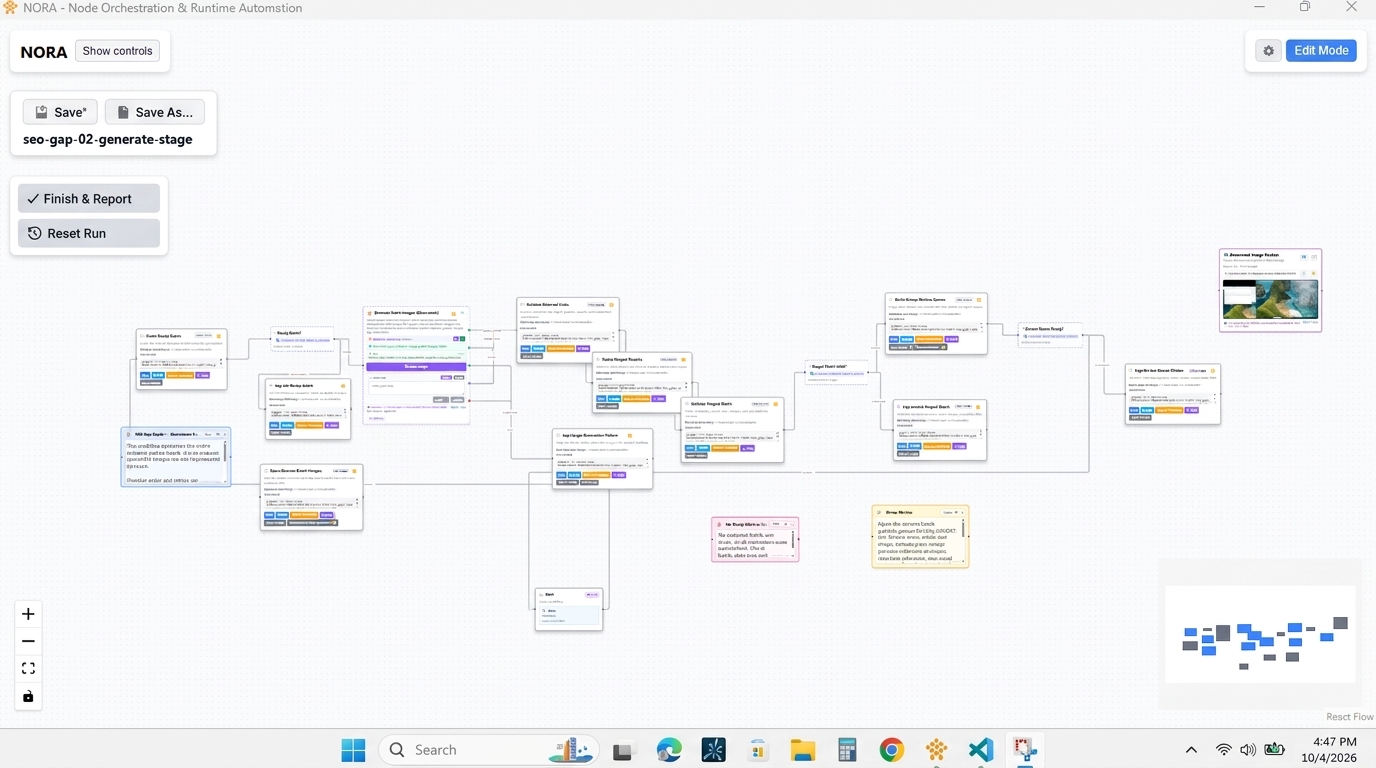
An illustrative representation of NORA’s visual workflow automation desktop interface, designed for local execution without requiring a separate server.
- Native Windows Support: Acts as a powerful native Windows script orchestrator, running PowerShell, Python, and Batch scripts directly on the desktop host.
- Visual Canvas: Features an intuitive drag-and-drop canvas to build conditional branching, loops, file operations, and script sequences without writing complex glue code.
- Local Storage & Execution: Engine state, history logs, and encrypted secrets are stored locally on the client machine.
- Zero Infrastructure: Installs in seconds without requiring Docker, WSL, or dedicated database setup.
For teams comparing different workflow options, review our in-depth comparison of n8n vs Nora to see how Nora eliminates server overhead.
Native OS Tools
Every major operating system includes built-in scheduling and task automation mechanisms:
- Windows Task Scheduler: The standard tool for running scheduled tasks on Windows. While reliable, it lacks visual workflow building, dependency mapping, advanced error handling, and intuitive execution logging.
- Cron (Linux/macOS): The time-based job scheduler in Unix-like systems. Excellent for basic recurring scripts, but challenging to manage as script dependencies and complexity scale.
- Apple Shortcuts / Automator (macOS): User-friendly desktop automation tools for macOS, highly tailored for consumer and basic desktop tasks, but limited in multi-language script orchestration for enterprise IT.
Scripting Languages vs Visual Builders
Many sysadmins traditionally rely entirely on raw scripting in PowerShell or Python. While code provides maximum flexibility, managing hundreds of isolated standalone scripts leads to operational friction:
| Dimension | Raw Scripting (PowerShell/Python) | Visual Local Builders (Nora) |
|---|---|---|
| Dependency Management | Manual parameter passing between scripts | Visual drag-and-drop output linking |
| Error Handling | Custom try/catch blocks in every file | Built-in visual retries and failure paths |
| Visibility | Log files scattered across directories | Centralized visual execution history |
| Maintainability | Difficult for team members to read raw code | Self-documenting visual workflow diagrams |
| Credential Security | Risk of hardcoded plain-text credentials | Built-in encrypted keyrings |
Combining custom scripting with a local visual orchestrator delivers the best of both worlds: script flexibility paired with visual observability.
How to Build a No-Cloud Automation Solution
Transitioning your team’s internal workflows to a local workflow management local setup can be accomplished in four structured steps:
Step 1: Inventory Existing Workflows & Scripts
List all routine administrative tasks currently executed manually or via Task Scheduler. Common candidates include:
* Daily system backup verification scripts.
* Employee onboarding directory provisioning.
* CSV report generation and local network drive file distribution.
* Database maintenance and indexing jobs.
Step 2: Establish Secure Local Credential Storage
Remove hardcoded passwords, API keys, and connection strings from your scripts. Utilize native credential management platforms or your local orchestrator’s encrypted secret store to pass variables dynamically during execution.
Step 3: Map Workflow Logic in a Local Builder
Import your existing PowerShell or Python scripts into a local workflow orchestrator like Nora. Link script nodes together logically:
1. Trigger: File created in C:\Imports\ or a scheduled timer event.
2. Action 1: Run PowerShell script to clean and validate file data.
3. Condition: If script succeeds, proceed to Action 2; if it fails, send a local alert notification.
4. Action 2: Run Python script to upload processed data to internal SQL database.
Step 4: Configure Execution Schedules and Alerts
Set your desired execution frequencies (e.g., every 15 minutes, daily at 02:00, or event-driven triggers). Ensure failure paths are connected to local logging mechanisms or internal webhooks (such as local Slack/Teams webhooks) to notify your team immediately if a run fails.
Conclusion: Taking Control of Your Workflows
As IT operations grow more complex in 2026, relying solely on cloud SaaS platforms or burdensome self-hosted server deployments for routine desktop tasks introduces unnecessary cost, risk, and administrative burden.
Local automation tools represent the ideal middle ground: giving sysadmins and IT teams the visual management, reliability, and speed of modern workflow engines while retaining total control over data privacy and system infrastructure. By adopting a local-first workflow orchestrator, you can eliminate recurring subscription fees, bypass server management overhead, and ensure your operational data remains strictly where it belongs—on your local machines.
Frequently Asked Questions
What are local automation tools?
Local automation tools are desktop software applications that execute scripts, workflows, and system commands directly on a user’s local machine or internal network without sending payload data to remote cloud servers.
How do local automation tools differ from cloud SaaS tools like Zapier?
Cloud SaaS tools run on remote vendor servers, require internet connectivity, charge per execution or step, and process data externally. Local automation tools execute natively on local host hardware, process data behind your firewall, operate completely offline, and incur zero usage fees per run.
Do I need to know how to code to use local workflow tools?
While knowing languages like PowerShell or Python allows you to write custom scripts, modern local workflow orchestrators like Nora provide visual drag-and-drop interfaces that make assembling, scheduling, and managing workflows easy even for non-programmers.
Can local automation software run when a computer is locked or logged off?
Yes. Depending on OS service configurations and permissions, local automation platforms can be configured to run in the background or as system services, executing scheduled workflows even when the workstation display is locked.
Is local desktop automation software secure?
Yes. Local automation tools are inherently highly secure because data never leaves your device or internal network. Security is further enhanced when credentials are saved using native OS encrypted keyrings rather than plain-text files.