
Claude Code Getting Started Guide: Setup for Solo Devs
You do not need a DevOps team to get real value from Claude Code. If you can write code and use a terminal, you have everything required to set up a productive AI coding workspace. This getting started guide is written specifically for solo developers in 2026 — no infrastructure jargon, no cluster configs, just a clean path from install to your first productive session.
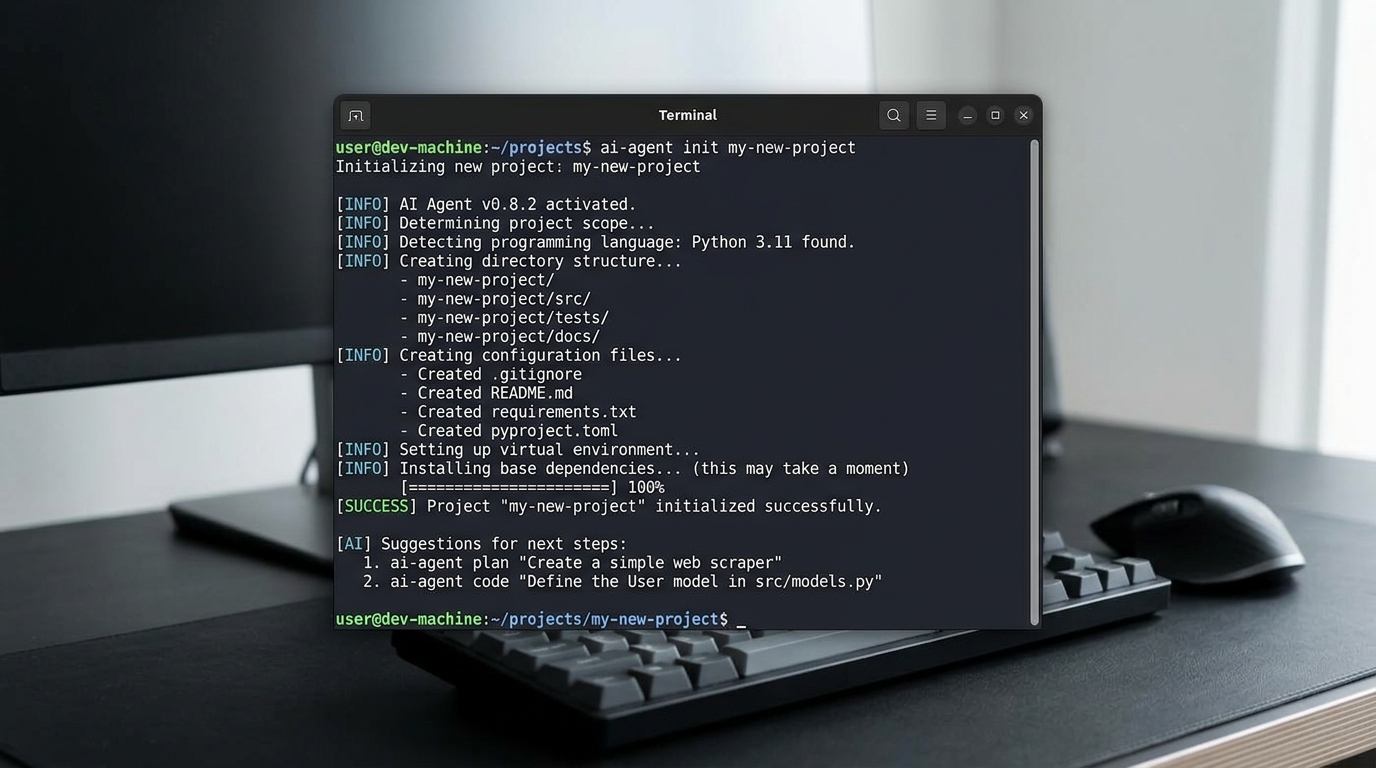
Initialize your project by running the Claude Code agent in your terminal.
What is Claude Code?
Claude Code is an AI coding agent that works inside your terminal and your project. Instead of copying snippets in and out of a chat window, you point it at your codebase and it can read files, write code, run commands, and reason about your project directly. For a solo developer, that means a pair-programmer that never gets tired — one that can scaffold features, refactor modules, and explain unfamiliar code on demand.
Because it operates on your actual project rather than an isolated chat, the quality of its help depends heavily on how well your workspace is set up. That is what this guide fixes.
Why Solo Developers Need a Proper Workspace Setup
When you work alone, you are the architect, the reviewer, and the operator all at once. A well-configured workspace pays off immediately:
- Better output — When the agent understands your conventions, it produces code you actually want to keep.
- Fewer surprises — Clear boundaries reduce the risk of the agent touching files it should not.
- Less rework — Good context means fewer hallucinated APIs and less back-and-forth.
- Faster onboarding to new projects — A repeatable setup means every project starts strong.
The setup below takes minutes and saves hours.
Claude Code Setup Tutorial 2026
Follow these steps to go from zero to a working project.
Initializing Your First Project
- Make sure Claude Code is installed. Windows users can follow our Windows-specific installation steps to get the CLI running cleanly.
- Open your terminal and navigate into your project folder:
cd path/to/your-project
- Launch the agent:
claude
- Authenticate on first run using your Anthropic account or API key.
- Ask the agent to summarize your project. If it can describe your files accurately, your workspace is connected.
Configuring the AI Coding Agent
A few small configuration choices dramatically improve results:
- Create a
CLAUDE.mdfile at the root of your project to store rules and context. Even a short one helps. - State your tech stack — language, framework, and key libraries.
- Set your conventions — formatting, naming, and testing expectations.
- Point to important directories so the agent knows where the real work lives.
Project Configuration Without DevOps Knowledge
You do not need containers, pipelines, or orchestration to configure Claude Code well. Focus on three plain-language things:
- Tell it what the project is. A one-paragraph description of what your app does gives the agent crucial framing.
- Tell it how you like to work. List your standards in simple terms — “use functional components,” “prefer async/await,” “write tests with Vitest.”
- Tell it what to avoid. Note directories or files the agent should not modify, and dependencies it should not add without asking.
All of this lives in a plain Markdown CLAUDE.md file. There is nothing to deploy and nothing to maintain beyond editing text. As your project grows, you can lean on the agent to automate repetitive scaffolding so you spend more time on the interesting parts.
First Steps and Basic Commands
Once you are set up, build momentum with small wins:
- Ask for a codebase tour. “Explain how this project is structured” is a great first prompt.
- Request a small change. Have the agent add a function or fix a minor bug so you can see its workflow.
- Review before accepting. Read what it proposes — you are still the reviewer.
- Iterate on your
CLAUDE.md. Every time the agent gets something wrong, capture the correction in your rules file.
From here, you have choices about where to go next. If you want to compare tools before going all-in, read how Claude Code stacks up against alternatives like Copilot for individual developers. Otherwise, keep practicing — the more you use the agent, the more your workspace configuration will evolve to match your style.
Frequently Asked Questions
Do I need DevOps experience to use Claude Code?
No. Claude Code runs from your terminal inside your project. If you can navigate directories and edit a Markdown file, you have everything you need to configure it well.
What is the minimum setup to get productive with Claude Code?
Install the CLI, launch it inside your project, authenticate, and create a short CLAUDE.md describing your stack and conventions. That is enough to start seeing quality output.
How do I stop Claude Code from editing the wrong files?
State clear boundaries in your CLAUDE.md, review proposed changes before accepting them, and keep your working directory scoped to the area you are focused on.
Is Claude Code good for solo developers specifically?
Yes. Solo developers benefit most because the agent effectively acts as a pair programmer, handling scaffolding, refactoring, and explanations that would otherwise fall entirely on one person.
What should go in a beginner CLAUDE.md file?
A short project description, your tech stack, your coding conventions, and any files or actions the agent should avoid. You can expand it over time as you learn what improves results.