
How to Automate and Run Your Local LLM Overnight
High-performance GPUs and workstation CPUs represent a major hardware investment. For developers, data engineers, and homelab enthusiasts running local Large Language Models (LLMs), these expensive compute resources often sit completely idle for eight to ten hours every night. Leaving powerful VRAM and CUDA cores unutilized during off-peak hours is a missed opportunity for automated processing.
By configuring your system to run LLM overnight workflows, you can offload heavy inference, document ingestion, embeddings generation, and dataset processing to off-peak hours. Running AI models during idle time transforms your local workstation into an automated, round-the-clock inference engine without incurring third-party cloud API costs or interfering with your daily desktop usage.
In this guide, we will explore why executing batch inference while you sleep makes sense, how to schedule local LLM tasks safely, key best practices for LLM resource optimization overnight, and how to handle hardware sleep states, thermal limits, and error recovery.
Why Run AI Models During Idle Time?
Running complex generative AI models locally requires substantial system resources. When executing high-parameter models (such as 70B parameter quantized variants) or running long-context processing pipelines during the workday, system responsiveness can suffer.

Maximize your hardware’s potential by scheduling intensive LLM tasks during off-peak hours, as illustrated by this conceptual CPU and GPU usage chart.
Executing these demanding pipelines overnight offers two primary structural advantages: maximizing hardware return on investment (ROI) and eliminating productivity bottlenecks during working hours.
Maximizing Hardware ROI (GPUs/CPUs)
Whether you operate a single NVIDIA RTX 4090 GPU, a dual RTX 3090 workstation, or an Apple Silicon Mac Studio with unified memory, your hardware depreciates regardless of utilization. When you schedule AI inference locally during night hours, you increase the effective throughput of your setup without buying additional hardware.
- 100% Hardware Utilization: A machine running workloads 16 to 24 hours a day produces up to three times the output of a machine used only during an 8-hour workday.
- Batch Economy: Large-scale batch jobs—such as re-indexing entire knowledge bases or generating synthetic training data—can consume hours of sustained GPU processing. Overnight execution ensures these jobs complete before your morning standup.
- Energy and Thermal Efficiency: Ambient room temperatures are frequently lower at night, allowing your GPU fans to maintain target temperatures with lower noise and reduced thermal throttling.
Reducing Interference with Daytime Workflows
Local LLM inference requires intense compute power, drawing significant system RAM, VRAM, and processing bandwidth. Running inference alongside daytime software development or design work can lead to micro-stutters, delayed IDE response, and VRAM out-of-memory (OOM) errors if other memory-intensive applications are open.
By postponing memory-heavy workloads to idle periods, your workstation remains fully performant during the day for coding, compiling, video conferencing, and interactive testing.
Methods to Schedule Local LLM Tasks
Automating an overnight LLM run requires moving away from interactive WebUI chat interfaces toward automated, head-less script execution. Depending on your host operating system and workflow complexity, you can leverage native system schedulers or programmatic script runners.
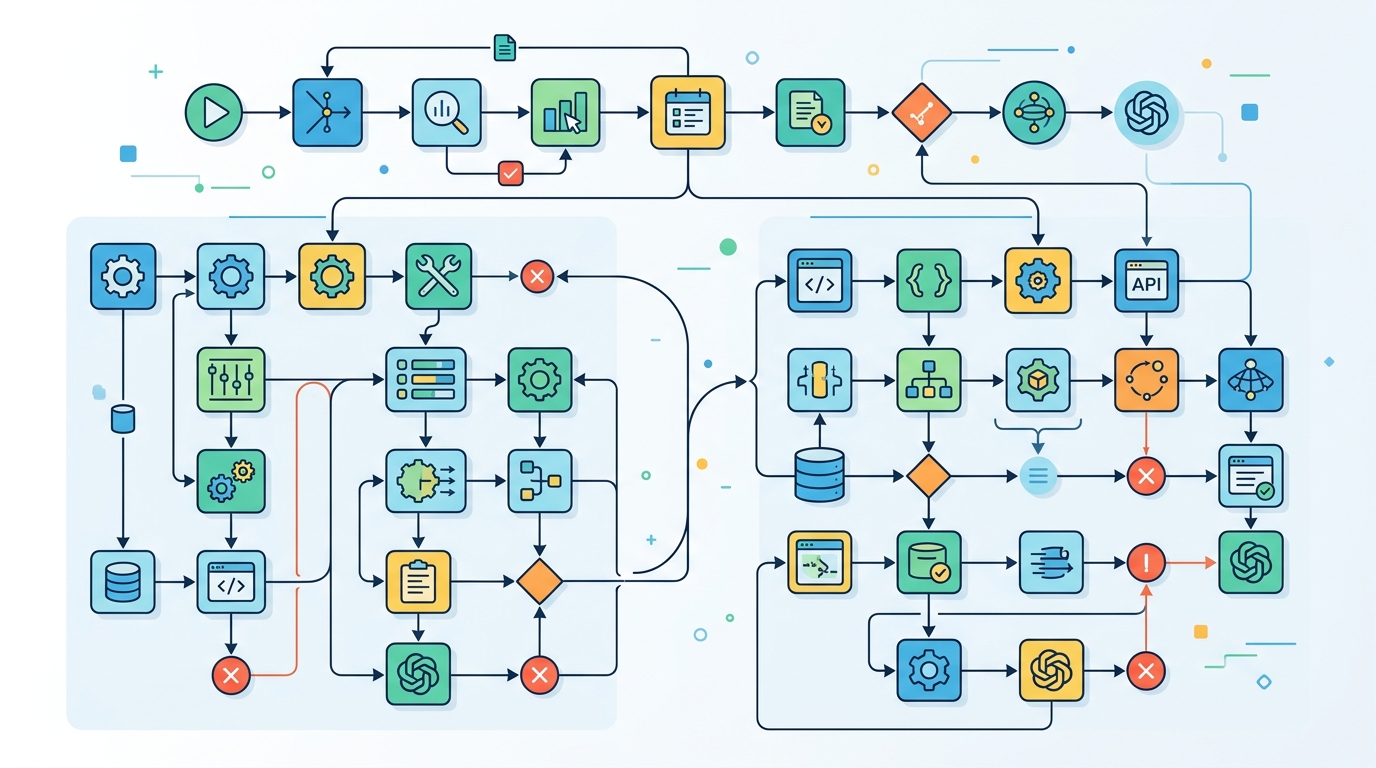
Understand the different approaches to automating your local LLM tasks, from native OS schedulers to code-based orchestration.
Native OS Task Schedulers
Every major operating system includes built-in scheduling utilities designed to trigger background scripts at designated times:
- Linux / macOS (
cronandlaunchd): Linux environments usecronto run scheduled background tasks, while macOS supports bothcronandlaunchd. A simple crontab entry can invoke a Python script or cURL request every night at 2:00 AM. - Linux Systemd Timers: For production-grade reliability, systemd timers provide service dependency management, standard output logging via
journalctl, and automatic restart capabilities upon failure. - Windows Task Scheduler: On Windows systems, Task Scheduler allows you to set specific triggers (e.g., “Daily at 1:00 AM” or “When system is idle for 30 minutes”) to execute batch scripts or PowerShell commands.
Code-Based Orchestration (Python)
If your workflow involves complex task queues—such as reading entries from a database, making API calls to a local backend like Ollama or LM Studio, and writing outputs back to disk—programmatic orchestration is ideal.
Using Python, you can write dedicated scripts that manage task queues and monitor inference status. For step-by-step guidance on setting up these automated pipelines, refer to our comprehensive guide on scripting and scheduling local LLM tasks.
For workflows that involve structured inputs and file extraction, you can also set up scripts to batch process data and reports while you sleep.
Best Practices for LLM Resource Optimization Overnight
To ensure unattended inference runs smoothly until morning, you must configure both your model parameters and execution environment for maximum stability.
| Optimization Vector | Recommended Strategy | Purpose |
|---|---|---|
| Model Quantization | Use GGUF / EXL2 (4-bit or 8-bit) | Reduces VRAM footprint to prevent Out-Of-Memory (OOM) crashes. |
Context Length (num_ctx) |
Set explicit token limits | Limits memory consumption from expanding key-value (KV) caches. |
Batch Size (b_size) |
Optimize for GPU memory headroom | Prevents system RAM spilling and keeps processing inside VRAM. |
| Timeout Limits | Set HTTP/API request timeouts | Prevents stuck threads from hanging the entire queue overnight. |
| Log Output | Redirect stdout/stderr to disk files | Allows quick morning auditing of success and failure states. |
- Explicit Quantization: Always load quantized models (e.g., Q4_K_M or Q8_0 GGUF files) when running unattended scripts. (GGUF) Quantization keeps model weights comfortably within physical VRAM limits, preventing system memory swapping.
- Bound Context Windows: Ensure your prompt builder or API payload explicitly bounds context window size. Allowing context windows to scale infinitely will eventually exhaust VRAM as conversation histories grow during continuous loop execution.
- Sequential Execution: Avoid running parallel inference requests unless you have multiple discrete GPUs. Sequential processing queue architecture ensures that each prompt completes before the next begins, avoiding memory spikes.
- Tool-Specific Endpoints: If you rely on Ollama as your inference server, configure system variables to keep models loaded during execution runs. See our full breakdown on automating Ollama tasks for API endpoint configurations.
Handling Hardware Sleep States and Thermal Limits
Unattended overnight execution presents two unique physical hardware challenges: system sleep triggers and heat accumulation.
Managing System Sleep States
By default, modern operating systems enter sleep or standby mode after a period of user inactivity. If your system goes to sleep mid-run, inference halts, network sockets break, and background processes freeze.
- Linux Configuration: Update your power settings or use systemd inhibition locks (
systemd-inhibit) to temporarily block sleep modes during active script execution. - macOS Options: Use the native
caffeinatecommand line utility. Runningcaffeinate -i python3 script.pyprevents OS sleep while the underlying Python process remains active. - Windows Settings: Disable “Sleep when plugged in” in Power Settings, or execute your automation script within a utility like PowerToys Awake or
SetThreadExecutionStateAPI calls.
Thermal Management and Power Constraints
Sustained GPU/CPU loads for six to eight hours straight generate constant thermal output. Poorly ventilated desktop towers or laptop chassis can experience thermal throttling, causing clock speeds—and token generation speeds—to drop drastically.
- Fan Curves: Set custom, aggressive GPU fan curves using tools like MSI Afterburner (Windows) or
nvidia-smi(Linux) so fans kick in early before heat saturates the heat sinks. - Power Limits: Consider applying a mild power limit offset via
nvidia-smi -pl <watts>. Reducing GPU power draw by 10–15% often results in a negligible performance loss (2–3%) while dramatically reducing operating temperatures and total power consumption.
Monitoring & Error Handling for Unattended Inference
Running headless scripts overnight means you won’t be present to click “Retry” if a web service drops or an individual document causes a parser exception. Your automation pipeline must be resilient to common failure modes.
Structural Error Handling Checklist
- Try-Except Loops in Data Drivers: Wrap every API request in structured
try...exceptblocks. If prompt #45 causes a context length overflow or parser error, log the failure to an error file and immediately proceed to prompt #46. - Persistent Checkpointing: Store execution state in a local database (SQLite) or log file. If power cuts or a crash occurs at 3:00 AM, re-running the script in the morning should pick up exactly where it left off rather than starting from scratch.
- Alert Notifications: Integrate webhook notifications using platforms like Discord, Slack, or NTFY. Send a summary ping when the batch job begins, if a critical error triggers, and when the entire queue successfully finishes in the morning.
# Example: Basic Checkpointing and Error Logging Pattern
import json
import logging
import time

logging.basicConfig(filename='overnight_run.log', level=logging.INFO)

processed_ids = set()
try:
    with open('processed_ids.txt', 'r') as f:
        processed_ids = set(f.read().splitlines())
except FileNotFoundError:
    pass

items_to_process = [{"id": "1", "prompt": "Summarize task A"}, {"id": "2", "prompt": "Summarize task B"}]

for item in items_to_process:
    if item["id"] in processed_ids:
        continue

    try:
        # Simulate local LLM API call
        logging.info(f"Processing item {item['id']}...")
        # response = call_local_llm(item["prompt"])

        # Mark as completed
        with open('processed_ids.txt', 'a') as f:
            f.write(f"{item['id']}\n")
    except Exception as e:
        logging.error(f"Failed to process item {item['id']}: {str(e)}")
By establishing proper power management, clear memory limits, and structured error logging, you can convert idle night hours into high-value automated computing time.
Frequently Asked Questions (FAQ)
Can I safely leave my GPU running at 100% load all night?
Yes, modern consumer and enterprise GPUs are designed with built-in thermal protection mechanisms. As long as your PC case has adequate airflow and ambient temperatures remain reasonable, running continuous CUDA or Metal workloads for extended periods is completely safe. Setting custom fan profiles or mild power limits further ensures component longevity.
What happens if my local LLM runs out of VRAM overnight?
If an unhandled Out-Of-Memory (OOM) error occurs, the inference backend or script process will usually crash and terminate. To prevent this, implement robust exception catching, set strict max token limits in your API calls, and keep model quantization within your available VRAM footprint.
How do I prevent my operating system from sleeping while running overnight tasks?
You can use OS-level tools or commands to temporarily inhibit sleep. On macOS, prefix your terminal script command with caffeinate. On Linux, use systemd-inhibit or adjust your desktop environment power settings. On Windows, use Windows Task Scheduler settings to wake the computer or utilize tools like Microsoft PowerToys Awake.
What is the best local inference engine for background scheduling?
Ollama and LocalAI are excellent choices for background execution because they run as continuous background daemons or services and expose standardized REST API endpoints. This allows lightweight Python or Bash scripts to trigger inference jobs cleanly without needing to open a graphical user interface.