
How to Fix an Ollama Model That Is Not Responding
Running large language models locally using Ollama provides unparalleled privacy, speed, and customization for developers and sysadmins alike. However, nothing halts productivity faster than executing an ollama run command only to be met with complete silence—no output, endless hanging, or sudden process crashes. If your Ollama model is not responding, you are not alone.
This guide provides a comprehensive, step-by-step troubleshooting workflow to diagnose and resolve non-responsive Ollama models. Whether your Ollama model downloaded but no output appears in the terminal, or the CLI hangs indefinitely upon execution, we will cover hardware limits, VRAM allocation, process management, and model re-hydration to get your local LLM environment operational again.
Why Is My Ollama Model Not Responding?
Understanding why an Ollama model fails to load or freezes requires analyzing how Ollama manages hardware resources. When you initiate a prompt, Ollama loads model parameters into host system RAM and system GPU VRAM, initializes context buffers, and streams tokens back through the terminal interface or REST API. If any link in this hardware and execution chain breaks, the system stalls.
+-----------------------------------------------------------------------+
|                       Ollama Execution Chain                          |
+-----------------------------------------------------------------------+
| 1. User Prompt  -->  2. VRAM/RAM Load  -->  3. Context Allocation     |
|                              |                                        |
|                     [Hardware Bottleneck?]                            |
|                              v                                        |
|                     * Out of Memory (OOM)                             |
|                     * Driver Incompatibility                          |
|                     * Corrupted Blob Files                            |
+-----------------------------------------------------------------------+
Out of Memory (OOM) / VRAM Limitations
The most frequent culprit behind an Ollama model not responding is insufficient target VRAM or physical RAM. Large language models (LLMs) require substantial memory not only for their weights but also for context window KV caching during active generation.
- VRAM Exhaustion: If a 7B or 14B parameter model exceeds your GPU’s dedicated VRAM capacity, Ollama attempts to offload layers to system CPU RAM. If total system memory is saturated, the operating system kernel may terminate or suspend the process without printing an error.
- Silent Hanging: When memory allocations fail silently, the CLI process waits indefinitely for a response buffer that never allocates, leaving users with a frozen terminal prompt.
Understanding how much RAM you actually need to run local models effectively is essential before attempting to execute high-parameter models.
Missing GPU Drivers or Incompatible Hardware
Ollama relies on accelerated computing libraries like NVIDIA CUDA, AMD ROCm, or Apple Metal to run models efficiently. If Ollama cannot access hardware acceleration properly, execution degrades or hangs entirely:
- Outdated CUDA Drivers: Running newer Ollama binaries on outdated NVIDIA drivers can result in silent kernel invocation failures.
- Fallback Glitches: While Ollama is designed to fall back to CPU-only execution when GPU acceleration is unavailable, certain driver configurations cause execution threads to lock up rather than falling back cleanly.
Checking whether your system is correctly running on GPU vs falling back to CPU can immediately clarify whether hardware acceleration failure is forcing your model to stall.
Corrupted or Incomplete Model Download
When you execute ollama pull, the system downloads model weights stored in manifest files and digest layers (blobs) within ~/.ollama/models (Linux/macOS) or %USERPROFILE%\.ollama\models (Windows).
- Network drops, interrupted downloads, or checksum mismatches can result in partial or corrupted weight blobs.
- The Ollama service may register the model as fully present in the local registry, but when execution begins, layer instantiation fails silently upon reading corrupted memory offsets.
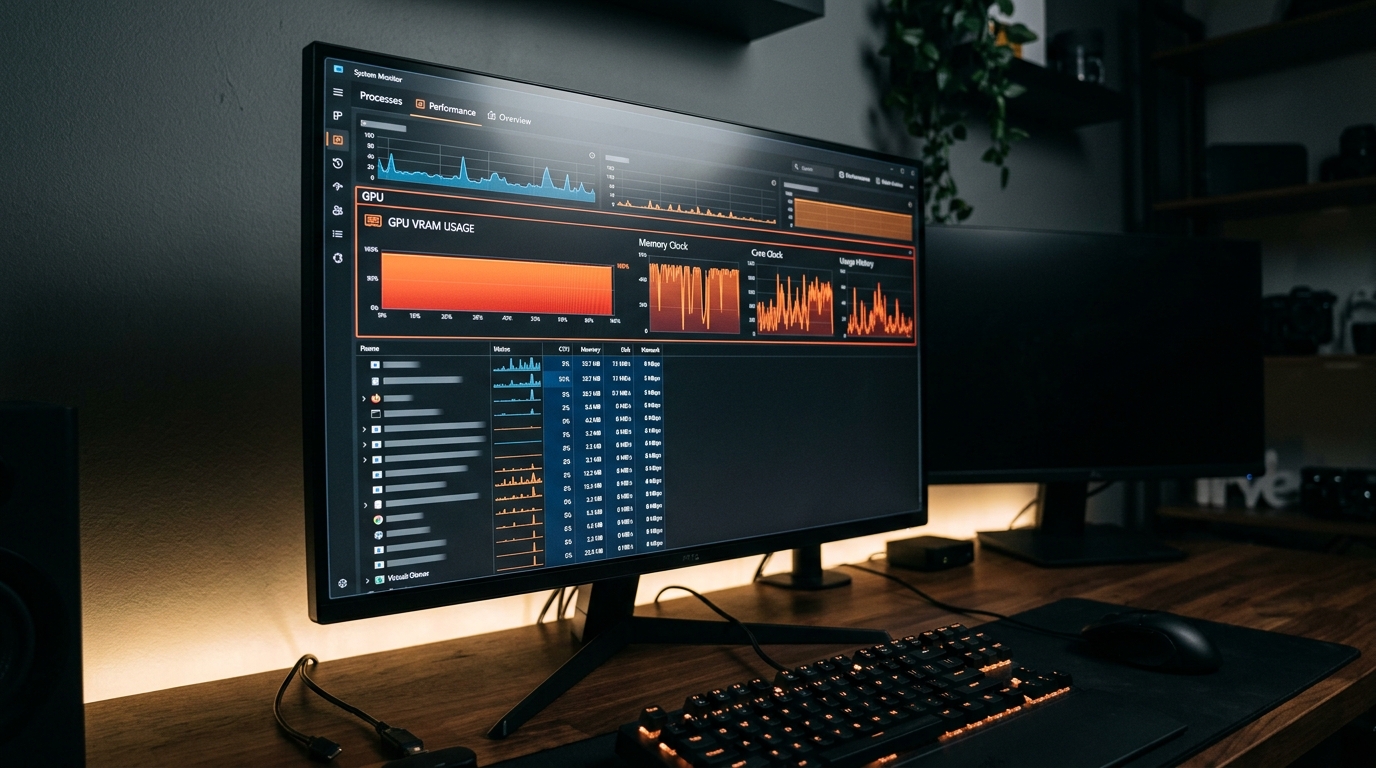
High VRAM usage can lead to an Ollama model becoming unresponsive due to insufficient memory for model operations.
How to Fix “Ollama Model Downloaded But No Output”
If your model shows up under ollama list but yields no text output after sending a prompt, follow these three structured resolution steps.
Step 1: Verify System Hardware and RAM Available
First, audit available memory while the model is attempting to load.
On Linux and macOS, check system memory and active GPU usage:
# Check system RAM usage
free -h

# Monitor NVIDIA GPU VRAM allocation in real time
nvidia-smi -l 1
On Windows (PowerShell), check physical memory allocations:
Get-CimInstance Win32_OperatingSystem | Select-Object TotalVisibleMemorySize, FreePhysicalMemory
If free RAM or VRAM is less than the model’s footprint (e.g., trying to run a 14B Q4 model with only 4 GB of free memory), close background applications (such as web browsers or Docker containers) or select a smaller model quantization.
Step 2: Test With a Smaller, Highly-Quantized Model
Isolate whether your local LLM not working issue is systemic or specific to heavy resource demands by running a minimal lightweight model:
# Pull and test a lightweight 1.5B or 3B model
ollama run qwen2.5:1.5b "Say hello!"
If the lightweight model responds immediately while your larger model hangs, the issue is confirmed to be hardware resource exhaustion or insufficient swap memory.
Step 3: Delete and Re-Pull the Model
If small models work normally but a specific model produces no output, the downloaded manifest or layers are likely corrupted. Clear the model entirely and perform a clean pull:
# Remove the non-responsive model
ollama rm llama3.2:latest

# Force a clean pull of the model manifest and weights
ollama pull llama3.2:latest

# Verify output in interactive mode
ollama run llama3.2:latest "Test prompt"
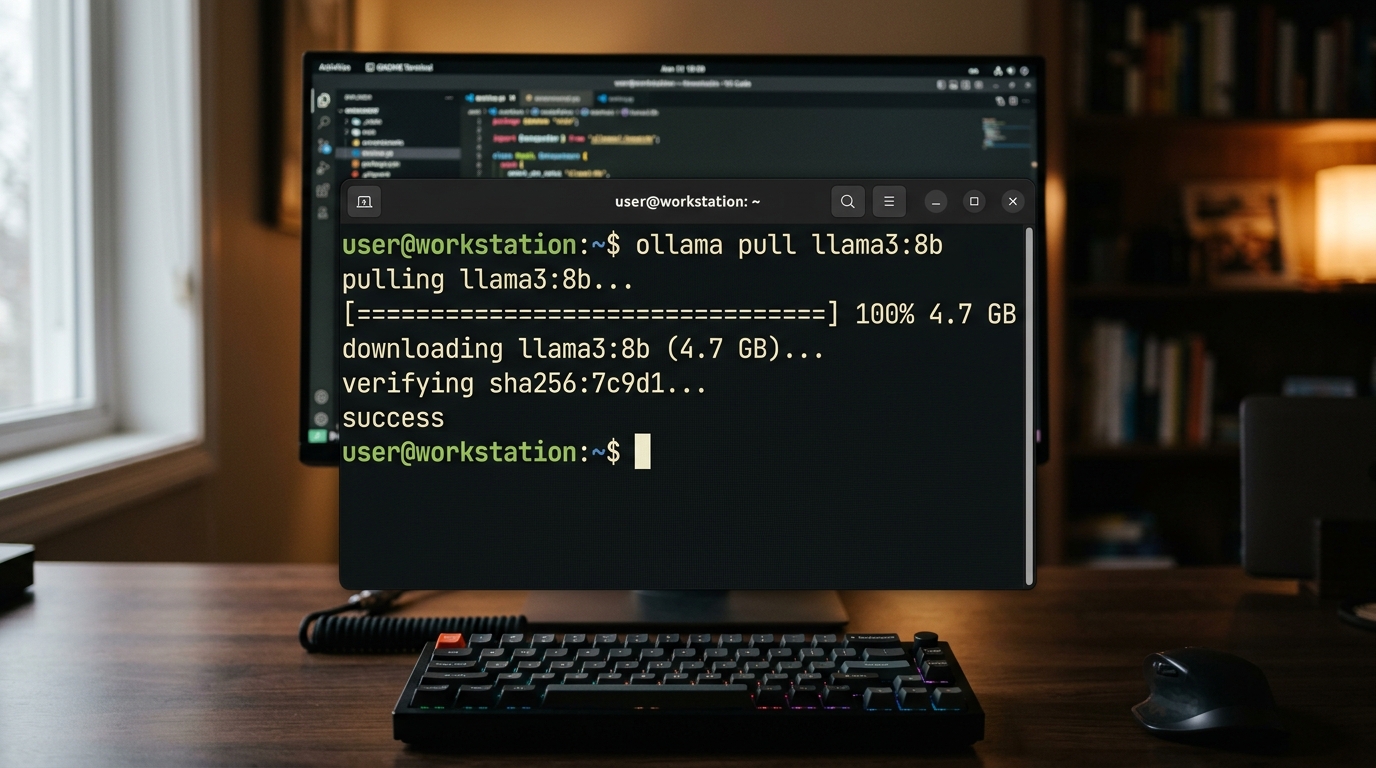
Re-pulling a model using ollama pull can resolve issues caused by corrupted or incomplete model downloads.
Fixing the “Ollama Run Command Not Responding” Issue
When the ollama run command hangs indefinitely without returning a prompt or accepting user input, background service processes may be locked up in deadlocks or orphaned sessions.
Checking Background Processes and Task Manager
Previous execution instances can lock memory or hold GPU contexts hostage. To resolve this:
Linux / macOS:
Identify lingering ollama or runner processes and terminate them cleanly:
# Locate active Ollama runner processes
ps aux | grep ollama

# Terminate stuck runner processes
pkill -f ollama
Windows:
Open Task Manager or run PowerShell commands to kill stuck execution threads:
# Stop all active Ollama processes
Stop-Process -Name "ollama*" -Force
Restarting the Ollama Service
If process killing alone does not restore CLI response, restart the main background daemon.
On Linux (systemd):
sudo systemctl restart ollama
On macOS:
Quit the Ollama menu bar app or restart via terminal:
launchctl stop com.ollama.ollama
launchctl start com.ollama.ollama
On Windows:
Restart the Ollama background app from the system tray or run:
net stop ollama
net start ollama
If restarting the local daemon reveals underlying network connection or socket errors, investigate deeper Ollama server connection issues to ensure the daemon is binding correctly to its expected local port.
Advanced Debugging: Local LLM Not Working
When basic restarts fail, inspecting the server logs provides direct visibility into why an Ollama model fails to load.
How to Check Ollama Logs for Hidden Errors
By default, Ollama logs detailed internal stdout/stderr output. Location varies by system platform:
| Operating System | Log Location / Command |
|---|---|
| Linux (systemd) | journalctl -u ollama -e -f |
| macOS | cat ~/.ollama/logs/server.log |
| Windows | %LOCALAPPDATA%\Ollama\app.log or %USERPROFILE%\.ollama\logs\ |
To run Ollama in explicit verbose debug mode directly in your terminal, stop active background daemons and start Ollama manually with debug environment flags:
# Set debug log verbosity and execute daemon
OLLAMA_DEBUG=1 ollama serve
Inspect the live log output as you execute ollama run <model> in a separate terminal tab. Look out for error signatures such as:
* CUDA error: out of memory: Confirms VRAM failure.
* llama_model_load: failed to load model: Indicates corrupted blob files.
* failed to create context: Indicates insufficient system swap space.
Frequently Asked Questions (FAQ)
What to do when an Ollama model fails to load entirely?
First, verify that your machine meets the minimum physical memory requirements for the chosen model size. Check system logs using journalctl -u ollama (Linux) or checking %LOCALAPPDATA%\Ollama\app.log (Windows) for out of memory errors. If memory is sufficient, run ollama rm <model-name> followed by ollama pull <model-name> to replace damaged model weight blobs.
Why does the Ollama CLI just hang on execution?
The CLI hangs primarily when it cannot communicate with the background service or when the background daemon is waiting on a stalled GPU thread allocation. Ensure port 11434 is not blocked, terminate lingering background runner processes using pkill -f ollama (or Task Manager on Windows), and restart the main Ollama background service.