
How to Build Private AI Agents in n8n Using Local LLMs
As artificial intelligence becomes deeply embedded in enterprise workflow automation, organizations are facing a critical trade-off: cloud accessibility versus data security and operational costs. While cloud API endpoints provided an accessible starting point for AI experimentation, running high-volume production tasks through subscription-based cloud services quickly introduces compounding API fees, vendor lock-in, and compliance risks.
By leveraging an n8n local LLM architecture, automation engineers and IT teams can build autonomous, highly capable AI agents that process data entirely within local server environments. This guide explores how to build a private n8n local AI assistant, key enterprise deployment patterns, and practical steps to deploy your first air-gapped agent workflow.
Can n8n connect to local LLMs?
Yes, n8n natively connects to local LLMs through designated AI framework nodes and custom HTTP request handlers. Starting with n8n version 1.19, the platform introduced advanced LangChain-powered orchestration nodes that allow users to connect to local inference engines like Ollama, LocalAI, and LM Studio just as easily as cloud APIs.
Rather than sending payloads across public cloud infrastructure, an n8n AI agent local setup dispatches queries over internal network sockets (e.g., http://localhost:11434 or custom Docker network endpoints). This capability enables n8n to leverage state-of-the-art open-source foundation models—such as Llama 3, Mistral, and Qwen—for dynamic task execution, schema enforcement, and tool calling without external dependencies.
The Shift to Using n8n Without Cloud AI
The movement toward running n8n without cloud AI stems from three primary operational requirements:
- Total Cost Elimination at Scale: Cloud API providers charge on a per-token basis. For high-volume automated processing—such as analyzing thousands of customer tickets, parsing log files, or evaluating real-time telemetry—cloud token costs scale linearly with volume. Local LLMs shift costs from recurring operational expenditure (OpEx) to predictable capital hardware infrastructure.
- Uncompromising Data Privacy & Governance: In regulated industries like healthcare, finance, and legal tech, submitting customer data or internal corporate IP to external APIs introduces major regulatory hurdles. Local models guarantee that zero data leaves host RAM or disk storage.
- Resilience Against Outages & Rate Limits: Cloud-hosted LLM services occasionally experience rate limits, service throttling, or unexpected API deprecation. Running local models ensures continuous operational uptime independent of third-party platform availability.
To learn how to configure the foundational connection between your local model service and n8n, check out our step-by-step guide to connect Ollama to n8n.
What is an n8n Local AI Assistant?
An n8n local AI assistant is an autonomous, event-driven workflow configured inside n8n that leverages a local language model to reason through tasks, evaluate decisions, execute tools, and format data.
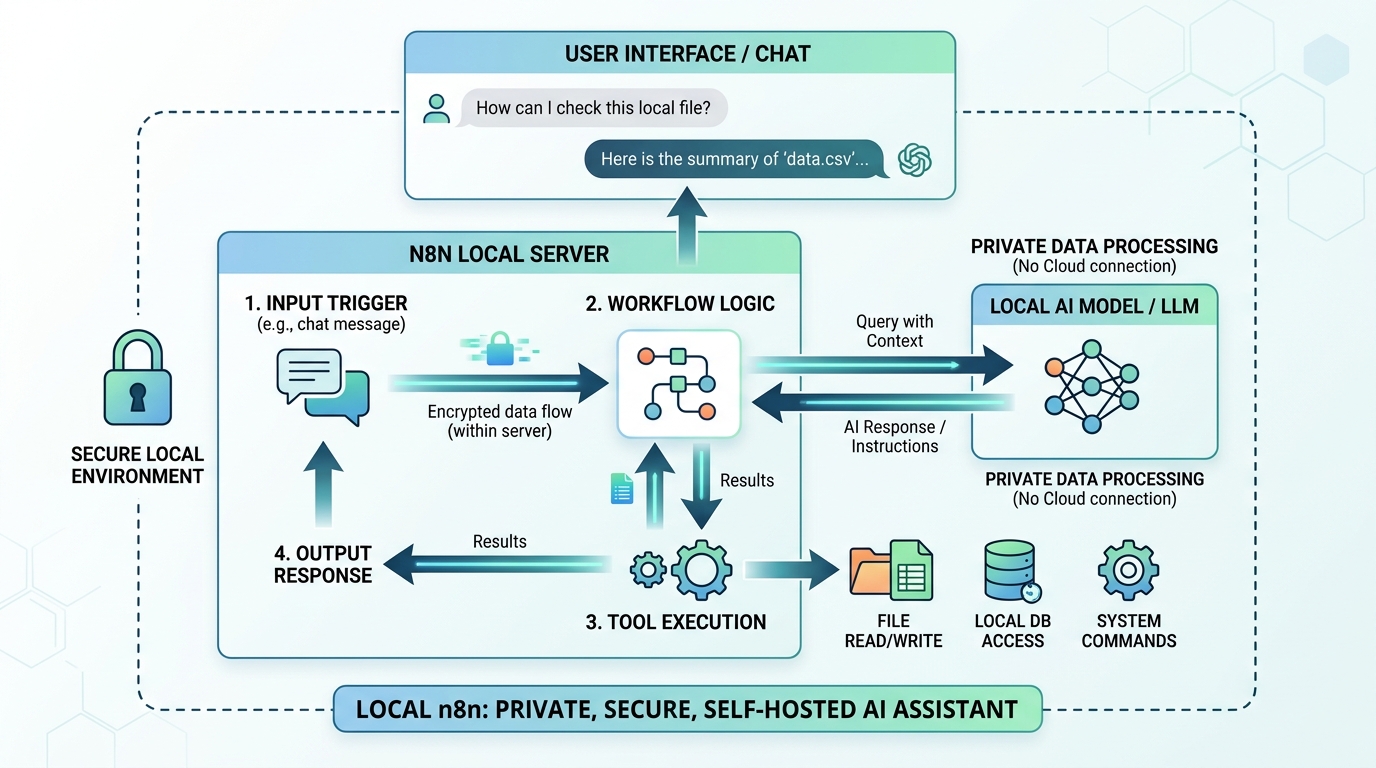
An n8n local AI assistant operates securely within a private network, leveraging a local LLM to process data and execute tasks without relying on external cloud AI endpoints.
Unlike simple linear automations that strictly follow fixed if/else logic branches, an AI agent utilizes an LLM as its central reasoning engine. When triggered by an incoming event, the local agent:
– Analyzes incoming context or user prompts.
– Determines which internal tools (e.g., database lookup, PDF parser, API integration) to execute.
– Evaluates the output returned by the tool.
– Iterates until the overall objective is satisfied.
Because the inference engine runs on-premise, this entire decision loop occurs securely within your private network.
Top Ollama n8n Use Cases for Teams
Implementing an Ollama n8n integration unlocks numerous commercial use cases where data privacy or processing volume previously made cloud AI impractical.
Document Summarization and Processing
Organizations process vast quantities of sensitive documents daily, including vendor contracts, financial reports, and employee onboardings. A local n8n workflow can monitor incoming email attachments or internal directory folders, parse PDF contents, and direct an internal model to produce structured summaries.
- Example Flow: Watch Directory → Extract Text Node → Local Ollama LLM → Post Summary to Local Chat (e.g., Mattermost / Slack).
- Key Advantage: Proprietary contracts and financial metrics are never exposed to public cloud training sets.
Internal Data Querying (Air-gapped)
Engineering and support teams frequently need to query internal knowledge bases, technical documentation, or customer ticket archives without sending that data offsite. By pairing a local model with vector stores inside n8n, teams can build air-gapped document retrieval engines.
- Example Flow: Slack Webhook Trigger → Vector Index Lookup → Ollama Inference → Return Grounded Response.
- Key Advantage: Provides real-time answers directly from confidential documentation while operating entirely offline.
How to Build Your First n8n AI Agent Local Workflow
Follow these steps to construct a functional n8n AI agent local workflow using n8n’s AI Agent node and Ollama.
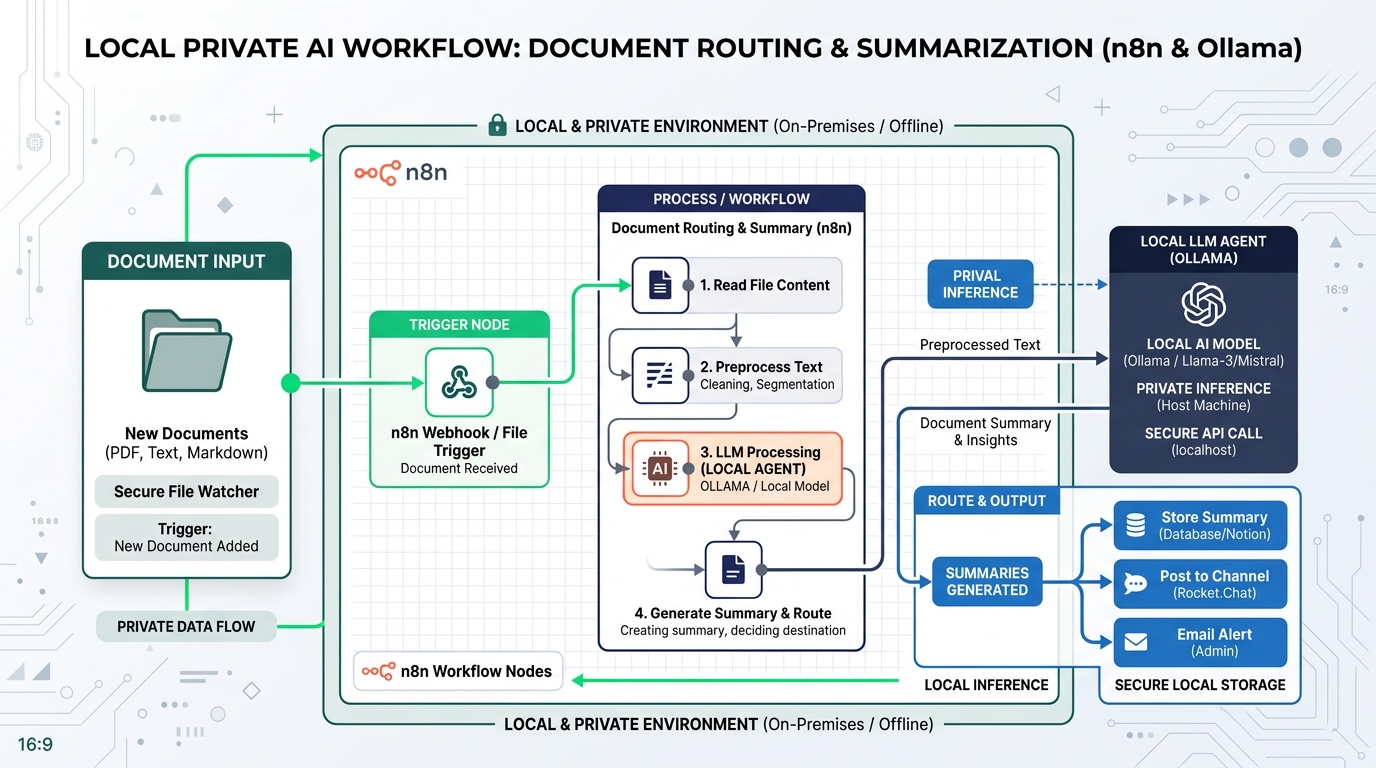
Build a private AI agent local workflow in n8n to securely route and summarize documents using an integrated local LLM.
Step 1: Initialize the AI Agent Node
- Create a new workflow in n8n.
- Add an AI Agent node to the canvas.
- Set the Agent Type to Tools Agent (this enables the local LLM to execute connected sub-nodes autonomously).
Step 2: Connect the Local Language Model
- In the AI Agent node configuration, attach a Model connector.
- Select Ollama Model as the model provider.
- Enter your local Ollama connection parameters (e.g.,
http://host.docker.internal:11434) and select your local model (e.g.,llama3).
Step 3: Attach Local Memory and Tools
- Memory: Attach a Window Buffer Memory node to allow the agent to maintain conversation history across multiple turns.
- Tools: Add native n8n tools or custom HTTP Request tools. For instance, attach a Calculator tool or a Custom Code tool that performs database lookups.
Step 4: Define the Agent Prompt & Execute
In the AI Agent prompt field, provide system directions:
You are a helpful internal operations assistant. Use the available tools to complete user requests accurately. Always format final outputs clearly in Markdown.
When executed, n8n routes user requests through the local LLM, allowing it to invoke local tools dynamically without transmitting data across external cloud endpoints.
Next Steps for Ollama n8n Integration
Transitioning your enterprise automation stack from cloud dependency to self-hosted intelligence provides long-term cost controls and total data sovereignty. As open-source models continue to mature, local inference performance on standard server hardware will increasingly surpass public API offerings for domain-specific tasks.
To further deepen your self-hosted automation architecture:
– Review the broader organizational and strategic offline AI automation benefits.
– Build production-grade document querying pipelines by discovering how to create advanced local AI workflows using local vector databases.
Frequently Asked Questions
Can local LLMs in n8n execute structured JSON tool calls?
Yes. Modern open-source models like Llama 3 and Hermes 2 are specifically fine-tuned for tool calling and JSON schema enforcement, allowing n8n’s AI Agent node to route structured parameters accurately to sub-tools.
How much GPU VRAM is required for an n8n AI agent local setup?
For smooth performance with an 8-billion parameter model (such as Llama 3 8B), a GPU with at least 8 GB to 12 GB of VRAM (e.g., NVIDIA RTX 3060/4060 or Apple Silicon M-series) is recommended. Larger 70B models require 48 GB+ VRAM.
What happens if multiple workflows call the local model at the same time?
Ollama queues incoming HTTP requests automatically and processes them sequentially or concurrently depending on your server thread and VRAM configuration parameters (OLLAMA_NUM_PARALLEL).