
How to Connect Ollama to n8n for Fully Local AI Automation
Building modern automated workflows often requires the intelligence of large language models (LLMs). However, sending proprietary corporate data, sensitive customer communications, or personal records to cloud-based LLM APIs presents significant data security and cost challenges. Recurring API token costs can scale unpredictably, while regulatory compliance standards like GDPR or HIPAA frequently restrict third-party cloud data processing.
By combining Ollama—an open-source framework for running large language models locally—with n8n, a powerful workflow automation platform, you can create a zero-cloud, privacy-first AI automation engine. Running your LLMs on self-hosted infrastructure allows you to maintain total control over your data pipeline, eliminate per-token API billing, and maintain deterministic execution speeds.
This comprehensive Ollama n8n tutorial walks you through the foundational concepts, prerequisites, step-by-step setup, practical workflow build, and troubleshooting techniques required for n8n local model setup.
How do Ollama and n8n work together?
To understand how to connect Ollama to n8n, it helps to see how their underlying architectures interact.
n8n acts as the workflow orchestrator. It listens for incoming triggers (such as webhooks, scheduled timers, database changes, or email events), processes data, routes traffic, and calls various APIs or internal system services. When an automation task requires natural language processing—such as summarizing text, parsing unstructured JSON, or generating automated responses—n8n dispatches an HTTP request to an LLM endpoint.
Ollama acts as the local LLM inference engine. It runs directly on your local workstation, virtual machine, or private server. Ollama abstracts the underlying model execution (using llama.cpp under the hood) and provides a clean REST API. When n8n sends a prompt, Ollama routes the query to open-source models like Llama 3, Mistral, or Qwen running locally in system memory (VRAM or RAM) and returns the generated text back to n8n.
[ Trigger / Data Source ]
          │
          ▼
    [ n8n Workflow ]  ──── (Local HTTP REST Request) ────►  [ Ollama Engine ]
          │                                                       │
          │                                                       ▼
    [ Action / Output ] ◄─── (Local JSON Response) ────────  [ Local Model ]
Because both tools run within your local network or server environment, no data ever leaves your perimeter. This local request-response loop enables true n8n local inference without third-party API dependencies.
Prerequisites for n8n Local Model Setup
Before starting your n8n custom LLM integration, ensure your environment meets the following hardware and software requirements:
-
Hardware Considerations:
– RAM: Minimum 16 GB of system RAM for running smaller 7B/8B parameter models. 32 GB or more is recommended for larger models or multi-tenant processing.
– GPU (Recommended): An NVIDIA GPU with CUDA support or Apple Silicon (M-series) with unified memory significantly accelerates local inference. While CPU-only execution works, processing latency will be noticeably higher.
– Storage: At least 20 GB of free SSD space to store model weights (e.g., Llama 3 or Mistral). -
Software Requirements:
– n8n Environment: An active n8n instance running locally or via Docker (n8nversion 1.19+ includes native local AI nodes).
– Ollama Engine: The latest release of Ollama installed on host platform (macOS, Linux, or Windows via WSL2/Native).
– Network Connectivity: Internal network connectivity between n8n and Ollama (typicallyhttp://localhost:11434or Docker host networking).
How to connect Ollama to n8n for fully local AI automation? (Step-by-Step)
Follow this step-by-step procedure to establish a stable host-level connection between Ollama and your n8n workflow environment.
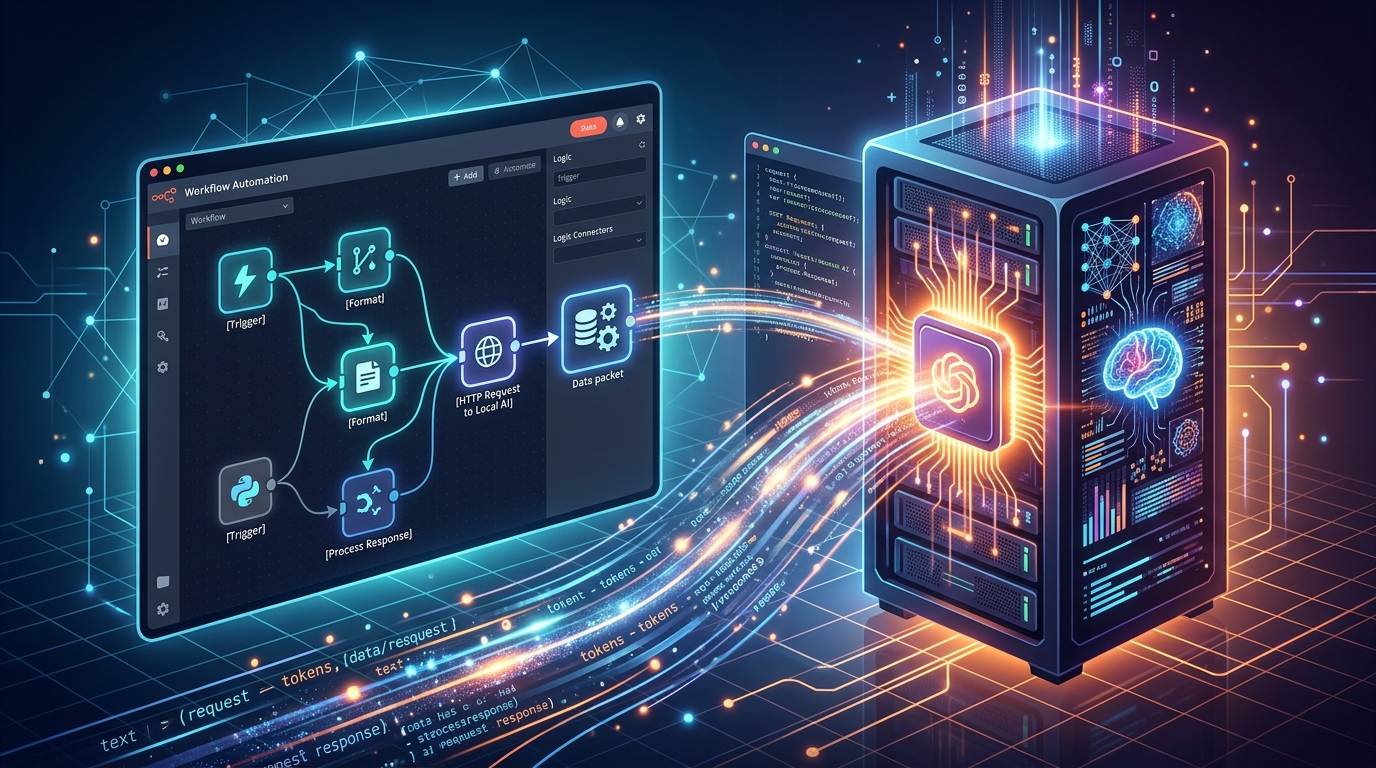
Configuring the n8n custom LLM node to connect to your local Ollama API endpoint.
Step 1: Install and Run Ollama for Local Inference
First, download and install Ollama on your system.
On Linux or macOS, run the installation script:
curl -fsSL https://ollama.com/install.sh | sh
For Windows, download the installer directly from the official Ollama download page. Once installed, launch the Ollama daemon and pull your preferred open-source model using the command line:
# Pull Llama 3 (8B model)
ollama pull llama3

# Verify model availability
ollama run llama3 "Hello, confirm you are running locally."
Ensure Ollama is actively listening on port 11434. By default, Ollama binds to 127.0.0.1:11434.
Step 2: Configure the Ollama API for n8n
If n8n is running in a Docker container while Ollama is running directly on the host machine, n8n will not be able to reach Ollama via http://localhost:11434 because localhost inside a Docker container refers to the container itself.
To allow Docker containers to access Ollama, set the OLLAMA_HOST environment variable to bind to 0.0.0.0:
# On Linux (Systemd environment variable)
sudo systemctl edit ollama.service

# Add the following lines:
[Service]
Environment="OLLAMA_HOST=0.0.0.0"
Restart the Ollama service to apply changes:
sudo systemctl daemon-reload
sudo systemctl restart ollama
When connecting from an n8n Docker container, use http://host.docker.internal:11434 as your Ollama API n8n base URL.
Step 3: Add the n8n Custom LLM Node
- Open your n8n dashboard and create a new workflow.
- Click + Add Node and search for Ollama Model under the AI / Language Model section (or select Ollama within the Advanced AI / Agent node setup).
- In the node configuration panel, click Create New Credential.
- Set the Host field to:
–http://localhost:11434(if running n8n directly on host OS)
–http://host.docker.internal:11434(if running n8n in Docker on Mac/Windows)
–http://172.17.0.1:11434or container gateway IP (if running n8n in Docker on Linux) - Under Model Name, enter the exact string of the model pulled earlier (e.g.,
llama3). - Click Test Connection to confirm n8n successfully reaches the Ollama API service.
A Practical Ollama n8n Example Workflow
To see this connection in action, let’s look at an Ollama n8n example workflow that automatically processes incoming customer feedback notes, extracts key sentiment categories, and formats the output into clean JSON.
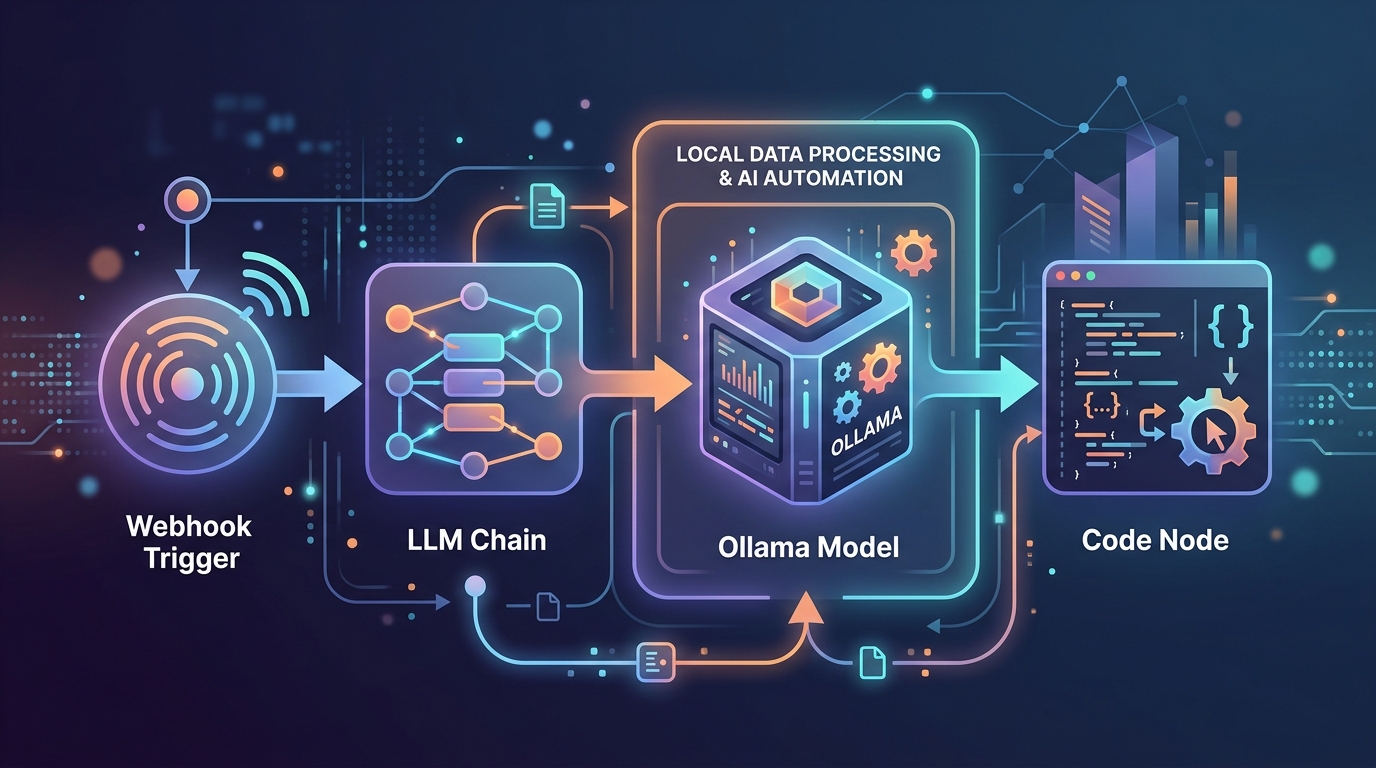
An example n8n workflow demonstrating fully local AI automation with Ollama for text classification.
Workflow Architecture:
- Webhook Trigger Node: Receives incoming support tickets or raw text submissions.
- Basic LLM Chain Node: Passes the incoming payload to the LLM node.
- Ollama Model Node: Connected to the LLM Chain, configured with
llama3. - Code Node (JSON Parser): Standardizes the AI output for downstream database storage.
Workflow Setup Details:
- Prompt Definition:
“`text
You are an internal data classification assistant. Analyze the following customer message and categorize its intent as ‘Bug Report’, ‘Feature Request’, or ‘General Question’. Return ONLY a raw JSON object with keys ‘category’ and ‘urgency_score’ (1-5).
Message: {{ $json.body.message }}
“`
– Execution Flow:
When a new HTTP request hits the webhook, n8n formats the prompt and sends it locally to Ollama. Ollama processes the context entirely within local VRAM, returning the JSON response in milliseconds.
This architectural setup demonstrates how teams can accomplish automated text classification without transmitting proprietary user data over the public internet. If you want to expand beyond basic linear chains into autonomous systems, explore our guide on building private AI agents in n8n.
Troubleshooting Your Integration
When configuring an n8n local model setup, you may encounter connectivity or memory allocation issues. Here is how to resolve the most common errors:
1. ECONNREFUSED / Connection Refused Errors
- Cause: n8n cannot reach the Ollama API port because Ollama is bound only to
127.0.0.1or firewall rules are blocking Docker cross-bridge communications. - Solution: Verify
OLLAMA_HOST=0.0.0.0is set. Test connectivity from inside the n8n container usingcurl http://host.docker.internal:11434/api/tags.
2. Slow Response Times (High Latency)
- Cause: Model inference is running entirely on system CPU due to unconfigured GPU acceleration or insufficient RAM.
- Solution: Verify CUDA drivers (for NVIDIA) or Metal acceleration (for macOS) are recognized by Ollama. Check GPU utilization via
nvidia-smiduring node execution.
3. Out of Memory (OOM) / Model Crashes
- Cause: The selected model requires more memory than available host VRAM/RAM.
- Solution: Switch to a smaller parameter count or quantized model (e.g.,
llama3:8b-instruct-q4_K_Minstead of FP16 models).
Understanding these infrastructure basics helps unlock the full benefits of local AI automation, ensuring operational continuity without relying on third-party cloud uptime. For more advanced implementations involving external context injection, check out our tutorial to build a local RAG workflow.
Frequently Asked Questions
Is Ollama completely free to use with n8n?
Yes. Both Ollama and n8n (Community Edition) can be hosted locally at zero software license cost. You only pay for the local hardware infrastructure required to run the models.
Can I run multiple local models simultaneously in n8n?
Yes. Ollama automatically loads and unloads models based on incoming n8n request demands. You can specify different model names (e.g., mistral for general chat, codellama for code parsing) across different nodes in the same n8n workflow.
Do I need an active internet connection to run this workflow?
No. Once you have installed n8n, Ollama, and downloaded your chosen model weights, the entire workflow operates completely offline without internet connectivity.
How does local model speed compare to OpenAI API calls?
Execution speed depends directly on your local hardware. On a modern GPU or Apple Silicon machine, small open-source models (7B–8B parameters) can process responses as fast as or faster than cloud APIs while eliminating network latency.