
Mastering Full Script Control Automation for Sysadmins
In the modern IT ecosystem, custom scripting is the ultimate tool for system administrators and DevOps engineers. Whether using PowerShell to manage Active Directory objects or leveraging Python to parse complex JSON log files and interact with local APIs, custom scripts provide granular control over host operating systems. (Active Directory) (PowerShell)
However, managing isolated scripts across multiple servers and workstations quickly creates operational maintainability challenges. Standard Task Scheduler jobs lack visibility, script chaining requires complex wrapper code, and cloud-based low-code orchestrators impose restrictive execution limits that handicap developer capability.
Achieving true operational efficiency requires full script control automation—a framework that combines the visual structure of modern workflow builders with unrestricted local execution of custom code. In this technical guide, we explore how to build a unified local script orchestrator on Windows using Python and PowerShell, design custom execution pipelines, and streamline operations without cloud dependencies. (Windows)
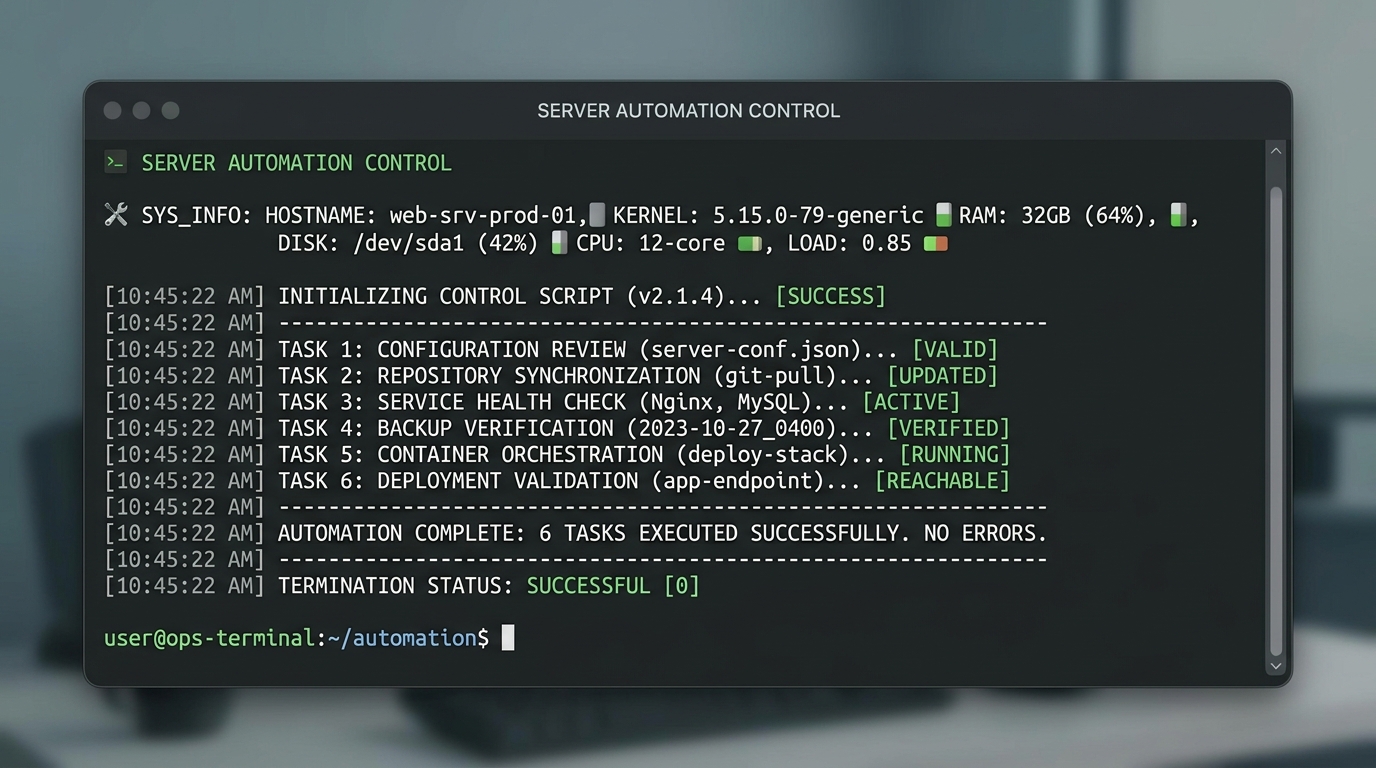
Terminal output showcasing the secure execution and results of full script control automation.
Why Advanced IT Needs Full Script Control Automation
Cloud-based low-code platforms market themselves on simplicity, but senior sysadmins and IT engineers frequently run into severe technical roadblocks when attempting to automate enterprise operations through visual drag-and-drop abstractions:
- Loss of Native System Interfaces: No-code platforms hide lower-level OS calls behind restricted web nodes. Tasks requiring raw socket manipulation, low-level registry edits, or custom DLL calls become impossible.
- Fragile Variable Handling: Passing complex data structures—such as nested dictionaries, binary streams, or custom PowerShell objects—between cloud steps often results in data truncation or serialization errors.
- Execution Limits and Cloud Timeouts: Web-based execution nodes enforce strict runtime caps (often 30 to 60 seconds). Long-running administrative processes, such as full system backups, mass log processing, or disk de-duplication, get forcibly terminated by cloud gateway timeouts.
- Data Leakage Risks: Transporting administrative scripts and infrastructure parameters across public cloud networks violates zero-trust security postures and strict compliance frameworks.
Full script control automation solves these friction points by keeping execution local, preserving native language capabilities, and allowing developers to write unconstrained logic while enjoying centralized visual management.
Building a Python Script Orchestrator on Windows
Python is the world’s most versatile language for data processing, system diagnostics, and API integration. To run a robust Python script orchestrator Windows environment, engineers must structure local scripts to output clean, structured data for downstream consumption.
Best Practices for Orchestrated Python Scripts
To ensure your Python scripts integrate cleanly into local workflow pipelines:
* Use Standard Output (stdout) for Data Exchange: Output structured JSON strings from Python so orchestrators can capture and deserialize output variables.
* Return Meaningful Exit Codes: Use sys.exit(0) for success and non-zero codes (e.g., sys.exit(1)) to signal specific failure states to the workflow engine.
* Accept Command-Line Arguments: Utilize argparse or sys.argv to accept dynamic inputs passed from preceding workflow steps.
Sample Modular Python Orchestration Script (audit_disk.py)
import sys
import json
import argparse
import shutil

def check_disk_space(path, threshold_percent):
    total, used, free = shutil.disk_usage(path)
    used_percent = (used / total) * 100

    result = {
        "drive": path,
        "total_gb": round(total / (1024**3), 2),
        "free_gb": round(free / (1024**3), 2),
        "used_percent": round(used_percent, 2),
        "alert": used_percent > threshold_percent
    }
    return result

if __name__ == "__main__":
    parser = argparse.ArgumentParser(description="Audit local disk space.")
    parser.add_argument("--drive", default="C:\\", help="Target drive path")
    parser.add_argument("--threshold", type=float, default=80.0, help="Alert threshold percentage")

    args = parser.parse_args()

    try:
        data = check_disk_space(args.drive, args.threshold)
        # Print JSON output to stdout for the orchestrator to capture
        print(json.dumps(data))

        if data["alert"]:
            # Non-zero exit code signals warning state to orchestrator
            sys.exit(2)
        else:
            sys.exit(0)

    except Exception as e:
        error_output = {"error": str(e), "status": "FAILED"}
        print(json.dumps(error_output), file=sys.stderr)
        sys.exit(1)
Setting Up a PowerShell Automation Tool Locally
PowerShell is the gold standard for native Windows administration. When constructing a PowerShell automation tool local execution pipeline, IT teams leverage PowerShell’s object-oriented pipeline to handle administrative tasks efficiently.
Sample PowerShell Service Handler (Manage-WinService.ps1)
[CmdletBinding()]
param (
    [Parameter(Mandatory=$true)]
    [string]$ServiceName,

    [Parameter(Mandatory=$false)]
    [string]$Action = "Status"
)

$ErrorActionPreference = "Stop"

try {
    $service = Get-Service -Name $ServiceName -ErrorAction Stop

    switch ($Action.ToLower()) {
        "status" {
            $output = @{
                ServiceName = $service.Name
                DisplayName = $service.DisplayName
                Status      = $service.Status.ToString()
                StartType   = $service.StartType.ToString()
            }
            Write-Output ($output | ConvertTo-Json -Compress)
            exit 0
        }
        "restart" {
            Restart-Service -Name $ServiceName -Force
            $output = @{
                ServiceName = $service.Name
                Status      = "Restarted"
                Timestamp   = (Get-Date).ToString("o")
            }
            Write-Output ($output | ConvertTo-Json -Compress)
            exit 0
        }
        default {
            throw "Invalid action specified: $Action"
        }
    }
}
catch {
    $errorObj = @{
        Error = $_.Exception.Message
        TargetService = $ServiceName
    }
    Write-Error ($errorObj | ConvertTo-Json -Compress)
    exit 1
}
Designing a Custom Script Execution Workflow
Combining separate scripts into a cohesive script execution workflow allows sysadmins to execute multi-tier operational procedures automatically.
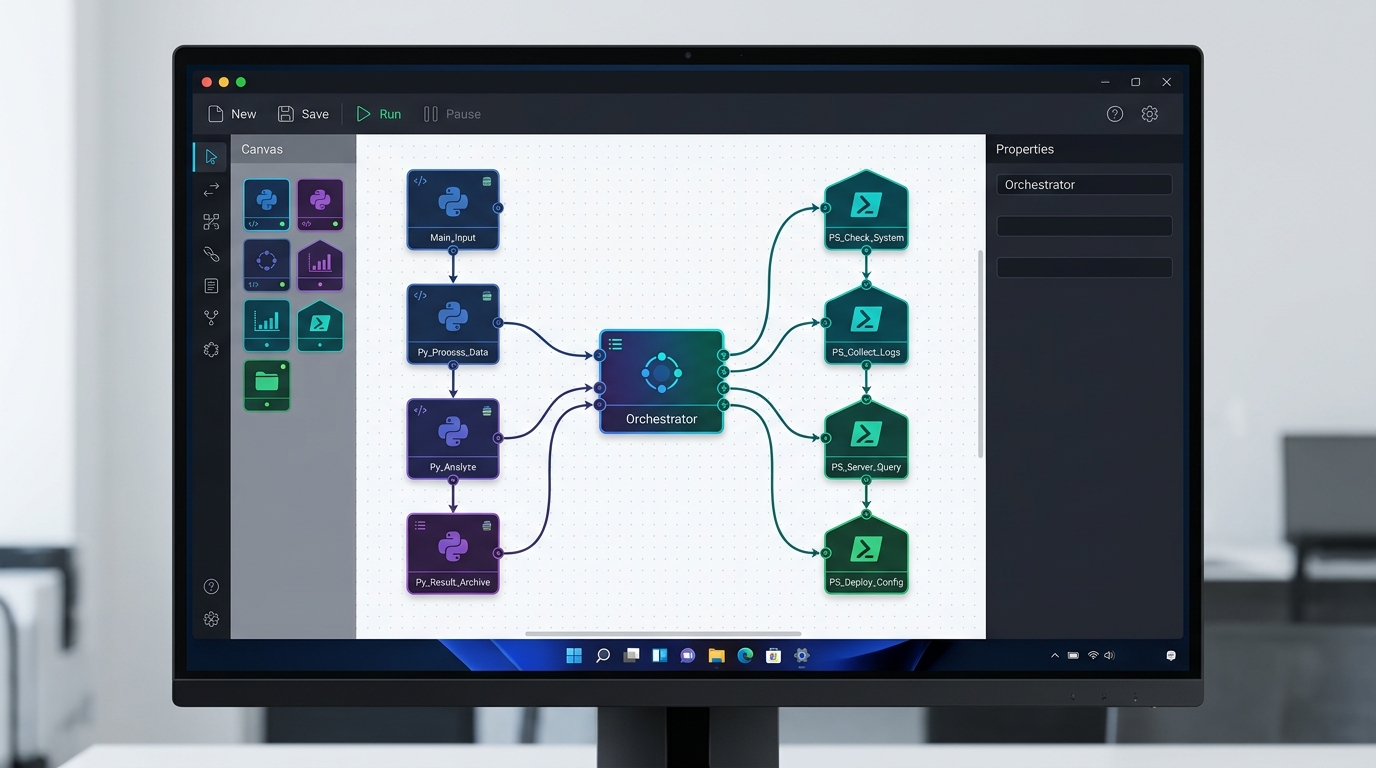
An illustrative local workflow builder interface, demonstrating the visual management of a Python script orchestrator.
Consider a typical IT incident response sequence:
1. Trigger: A scheduled timer or local file monitor detects high server disk pressure.
2. Step 1 (Python): audit_disk.py executes locally to identify which drive partition exceeds capacity and returns structured JSON metrics.
3. Step 2 (Conditional Branching): If alert == true, the workflow engine evaluates the JSON payload and routes execution to Step 3.
4. Step 3 (PowerShell): Manage-WinService.ps1 runs with administrator privileges to stop temporary log generation services and flush local cache directories.
5. Step 4 (Python Notification): A lightweight notification script executes locally to log the cleanup action into local audit files.
Because every step runs locally on the host machine, the entire multi-script sequence completes in milliseconds, with zero exposure of infrastructure details to external cloud networks.
Using a Local Workflow Builder
While writing custom master scripts to invoke other sub-scripts is possible, it creates maintenance debt. A dedicated local workflow builder provides a visual management canvas while preserving underlying script control.
By deploying specialized Windows automation software, engineering teams gain essential orchestration capabilities:
- Visual Node Mapping: Chain Python scripts, PowerShell modules, and system binaries visually without writing fragile wrapper code.
- Variable Passing & Extraction: Automatically parse stdout JSON payloads from Python and assign parameters directly to PowerShell parameters.
- Error Handling & Retries: Configure automatic retry attempts, fallback branches, and desktop notifications when scripts throw error exit codes.
- Local Audit Logging: Maintain persistent, detailed execution logs on local disk for compliance and debugging.
Using a local orchestrator eliminates the chaos of unmanaged scheduled tasks and elevates standalone scripts into robust enterprise utilities. To learn how to structure your environment for local application development, explore our guide to local internal tool development.
Ready to unify your custom scripts under a powerful local execution engine? Take full control of your infrastructure and install Nora today.
Frequently Asked Questions
What is full script control automation?
Full script control automation is an orchestration methodology that allows developers and sysadmins to build visual workflows while executing native, unconstrained code (Python, PowerShell, Bash) directly on host operating systems without cloud abstractions or platform limits.
How does a Python script orchestrator communicate with PowerShell scripts?
Local script orchestrators like Nora capture standard output (stdout) from Python scripts—typically structured as JSON—parse the output values in memory, and bind those variables directly to parameters in subsequent PowerShell script steps.
Why use a local workflow builder instead of Windows Task Scheduler?
While Windows Task Scheduler can trigger individual scripts at set times, it lacks workflow visual management, variable passing between scripts, conditional branching, real-time visual monitoring, and sophisticated error recovery mechanisms.
Does full script control work in air-gapped environments?
Yes. Because local workflow orchestrators execute scripts directly via local OS interpreters (e.g., python.exe or powershell.exe), the entire workflow runs completely offline without requiring internet access or cloud API tokens.