
The Best Local LLM Platform for Beginners
Artificial intelligence has reached a pivotal milestone in 2026. You no longer need to depend on proprietary cloud platforms or pay monthly subscription fees to interact with powerful Large Language Models (LLMs). Today, open-weight models can run directly on your personal computer—offering complete data privacy, offline functionality, and unlimited usage.
However, entering the world of local AI can feel daunting for newcomers. Faced with technical jargon like “quantization,” “GGUF,” “CUDA layers,” and “temperature parameters,” many users experience severe decision paralysis. Choosing the right software application from the outset is the single most important factor in ensuring a smooth experience.
This beginner local LLM setup guide simplifies the process. We will explore what makes a tool user-friendly, explain how to choose local LLM models tailored to your computer, and provide a clear step-by-step tutorial to get your first local AI running in under ten minutes.
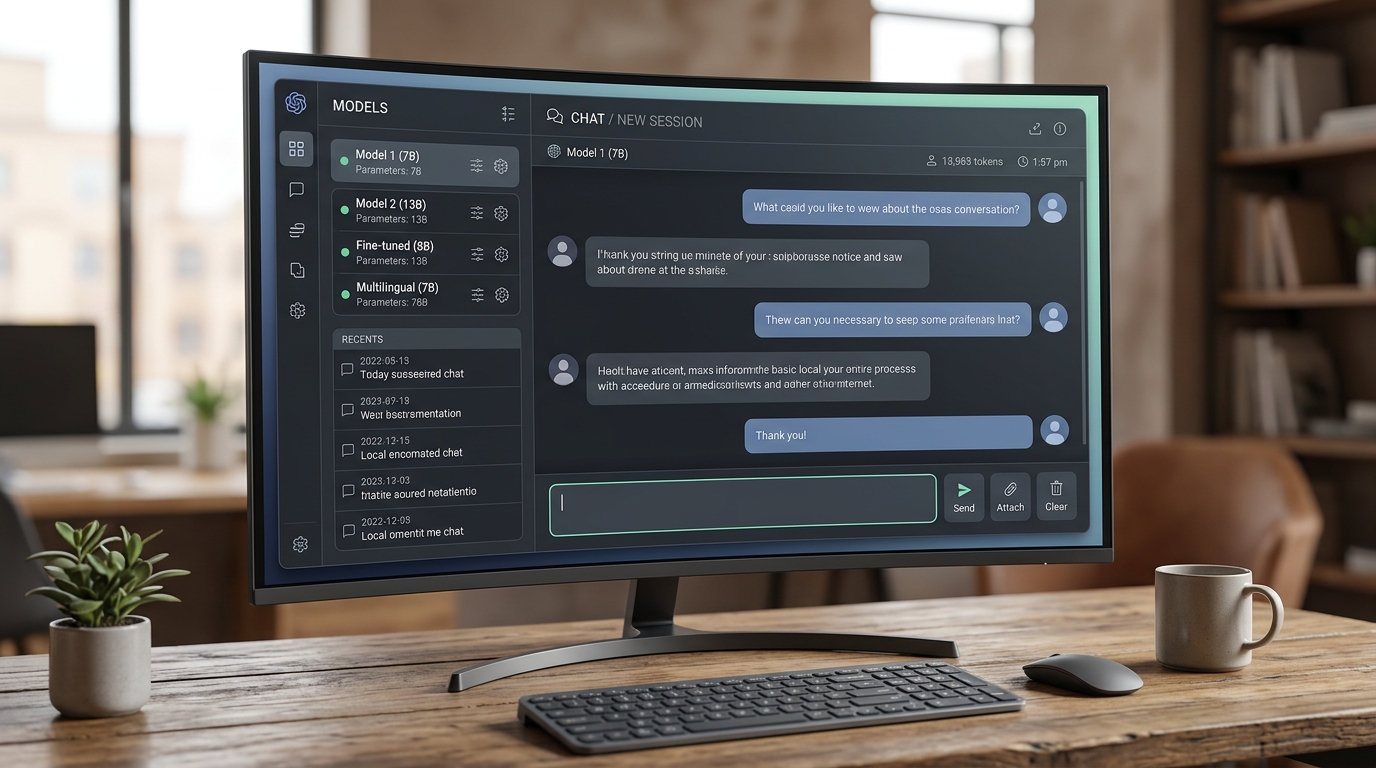
A clean, intuitive interface is crucial for beginners interacting with local LLMs.
What Makes a Platform the Easiest Local LLM to Use?
When evaluating software as a local LLM for beginners, complex technical capabilities are far less important than intuitive design and accessibility. The easiest local LLM to use must eliminate technical friction so you can focus on chatting, writing, and analyzing data.
To qualify as the best local LLM platform for beginners, a software application should satisfy four core requirements:
- Intuitive Graphical User Interface (GUI): A clean desktop window with familiar chat threads, prompt boxes, and conversation history—eliminating the need to run terminal commands or manage code scripts.
- Integrated Model Discovery: Built-in search features that allow you to browse, search, and download popular open-source models directly within the app without manually downloading files from external websites.
- Automatic Hardware Detection: Intelligent software that scans your computer’s RAM, CPU cores, and GPU capacity, automatically recommending model sizes that your machine can handle safely.
- Zero-Configuration Defaults: Optimized default settings out of the box so you can start chatting immediately without adjusting complex sampler or tensor settings.
Platforms like LM Studio and Jan.ai excel in these categories, making them the top recommendations for first-time users over command-line tools.
How to Choose a Local LLM
Before installing software, it helps to understand what a “local LLM” actually is. A local LLM consists of two main parts: the software engine (the application interface) and the model weights (the actual AI “brain” file containing trained knowledge).
When choosing which local LLM to start with, you will encounter three critical concepts:
1. Model Families
Open-weight models are developed by research groups and tech companies, then released to the public. Top choices in 2026 include:
* Llama 3 Series (Meta): Exceptional overall reasoning, instruction following, and general knowledge.
* Mistral / Mixtral (Mistral AI): Highly efficient models offering fast generation speeds and strong logical reasoning.
* Gemma Series (Google): Lightweight, high-performing models optimized for creative writing and concise responses.
* Qwen Series (Alibaba Cloud): World-class performance in coding tasks, mathematical problem-solving, and multilingual queries.
2. Parameter Size
Model sizes are measured in billions of parameters (e.g., 3B, 7B/8B, 14B, 70B). More parameters generally mean higher intelligence and broader knowledge, but require significantly more hardware memory (RAM/VRAM):
* 3B – 5B Parameters: Ideal for older laptops, low-spec desktops, or systems with 8GB RAM. Fast, but with simpler reasoning.
* 7B – 8B Parameters: The “sweet spot” for desktop local AI. Delivers excellent intelligence while running smoothly on systems with 16GB RAM.
* 14B – 32B Parameters: High-intelligence models requiring 32GB+ RAM or dedicated GPUs with ample VRAM.
3. Quantization (GGUF Format)
To run large models on personal computers, developers use a compression technique called quantization. Quantized models (usually saved in the .gguf file format) compress model weights from 16-bit precision down to 4-bit or 8-bit precision. For beginners, selecting a 4-bit quantized model (labeled as Q4_K_M or 4-bit) offers the perfect balance between high intelligence and fast performance.
Step-by-Step Beginner Local LLM Setup Guide
Follow this simple tutorial to set up your first local AI platform today.
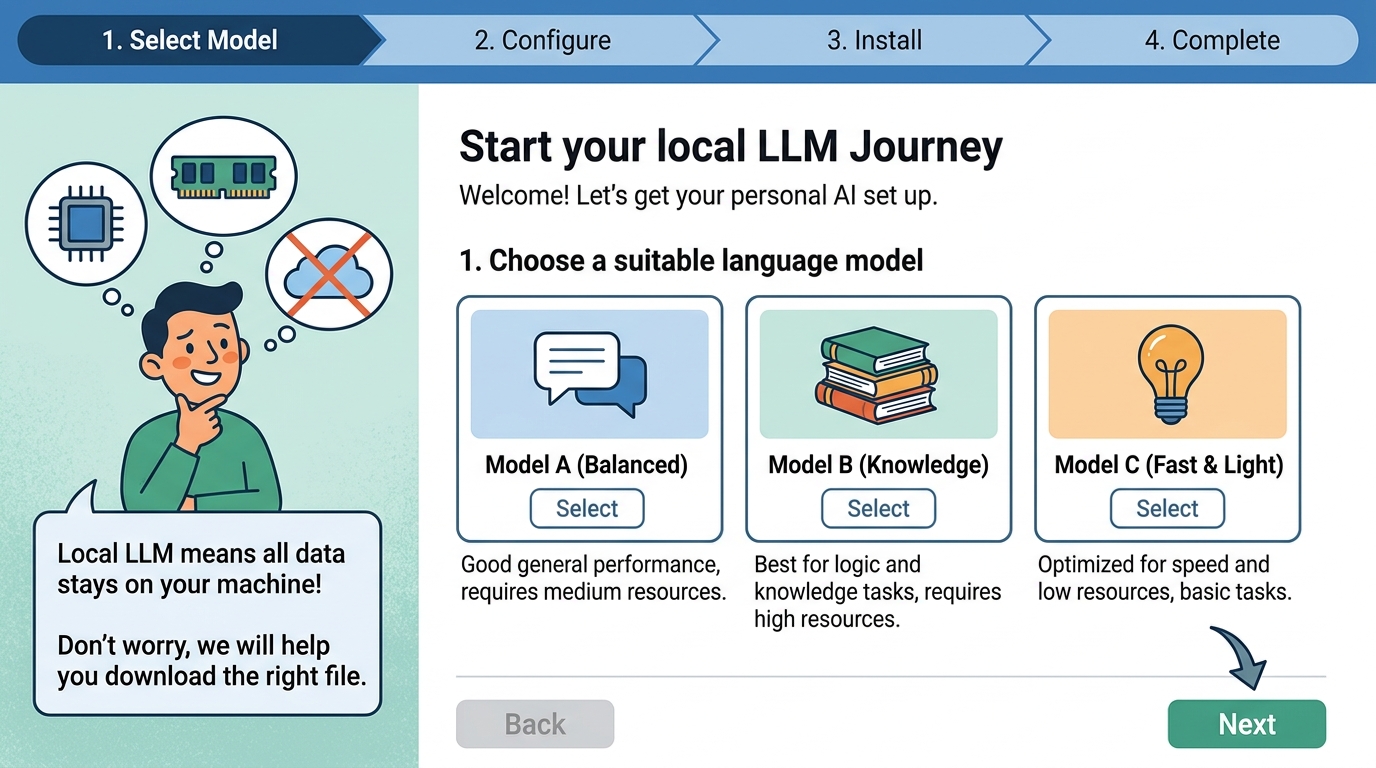
Setting up your first local LLM can be straightforward with the right platform.
Step 1: Checking Your Hardware
First, verify your computer’s specifications to ensure smooth model execution:
- Basic Laptop / Desktop (8GB RAM): Capable of running lightweight 3B models smoothly.
- Mid-Range Workstation (16GB RAM / Apple Silicon M-Series / Dedicated GPU with 6GB+ VRAM): Capable of running popular 7B/8B models at fast speeds.
- High-End System (32GB+ RAM / Dedicated GPU with 12GB+ VRAM): Capable of running 14B to 32B models effortlessly.
If your computer lacks a dedicated graphics card, do not worry—you can still run optimized models using your CPU. Review our dedicated guide on hardware requirements without GPU to optimize performance on budget hardware.
Step 2: Downloading the Software
For absolute beginners, we recommend installing LM Studio or Jan.ai:
- Visit the official website for your chosen application (e.g., LM Studio or Jan.ai).
- Download the installer matching your operating system (macOS, Windows, or Linux).
- Open the installer and follow the standard installation prompts. No extra dependencies or command-line steps are required.
Step 3: Running Your First Model
Once your software is launched, follow these simple steps to run your first model:
- Search for a Model: Click the Search or Discover tab inside the application. Type
Llama 3.2 3BorMistral 7Binto the search bar. - Select a Quantization: Look for the download options on the right pane. Select the recommended
4-bit(Q4_K_M) version. - Download: Click Download. The application will fetch the model file directly into your local storage.
- Start a Chat Thread: Navigate to the Chat tab, select your downloaded model from the top dropdown menu, and type a prompt such as: “Hello! Explain quantum computing in three simple bullet points.”
Within seconds, your computer will process the request and stream responses locally—completely offline, with total privacy!
As you become comfortable with basic prompting, you can compare detailed performance metrics across tools by exploring our local LLM software comparison. If you appreciate how open technology empowers personal ownership, you can also learn more about the broader open source LLM ecosystem.
FAQ
Which local LLM to start with?
For first-time users, the best model to start with is Llama 3.2 3B or Meta Llama 3 8B (in 4-bit GGUF quantization format). These models offer exceptional general knowledge, fast response speeds, and reliable reasoning while remaining lightweight enough to run smoothly on standard laptops and desktops with 8GB to 16GB of RAM.
How do I setup a local LLM for beginners?
Setting up a local LLM as a beginner involves three quick steps:
1. Download an intuitive desktop platform like LM Studio or Jan.ai.
2. Open the application’s built-in model search bar and search for a lightweight model (such as Llama 3.2 3B or Mistral 7B Q4_K_M).
3. Click Download, navigate to the Chat window, select your model, and begin typing your prompts immediately. No programming knowledge or command line configuration is required.