
Running a Local LLM Without GPU: Complete OS Guide
A common misconception in artificial intelligence is that executing Large Language Models (LLMs) requires thousands of dollars in high-end graphics processing units (GPUs). While dedicated enterprise GPUs speed up training and massive parallel processing, the modern local AI ecosystem has made incredible strides in CPU-based inference.
In 2026, you do not need an expensive gaming rig or server setup to run capable AI models locally. Thanks to open-source breakthroughs in CPU acceleration and efficient quantization formats, standard laptops and desktop workstations can run feature-rich language models smoothly using system RAM and CPU processing alone.
This guide provides a comprehensive walkthrough on how to configure, optimize, and execute a local LLM without GPU hardware on both macOS and Windows systems.
Can You Run a Local LLM Without GPU?
The short answer is yes, absolutely. Running local AI on standard Central Processing Units (CPUs) became widely accessible following the release of llama.cpp—an open-source C/C++ engine specifically engineered for fast LLM inference on standard computer hardware with minimal dependencies. (llama.cpp)
How CPU Inference Works
Standard cloud AI models run on uncompressed floating-point weights (16-bit or 32-bit precision), requiring dozens of gigabytes of high-bandwidth Video RAM (VRAM). However, CPU-based execution relies on two critical technologies:
- GGUF Quantization: Model files are compressed into GGUF format, reducing weight precision down to 4-bit or 8-bit integer formats. (GGUF format) This shrinks file sizes by 70% or more, allowing 7B and 8B parameter models to fit easily within standard 8GB or 16GB system RAM buffers.
- SIMD CPU Acceleration: Modern CPUs leverage Advanced Vector Extensions (AVX2, AVX-512 on x86 Windows machines) or ARM NEON instructions (on Apple Silicon) to process mathematical tensor calculations directly across CPU cores.
While CPU token generation speeds (measured in tokens per second) are generally slower than dedicated GPU execution, CPU inference is fast enough for real-time chat, drafting documents, coding assistance, and offline data analysis.
Which Local LLM is Best for Mac?
Apple’s transition to Apple Silicon (M1, M2, M3, and M4 chips) revolutionized desktop local AI execution. If you are searching for the ideal local LLM for Mac, Apple hardware possesses a distinct structural advantage known as Unified Memory Architecture (UMA).

Modern macOS systems can efficiently run local LLMs using only the CPU and unified memory, leveraging Apple Silicon’s architecture.
Optimizing for Apple Silicon (M1/M2/M3)
On standard Windows desktops, CPU RAM and GPU VRAM are isolated from one another. On Apple Silicon Macs, the CPU, GPU, and Neural Engine share a single high-speed pool of Unified Memory. This means the entire system RAM pool can be accessed directly by Apple’s Metal graphics API at high bandwidths—without needing a discrete graphics card!
To achieve maximum performance on macOS:
- Use Native ARM64 Builds: Ensure you download Apple Silicon native versions of desktop software like Ollama, LM Studio, or Jan.ai. Running Intel x86 builds via Rosetta translation introduces severe performance degradation.
- Leverage Metal Acceleration: Modern local LLM applications automatically leverage Apple Metal to offload matrix multiplication tasks directly to integrated GPU cores built into M-series chips.
- Choose Optimal Model Sizes:
- 8GB Unified Memory: Run 1B to 3B parameter models (e.g., Llama 3.2 3B, Qwen 2.5 3B).
- 16GB Unified Memory: Run 7B to 8B parameter models in 4-bit quantization (e.g., Llama 3 8B, Mistral 7B).
- 36GB+ Unified Memory: Run 14B to 32B parameter models smoothly.
If you are new to local software installation on Mac, follow our step-by-step beginner local LLM setup guide for a seamless walkthrough.
Which Local LLM is Best for Windows?
Running CPU-only local models on Windows computers requires paying close attention to hardware configuration, specifically system RAM speed and thread allocation. Finding the right local LLM for Windows involves matching your CPU’s instruction set with optimized software engines.
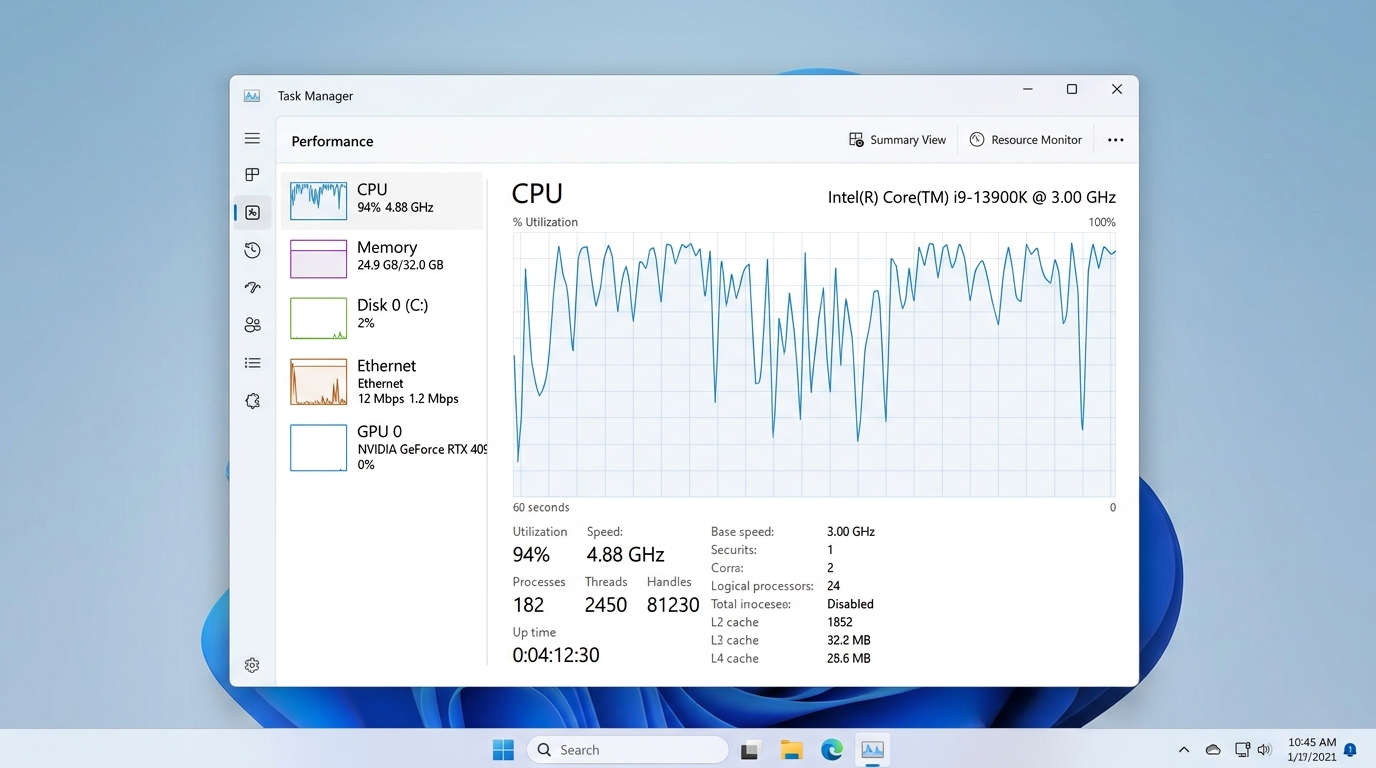
Monitoring CPU and RAM usage in Windows Task Manager confirms that local LLMs can run effectively without a dedicated GPU.
Running CPU-Only Models Effectively
When running local models without a dedicated NVIDIA or AMD GPU on Windows, your performance bottleneck is system memory bandwidth (DDR4 vs. DDR5 RAM speed):
- Dual-Channel Memory: Running two identical RAM sticks in dual-channel configuration nearly doubles memory bandwidth compared to a single RAM stick, resulting in a dramatic boost in token generation speed.
- CPU Thread Configuration: Software backends like
llama.cppand Ollama allow you to specify the number of CPU threads used for generation. For best performance, set the thread count equal to your CPU’s physical core count (rather than total logical threads) to avoid thread contention. - Software Recommendations:
* Ollama: Provides a lightweight Windows executable that automatically detects AVX2 CPU instructions for fast command-line and background API execution.
* LM Studio for Windows: Offers visual controls where you can manually adjust CPU thread limits and system RAM buffer caps.
* KoboldCPP: A standalone Windows.exebackend that offers exceptional low-memory optimization for older Windows systems.
To discover how various Windows desktop runners handle low-spec hardware overhead, review our full guide to compare hardware efficiency across platforms.
Best Practices for Low-Spec Hardware
If you are running on an older computer or a basic ultrabook with limited system memory, applying these low-spec optimization strategies will ensure a smooth experience:
- Select Ultra-Compact Parameter Sizes: Choose 1B to 3B parameter models designed specifically for resource-constrained hardware, such as Llama 3.2 (1B & 3B), Qwen 2.5 (1.5B & 3B), or Phi-3 Mini (3.8B).
- Opt for High Quantization Compression: Use 3-bit (
Q3_K_M) or 4-bit (Q4_K_M) quantized GGUF files to reduce memory pressure by hundreds of megabytes. - Restrict Context Window Size: Large context windows consume significant RAM. Set your default context window to 2048 or 4096 tokens in your software settings to prevent out-of-memory errors.
- Close Memory-Intensive Background Apps: Close memory-heavy applications like web browsers, video streaming apps, and IDEs before launching your local AI runner to free up maximum RAM.
By pairing lightweight open source LLM models with optimized CPU engines, you can unlock fast, reliable, private local AI without spending money on hardware upgrades.
FAQ
How to run a local LLM without GPU?
To run a local LLM without a dedicated GPU:
1. Download a modern local AI runner that supports CPU inference, such as Ollama, LM Studio, or Jan.ai.
2. Select a lightweight model in GGUF format (such as Llama 3.2 3B or Qwen 2.5 3B with 4-bit Q4_K_M quantization).
3. Ensure your software is configured to utilize native CPU instruction sets (AVX2 on Windows or Metal on Apple Silicon Macs).
4. Lower the context window size to 2048 or 4096 tokens to conserve RAM, and launch your chat thread. The model will run entirely using your CPU cores and system RAM.