
Complete Guide to Running Ollama Without a GPU on Linux
You don’t need a $2,000 graphics card to run a local LLM. If you manage Linux infrastructure, there’s a good chance you already have spare compute sitting in a rack or a VM cluster that can serve a quantized language model well enough for real ops work — log summarization, script generation, config explanation — without a single CUDA core in sight.
This guide walks through a complete Ollama CPU-only Linux setup for 2026: what’s realistic on CPU, how much RAM you actually need, the exact install commands, and the flags and environment variables that squeeze the most tokens per second out of a no-GPU box.
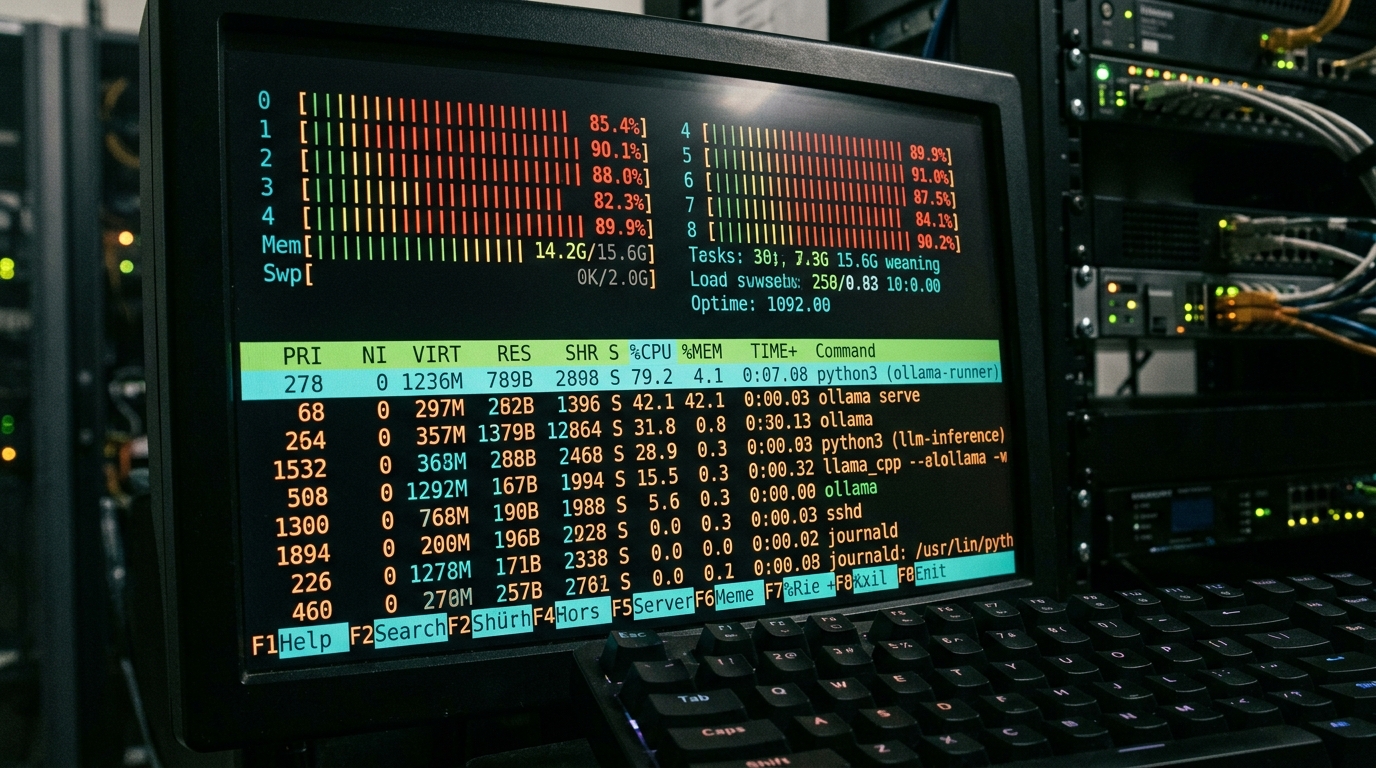
Monitoring CPU usage with htop while Ollama performs inference on a Linux server without a GPU.
Can You Run a Local LLM on a No-GPU Server?
Short answer: yes. Ollama runs on plain CPUs out of the box. It’s built on top of the llama.cpp inference engine, which was designed from day one to run quantized models efficiently on commodity hardware. When Ollama starts and detects no compatible GPU, it silently falls back to CPU inference — no special build, no configuration flag required.
The honest caveat: CPU inference is slower than GPU inference, often dramatically so for larger models. But “slower” doesn’t mean “useless.” For the tasks a pragmatic sysadmin actually cares about — summarizing a journalctl dump, drafting a bash script, explaining a gnarly regex — a 7B or 8B parameter model on a modern CPU produces output at a perfectly workable pace. You’re not serving a thousand concurrent chat users; you’re running batch and interactive ops tasks on a local LLM no-GPU server.
Understanding CPU vs. GPU Inference
The performance difference comes down to memory bandwidth and parallelism:
- GPU inference loads model weights into VRAM and executes thousands of matrix operations in parallel. Token generation speed is primarily limited by VRAM bandwidth.
- CPU inference keeps weights in system RAM and uses vectorized instructions (AVX2, AVX-512, or NEON on ARM) across your available cores. Token generation is primarily limited by RAM bandwidth, not raw core count.
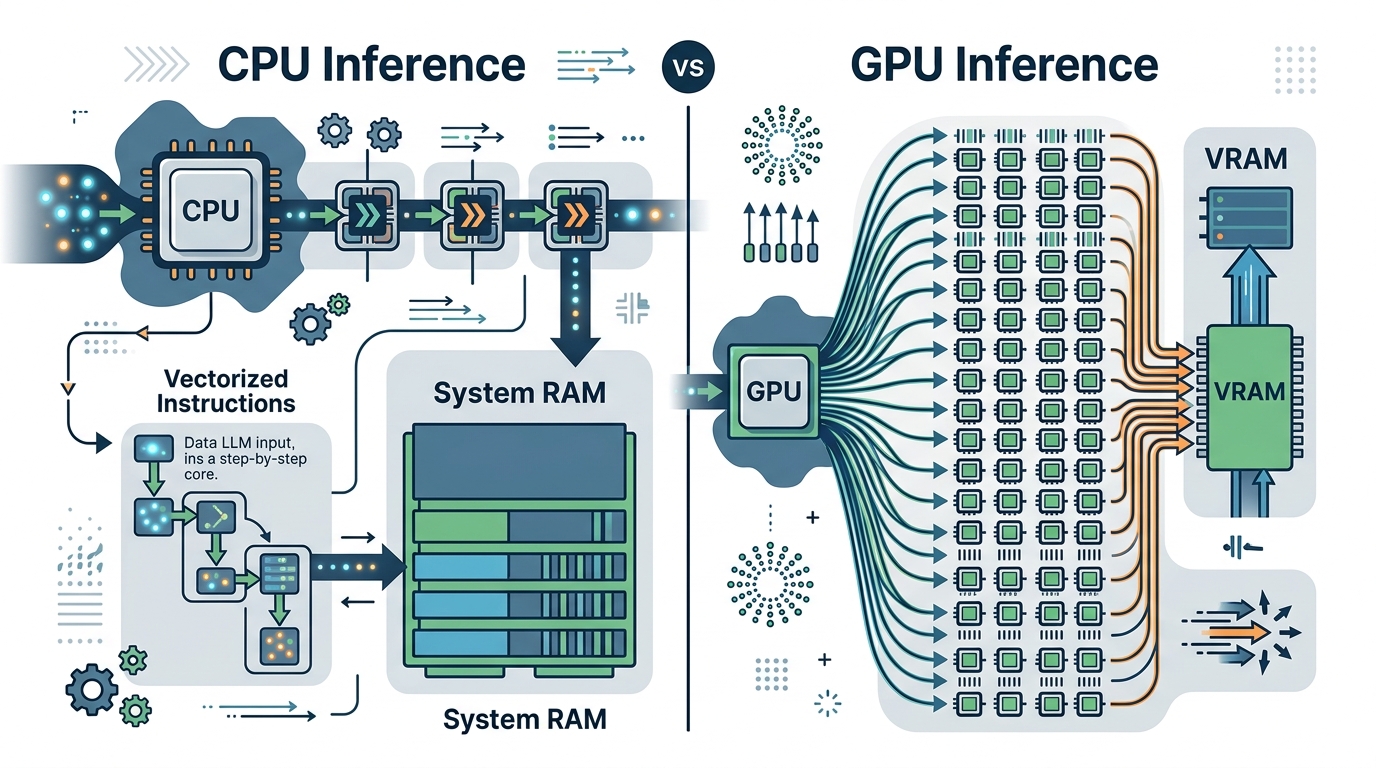
A conceptual diagram illustrating the fundamental differences in memory bandwidth and parallelism between CPU and GPU inference for local LLM workloads.
Practical implications for your hardware selection:
- Memory bandwidth matters more than clock speed. A server with multi-channel DDR5 will outperform a higher-clocked desktop chip with two channels of DDR4.
- Quantization is your best friend. A 4-bit quantized model (Q4_K_M is the common default in Ollama’s library) cuts memory requirements roughly by a factor of four versus FP16, with modest quality loss for ops tasks.
- More cores help — up to a point. Beyond the number of physical cores, hyperthreads typically add little and can even hurt throughput.
How Much CPU and RAM Does Ollama Use?
Ollama resource usage (CPU and RAM) is dominated by one thing: the size of the quantized model file, which gets loaded into RAM. A useful rule of thumb is that you need the model’s file size plus headroom for the context window and the OS.
Rough planning figures for common 4-bit quantized models:
| Model class | Typical quantized size | Recommended system RAM |
|---|---|---|
| 3B–4B (e.g., small Gemma/LLaMA variants) | ~2–3 GB | 8 GB |
| 7B–8B (Mistral 7B, LLaMA 8B class) | ~4–5 GB | 16 GB |
| 13B class | ~8 GB | 16–32 GB |
| 30B+ class | ~20 GB+ | 64 GB+ (not recommended on CPU) |
CPU-wise, Ollama will use as many threads as it thinks is optimal, which usually saturates your physical cores during generation. On a shared host, plan to cap it (covered below) so inference doesn’t starve your other services.
Minimum Specs for LLaMA and Mistral on CPU
A realistic minimum configuration for a usable experience with a 7B/8B class model:
- CPU: 4+ physical cores with AVX2 support (any server or desktop chip from roughly the last decade; AVX-512 or newer AMX-capable chips are a bonus)
- RAM: 16 GB (8 GB works for 3B–4B models)
- Disk: 20–50 GB free for model storage under
/usr/share/ollama/.ollama/models(or your configured path) - OS: Any modern Linux distribution; Ubuntu 22.04/24.04 and Debian 12 are the most battle-tested
If you’re deciding between model families for CPU work, see our ops CPU benchmarks comparing Gemma, Mistral, and LLaMA on identical no-GPU hardware.
Step-by-Step: Ollama CPU-Only Linux Setup (2026)
Here’s the full install on a headless server. Everything below is CLI-only — no desktop environment required.
Installing Ollama on Ubuntu/Debian
1. Install via the official script:
curl -fsSL https://ollama.com/install.sh | sh
The installer detects the absence of a GPU and installs the CPU build. If you prefer to inspect before you execute (you should), download the script first and review it.
2. Verify the service is running:
systemctl status ollama
The installer creates a systemd unit that listens on 127.0.0.1:11434 by default.
3. (Optional) Expose the API to your LAN:
sudo systemctl edit ollama
Add:
[Service]
Environment="OLLAMA_HOST=0.0.0.0:11434"
Then reload and restart:
sudo systemctl daemon-reload
sudo systemctl restart ollama
Only do this behind a firewall — the Ollama API has no built-in authentication. If you’re deploying inside a restricted enterprise network, read our guide on running a local LLM behind a corporate firewall before opening any ports.
Downloading and Running Your First Model
4. Pull a CPU-friendly model:
ollama pull llama3.2:3b
For a stronger general model on a 16 GB box:
ollama pull mistral:7b
5. Run an interactive session:
ollama run mistral:7b
6. Or hit the API — the way you’ll actually use it in scripts:
curl http://localhost:11434/api/generate -d '{
  "model": "mistral:7b",
  "prompt": "Explain this cron entry: 0 3 * * 1 /opt/backup.sh",
  "stream": false
}'
That’s the whole setup. From bare server to working local LLM in under ten minutes, most of which is download time.
Optimizing CPU Inference Performance
Once it works, make it work well:
- Pin the thread count to physical cores. Set
OLLAMA_NUM_THREADS(or passnum_threadin the API options) to your physical core count. Letting inference spill onto hyperthreads rarely helps. - Choose quantization deliberately. Q4_K_M is the balanced default. Q5/Q6 variants improve quality at the cost of RAM and speed; Q3 saves memory but degrades output noticeably for structured tasks like YAML generation.
- Keep the model loaded. Set
OLLAMA_KEEP_ALIVE=24hto avoid reload latency between requests on a dedicated inference box. On shared hosts, use a shorter value to release RAM. - Limit parallel requests.
OLLAMA_NUM_PARALLEL=1prevents concurrent requests from thrashing your memory bandwidth. - Right-size the context window. Large contexts consume additional RAM and slow prompt processing. If you’re summarizing short log excerpts, you don’t need a 32k context.
- Watch memory pressure, not just CPU. If the model plus context exceeds free RAM and the box starts swapping, throughput falls off a cliff.
htopandfree -hare your first diagnostics.
If you want a GUI-driven alternative for workstation use, or you’re evaluating tooling for your team, compare Ollama with LM Studio — the short version is that Ollama wins on headless servers, but the comparison is worth reading before you standardize.
FAQ
Can Ollama run without a GPU at all?
Yes. Ollama automatically falls back to CPU inference when no supported GPU is detected. No special configuration is required — the standard Linux install works on CPU-only machines out of the box.
How much RAM do I need to run Ollama on CPU?
Plan for the quantized model size plus overhead: about 8 GB of system RAM for 3B–4B models and 16 GB for 7B–8B models like Mistral 7B. If the model doesn’t fit in free RAM, performance degrades severely due to swapping.
Is CPU inference fast enough for real work?
For single-user ops tasks — log summarization, script drafting, config explanation — yes. A 7B quantized model on a modern multi-core CPU generates text at an interactive pace. It is not suitable for high-concurrency serving.
Which model should I run on a CPU-only server?
Smaller quantized models (3B–8B) are the sweet spot. See our ops CPU benchmarks for a task-by-task comparison of Gemma, Mistral, and LLaMA on no-GPU hardware.
Does Ollama work on a headless server with no desktop?
Yes — Ollama is CLI- and API-first, which makes it ideal for headless Linux servers. Everything in this guide was done over SSH.