
Local LLM Running Slow? A Complete Troubleshooting Guide
Running large language models locally offers unprecedented privacy, customizability, and offline availability. However, nothing halts productivity faster than a local LLM running slow. When token output crawls at a sluggish 1 to 3 tokens per second, interactive code completion, conversational chat, and local workflow automation become virtually unusable.
If you are experiencing severe performance degradation or high latency with local AI models, this comprehensive troubleshooting guide will help you isolate the root cause, verify system utilization, and execute actionable fixes to restore high-speed inference.
The Frustration of Local LLM Lag
Transitioning from cloud-based AI endpoints to a local environment often presents a stark performance contrast. Cloud providers deploy high-bandwidth Enterprise A100 or H100 GPU clusters, whereas local setups rely on consumer system memory, PCIe bus limits, and standard graphics hardware.
When experiencing fix local LLM lag problems, developers and power users typically encounter three primary friction points:
– Interactive Stutter: High time-to-first-token (TTFT) delay where prompt evaluation takes 15 to 30 seconds before any text generates.
– Low Generation Throughput: Token streaming so slow that reading speed easily surpasses output generation.
– System Unresponsiveness: General OS stuttering, high fan speeds, and memory exhaustion while the model attempts to generate a response.
Resolving a slow response local LLM requires systematically investigating hardware utilization, driver configurations, and runtime settings.
Why Is My Local LLM Running Slow? Common Causes
To understand why is my local LLM so slow, you must look at how local inference engines evaluate transformer layers. Token generation is heavily memory-bandwidth bound. If data cannot travel from memory to processing cores fast enough, inference speeds crash.
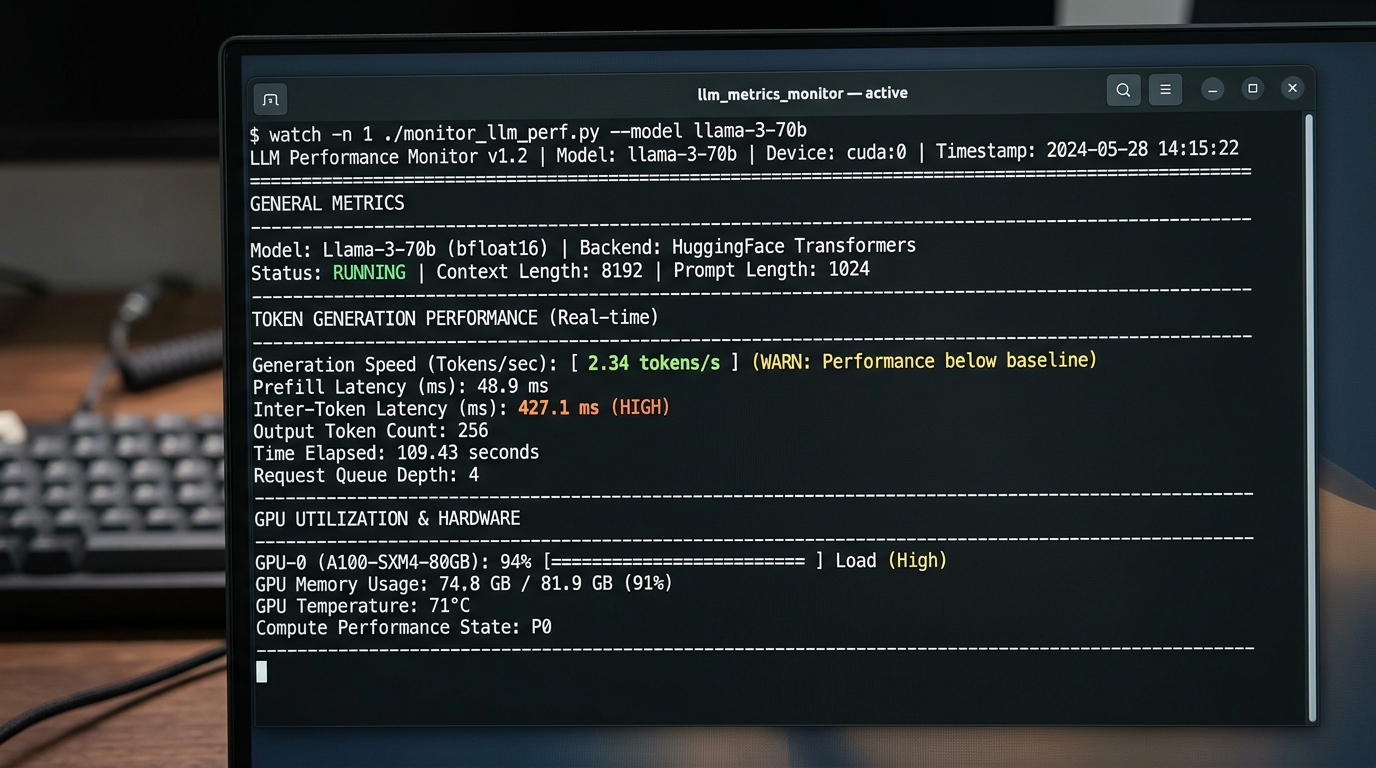
A terminal window showing low tokens per second, indicating a slow local LLM.
CPU Fallback Instead of GPU Utilization
The single most common culprit behind a local LLM running slow is CPU fallback. If your inference framework (such as Llama.cpp, Ollama, LM Studio, or vLLM) fails to locate CUDA or Metal libraries, it defaults to offloading model layers to system RAM and standard CPU threads. (Metal libraries) (CUDA) (Llama.cpp) System RAM bandwidth (DDR4/DDR5 offering 40–80 GB/s) is dramatically slower than GPU VRAM (GDDR6 or HBM offering 300–1000+ GB/s), leading to a 90% or greater drop in generation speed.
Insufficient RAM vs. VRAM
A frequent source of local LLM performance issues is confusing unified or system RAM with GPU VRAM. If your model parameters exceed available VRAM:
1. The inference framework attempts partial layer offloading.
2. Unallocated layers spill into system RAM.
3. Every forward pass requires transferring weights across the PCIe bus, introducing severe bottlenecks.
Unoptimized Model Sizes and Quantization
Loading an unquantized 16-bit float (FP16) or 8-bit (INT8) model on consumer hardware consumes massive VRAM. High parameter counts paired with large context window allocations quickly exhaust hardware capacity. To achieve high tokens per second, balancing parameter size with appropriate quantization (such as 4-bit GGUF or AWQ) is essential.
How to Diagnose Local LLM Speed and Performance Issues
Before changing configuration parameters, you must collect performance metrics to diagnose local LLM speed effectively.
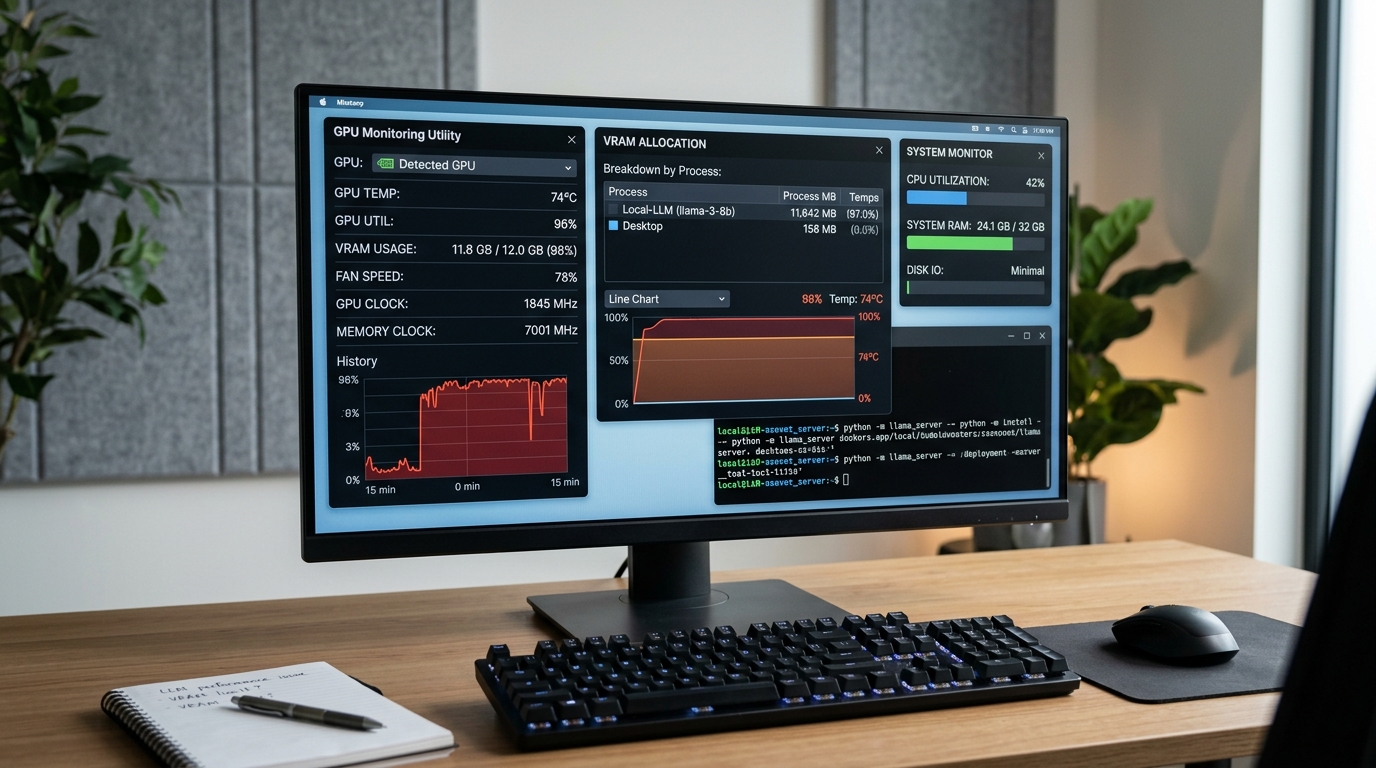
Monitoring GPU and CPU usage is crucial for diagnosing local LLM performance bottlenecks.
Tracking Tokens Per Second
Inference speed is measured in tokens per second (eval speed) and prompt processing speed (prompt eval).
– Prompt Evaluation Speed: How fast the model parses your context prompt. Measured in tokens/sec (typically 50–500+ tok/s on modern GPUs).
– Generation Speed: How fast new tokens are predicted sequentially (typically 15–60+ tok/s for acceptable interactive user experience).
You can enable verbose logging in your runner or inspect command-line output to check generation metrics. For example, in Ollama, running with environment variable OLLAMA_DEBUG=1 provides detailed per-layer timing details.
Monitoring GPU and CPU Usage
To determine whether your model is running on GPU hardware:
– NVIDIA Users: Open terminal and run nvidia-smi -l 1 during inference. Verify that your GPU memory allocation jumps to match the model size and GPU-Util percentage rises above 70–90%.
– Apple Silicon Users: Open Activity Monitor, switch to the GPU History window, or use asitop in terminal to confirm Metal Framework allocation and Unified Memory bandwidth.
– Windows Task Manager: Check the Performance tab under GPU, ensuring VRAM usage matches model size and Dedicated GPU Memory is active rather than Shared System Memory.
Step-by-Step Guide to Fix a Slow Local LLM
If your metrics confirm suboptimal performance, follow these step-by-step remediation procedures to fix slow local LLM performance across your system.
Step 1: Force Full GPU Offloading
Ensure all model layers reside in GPU VRAM rather than splitting between CPU and GPU.
– In Llama.cpp CLI, set --n-gpu-layers 99 (or -ngl 99) to offload all layers.
– If you notice VRAM over-allocation, decrease the layer count incrementally until full fitting occurs without triggering OS swap.
Step 2: Validate Driver and Framework Acceleration
Ensure CUDA toolkits or ROCm runtime libraries are visible to your application.
– Verify CUDA availability via nvidia-smi or rebuild Llama.cpp / Ollama backends with explicit build flags (LLAMA_CUDA=ON or LLAMA_METAL=ON).
– If you encounter driver mismatches or device missing errors, consult our detailed breakdown to diagnose local LLM hardware bottlenecks.
Step 3: Lower Context Window Allocation
Context length directly impacts VRAM usage due to Key-Value (KV) caching. A context size set to 32,000 or 128,000 tokens requires gigabytes of additional VRAM.
– Reduce context window size (e.g., set --ctx-size 4096 or num_ctx 4096) to free up memory and drastically accelerate prompt evaluation speed.
Step 4: Switch to an Optimal Quantization Level
If your model exceeds native VRAM, switch from 8-bit or 16-bit precision to 4-bit (Q4_K_M or Q4_KS) formats.
– 4-bit quantized models retain over 98% of baseline intelligence while drastically reducing memory bandwidth constraints. Learn how choices in model size performance local configurations directly alter runtime metrics.
Next Steps to Optimize Your AI Setup
Fixing basic bottleneck issues is only the first phase of building an efficient AI workstation. Once your model reliably utilizes dedicated hardware, you can explore specialized runtime options, FlashAttention flags, and batch processing tweaks to further optimize local model performance.
Regularly review framework updates and CUDA driver releases, as local inference software frameworks advance rapidly with major throughput updates every month.
Frequently Asked Questions (FAQ)
Why does my GPU usage drop to 0% after generating a response?
During active text generation, GPU utilization should remain high. Once generation finishes, the model enters an idle state where GPU compute drops to 0% while weights remain cached in VRAM for future prompts.
Is DDR5 RAM fast enough for high-speed local LLM execution?
While dual-channel DDR5 RAM (6000 MHz) is significantly faster than DDR4, it still caps out around 60–80 GB/s bandwidth, yielding ~5–10 tokens/sec on 7B models. Dedicated GPU VRAM offers 300–1000+ GB/s bandwidth, making GPU offloading necessary for fast responses.
What is a good token generation speed for a local LLM?
For interactive chat and coding support, 15 to 30 tokens per second provides a comfortable real-time reading speed. Speeds below 5 tokens per second typically indicate partial CPU fallback or memory swapping.