
Managing Ollama Chat History & Making LM Studio Remember Chat
Ollama and LM Studio are the two most popular tools for running open-weight Large Language Models locally on Mac, Windows, and Linux. Both offer incredible ease of installation, fast inference, and local API servers. However, users frequently encounter an annoying hurdle during long sessions: the models suddenly lose track of earlier prompts or forget critical instructions.
Whether you are using terminal commands or graphical desktop frontends, keeping track of conversation history requires proper configuration. In this practical guide, you will learn why Ollama and LM Studio forget context, how to manage Ollama chat history via API payloads and GUIs, and how to configure settings so you can make LM Studio remember chat conversations reliably.
The Problem: Why Do Ollama and LM Studio Forget Context?
Before jumping into settings, it helps to clear up a common misconception about local model runners.
When you launch Ollama from your terminal or start a model in LM Studio, the underlying C++ inference backend (such as llama.cpp) loads model parameters into VRAM or system memory. By default, the engine exposes a REST API endpoint that evaluates prompts state-lessly.
If a local model forgets what you said three messages ago, one of three issues is usually responsible:
- Terminal CLI Statelessness: Calling
ollama run model_namein the terminal provides a basic interactive loop, but closing the terminal clears the active session state entirely. - Default Context Limit (
num_ctx): Ollama defaults to a conservative context window size of 2,048 tokens (roughly 1,500 words) for memory efficiency. Once your prompt and dialogue history exceed 2,048 tokens, older messages are silently truncated. - LM Studio Context Overflow Policy: In LM Studio, if the context length setting is capped low (e.g., 2,048 or 4,096 tokens), the chat interface will roll off older messages to stay within token boundaries.
To evaluate which desktop engine fits your setup best, read our technical breakdown comparing Ollama vs LM Studio.
How to Manage Ollama Chat History
Managing chat context in Ollama requires understanding both the REST API structure and the desktop frontends that save chat history to local databases.
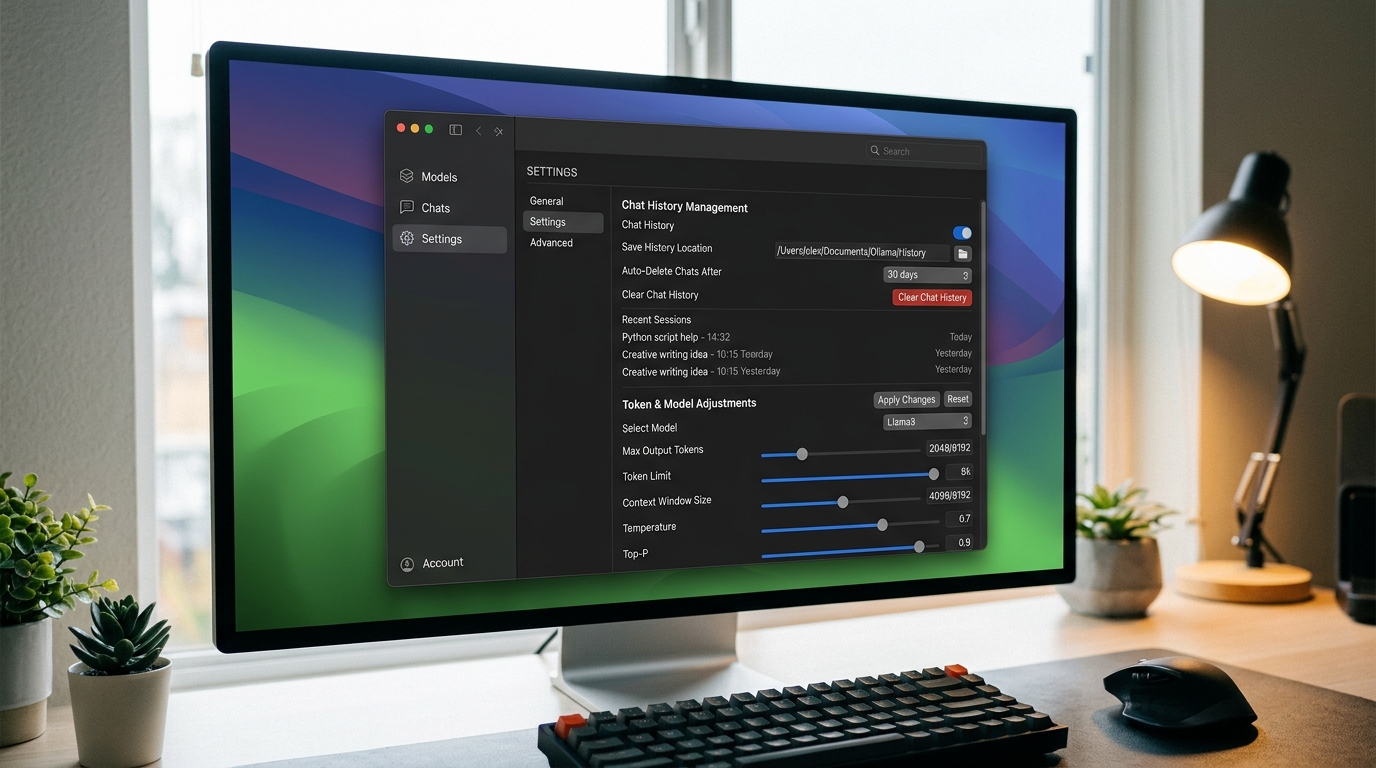
Adjusting settings in Ollama to manage chat history and expand context token limits.
Preserving Memory via the Ollama REST API (Message Arrays)
If you are building custom applications, scripts, or automations against Ollama’s local REST API (http://localhost:11434), you must use the /api/chat endpoint instead of the raw /api/generate endpoint.
The /api/chat endpoint accepts an array of message objects containing all prior dialogue turns, along with the custom num_ctx parameter to expand the token memory limit.
HTTP POST Endpoint: http://localhost:11434/api/chat
{
  "model": "llama3.2:latest",
  "options": {
    "num_ctx": 8192
  },
  "messages": [
    {
      "role": "system",
      "content": "You are a senior system administrator. Remember that our production server running Ubuntu 24.04 uses Nginx as a reverse proxy."
    },
    {
      "role": "user",
      "content": "What operating system and web server are we running?"
    },
    {
      "role": "assistant", "content": "You are running Ubuntu 24.04 with Nginx as a reverse proxy."
    },
    {
      "role": "user",
      "content": "Where is the default Nginx configuration file located for this setup?"
    }
  ],
  "stream": false
}
By explicitly passing the messages array and setting "num_ctx": 8192, you expand Ollama’s active memory buffer to 8,192 tokens while preserving every turn.
Third-Party UIs for Ollama Memory (Open WebUI, AnythingLLM)
For non-programmers who want a ChatGPT-style interface with persistent chat history:
- Open WebUI:
– How it Works: Runs as a Web frontend (via Docker or Python) that connects to your local Ollama port.
– Memory Persistence: Saves all chat conversations into a local SQLite database. You can close your browser, reboot your computer, and resume conversations seamlessly.
– Context Control: Offers simple slider controls fornum_ctxper model, enabling effortless 16k or 32k context adjustments. - AnythingLLM Desktop:
– How it Works: All-in-one desktop installer bundling UI, vector storage, and Ollama connection managers.
– Memory Persistence: Automatically handles local workspace chat storage and provides document indexing capabilities.
If you are running hardware on macOS, check our guide on how to run a local LLM on a Mac for optimal GPU acceleration setup.
How to Make LM Studio Remember Chat Context
LM Studio features a polished graphical chat interface, but requires key setting changes to maximize memory length and avoid mid-conversation forgetfulness.

Adjusting context window limits and system prompts in LM Studio to improve chat memory.
Adjusting Context Window Limits in the LM Studio UI
By default, LM Studio loads models with a standard context allocation to avoid running out of GPU memory. To enable longer memory:
- Open the Right Sidebar (My Models / Model Settings): In the Chat View, locate the settings panel on the right side of the window.
- Locate
Context Length(n_ctx): Under Inference Parameters, find the Context Length slider. - Increase Context Size:
– For an 8B model on a 16 GB RAM / VRAM system, slideContext Lengthfrom2048up to8192or16384.
– Note: Expanding context increases VRAM consumption during inference. - Configure Overflow Policy: Set Context Overflow Policy to “Keep system prompt and truncate middle messages” or “Keep system prompt and rolling window”. This ensures your primary system instructions are never deleted when total tokens exceed limits.
Using System Prompts for Better Continuity
To prevent LM Studio from ignoring project constraints over long sessions:
- Set Direct System Instructions: Click System Prompt at the top of the chat panel.
- Define Explicit Directives: Include foundational facts in the system prompt (e.g., “Project Tech Stack: React 19, TypeScript, Tailwind CSS. Always write strict TypeScript types.”).
- Save Persona Presets: Save custom System Prompts as reusable presets so every new chat starts with baseline project memory pre-loaded.
Troubleshooting When Your Local Model Still Forgets
If you updated settings but your local setup still forgets context, check these common failure points:
1. Model Hard Token Boundaries
Models built with a fixed maximum training context (e.g., older Llama 2 models capped at 4,096 tokens) cannot retain tokens beyond their hardware training limit regardless of how high you raise num_ctx in Ollama or LM Studio. Ensure you are using modern model architectures like Llama 3, Mistral, or Qwen 2.5, which natively support larger context windows.
2. VRAM OOM Memory Throttling
If LM Studio or Ollama detects insufficient GPU VRAM when initializing a higher num_ctx setting, the runner may silently fall back to host CPU RAM or truncate context buffers back to 2,048 tokens. Monitor VRAM allocation in Task Manager (Windows) or Activity Monitor (macOS).
3. Missing Chat Array Payload in Custom Scripts
If you are calling Ollama via curl or Python requests and passing only prompt instead of messages, the backend treats each request as a standalone request with zero conversation history.
For broader architectural solutions to context loss, explore our general guide to stop your local model from forgetting.
Frequently Asked Questions About Ollama and LM Studio Chat History
Where is Ollama chat history stored on my disk?
When using Ollama through the terminal CLI (ollama run), history is stored temporarily per session in RAM/CLI buffers. To save persistent chat history to disk across system restarts, you should use a graphical interface like Open WebUI or AnythingLLM, which store conversations in local SQLite database files.
Why does increasing context window size slow down response times?
When context size increases (for example, from 2,048 to 16,384 tokens), the model must evaluate more prefill tokens before generating the first word. While word-by-word generation speed remains mostly constant, the initial delay before generation starts will be longer.
How do I export my chat logs from LM Studio?
In LM Studio, click the three-dot menu icon next to any chat thread in the left sidebar and select Export Chat. You can export chat transcripts as JSON or Markdown files for local archiving.
Summary
Fixing conversation memory in Ollama and LM Studio requires raising the default context limits and using interfaces or API endpoints that preserve message arrays. By increasing num_ctx in Ollama, adjusting the Context Length slider in LM Studio, and relying on frontends like Open WebUI, you can enjoy seamless, long-form multi-turn conversations locally.
Learn more about optimizing your local AI infrastructure:
– Detailed engine benchmark: comparing Ollama vs LM Studio
– Hardware optimization guide: how to run a local LLM on a Mac
– Architectural strategies: stop your local model from forgetting